Why HDR Matters for Modern Gaming
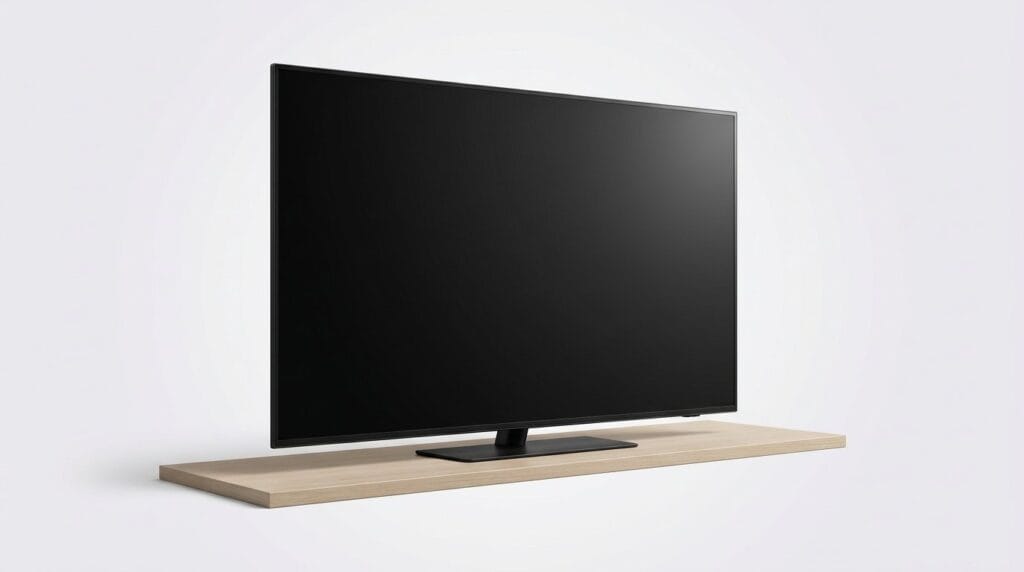
We show how careful HDR TV calibration unlocks deeper contrast, truer colors, and predictable tone mapping so games look as developers intended; we focus on practical steps across consoles, PC, and TV ecosystems to improve playability, fidelity, and competitive clarity.
What We Need
Improve Xbox HDR Fast with This Secret Hack
Confirm HDR Capabilities and Format Support
Not all HDR is created equal — which formats does your TV actually speak?Audit the TV’s HDR ecosystem so we know what signals it can handle and how aggressively it will re-tone-map content.
Check the TV’s on-screen menus and the manufacturer spec sheet or product page. Look specifically for:
Weigh brand tendencies when setting expectations. Samsung often favors brighter highlights; LG and OLEDs prioritize deep blacks; Sony frequently preserves filmmaker intent. Remember consoles, streaming services, and PC HDR can send different metadata types—static vs dynamic—and the TV’s response changes contrast, highlight detail, and color.
Set realistic calibration goals: optimize for punchy HDR highlights on a bright TV, or prioritize faithful shadow detail on a black‑level‑oriented display.

Update Software and Enable Game Mode
Lag is the enemy — let’s win the latency war by getting the software right.Update your TV firmware first. Firmware fixes often resolve HDR tone‑mapping bugs and add better ALLM/VRR handling; we always install the latest update before tweaking picture settings.
Enable Game Mode or Auto Low Latency Mode (ALLM) next. ALLM/ALLM-capable consoles (PS5, Xbox) and GPUs negotiate low-latency paths automatically; we prefer TVs that switch reliably so competitive shooters feel instantaneous.
Disable motion interpolation and adaptive smoothing. Turn off settings labeled Motion, TruMotion, Auto Motion Plus, etc., because they introduce judder or input delay that ruins frame pacing.
Check HDMI ports and system settings to ensure the TV routes HDR and bandwidth correctly

Set Up Your Room, Source, and Cables
Ambient light and cables change picture quality more than you think.Reduce glare and distractions. Close curtains, remove bright reflections, and add neutral bias lighting behind the TV so blacks look deep without shifting perceived color.
Position the screen at a practical viewing distance. Sit so details are readable at typical HUD sizes—roughly 1–1.5× the diagonal for 4K TVs—and angle the TV perpendicular to your line of sight.
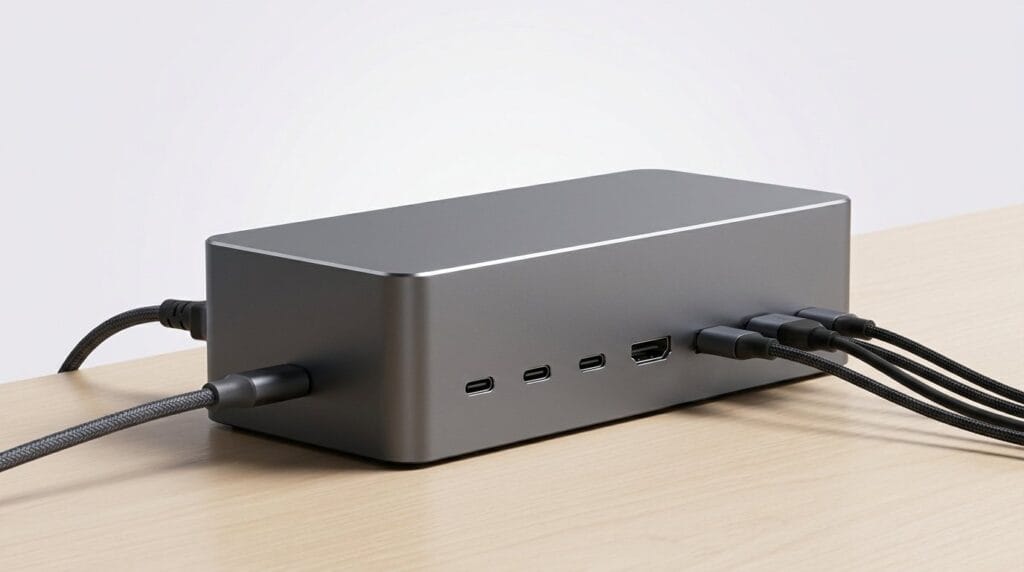
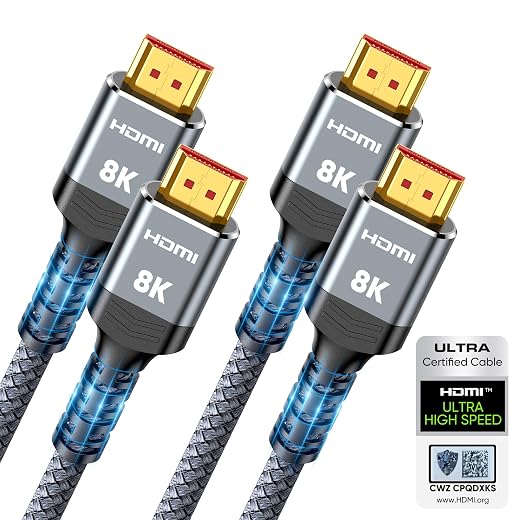
Verify HDMI bandwidth and ports. Use HDMI 2.1 (certified) for 4K/120 HDR; use a high-quality HDMI 2.0 or Premium High Speed cable for 4K/60 HDR.
Set the source to native 4K HDR, correct bit depth, and chroma
Expect platform quirks: Windows’ HDR tone mapping behaves differently than consoles, so test both source types to validate the final image.
Calibrate Luminance: Black Level, Peak Brightness, and Tone Mapping
Make blacks deep without crushing shadow detail — sounds hard, but we’ll do it.Set black level (brightness) so shadow detail is visible without raising noise. Use a dark HDR scene or pattern and lower brightness until floor and texture appear, not crushed.
Adjust contrast/backlight to protect highlights. Increase contrast until specular highlights (sun glints, HDR explosions) show detail; back off if clipping or blooming becomes distracting.
Check local dimming and panel type. OLED gives true blacks but can roll off highlights; LED with aggressive local dimming can create halos. Many midrange TVs trade accuracy for spectacle—expect HDR tone-mapping when peak nits exceed a TV’s capability. In those cases, prioritize shadow detail and readable midtones for gameplay.
Use HDR test patterns or real-game scenes (bright sun in racing, dim interior in RPG) and verify:

Color and White Balance: Accurate Skin Tones and Vibrant Worlds
Want colors that pop without looking fake? Calibration, not oversaturation, is the secret.Choose a white point and stick with it — we recommend Warm2 (if your TV names it) or D65 for reference accuracy; D65 matches console/PC grading and keeps colors consistent across devices — browse our how-to guides.
Run a two‑point or ten‑point white balance using the TV’s service menu or a pattern disc. Use low/high grayscale sliders to nudge red/green/blue until neutral; verify with a skin‑tone patch — faces should look natural, not orangey or green.
Set color space to Auto or BT.2020 passthrough so games/players drive the gamut. Avoid a forced “wide” or “vivid” gamut that clips developer grading.
Use the CMS sparingly: tweak hue/saturation of primaries/secondaries with small steps, using either on‑screen patterns or a colorimeter. Expect trade‑offs — showroom punch often sacrifices fidelity, so favor realism for gaming and cross‑device consistency.

Verify with Games and Create Presets, Troubleshoot Common Issues
We test with real games so calibration survives real-world play — and fix hiccups fast.Test HDR with three game types: one highlight‑heavy racer or shooter (Forza, Halo), one dark/atmospheric title (Control, The Last of Us), and one colorful action/platformer (Ratchet & Clank). Play five minutes of each to see motion, bloom, and tone mapping in context.
Save per‑input or per‑game presets if the TV supports them. Name profiles (e.g., HDR‑Game, HDR‑Cinematic) and switch back to your SDR profile for non‑HDR content.
Fix common issues quickly
Accept hardware limits on peak brightness and blooming; update firmware or contact support if behavior is abnormal.
Wrap-Up and Practical Takeaways
We’ve tuned firmware, inputs, luminance, and color so HDR gaming feels accurate, responsive, and immersive; try these steps, share your results, and help refine best practices across the ecosystem together.
Frequently asked questions
What should I prepare before I calibrate a tv for hdr gaming?
Start with the checklist in the “What we’ll need” section above—measure your space, confirm compatibility with your gear, and read the full walkthrough once before you change settings or buy parts. Tv goes faster when prep is done upfront.
How long does it take to calibrate a tv for hdr gaming?
Most readers finish in about 30–90 minutes if they already have the right parts, but budget extra time for measurements, firmware updates, or a second pass when something does not behave the way the manual suggests on the first try.
What is the hardest part when you calibrate a tv for hdr gaming?
The step that trips people up is usually alignment or configuration—getting measurements, cable routing, or software settings right before you commit. If results still look off, re-check the basics in order instead of swapping hardware immediately.
What mistakes should I avoid when I calibrate a tv for hdr gaming?
Skipping measurements, ignoring ventilation or port limits, and rushing the final test are the common failures. Photograph your starting setup, label cables, and verify the outcome with the same content or workflow you will use every day—not a one-off demo.
When should I call a pro instead of trying to calibrate a tv for hdr gaming myself?
Bring in help when the job needs structural work, licensed wiring, or tools you do not own, or when repeated attempts still fail after you have followed the troubleshooting section. A short paid visit can cost less than replacing gear you damaged by forcing the install.

Princess Rioboca is the Lead Editorial Writer at Option Cutter, bringing over seven years of hands-on experience in consumer technology journalism. Specializing in home networking and smart home architecture, she transforms complex technical data into practical, real-world upgrades. Princess personally tests and audits every product she reviews—evaluating real-world Wi‑Fi throughput, cable management durability, and streaming ecosystem stability—to filter out spec-sheet noise. Her rigorous, field-tested insights are designed to give readers transparent, unbiased buying advice on what to purchase, what to skip, and exactly why.