Why 4K 240 Hz — and why it matters right now
We explain why upgrading to 4K resolution at 240 Hz matters now: it combines ultra-high resolution with competitive refresh rates, reshaping visuals, input responsiveness, and ecosystem choices and hardware. We balance performance, thermals, and cost so readers can judge trade‑offs and build confidently in today’s market.
What we need before we begin

Can You Run a 4K 240Hz OLED? Find Out
Step 1: Define target performance and constraints
Do we really need 4K 240Hz for every game? Let's choose the path that actually improves play.Define our target frame-rates, settings, and games first. Decide whether we want native 4K at 240 Hz, 1440p upscaled to 4K at 240 Hz, or 4K with frame-reconstruction (DLSS/FSR). Balance matters — GPU power alone won’t fix CPU-limited frametimes, RAM bandwidth, cooling, or display ports.
Benchmark current performance in a demanding title (Cyberpunk, Forza, or your competitive shooter) and note average FPS, 1% lows, CPU/GPU utilization, and VRAM use. Verify your monitor’s inputs (DisplayPort 2.1/1.4/HBR3 or HDMI 2.1) and cable bandwidth.
Make decisions around these quick checks
Benchmark and record these numbers now; we’ll use them to choose parts.
Step 2: Pick the GPU (and stop guessing specs)
Is raw power enough? Why the GPU ecosystem and drivers decide whether 4K240 is playable.Pick the GPU deliberately: real-world performance beats marketing numbers. Run our benchmark targets and compare cards by measured FPS, 1% lows, and VRAM usage in the games we care about.
Prioritize these practical factors
Test representative builds—e.g., RTX 40-series vs RDNA3—so we choose a card that sustains 4K240 in our real workload.

Step 3: Build the platform — CPU, memory, and bandwidth
Why a balanced motherboard beats brute force: fewer stutters, smoother minimums, and better connectivity.Lock down the CPU, memory, and platform once we pick the GPU. At 4K/240Hz the GPU carries most work, but CPU single‑thread performance and boost behavior still govern minimum frame times and multiplayer responsiveness — think Battlefield or high‑tick-rate shooters.
Check these priorities and act on them

Step 4: Monitor, cables, and settings — make the pixels cooperate
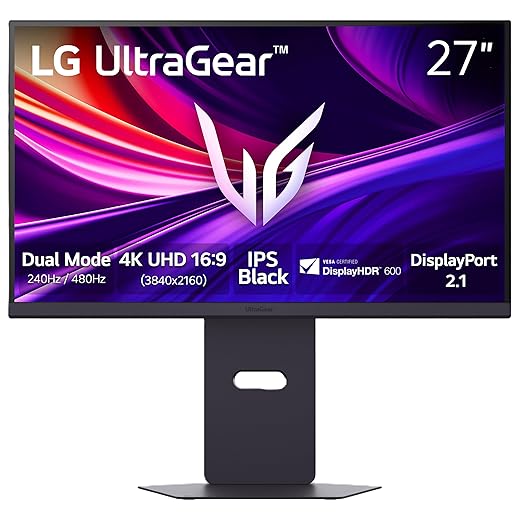
Why the right cable and panel make or break the 240Hz dream — and how to avoid hidden caps.Choose the right panel and connect it correctly: true 4K@240Hz needs DP1.4a with DSC, DP2.0, or HDMI 2.1 support in the monitor and GPU. Verify firmware and driver timetables before buying—some 4K240 screens required post‑launch updates.
Do these checks and tweaks

Step 5: Install, benchmark, and tune for consistent 240Hz
Don’t chase peak FPS — chase smoothness. How timers, thermal noise, and drivers hide problems.Assemble the hardware: seat the GPU, secure power rails, install cooling, and apply thermal paste for predictable thermals.
Manage airflow and cable routing to keep temperatures and coil noise low; bad routing raises temps and spikes frame times.
Update BIOS and GPU firmware, install latest drivers, and set OS to high‑performance power profile while disabling background tasks.
Run repeatable benchmarks to measure frame‑time variance
Iterate settings—reduce ray tracing, set DLSS/FSR to Balanced/Quality, or lower effects—until frame‑time consistency hits 240Hz.
Lock or profile settings per title, keep our monitoring tools running, save driver rollback points, and consult community profiles to accelerate tuning and avoid guesswork.
Step 6: Validate performance and plan long-term maintenance
How we keep 4K240 reliable over months — logs, profiles, and when to pull the upgrade trigger again.Validate performance across real workloads and schedule maintenance so our 4K‑240 rig stays predictable as games and drivers change.
Run extended play sessions and capture frame‑time histories (CapFrameX/OCAT) to spot microstutters. Measure thermals, power draw, and acoustics under sustained load. Test encoding overhead with OBS/driver NVENC to see how streaming affects frame‑time consistency.
Set expectations: drivers and game patches can alter performance; adopt balanced OS power plans, use vendor suites, and automate performance logging to catch regressions early.
Final thoughts
Upgrading to 4K 240Hz is an ecosystem exercise, not a single purchase; by planning targets, choosing balanced parts, validating connectivity, and committing to maintenance, we turn specs into play that feels earned — try it, share results, join the conversation — browse our how-to guides.
Frequently asked questions
What should I prepare before I upgrade a gaming pc for 4k 240 hz gaming?
Start with the checklist in the “What we’ll need” section above—measure your space, confirm compatibility with your gear, and read the full walkthrough once before you change settings or buy parts. Upgrade a gaming pc goes faster when prep is done upfront.
How long does it take to upgrade a gaming pc for 4k 240 hz gaming?
Most readers finish in about 30–90 minutes if they already have the right parts, but budget extra time for measurements, firmware updates, or a second pass when something does not behave the way the manual suggests on the first try.
What is the hardest part when you upgrade a gaming pc for 4k 240 hz gaming?
The step that trips people up is usually alignment or configuration—getting measurements, cable routing, or software settings right before you commit. If results still look off, re-check the basics in order instead of swapping hardware immediately.
What mistakes should I avoid when I upgrade a gaming pc for 4k 240 hz gaming?
Skipping measurements, ignoring ventilation or port limits, and rushing the final test are the common failures. Photograph your starting setup, label cables, and verify the outcome with the same content or workflow you will use every day—not a one-off demo.
When should I call a pro instead of trying to upgrade a gaming pc for 4k 240 hz gaming myself?
Bring in help when the job needs structural work, licensed wiring, or tools you do not own, or when repeated attempts still fail after you have followed the troubleshooting section. A short paid visit can cost less than replacing gear you damaged by forcing the install.

Princess Rioboca is the Lead Editorial Writer at Option Cutter, bringing over seven years of hands-on experience in consumer technology journalism. Specializing in home networking and smart home architecture, she transforms complex technical data into practical, real-world upgrades. Princess personally tests and audits every product she reviews—evaluating real-world Wi‑Fi throughput, cable management durability, and streaming ecosystem stability—to filter out spec-sheet noise. Her rigorous, field-tested insights are designed to give readers transparent, unbiased buying advice on what to purchase, what to skip, and exactly why.