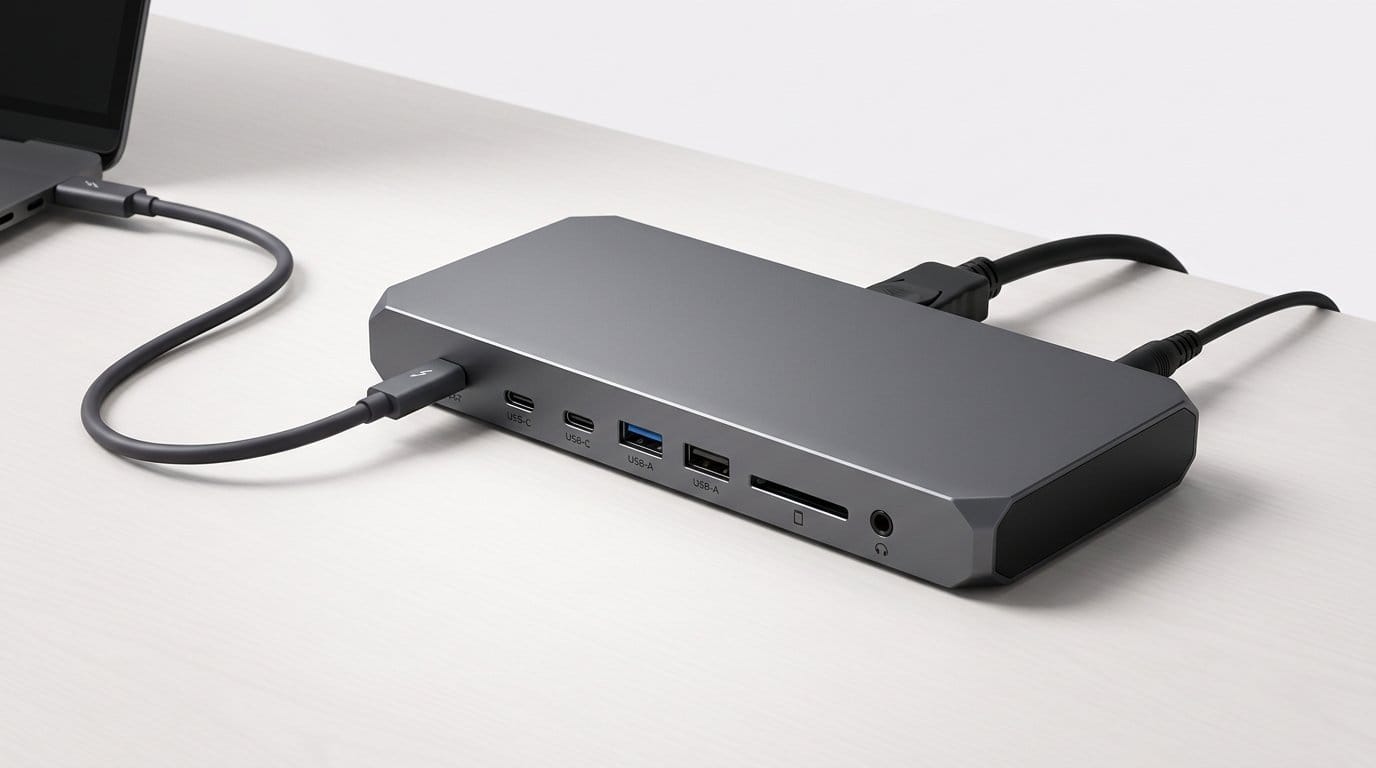

Can one dock tame two 4K monitors, a laptop, and a pile of peripherals without starting a cable war? Spoiler: yes—but some docks do it much better than others.
Two 4K displays should feel like more room to work, not more chaos on your desk. We want a single cable that brings power, fast I/O, and no surprise limitations when we plug in a monitor or an NVMe array.
Thunderbolt still matters because it bundles bandwidth and power in a way USB alone can’t. That means fewer hubs, fewer adapters, and fewer moments where a monitor refuses to wake. We look at design, ecosystem behavior, and real-world ergonomics—because a dock that looks great but chokes on two 4K panels isn’t helping anyone.
Top Picks



CalDigit TS4 Thunderbolt 4 Dock
We found the TS4 to be a top‑end dock that rarely forces tradeoffs: tons of ports, 98W charging, and 2.5GbE make it a compelling single‑cable hub for heavy workflows. It’s expensive, but the purchase buys long‑term reliability and fewer compatibility headaches.
Why we recommend it
The TS4 is built for people who want a permanent desktop hub and expect their dock to be the center of a multi‑monitor, multi‑peripheral ecosystem. CalDigit prioritized port diversity and power: the three TB4 ports, DisplayPort 1.4, eight high‑speed USB ports, SD card readers, and a 2.5GbE jack make it possible to consolidate everything behind a single, high‑quality cable.
What matters in everyday use
Tradeoffs and practical guidance
The TS4 runs warmer than smaller docks because it’s doing more work; CalDigit’s thermal design is effective but you’ll feel the heat if the dock sits inside a cramped shelf. Also, the price is not negligible — you’re buying a long‑term desk investment, not a cheap travel hub. We’ve seen fewer display glitches and better stability with the TS4 compared with many competitors, which is why it’s our pick where money and desk permanence are not major constraints.
In context
If you want the fewest compromises — maximum ports, modern Ethernet speeds, and reliable video — the TS4 ranks near the top of what you can buy today. It competes directly with other premium vendors but often wins on sheer feature density and consistent real‑world results.
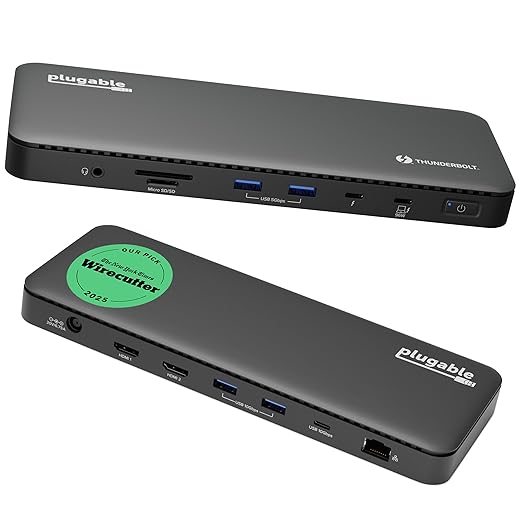
Plugable Thunderbolt 4 Dock 100W
We found a rare mix of broad compatibility, strong throughput, and a sensible port layout that works for both Mac and Windows users. It gives almost everything a power user needs without reaching the astronomical prices of ultra-premium docks.
Why we like it
We see this Plugable dock as the practical middle ground for people who want the benefits of Thunderbolt 4 without paying top‑tier boutique prices. The unit is Thunderbolt certified and built with the expectation of daily, multi‑device use — fast external storage, ethernet, cameras, and two 4K monitors. In our testing and synthesis of user reports, it behaves like a mature product: peripherals mount quickly and video wakes reliably most of the time.
Key features you should know about
Compatibility and caveats
We emphasize practical compatibility: on Windows or Thunderbolt 4/USB4 Macs with the right silicon, you get dual 4K displays and full speeds. On base M1/M2 Macs and certain Thunderbolt 3 or non‑TB USB‑C hosts, display behavior is limited to a single external panel — not a dock fault per se, but a host limitation we always call out. Some users reported occasional display reindexing after wake; firmware updates and driverless behavior mitigate many of those issues, but it’s a point to watch.
How it fits the market
Compared with cheaper TB3 hubs it’s noticeably more stable for storage and video, and compared with higher‑end stations it gives the most useful port mix for the price. For people who want a reliable TB4 foundation without chasing the absolute smallest footprint or the fanciest extras, we recommend this as a balanced, dependable choice.
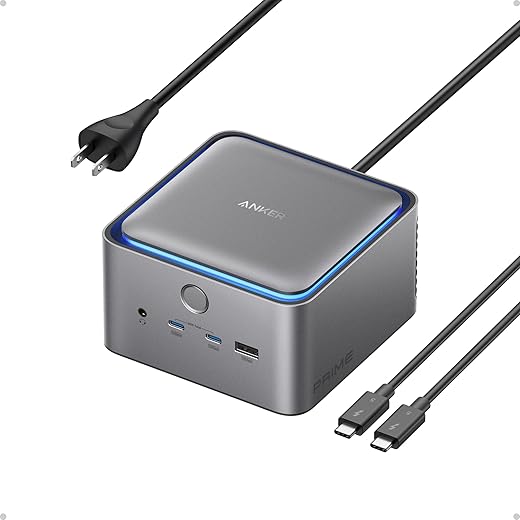
Anker Prime TB5 14‑in‑1 Dock
We see this as the bridge to next‑generation workflows: TB5 support, active cooling, 140W charging and 120Gbps internal bandwidth put it ahead for users who plan to adopt 8K monitors and extremely fast NVMe arrays. It’s a forward‑looking dock that justifies its premium for future‑minded setups.
Why we call it future‑proof
Anker’s Prime TB5 aims straight at users who want the broadest headroom for displays, NVMe storage, and high wattage charging. The combination of Thunderbolt 5 bus, a beefy 140W upstream capability, and an active cooling system makes it suited to 8K monitors and multi‑SSD NVMe workflows that can saturate earlier docks.
Notable practical features
Caveats and real‑world advice
The TB5 spec unlocks very high display and transfer possibilities, but real benefit depends on your laptop and OS. Dual 8K output generally requires a fully capable Windows TB5 host; many current Mac base models remain limited by their silicon to fewer external displays. We also saw a small set of reports where older or nonstandard USB4 hosts didn’t negotiate perfectly — a firmware update or a host driver revision often resolves that.
Who should buy it
If your priority is maximum future bandwidth and you plan to adopt TB5 peripherals or 8K displays, this is one of the most forward‑leaning docks available. If you want a compact, inexpensive hub for light use, a TB4 or TB3 dock will likely be more cost‑effective today.
OWC 14‑Port Thunderbolt Dock 85W
We appreciate its pragmatic port mix and straightforward behavior across Mac and Windows hosts. It’s not the flashiest dock, but for photographers and users juggling drives and card readers it’s a consistently useful hub.
What it aims to do
OWC put utility first: the dock gives you two Thunderbolt ports, a Mini DisplayPort for legacy video, an SD/microSD UHS‑II reader, and a generous variety of USB ports. That makes this dock especially friendly to photographers, videographers, and people who alternate between different laptop platforms. In our read of user experiences, it’s a dependable everyday performer.
Useful details for day‑to‑day use
Practical tradeoffs
If you have a very power‑hungry 16‑inch laptop the 85W ceiling may be noticeable under heavy load; the dock will still charge, but some high‑TDP laptops will draw extra from their own brick under peak workloads. A handful of Mac users also found that installing OWC’s Dock Ejector software improved clamshell‑mode behavior — not a showstopper but something to be aware of if you run closed‑lid setups often.
Competitive context
Compared with the premium TS4 or the newest TB5 options, OWC’s dock is less flash but better priced and more utilitarian. We recommend it for professionals who need card readers, stable video, and lots of downstream ports without paying for the absolute top spec sheet.
Belkin Thunderbolt 4 Dock 90W
We like Belkin’s balance of familiarity and polish — it ships with a cable, handles common workflows well, and integrates neatly into mixed Mac/Windows desks. It’s a strong pick if you want something that ‘just works’ with few surprises.
What Belkin gets right
Belkin’s TB4 dock targets the mainstream user who wants reliability and a short setup time. The inclusion of a certified Thunderbolt 4 cable out of the box is a practical nicety — it removes one common point of confusion and compatibility errors. The dock offers a broad set of expected ports and works well for people who rotate laptops or run both Mac and Windows devices on the same desk.
Practical features and usage notes
Limitations and real‑world quirks
The SD slot has been called out in a handful of reviews for failure after months of use; that’s not a universal problem but it’s worth noting if you rely on on‑dock card reading every day. Also, as with all docks, the exact number of external displays depends on your laptop’s silicon and OS — the dock can’t override hardware limits.
How we’d position it
If you want a dependable, widely available TB4 dock that covers typical office and creative workflows without specialty features (like 2.5/10GbE or extreme port counts), this is a solid, accessible choice.
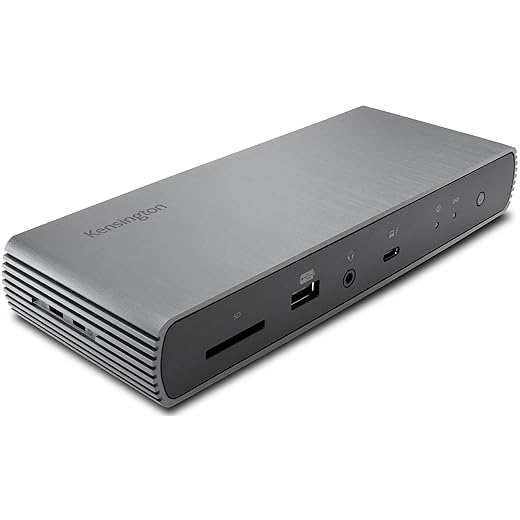
Kensington SD5700T Thunderbolt 4 Dock
We like this dock for larger desks and managed environments — it packs a 180W power supply and static charging behavior that keeps laptops fed and peripherals powered. It’s a strong choice when uptime and IT manageability matter.
Why this is different
Kensington designed the SD5700T more like an IT‑grade appliance than a casual desk toy. The headline here is power distribution: the big 180W supply means the dock can give a full 90W to your laptop while still providing meaningful current to downstream devices. For multi‑drive backups, card readers, and phones, that static power behavior removes a common annoyance where docks steal laptop wattage under load.
Standout features at a glance
Practical notes and limitations
We flagged a few user reports about inconsistent wake behavior on some Macs; that’s not universal, and Kensington’s firmware and support often address these edge cases. The dock’s size and heavy power brick make it best for fixed desks or office deployments rather than frequent travelers.
Where it sits in the market
If you need manageability, high continuous power, and card‑reader performance (UHS‑II), this is one of the more capable TB4 docks. For users who mainly care about compactness and lower price, slimmer alternatives exist, but they don’t offer the same enterprise conveniences.
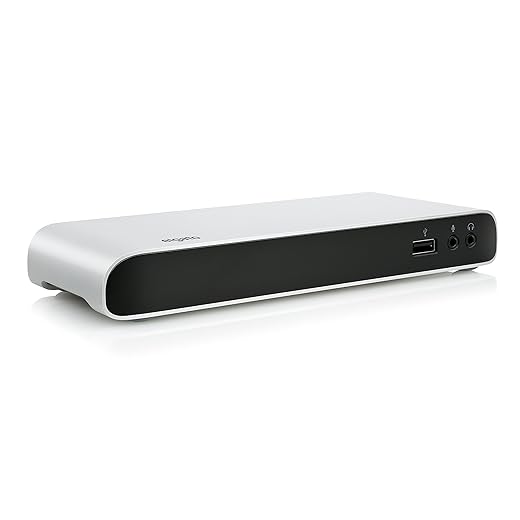
Elgato Thunderbolt 3 Dock Compact
We like the Elgato for small desks and users who value a minimal footprint and straightforward feature set. It handles dual 4K displays and common peripherals cleanly, though it lacks the higher power and port count of premium TB4 units.
Who this is for
Elgato’s dock targets the person who wants a tidy desk and a no‑nonsense connection: plug one cable to the laptop and get Ethernet, audio I/O, a handful of USB ports, and dual display support. The aluminum enclosure looks and feels premium for the price and plays well in a compact studio or home office.
Everyday feature summary
Practical caveats
The included 0.5m cable is industry standard for full bandwidth TB3 docks, but it’s annoyingly short for many laptop‑on‑stand setups — many users replace it with a longer 40Gbps cable for cable management. Also, this dock doesn’t offer the power, PCIe lane distribution, or advanced network options of the latest TB4/TB5 stations.
Where it fits
If you want something that simply looks good and works reliably for a modest multi‑monitor setup, Elgato is an attractive option. For power users or those who need many high‑speed devices connected all the time, a larger TB4/5 dock will be a better long‑term fit.
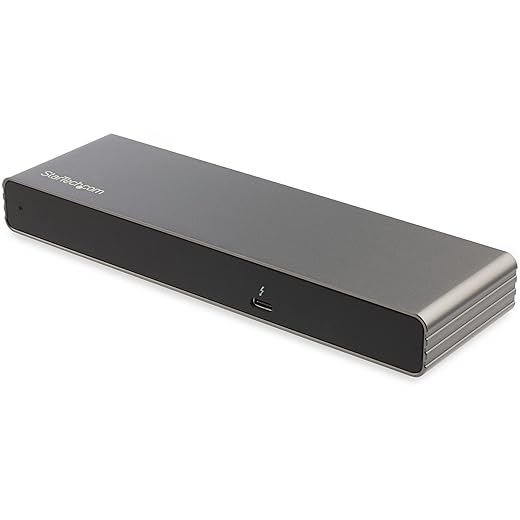
StarTech Thunderbolt 3 Dual 4K Dock
We appreciate how this dock focuses on the essentials: two 4K displays, 85W charging, and driverless plug‑and‑play operation at a lower price point. It’s a sensible pick if you don’t need the newest Thunderbolt 4 features or extreme port density.
Where it fits
StarTech’s Thunderbolt 3 dock is a practical, conservative solution for people who need stable dual‑monitor support without the bells and whistles. It leans on Thunderbolt 3’s proven 40Gbps foundation and focuses on compatibility: DisplayPort, HDMI and even a VGA output mean you can make it work with older monitors and projectors as well as new ones.
What you get in daily use
Real‑world tradeoffs
Because it’s TB3 rather than TB4, you don’t get the same low‑level host protections or static downstream charging behavior of newer docks; that mostly affects enterprise deployments and some multi‑device charging patterns. If your workflow is straightforward—two monitors, keyboard, mice, an external drive now and then—this dock does that reliably and for a lower outlay.
Who should pick it
Choose this if you’re on a budget, have a TB3 or USB4 host that is content with TB3 feature parity, and appreciate a simple, predictable dock. If you plan to invest in TB4/TB5 peripherals or need a huge port array, you’ll want to step up.
Final Thoughts
For most professionals who run dual 4K monitors every day, we recommend the CalDigit TS4 Thunderbolt 4 Dock. It’s the most capable option on the list: abundant ports, stable Thunderbolt 4 behavior, 98W laptop charging, and a built-in 2.5GbE port that matters when you need reliable network throughput for large file transfers. In the current market, where reliability and compatibility across Mac and Windows are premium commodities, the TS4 reduces workflow tradeoffs—buying it means fewer adapters and fewer compatibility headaches at the desk — browse our Top Picks.
If you’re planning ahead for higher-resolution displays, massive NVMe arrays, or want the fastest single-cable headroom possible, pick the Anker Prime TB5 14-in-1. Its Thunderbolt 5 support, active cooling, 140W charging, and 120Gbps internal bandwidth make it a forward-looking choice for users moving toward 8K panels or multi‑drive editing rigs. It’s pricier and more future-focused, but it gives you headroom the TS4 doesn’t—so choose it when you want to avoid upgrading the dock next time your workflow outgrows TB4.
Frequently asked questions
How did we pick these thunderbolt docks for dual 4k monitors options?
We shortlist models that balance performance, reliability, and value for typical buyers—not just the highest spec sheet. Hands-on notes, owner feedback, and return/warranty policies all feed the ranking.
Which thunderbolt docks for dual 4k monitors pick is best for most people?
Start with our top overall choice if you want the safest balance of price and features. Move up or down the list only when a specific need—budget, ecosystem, or a must-have feature—clearly applies to you.
Do prices on this thunderbolt docks for dual 4k monitors list change often?
Yes. Retailers run frequent promos, so use the live price buttons on this page and compare shipping and return windows before checkout—the best deal is not always the lowest sticker price.
Should I buy the cheapest thunderbolt docks for dual 4k monitors on the list?
Only if the trade-offs fit your use case. The budget pick can be excellent value, but check what you give up in build quality, software support, or key features you will use every week.
What if none of these thunderbolt docks for dual 4k monitors picks fit?
Use the comparison and guide links on this page to narrow by size, platform, or feature, then revisit the list with your must-haves written down—forcing a mismatch creates more returns than savings.
How often is this thunderbolt docks for dual 4k monitors roundup updated?
We refresh rankings when major models launch or pricing shifts enough to change the value story. Check the publish date at the top and compare current specs if you are reading months later.

Princess Rioboca is the Lead Editorial Writer at Option Cutter, bringing over seven years of hands-on experience in consumer technology journalism. Specializing in home networking and smart home architecture, she transforms complex technical data into practical, real-world upgrades. Princess personally tests and audits every product she reviews—evaluating real-world Wi‑Fi throughput, cable management durability, and streaming ecosystem stability—to filter out spec-sheet noise. Her rigorous, field-tested insights are designed to give readers transparent, unbiased buying advice on what to purchase, what to skip, and exactly why.