Why a 6-in-1 Laptop Matters for College
We’ll cut through the hype and show how a 6-in-1 2-in-1 laptop (tablet, laptop, tent, studio, clamshell, presentation) modes on a 2-in-1 computer genuinely changes campus life when design, ecosystem, and usability align. We weigh performance, battery, repairability, ecosystem, and cost in this how-to guide, so students skip bad compromises altogether.
What You’ll Need Before We Start
Define Your Primary Use Case
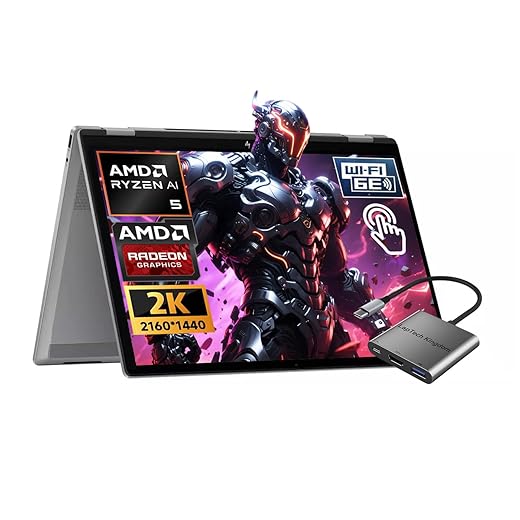
Are you a note-taking artist, a multitasking spreadsheet warrior, or a light-streaming human? Pick one — everything else follows.Start by pinning down what you’ll actually do every day on a college laptop. A 6-in-1 is flexible, but flexibility only helps when it matches tasks we actually perform. Think in concrete workflows: sketching, compiling code, writing papers, or giving presentations.
Put tasks into clear buckets
Compare vendor tendencies—Lenovo’s Yoga skews productivity, Microsoft Surface favors stylus-first design—so choose a device that aligns with your dominant task set. Make a short pros/cons list of primary tasks and rank them; that ranking will steer trade-offs like size, weight, and thermal headroom.

Choose the Right Performance & Battery Balance
Want laptop-class performance in tablet mode? Good luck — here’s when to compromise and when to insist.Balance performance and battery based on your daily campus routine. We analyze CPU, GPU, memory, and storage through the lens of class schedules, labs, and coffee-shop study sessions across convertible laptops.
Pick components with these realities in mind
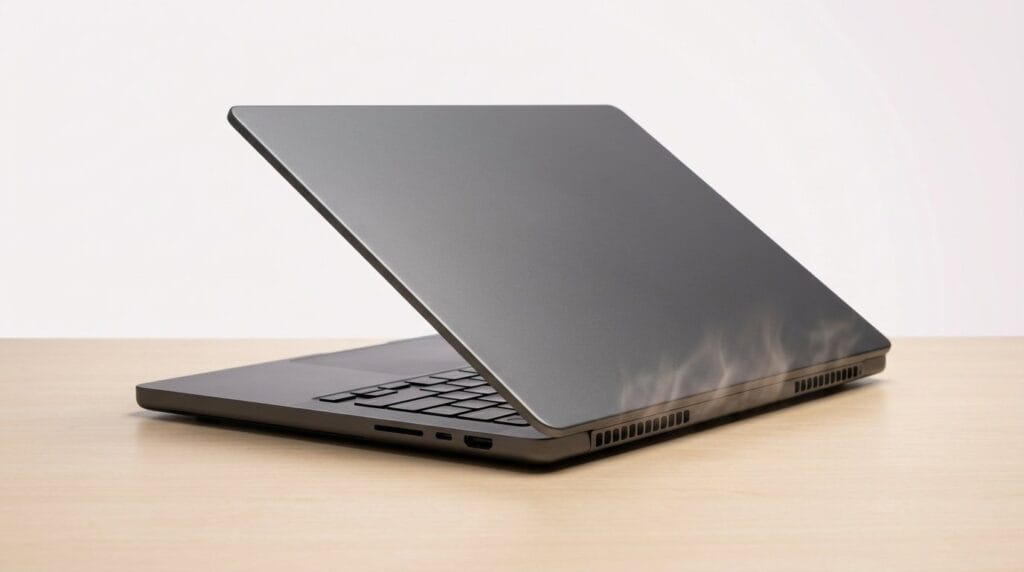
Remember tablet/thin modes often hit thermal throttling and trade fan noise for thermals. Test local software compatibility—ARM/Apple efficiency is leading, but Windows apps and campus tools may sway your choice between Windows laptops and Chromebooks.

Evaluate Display, Touch, and Stylus Experience
Is the screen just pretty, or is it a tool you’ll actually use? Spoiler: color accuracy and touch latency matter more than bezel size.Check resolution, color accuracy, and touchscreen latency before you buy. We focus on what you’ll actually use in lectures, studios, and late-night note-taking.
Prioritize panels with accurate sRGB/Adobe RGB if you edit photos or design; casual PDF/slide readers can accept lower-res screens. Choose matte finishes for bright lecture halls; pick glossy only if you want punchy color for media.
Test stylus responsiveness on 2-in-1 models: prefer low-latency active pens with tilt and fine nibs (look for Wacom AES/EMR or Microsoft/Apple pen compatibility). Try drawing simple strokes in-store or consult input-lag benchmarks.
Consider refresh rate secondary to color and latency; higher Hz helps smoothness in tablet mode and video playback but won’t fix poor pen tracking.
Inspect the hinge: a stiff 360° hinge makes tent/studio modes usable during presentations. Be wary of ultra-thin models that sacrifice pen latency—verify demos or reliable reviews.
Assess Build, Keyboard, and Port Selection
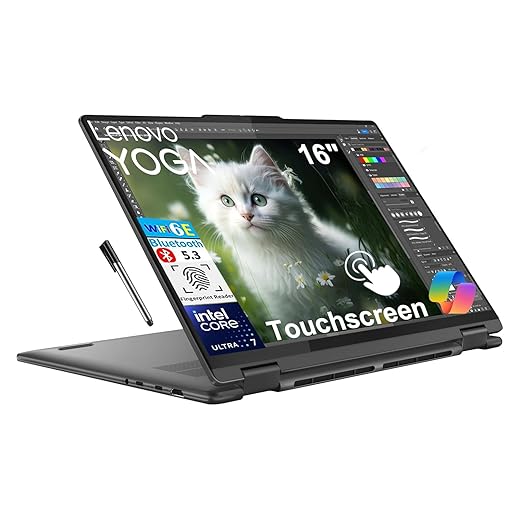
A pretty convertible is worthless if the keyboard crumbles during finals or you can’t plug in a monitor for group projects.Assess chassis materials and hinge reliability; we prefer metal or reinforced polymer frames for backpacks and daily knocks. Check hinge stiffness—360° hinges suit tent/studio use, and detaching mechanisms must feel secure if you’ll use tablet mode.
Test keyboard feel and layout in person. Prefer 1.2–1.5 mm travel, stable keycaps, solid backlighting, and a sensible function row; try a five‑minute typing sample. Remember magnetic folio keyboards save weight but often reduce typing comfort.
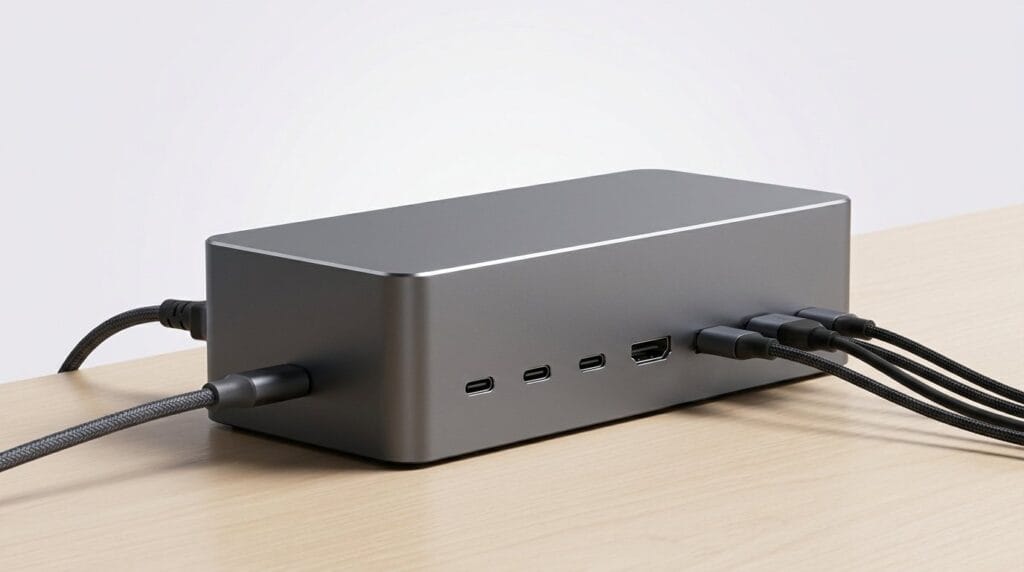
Choose ports based on your workflow. At minimum, look for
Decide whether to accept dongles (travel‑light) or insist on fuller I/O for dorm docking with laptop accessories. Verify whether the keyboard is included and how it attaches—connection style matters for long‑term typing stability.

Consider Software, Ecosystem, and Repairability
Does the device play nicely with your phone, cloud services, and future needs — or will it lock you into friction and expensive repairs?Look beyond specs and test how the device fits our workflow across student laptops. Check these integration points before buying:
Weigh the tradeoffs: Apple’s iPad/Apple Pencil ecosystem delivers seamless continuity and class‑leading creative apps, but lacks full traditional desktop apps. Choose Windows 11 or ChromeOS if you need broader desktop compatibility, accepting that touch‑first app polish varies.
Favor models with user‑serviceable parts: easily replaceable storage or battery, clear repair manuals, and reasonable vendor warranty/repair policies—these save money across four college years. Finally, confirm campus discounts and bundled software; ecosystem advantages often compound through education pricing and integrated workflows.
Test Real-World Usability and Total Cost of Ownership
Don’t buy on specs alone — try a day in the life. How does it feel after eight hours, and what will it cost over four years?Build a simple in‑store or at‑home checklist and run it: write notes for 30 minutes, run a video call while taking notes, stream a lecture for an hour, detach to tablet and sketch, and attach an external display.
Measure heat, fan noise, comfort, and mode-switching smoothness. For example, notice if fans spike during a 30‑minute Zoom + note session or if the tablet gets uncomfortably warm while sketching.
Factor in accessories (stylus, keyboard, dongles), a protective case from our laptop bags & cases aisle, extended warranty, and potential upgrades. Watch for proprietary connectors or scarce spare parts—those raise lifetime costs.
Consider resale value and software longevity; devices in strong ecosystems generally hold value. Synthesize all these elements to recommend one of three profiles: budget commuter, balanced all‑rounder, or creator‑heavy powerhouse, with clear trade‑offs for each.

Final Decision Framework
We map ranked priorities to the profiles above, test candidate devices with real tasks, and weigh ecosystem ties plus long‑term costs — keeping choices practical, not aspirational. Give it a try, tell us your results, and buy with confidence today.
Frequently asked questions
What should I prepare before I choose a 6-in-1 laptop for college?
Start with the checklist in the “What we’ll need” section above—measure your space, confirm compatibility with your gear, and read the full walkthrough once before you change settings or buy parts. 6-in-1 laptop goes faster when prep is done upfront.
How long does it take to choose a 6-in-1 laptop for college?
Most readers finish in about 30–90 minutes if they already have the right parts, but budget extra time for measurements, firmware updates, or a second pass when something does not behave the way the manual suggests on the first try.
What is the hardest part when you choose a 6-in-1 laptop for college?
The step that trips people up is usually alignment or configuration—getting measurements, cable routing, or software settings right before you commit. If results still look off, re-check the basics in order instead of swapping hardware immediately.
What mistakes should I avoid when I choose a 6-in-1 laptop for college?
Skipping measurements, ignoring ventilation or port limits, and rushing the final test are the common failures. Photograph your starting setup, label cables, and verify the outcome with the same content or workflow you will use every day—not a one-off demo.
When should I call a pro instead of trying to choose a 6-in-1 laptop for college myself?
Bring in help when the job needs structural work, licensed wiring, or tools you do not own, or when repeated attempts still fail after you have followed the troubleshooting section. A short paid visit can cost less than replacing gear you damaged by forcing the install.

Princess Rioboca is the Lead Editorial Writer at Option Cutter, bringing over seven years of hands-on experience in consumer technology journalism. Specializing in home networking and smart home architecture, she transforms complex technical data into practical, real-world upgrades. Princess personally tests and audits every product she reviews—evaluating real-world Wi‑Fi throughput, cable management durability, and streaming ecosystem stability—to filter out spec-sheet noise. Her rigorous, field-tested insights are designed to give readers transparent, unbiased buying advice on what to purchase, what to skip, and exactly why.