Why 6 GHz Isn’t an Instant Range Upgrade
We’re excited about 6 GHz Wi-Fi, but it’s not a simple range fix. We explain why higher frequencies change coverage, device support, and network design, and show tradeoffs so we adopt 6 GHz without losing real‑world reach or full ecosystem compatibility.
What We Need Before We Start

Enable Wi‑Fi 6E on Cisco 9800 WLC for Peak 6 GHz Performance
Map Your Home and Device Landscape
What walls, windows, and devices will kill your signal — and why we care more about layout than Mbps.Walk every room with a phone-based site survey app or run quick speed tests to map signal obstacles and where devices sit. Note where 6 GHz clients will live — desks, TV consoles, and primary seating.
We inventory devices that support 6 GHz and flag older kit for bridging or isolation. This inventory informs where to place 6 GHz coverage — typically close to primary use zones like home offices and media centers — and where to fall back to 5 GHz. That planning step reduces surprises and frames our hardware and configuration choices later, and shortlists practical compromises immediately.

Pick Hardware with Range in Mind
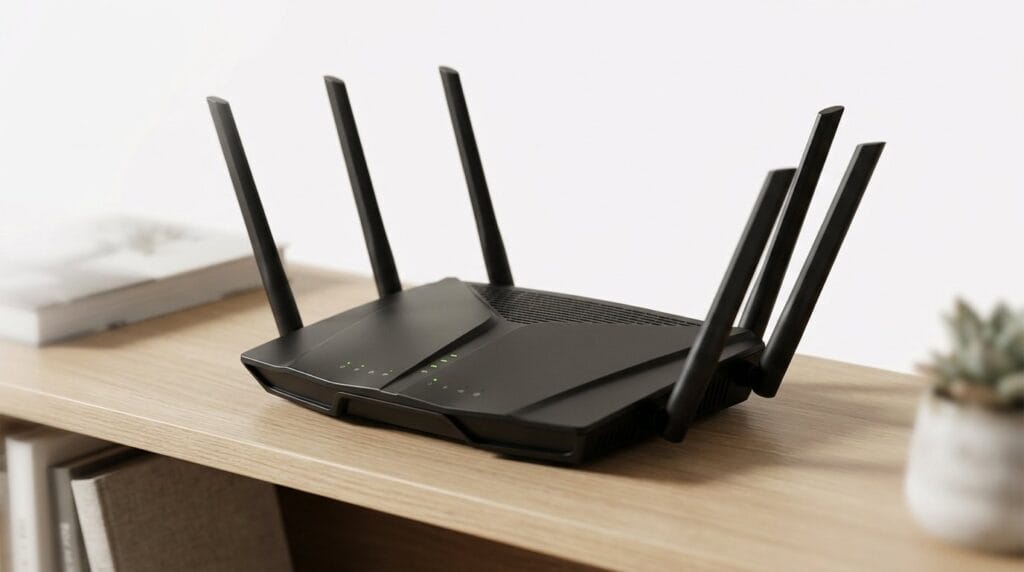
Why raw 6 GHz speed doesn't win the race — and which routers actually balance reach and features.Pick hardware that prioritizes real coverage over headline throughput. We look for radios and designs that move signal where people actually sit, not just push megabits on paper.
Compare tri‑band meshes that can dedicate a stable 6 GHz backhaul to single‑AP setups that need beefier radios and antenna arrays. Evaluate vendor ecosystems for driver maturity, beamforming effectiveness, and mesh interoperability — firmware and apps shape daily experience more than raw specs.
Look for these concrete features
We favor vendors that document regulatory limits clearly.

Optimize Placement and Antenna Orientation
Small moves, big gains — the placement tweaks that double usable coverage more reliably than marketing claims.Mount APs high and central — so signal reaches rooms, not hidden in closets where building materials kill 6 GHz signal. A ceiling mount beats a corner shelf.
Avoid metal obstructions and noisy appliances; we keep units away from microwaves, fridges, and dense sofas, which absorb higher frequencies.
Angle external antennas toward device planes: tilt a couple horizontally for laptops, keep one vertical for upstairs clients; we rely on beamforming for vertical gaps.
Prioritize wired backhaul on mesh; we avoid wireless fronthaul — it eats 6 GHz capacity and shrinks client range.
Set channel width to 80 MHz for home coverage; we reserve 160 MHz only for short‑range needs.
Reduce transmit power carefully — don’t max it; excessive power raises interference in multi‑AP homes.
These placement and tuning choices align usability and ecosystem needs, preserve practical range without forfeiting 6 GHz advantages. We note regional limits and tweak settings.

Segment Networks and Manage Legacy Devices
Force-field for old hardware — will isolating legacy kit save your 6 GHz performance?Isolate 6 GHz on its own SSID to keep legacy clients from roaming into or contending on the high‑capacity band; we keep premium devices on that channel for lower latency and consistent throughput.
Run a separate 5 GHz SSID for older clients and use VLANs or guest networks to enforce access and QoS policies, which matters as ecosystems demand parental controls and smart‑home isolation.
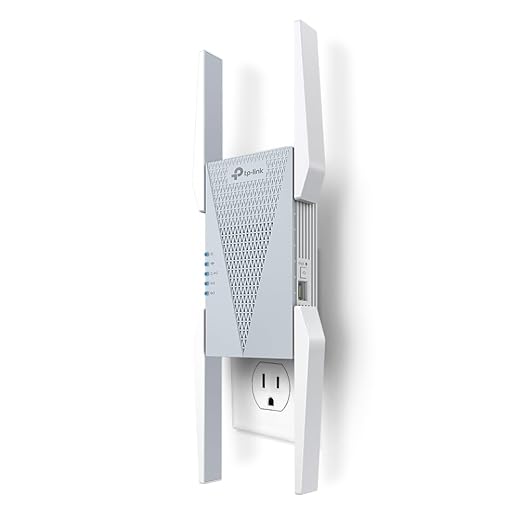
Use wired bridges or dedicated extenders placed near non‑6 GHz endpoints instead of forcing them onto the 6 GHz band; we find this preserves airtime for modern devices.
Test band steering but avoid relying on it—stubborn clients can misassign; we first validate behavior with separate SSIDs.
Tune roaming aggressiveness and enable 802.11k/v/r where supported for smoother handoffs.
Create a “6GHz‑Private” SSID for laptops/phones,
Create a “5GHz‑Legacy” SSID for older gear,
Move IoT to a VLAN/guest network.
Document all settings and save config snapshots.
Keep Firmware and Drivers Current — Carefully
Updates can be a blessing or a rollback trap — here's how to patch without panic.Prioritize stable vendor releases that explicitly mention 6 GHz fixes — coexistence, beamforming, or regulatory PHY tweaks — because theoretical gains live or die in driver behavior. Back up AP/node configs and device settings before you touch anything; snapshots save evenings of troubleshooting.
Apply updates to a single AP or mesh node first and watch it for 24–48 hours. Coordinate client updates: update one laptop’s Wi‑Fi driver (for example, Intel/Qualcomm drivers) or a phone OS patch and verify roaming, throughput, and range. Avoid early betas unless we’re chasing a specific bug fix.
Read changelogs for DFS/Tx/regulatory notes. Schedule managed-home rollouts overnight, preserve rollback paths, and contact vendor support when regressions or vague notes affect transmit behavior.
Measure, Iterate, and Integrate into Your Home Ecosystem
Don't guess — test like a reviewer and let the data guide adjustments across mesh, smart devices, and real life use.Measure baseline performance with both simple apps and deeper tools: run Ookla or Fast.com for perceived speed, use iperf3 for sustained throughput, and use NetSpot or an app with heat‑mapping to find coverage holes. We prefer logging results so we can compare changes over time.
Log latency and retry rates during real activities like video calls, streaming, and gaming instead of chasing synthetic peaks. Run A/B tests when you change channel width, antenna angle, or steering policies—switch one variable at a time and record results.
Iterate in small steps so our network evolves with the device market rather than breaking it.
Keep the Gains, Lose the Tradeoffs
We traded theoretical speed for coverage, and by mapping spaces, choosing hardware, tuning placement, segmenting legacy devices, and measuring iteratively, we preserve range while gaining 6 GHz’s low latency and cleaner spectrum — is that pragmatic upgrade homes need today — browse our how-to guides?
Frequently asked questions
What should I prepare before I set up 6 ghz wi-fi without losing range?
Start with the checklist in the “What we’ll need” section above—measure your space, confirm compatibility with your gear, and read the full walkthrough once before you change settings or buy parts. 6 ghz wi-fi without losing range goes faster when prep is done upfront.
How long does it take to set up 6 ghz wi-fi without losing range?
Most readers finish in about 30–90 minutes if they already have the right parts, but budget extra time for measurements, firmware updates, or a second pass when something does not behave the way the manual suggests on the first try.
What is the hardest part when you set up 6 ghz wi-fi without losing range?
The step that trips people up is usually alignment or configuration—getting measurements, cable routing, or software settings right before you commit. If results still look off, re-check the basics in order instead of swapping hardware immediately.
What mistakes should I avoid when I set up 6 ghz wi-fi without losing range?
Skipping measurements, ignoring ventilation or port limits, and rushing the final test are the common failures. Photograph your starting setup, label cables, and verify the outcome with the same content or workflow you will use every day—not a one-off demo.
When should I call a pro instead of trying to set up 6 ghz wi-fi without losing range myself?
Bring in help when the job needs structural work, licensed wiring, or tools you do not own, or when repeated attempts still fail after you have followed the troubleshooting section. A short paid visit can cost less than replacing gear you damaged by forcing the install.

Princess Rioboca is the Lead Editorial Writer at Option Cutter, bringing over seven years of hands-on experience in consumer technology journalism. Specializing in home networking and smart home architecture, she transforms complex technical data into practical, real-world upgrades. Princess personally tests and audits every product she reviews—evaluating real-world Wi‑Fi throughput, cable management durability, and streaming ecosystem stability—to filter out spec-sheet noise. Her rigorous, field-tested insights are designed to give readers transparent, unbiased buying advice on what to purchase, what to skip, and exactly why.