



Why most dead zones aren’t a mystery — and what really fixes them
We start by cutting through the noise: dead zones in homes and apartments are usually predictable results of physics, placement, and an outdated network architecture rather than mysterious malfunctions. Walls, distance, materials, and competing radios all sap Wi‑Fi. Swapping a lone router for a flashier model can look attractive, but it rarely solves the underlying limit: one device’s radio can’t cover every room reliably.
Our recommendation is practical: add multiple access points with a wired or wireless backhaul. That change reframes network design around coverage, capacity, and device roaming. It improves experiences—video calls stay stable, streams don’t buffer, and smart devices behave. We’ll show why this upgrade matters in the market, how it ties into ISP gear and smart home ecosystems, and what users should expect when choosing between mesh kits and prosumer access points.


Ultimate Deadzone Settings for Perfect Warzone Aim
What creates dead zones — the practical limits of a lone router
Walls, floors, and the tyranny of materials
We often blame the router, but physics is the real culprit. Wi‑Fi is radio waves, and dense materials—brick, concrete, metal studs, even thick plaster—eat those waves. A router in a living‑room corner might blast full signal there but see its range cut in half or more through a kitchen or floor. We’ve seen simple layout changes (router moved from a closet to a central shelf) turn a flaky 10 Mbps hallway into a reliable 100+ Mbps space.
Antennas and coverage patterns
Routers don’t radiate evenly like a light bulb. Antennas and internal design create lobes—strong spots and weak spots—so a “long range” spec on the box only applies in ideal, empty rooms. One high‑gain antenna might push farther down the hall but leave the bedroom upstairs in the dark. That’s why placement matters more than headline dBm numbers.
Interference from neighbors and appliances
Household electronics and neighbor networks steal airtime. Microwaves, baby monitors, Bluetooth speakers, and dozens of nearby APs all collide on the same channels, especially on 2.4 GHz ISM bands. The result is unpredictable latency: videogame packets arrive in bursts, video calls stutter, and smart plugs miss commands.
Device density and real use cases
Modern homes aren’t two devices and a laptop anymore—dozens of endpoints are common. 4K streaming, cloud backups, video conferencing, and IoT sensors each have different needs. A single radio can be overwhelmed; it can’t simultaneously give full bandwidth to a streaming TV and keep a latency‑sensitive game server responsive.
Quick, practical steps you can try now
These are immediate fixes, but they’re band‑aids. To address coverage and capacity consistently we need to rethink the single‑router model—our how-to guides cover placement basics before you add access points with a proper backhaul.
The real upgrade: adding access points with a solid backhaul
What we mean by “the upgrade”
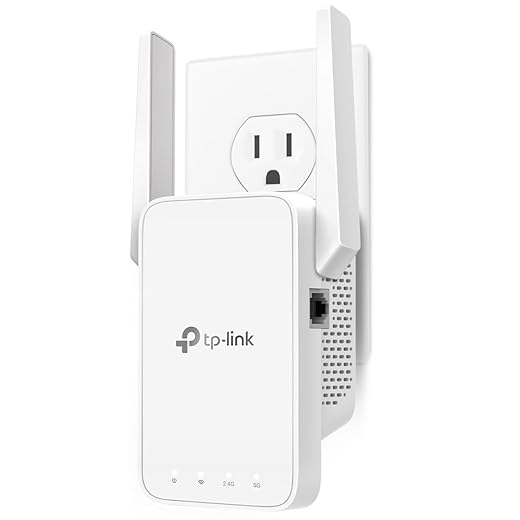
The fix isn’t a fancier standalone router; it’s multiple access points (APs) treated as one network and tied together by a dependable backhaul. That can be plain Ethernet, MoCA over coax where Ethernet isn’t practical, or a high‑quality dedicated wireless backhaul on some mesh systems. The key is keeping traffic between APs off the same radio your devices use.
Radios vs. APs — why more APs win
Adding more radios (a tri‑band router or an extender) can help local capacity, but it doesn’t change where signals get blocked. A second AP in the upstairs hallway means the laptop there talks to a nearby radio at full strength instead of struggling with a distant router. With wired backhaul, each AP can serve clients at full negotiated rates without sacrificing throughput to shuttle packets between APs.
Backhaul options, and when they’re acceptable
Real user impact
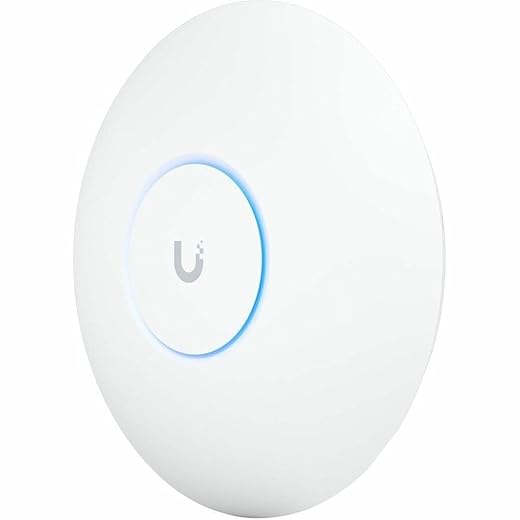
The technical payoff is straightforward: fewer retransmits, less airtime contention, and lower latency. That means consistent 4K streams in the den while someone games upstairs on Wi‑Fi and smart devices stay responsive. Practically, we run a PoE access point (Ubiquiti UniFi U6‑Lite or a TP‑Link EAP610) in the center of each living area, wired back to a switch, and present a single SSID. It just works.
Next, we’ll walk through how this changes network design, user experience, and what that looks like in a real home.
How this upgrade changes the user experience and design of a home network
Seamless roaming — fewer “where’s the Wi‑Fi” moments
Once APs share a controller and a solid backhaul, the network stops being a collection of dead spots and starts behaving like a single fabric. We stop thinking about which device is “on the router” — phones and laptops roam between rooms without dropping calls or pausing streams. Guests don’t hunt for the one good outlet any more; they join the SSID and the network hands them off. That everyday polish is what most people actually notice.
Interface and tools that matter
The difference isn’t just signal strength; it’s the software that makes it invisible. Modern systems give us
We can toggle fast roaming (802.11r) in a minute, and then watch devices stop “sticking” to a distant AP.
Design tradeoffs: placement, aesthetics, visibility
Hardware visibility becomes a design decision. Consumer mesh nodes (Google Nest Wifi Pro, Eero Pro 6) are made to sit in plain sight and look nice; prosumer APs (Ubiquiti UniFi U6‑Lite, TP‑Link EAP610) expect wall/ceiling placement and PoE. That means tradeoffs:
Choosing the UX: what to do now
Ecosystem integration: smart homes, ISPs, and the networked future
Fit with the ISP gateway
We often start at the modem-router the ISP shoved in the closet. For a multi‑AP setup, that device shouldn’t be a second router. Put the gateway into bridge/passthrough mode or enable DMZ and let a single controller handle DHCP and firewall rules. If the ISP box won’t bridge, plan for double‑NAT workarounds (port forwarding, UPnP checks) or swap the gateway for a modem‑only unit. Practical tip: products like the UniFi Dream Machine replace both gateway and controller cleanly; otherwise pair a bridged ARRIS/Netgear modem with your APs.
Smart‑home radios and Matter
Thread, Zigbee, and Bluetooth make wired APs less of a whole‑home answer unless we consider hubs. Some consumer mesh nodes (Google Nest Wifi Pro, certain Eero models) include Thread/Zigbee radios or act as Matter border routers, which simplifies device pairing. Prosumer APs usually don’t—so you’ll need a Hue Bridge, SmartThings hub, or a dedicated Thread border router. As Matter gains traction, we want APs that play nicely with those border routers.
Cloud management vs local control
Cloud‑managed systems (Eero, Google Wifi) are frictionless: auto updates, simple apps, remote diagnostics. The tradeoff is telemetry and vendor lock‑in. Local/prosumer stacks (UniFi, TP‑Link Omada, MikroTik) give granular controls, offline operation, and exportable configs—but they require hands‑on management. Our rule: pick cloud for convenience; pick local when privacy, customization, or complex VLANs matter.
Security, firmware, and maintainability
Always enable firmware updates, but know the update model. Cloud devices push automatically; prosumer boxes often leave scheduling to us. Keep a backup of controller configs, subscribe to vendor security advisories, and test updates on one node before rolling network‑wide.
Practical checklist
These choices shape how the network grows; the next section walks through the real costs and install tradeoffs you’ll face when turning this plan into reality.
Installation, tradeoffs, and realistic costs
The cabling question: Ethernet, MoCA, or powerline
We start by running Ethernet where we can. Cat6 cable is cheap to buy ($10–$30 per run DIY) and gives predictable gigabit or multigig performance. If fishing cable isn’t feasible, MoCA over coax is our next choice—it’s stable and often delivers several hundred Mbps; expect $80–$150 for a good pair of adapters. Powerline is the cheapest plug‑and‑play option, but in our testing it’s the most variable and often fails in older or noisy electrical systems.
DIY versus hiring a pro
We’ll DIY if runs are short, walls are unfinished, or you’re comfortable fishing cable. Expect to spend an afternoon and $20–$60 in materials per run. For multiple hidden runs, complex attic/garage work, or neat wall‑plate installs, hire an electrician/network pro—typical pricing is $100–$300 per run, sometimes more in labor‑heavy jobs.
Incremental hardware costs
Performance tradeoffs that matter
Wired backhaul = consistent full bandwidth. MoCA ≈ reliable mid‑to‑high throughput. Powerline = gamble. Wireless backhaul on a single dual‑band device often halves client throughput; tri‑band systems give a dedicated backhaul radio but cost more. Choose based on home size and how many simultaneous streams you need.
Common failure modes (so you don’t waste money)
Quick checklist before you buy
How to choose — comparing consumer mesh kits to prosumer access points
We want to give practical buying guidance that balances budget, technical comfort, and how big your home is. In plain terms: pick a consumer mesh if you want near‑zero fuss and decent coverage; pick prosumer APs if you want control, scalability, and predictable performance over time.
When a three‑node consumer mesh is the right move
Use this when you have a modest‑sized house, can’t or won’t run Ethernet, and want a fast, painless setup.
When to run Ethernet and buy standalone APs
Go this route when you can (or will) wire at least some APs, want more throughput/headroom, or plan many access points.
ISP mesh solutions and hybrids
ISPs can be convenient for renters or first‑time buyers, but they often lock features and lag on updates. A good hybrid is using an ISP gateway in bridge mode with either a consumer mesh or prosumer APs behind it.
Quick checklist — how we decide
With that framework, we can now wrap up what to expect from the upgrade.
The short version: add APs, prioritize backhaul, expect better coverage
We recommend multiple access points on a wired backhaul — Ethernet or MoCA when possible — instead of chasing ever‑bigger routers. That separates local Wi‑Fi from transport, yielding consistent performance, smoother roaming, and predictable capacity for smart devices and streaming.
Our checklist: measure coverage, map placement, choose a wired backhaul, then pick a consumer mesh kit or prosumer APs based on ecosystem and comfort. This scales affordably, fits ISP realities, and makes devices behave. Start with one AP and expand where needed — browse Wi‑Fi & Networking when you are ready to shop. Follow it — dead zones will mostly vanish, and experience improves.
Frequently asked questions
What is the main point of “The Upgrade That Fixes Most Dead Zones”?
This piece explains where the upgrade that fixes most dead zones matters in real buying decisions—not just headline specs. We focus on trade-offs, who benefits most, and what to verify before you spend.
Who should read this the upgrade that fixes most dead zones guide?
Read it if you are actively shopping, upgrading, or trying to separate marketing claims from day-to-day use. Skip it if you already own the gear and are not planning a change this season.
What changed recently around the upgrade that fixes most dead zones?
Prices, firmware, and feature tiers shift quickly in this category. We call out what is new enough to affect your decision and what is incremental hype you can safely ignore.
How should I use this editorial when buying?
Treat it as context before you compare models: note the risks and priorities here, then cross-check specs and current pricing on the picks that match how you actually use the product.
What is easy to get wrong about the upgrade that fixes most dead zones?
Buyers often overweight one spec—brightness, speed, or brand—and underweight fit for their room, ecosystem, or warranty support. We flag the mismatch we see most often in reader questions.
Where should I go next after reading?
Use the related comparisons and top picks linked near the end of this article for model-level shortlists, then confirm return policies and compatibility with the devices you already own.

Iqra Jumar is Option Cutter's editorial writer. She writes practical editorials and buyer guides that focus on real-world upgrades—better Wi‑Fi, cleaner cable setups, smarter streaming, and everyday fixes—not spec-sheet noise alone. Her work helps readers decide what to change now, what to skip, and why.









