Why Multi‑Gig Matters Now
We walk through why upgrading to multi‑gig Ethernet matters now: rising Wi‑Fi limits, cloud backups, and faster home servers demand better wiring and smarter switches. We assess UX, device compatibility, cost trade‑offs, and ecosystem fit to help practical decisions today.
What We Need Before Starting
We’ll need
Upgrade to Multigig Ethernet: Is It Worth It?
Audit Your Current Network
Surprising bottlenecks? Let’s find where speeds actually die so we don’t overbuy.Start by inventorying our ISP plan and every box on the wall: modem, router, switches, in‑line extenders, and the cabling and client devices connected to them. Measure real‑world throughput with a wired speed test and check negotiated link speeds in router/switch interfaces—those numbers tell us whether the ISP, a NIC, or a switch is the limiter.
Inspect physical runs for age and category: replace any suspect Cat5/Cat5e, flag noisy PoE ports, and locate midspan extenders that often cap throughput. Note where Wi‑Fi is masquerading as the bottleneck so we don’t overbuy wired capacity.
Log devices that would actually benefit—NAS, gaming PC, streamers—and map switch locations and conduit access for multi‑room work. Evaluate budget versus impact: a NIC is cheap, full rewiring is not. Use these facts to pick upgrades that fix real constraints, not theoretical ones.

Choose the Right Hardware
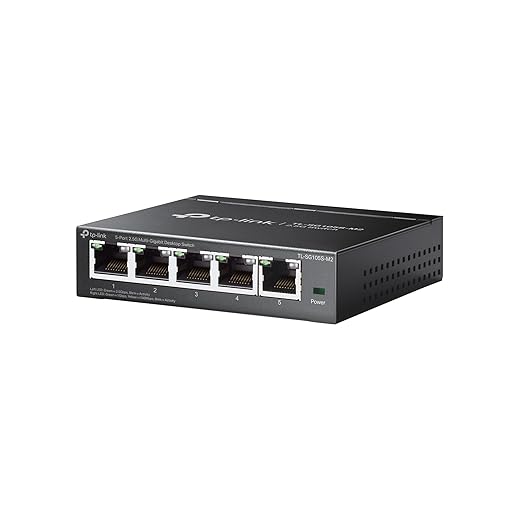
2.5G/5G is the sweet spot—bigger numbers often come with louder fans and regrets.Pick hardware with an eye on ecosystem and ergonomics, not just headline speeds. For most homes we recommend 2.5G/5G NBASE‑T ports on a router or an unmanaged switch—they deliver the best bang for the buck. Ask for SFP/SFP+ only if we expect 10G fiber, a 10G NAS, or link aggregation — browse our how-to guides.
Favor devices from vendors with solid firmware and quiet thermals. A cheap fan‑cooled switch that roars in the living room ruins the UX faster than a slightly slower port. Choose NICs from established makers (Intel, Broadcom) for macOS/Windows/Linux driver support—install one in desktops or a NAS before rewiring the house.
Factor in ventilation and power: multi‑gig switches can be power hungry. Consider stackability and PoE if smart‑home devices will migrate off Wi‑Fi. Weigh price‑per‑port against warranty length and firmware update cadence before buying.
Cabling and Physical Layout
Routing cables is the new home makeover—structure now saves headaches later.Prioritize cable choice and a neat layout because reliability starts at the wire.
Favor Cat6a for in‑wall runs — it balances cost, future headroom, and real‑world performance; use Cat7 only in electrically noisy environments.
Use solid conductor cable for permanent, in‑wall drops and stranded patch cords at endpoints; for example, run solid Cat6a to a living‑room plate and finish with a short stranded patch to the TV or streamer.
Plan pull paths, label both ends, and terminate into patch panels or keystone jacks for serviceability.
Shield where lots of electrical infrastructure exists, but avoid ad‑hoc grounding — consult a pro if unsure.
Test every terminated link with a certifier or at least a reliable cable tester to confirm pair integrity and length.
Budget a professional installer for long or wall‑fishing runs; DIY is fine for short, accessible runs.

Install and Configure Network Gear
Can we tame the settings without voiding the joy of plug-and-play?Mount devices with attention to airflow and cable strain relief; we leave space above switches and avoid tight cable bends.
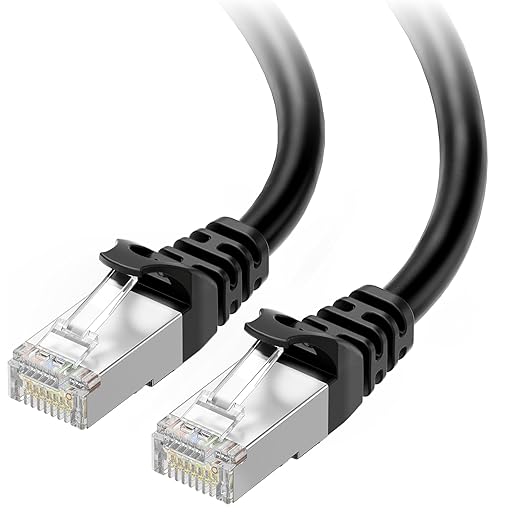
Connect endpoints and trunks, then verify negotiated link speeds on every port — look for 2.5G/5G/10G LEDs or check the switch GUI.
Enable NBASE‑T rates where supported; we set fixed speeds only when troubleshooting link flaps.
Remember aggregation helps parallel transfers but doesn’t replace a single fast link for latency‑sensitive apps.
Size power and keep spares.

Upgrade Clients and Storage
Why a single NIC swap can feel like getting a whole new house.Target the endpoints that actually move data: desktops, NAS, and wired media servers.
Add PCIe multi‑gig NICs to desktops or use USB‑C 2.5/5G adapters for laptops when PCIe isn’t available.
Install vendor drivers and enable features like TOE or checksum offload only if they’re stable — these reduce CPU load during big transfers.
Check NAS vendor support for advertised link speeds and adjust SMB/iSCSI tuning for latency‑sensitive tasks.
Remember storage, not network, often becomes the bottleneck; use SSD caches or link aggregation on NAS to scale throughput.
Reconfirm backups before large migrations.
Prefer NICs with solid macOS/Linux driver support so our upgrades work across devices.
Monitor CPU usage and thermals during transfers to ensure the user experience actually improves.

Test, Monitor, and Iterate
Networks live—measure what actually matters, not just the peak headline number.Measure user-facing performance with sustained tests, not burst numbers. For example, copy a 10 GB file for five minutes between a desktop and NAS, stream 4K to a media client, and run iperf3 with -t 300 to catch steady throughput — with cheaper multi‑gig gear now, this proves ROI quickly.
Deploy simple monitoring to spot regressions and thermal or link issues.
Schedule synthetic benchmarks at peak and off‑peak times. Keep a short changelog of firmware/config tweaks. Swap ports or cables to isolate errors and engage vendor support with logs — many failures come from driver/firmware mismatches. Reassess after a few weeks and tweak segmentation, QoS, or roll back if daily work hasn’t materially improved. Document wins and pain points for planning.
Make It Actually Useful
We’ve mapped a pragmatic path—audit, hardware, cabling, install, client upgrades—so our homes get smoother streaming, faster backups, and future-proofed networks that actually matter in today’s ecosystem, emphasizing user experience over specs. Ready to make your network worth upgrading?
Frequently asked questions
What should I prepare before I upgrade to multi-gig ethernet at home?
Start with the checklist in the “What we’ll need” section above—measure your space, confirm compatibility with your gear, and read the full walkthrough once before you change settings or buy parts. Upgrade to multi-gig ethernet at home goes faster when prep is done upfront.
How long does it take to upgrade to multi-gig ethernet at home?
Most readers finish in about 30–90 minutes if they already have the right parts, but budget extra time for measurements, firmware updates, or a second pass when something does not behave the way the manual suggests on the first try.
What is the hardest part when you upgrade to multi-gig ethernet at home?
The step that trips people up is usually alignment or configuration—getting measurements, cable routing, or software settings right before you commit. If results still look off, re-check the basics in order instead of swapping hardware immediately.
What mistakes should I avoid when I upgrade to multi-gig ethernet at home?
Skipping measurements, ignoring ventilation or port limits, and rushing the final test are the common failures. Photograph your starting setup, label cables, and verify the outcome with the same content or workflow you will use every day—not a one-off demo.
When should I call a pro instead of trying to upgrade to multi-gig ethernet at home myself?
Bring in help when the job needs structural work, licensed wiring, or tools you do not own, or when repeated attempts still fail after you have followed the troubleshooting section. A short paid visit can cost less than replacing gear you damaged by forcing the install.

Princess Rioboca is the Lead Editorial Writer at Option Cutter, bringing over seven years of hands-on experience in consumer technology journalism. Specializing in home networking and smart home architecture, she transforms complex technical data into practical, real-world upgrades. Princess personally tests and audits every product she reviews—evaluating real-world Wi‑Fi throughput, cable management durability, and streaming ecosystem stability—to filter out spec-sheet noise. Her rigorous, field-tested insights are designed to give readers transparent, unbiased buying advice on what to purchase, what to skip, and exactly why.