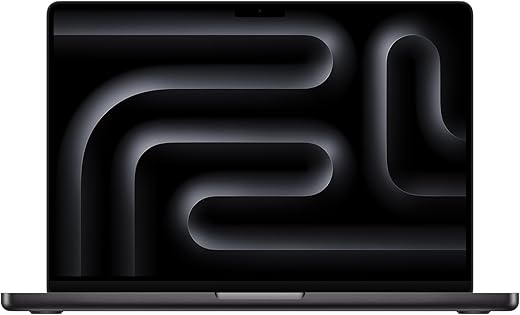

Picking the Right Laptop for 4K Editing: What’s at Stake
We cut through vendor hype to match laptops to real 4K timelines: focusing on UX, THERMALS, software compatibility, and ecosystem fit. We explain what changed, why it matters now, and how to buy a machine that lasts beyond specs today.
What you’ll need before we start
We’ll want:

Step 1 — Map Your 4K Workflow: Know the Real Demands
Are you editing ProRes masters or streaming H.264 from phones? The difference matters more than CPU benchmarks.Inventory the files and tasks that actually make up our edits. List codecs (H.264/H.265/ProRes/RAW), frame rates (24/30/60/120), multicam counts, color grading depth, and timeline complexity. These choices change which parts of a laptop we lean on.
Call out the hardware implications as you map: H.265/HVEC benefits from dedicated decoding and fast NVMe scratch disks; ProRes needs sustained write speed and often runs extremely well on Apple Silicon; heavy grading and effects favor GPU acceleration and more VRAM; many camera RAW formats push both CPU and storage I/O.
Create a short checklist of concrete items to record for each project:
Use this checklist to prioritize CPU cores vs single-thread speed, GPU acceleration, and storage throughput when we compare specific laptops and their thermal/sustained-performance trade-offs.

Step 2 — Choose CPU and GPU: Balance Raw Power with Real-World Throughput
More cores aren’t always better — how modern encoders and NLEs actually use them (spoiler: it’s complicated).Choose CPU and GPU based on how your NLE actually uses them. Prioritize sustained multi‑core throughput and consistent clocks under load — a 45W CPU that holds frequency can beat a 65W chip that throttles to 20W after ten minutes.
Match the chip to the app: Final Cut leans on Apple Silicon cores and unified memory for snappy ProRes timelines; Premiere benefits from NVIDIA CUDA and fast GPU drivers; DaVinci spreads work across CPU and GPU for grading. That changes the laptop we pick.
Compare practical scenarios:
Check for thermal design and sustained power in reviews, and verify hardware-accelerated encode/decode (H.265/ProRes) and NLE driver support before buying.
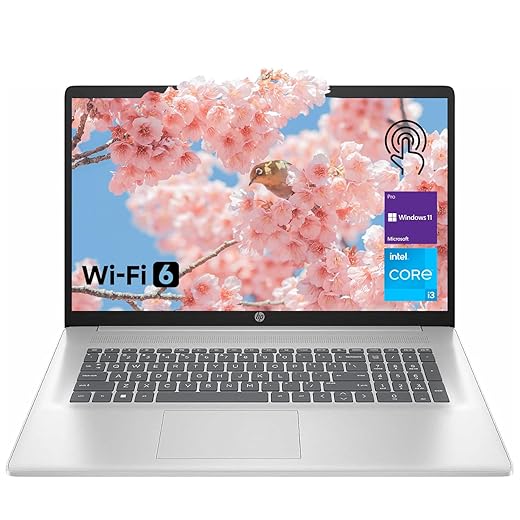
Step 3 — Memory and Storage: Where 4K Projects Live and Die
Want smoother scrubbing? It’s not magic — it’s RAM, NVMe speed, and a sane scratch-disk plan.Size RAM for both the timeline and the OS plus background tasks. For 4K editing we find 32 GB the sweet spot; use 16 GB only for light H.264 cuts, and bump to 64 GB if you routinely run multicam RAW timelines or heavy color grading sessions.
Prefer NVMe as the system and active‑project drive. Use a separate high‑speed internal M.2 or a Thunderbolt 3/4 SSD as a scratch disk so your timeline doesn’t stall when renders or exports write large files. Trust sustained write numbers — short burst benchmarks lie once the drive heats up and fills caches.
Partition your workflow deliberately:
Evaluate expandability. Choose laptops with an extra M.2 slot or multiple Thunderbolt ports so we can add fast external RAID enclosures or plug into our existing NAS/dock ecosystem and extend the machine’s useful life.

Step 4 — Screen, Ports and Thermals: The Unsexy UX That Changes Everything
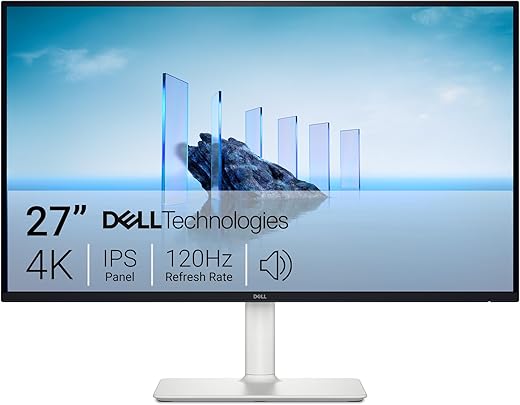
A gorgeous OLED and no ports? Great for selfies, not so much for a color-graded deliverable. UX wins here.Prioritize a display, I/O, and cooling system that matches how we actually edit, not the spec sheet buzzwords. A laptop with a calibrated 100% DCI‑P3 panel (or reliable sRGB profile) plus good brightness and uniformity makes grading predictable; if the laptop panel falls short, plan an external reference monitor for final passes.
Check ports and practical connectivity. We want:
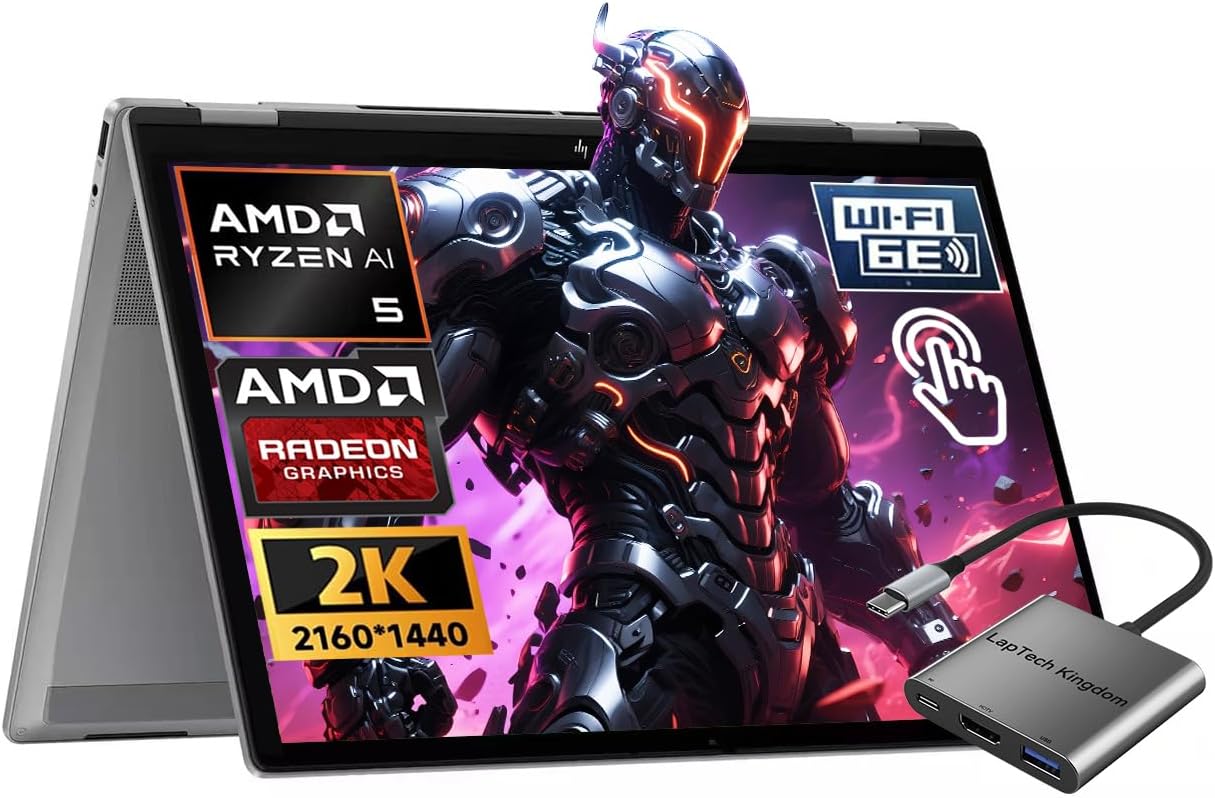
Demand sustained thermal performance. A machine that runs louder but keeps clocks and exports faster will feel more reliable than a whisper‑quiet thin laptop that throttles into the evening. If we edit long sessions or heavy RAW timelines, choose a larger chassis with thoughtful airflow and heat pipes. On location, we plug a Thunderbolt scratch SSD and watch temps — a cooler, steady system preserves performance and our sanity.
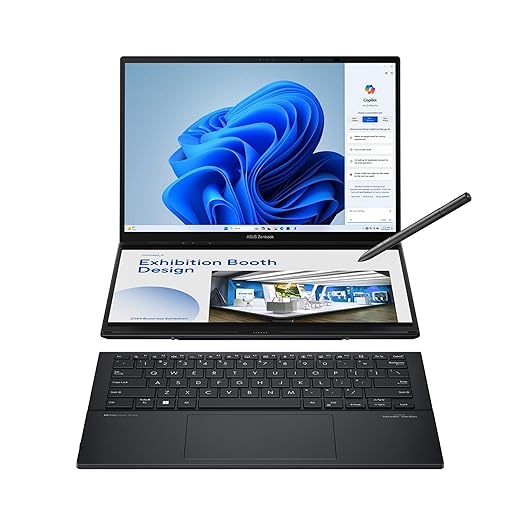
Step 5 — Software, Ecosystem and Final Buy Checklist
Is the laptop a good citizen in our workflow? Compatibility, drivers, and after-sale support often outvalue raw specs.Synthesize our hardware choices against the software ecosystem and vendor support.
Favor macOS + Final Cut or Resolve on Apple Silicon when we need excellent battery life and native ProRes acceleration; prefer Windows when we want wider GPU options (CUDA/RTX) and upgrade paths.
Check GPU driver maturity, confirmed compatibility with our NLE (Premiere, Resolve, Final Cut), and vendor firmware notes that fix thermal or performance regressions.
Verify that the keyboard and trackpad feel good for long sessions, and confirm warranty terms plus a local service network.
Test the machine with a real project before buying: play back a representative timeline, export a 1‑minute 4K clip, and watch sustained clocks, temps, and throttling; try edits on battery and with an external NVMe scratch disk to see real behavior.
Use this prioritized checklist:

Buy for the Workflow, Not the Headline
We pick laptops to meet real timelines — sustained CPU/GPU, smart storage tiers, and ecosystem fit matter more than headline specs. Try a build tuned for your workflow, report back with clips and timings, and join the conversation to refine choices.

Chris is the founder and lead editor of OptionCutter LLC, where he oversees in-depth buying guides, product reviews, and comparison content designed to help readers make informed purchasing decisions. His editorial approach centers on structured research, real-world use cases, performance benchmarks, and transparent evaluation criteria rather than surface-level summaries. Through OptionCutter’s blog content, he focuses on breaking down complex product categories into clear recommendations, practical advice, and decision frameworks that prioritize accuracy, usability, and long-term value for shoppers.