Why a compact mini PC might be the best upgrade for our home office
We want a compact mini PC that boosts our productivity without noise or clutter in our how-to guide. In today’s crowded market, small systems now offer serious performance, quieter thermals, and tighter ecosystem integration, so picking the right one noticeably improves our daily workflow.
What we need before we start

Best Mini PCs: Find the Right One for You
Step 1 — Nail down our use case and performance targets
Are we buying a spreadsheet machine, a quiet Zoom hub, or a tiny creative workstation? Your choice changes everything.Map workloads to hardware. Start by listing what we actually do every day: web, docs, and video calls; photo edits and occasional exports; or dev work with VMs and builds. That list decides the CPU class, memory, and storage speed we need.
Compare CPU types and why they matter. Intel’s low‑power chips are broadly compatible and efficient; AMD Ryzen APUs give stronger integrated graphics for light content work; ARM SoCs unlock fanless, ultra‑efficient designs but can limit app compatibility. Don’t chase peaks — check sustained performance: an hour‑long compile, a two‑hour transcode, or a dozen tabs plus Zoom show real limits.
Set practical minimums based on our use
Decide the ecosystem early: stick with Windows for legacy apps or standardize on Linux/containers to save cost and simplify OS choices.
Step 2 — Size, thermals, and noise: the invisible performance trade-offs
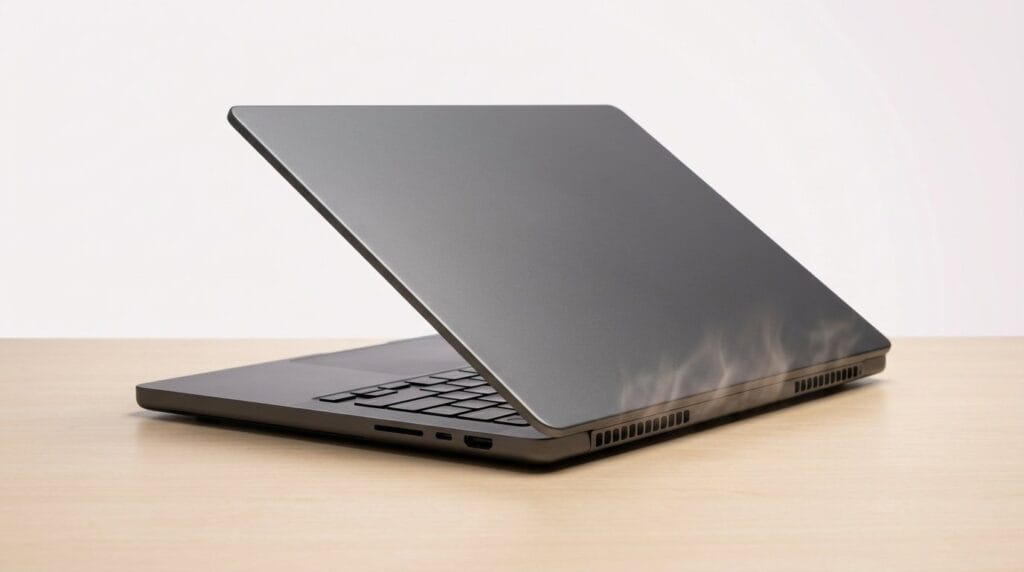
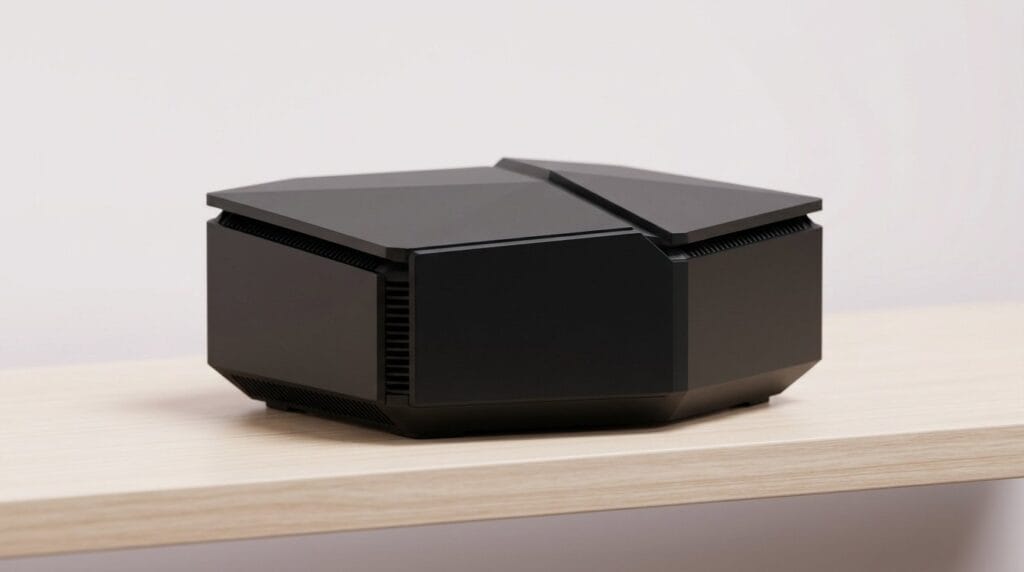
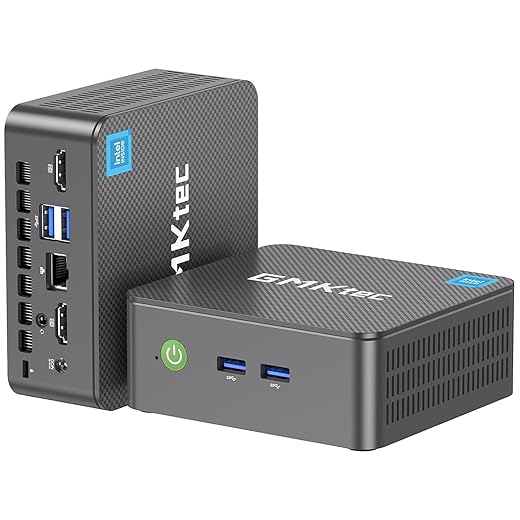
Small can be powerful — but can it stay quiet without throttling? Let’s interrogate the chassis.Compare form factor against cooling straight away. Form factor is where design meets performance: fanless, ultra‑compact, and slightly larger mini towers each trade size for heat capacity and acoustic control.
Look for these physical cues when choosing
Test for real‑world behavior: run a 30–60 minute sustained CPU/GPU task, watch temps and clock rates, and listen from one meter for tonal harmonics and idle noise. Test scenarios and listen for fan harmonics before committing.

Step 3 — Connectivity and expandability: future-proof the hub
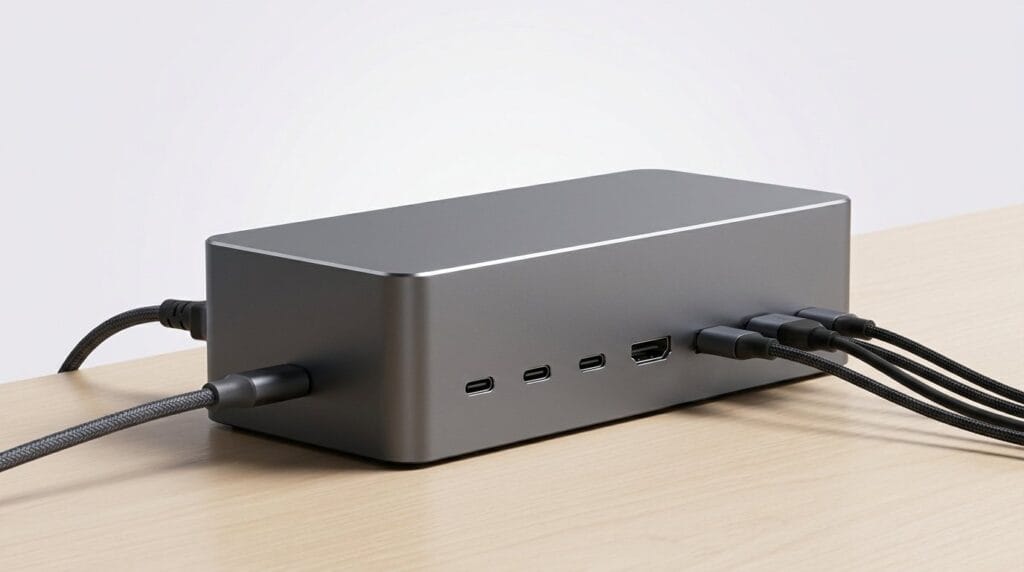
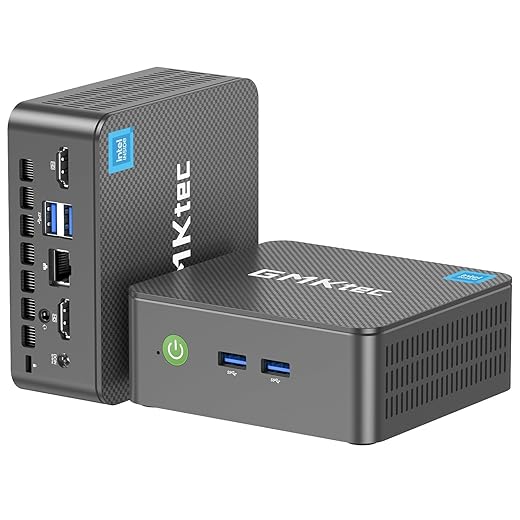
How many monitors, how fast a network, and where will we plug our dongles? Spoiler: ports matter far more than we think.Treat ports as features — they shape our daily experience more than raw CPU numbers. Prioritize connectors that match how we actually work.
Prioritize these essentials when comparing models
Insist on expandability: at minimum one spare M.2 slot, a RAM slot or upgradeable SODIMM, and a SATA header for bulk drives. Remember: Thunderbolt docks can mask limited ports and add eGPUs, but they increase cost, firmware. For business buys, require TPM, vPro, or enterprise management support. Finally, check compatibility with our existing dock, NAS, and monitor chain to avoid adapters and keep the desk tidy.

Step 4 — Memory, storage, and OS: responsiveness is a package deal
Fast storage and the right OS feel like magic — why settle for sluggish multitasking when it’s avoidable?Choose RAM with dual‑channel and a 16GB baseline so our system feels fluid with many tabs and video calls; push to 32GB or more for heavy photo/video work, large datasets, or complex design apps. Dual‑channel matters — it’s a real-world speed bump, not a spec-sheet quirk.
Prefer NVMe SSDs for the OS and apps. NVMe cuts boot, app‑launch, and file‑copy times vs SATA or eMMC; a 500GB NVMe is a practical sweet spot. Insist on an extra M.2 slot so we can add fast storage later. Avoid models that rely on soldered RAM or eMMC unless we’re truly on a shoestring budget — they shorten useful life.
Match the OS to our workflow: pick Windows for broad business and creative app compatibility, Linux for dev control and lighter resource use, or ChromeOS/Android for web-first setups. Consider ecosystem integrations (Office, cloud backups, package managers) when deciding.
Plan for virtualization and containers: allocate more cores, more RAM, and NVMe performance if we run multiple VMs. Anticipate the soldered trend — either buy enough capacity now or choose a slightly larger, upgradeable chassis.
Step 5 — Buying strategy: price, warranty, and what to test before checkout
Can we get near-desktop power in a shoebox without overpaying? Yes — but only if we shop with a checklist.Set a realistic price band tied to our use case: entry-level (~office, email), mid‑tier (creatives, light editing), high‑end (sustained compilation, video export). For example, pick entry for Word/Sheets, mid for Photoshop, high for long renders.
Prioritize brands that push firmware support package. Choose a longer warranty or business‑class support over slightly better specs from unknown vendors — a 3‑year plan beats a marginally faster CPU with no support.
Check real‑world reviews that measure sustained performance, thermals, and noise, not just peak benchmarks. Consider refurbished or last‑gen models (e.g., older NUC or Mac mini) if they pass our checklist and include return options.
Test return policies and parts availability. Factor total cost of ownership: docks, mounts, extra RAM/SSD, and extended support.
Perform this quick pre‑purchase checklist

Bringing it together
If we define our use case, prioritize thermals and ports, choose upgradeable memory and storage, and buy with warranty-aware pragmatism, we’ll end up with a quieter, faster, future-ready mini PC that fits our workflow—are we ready to upgrade right now?
Frequently asked questions
What should I prepare before I choose a compact mini pc for a home office?
Start with the checklist in the “What we’ll need” section above—measure your space, confirm compatibility with your gear, and read the full walkthrough once before you change settings or buy parts. Compact mini pc goes faster when prep is done upfront.
How long does it take to choose a compact mini pc for a home office?
Most readers finish in about 30–90 minutes if they already have the right parts, but budget extra time for measurements, firmware updates, or a second pass when something does not behave the way the manual suggests on the first try.
What is the hardest part when you choose a compact mini pc for a home office?
The step that trips people up is usually alignment or configuration—getting measurements, cable routing, or software settings right before you commit. If results still look off, re-check the basics in order instead of swapping hardware immediately.
What mistakes should I avoid when I choose a compact mini pc for a home office?
Skipping measurements, ignoring ventilation or port limits, and rushing the final test are the common failures. Photograph your starting setup, label cables, and verify the outcome with the same content or workflow you will use every day—not a one-off demo.
When should I call a pro instead of trying to choose a compact mini pc for a home office myself?
Bring in help when the job needs structural work, licensed wiring, or tools you do not own, or when repeated attempts still fail after you have followed the troubleshooting section. A short paid visit can cost less than replacing gear you damaged by forcing the install.

Princess Rioboca is the Lead Editorial Writer at Option Cutter, bringing over seven years of hands-on experience in consumer technology journalism. Specializing in home networking and smart home architecture, she transforms complex technical data into practical, real-world upgrades. Princess personally tests and audits every product she reviews—evaluating real-world Wi‑Fi throughput, cable management durability, and streaming ecosystem stability—to filter out spec-sheet noise. Her rigorous, field-tested insights are designed to give readers transparent, unbiased buying advice on what to purchase, what to skip, and exactly why.