Why local-first backups with cloud offsite make sense now
We outline a pragmatic, design-forward approach to pair fast local storage with automatic cloud storage backup, giving us speed, control, and offsite resilience while aligning with modern app ecosystems in our how-to guide, pricing pressures, and user expectations about privacy, restore speed, and reliability today.
What we'll need
We need

Back Up Your Cloud Storage to a Local Drive—Fast
Define our backup objectives and scope
Do we want instant recovery, long-term archives, or both? Asking now saves panic later.Map what matters first: inventory the folders, file types, and devices we actually need to recover, and pick realistic recovery time (RTO) and recovery point (RPO) targets. This is a UX decision that shapes storage choice, encryption, and how invisible backups should feel.
Identify concrete requirements with examples
Compare sync models: continuous sync for near-zero RPO, scheduled snapshots for space-efficient point-in-time recovery, or hybrid to get fast local restores + cloud DR — the 3-2-1 backup rule still applies. Account for ecosystem quirks — Time Machine/APFS snapshots on Mac, VSS/Shadow Copies on Windows, rsync/LVM snapshots on Linux — and note regulatory/privacy needs (data residency, end-to-end or client-side encryption, BYOK).
Pick the right local hardware and cloud partner
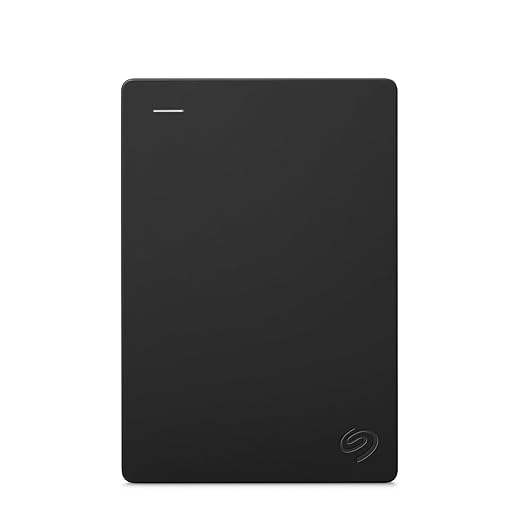
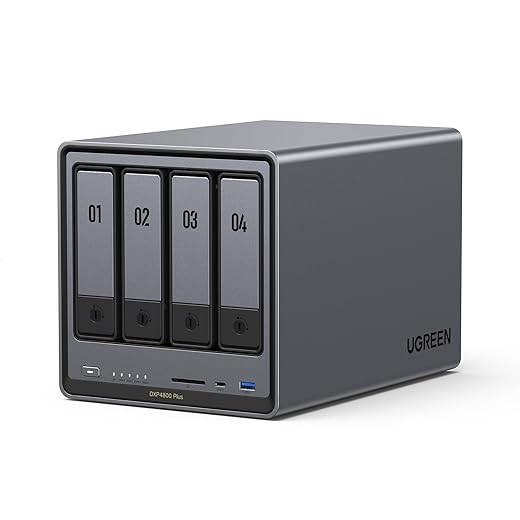
Is a NAS overkill or the only sane way to scale? Our choice depends on workflows, not hype.Pick the hardware that fits our recovery needs: a single external SSD for fast single-user restores, a two-bay NAS for basic redundancy and remote access, or a multi-bay unit with RAID and snapshot support for households and small teams. Explain what matters now: ransomware is common, networks are faster, and NAS vendors ship richer cloud integrations.
Compare core hardware specs and tradeoffs
Compare cloud partners by use case
Prefer setups that minimize manual steps, surface clear restore UX, and keep ongoing costs predictable.
Install and configure local storage and network
Plug it in correctly the first time — small network choices affect restore speed and reliability.Mount the drives and rack the NAS. Install disks per the vendor guide and format with a modern filesystem: Btrfs for snapshot/versioning (Synology/QNAP), XFS or ext4 for simple volumes. Enable full-disk encryption if data sensitivity requires it.
Create shares and user accounts for backup services. Make a dedicated service account (example: backup@local) with write access only to the backup share. Set reasonable quotas (e.g., 80% of disk for backups) to avoid surprise full volumes.
Assign a stable IP (DHCP reservation or static). Use wired Ethernet (1GbE/2.5GbE or 10GbE) for the NAS and primary clients. Place the device behind a firewall and harden defaults:
Configure NAS features: enable snapshots/versioning, retention policies, and periodic integrity checks. Test SMB/NFS/AFP access from each client (Windows, macOS, Linux) and adjust permissions.
We also benchmark local transfer speeds to set realistic expectations for initial seeding and restores. These design choices prioritize an approachable recovery flow: when things go wrong, we want a predictable, quick path to get users back to work.

Configure automatic sync to the cloud
Automating backups is one thing — ensuring they're efficient and private is another. Let's do both.Choose a sync stack: pick a vendor agent for simplicity (Synology/QNAP/Backblaze), or pick open-source control with rclone, Duplicati, or Borg + BorgBase. We prefer vendor apps for UX and rclone/Borg when we need portability, dedupe, or low-cost ops. That matters now because cloud vendors are consolidating features — choice equals resilience.
Configure these settings
Verify restores, monitor health, and iterate
Backup isn’t truly automatic until we’ve verified restores — and then tested again.Run daily integrity checks on local snapshots and cloud objects. Use checksums (SHA256) or vendor tools—run rclone check, borg check, or your NAS’s built-in verification—and log results for audit.
Schedule weekly restore drills. Pick a 10–20 GB active project, restore it to a test workstation, time the operation against our RTO target, and confirm file metadata and permissions.
Configure alerts for failed jobs, low disk, or cloud-cost spikes. Send notifications to email and Slack (or PagerDuty) with contextual links to logs and recent job outputs so we can act fast.
Monitor system health across the ecosystem. Surface NAS dashboards, cloud metrics, and third-party telemetry in one place (Prometheus/Grafana or vendor consoles) so we can spot trends and silent failures.
Apply maintenance tasks regularly
We build a maintenance rhythm: automated integrity checks, weekly restore drills, and alerts for failed jobs, low disk space, or cloud cost spikes. We run periodic full-restore tests to validate RTOs and retention rules, and we check cryptographic verification for encrypted archives. Monitoring integrates with our ecosystem — NAS dashboards, cloud metrics, and third-party alerting (email, Slack). We also schedule firmware and software updates and rotate drives where appropriate. Finally, we review our setup annually to adapt to changing storage prices, device capabilities, and platform integrations. This ongoing attention turns a backup system from a safety net into a reliable part of our workflow and protects against silent failures that products sometimes hide.
Wrap-up: resilient backups without friction
We’ve built a hybrid backup flow that pairs instant local restores with cloud resilience, lowering cost and friction while fitting modern ecosystems; try this setup, test regularly, tell us improved in your workflow, and share results to help others decide.
Frequently asked questions
What should I prepare before I set up automatic cloud backup with local storage?
Start with the checklist in the “What we’ll need” section above—measure your space, confirm compatibility with your gear, and read the full walkthrough once before you change settings or buy parts. Automatic cloud backup with local storage goes faster when prep is done upfront.
How long does it take to set up automatic cloud backup with local storage?
Most readers finish in about 30–90 minutes if they already have the right parts, but budget extra time for measurements, firmware updates, or a second pass when something does not behave the way the manual suggests on the first try.
What is the hardest part when you set up automatic cloud backup with local storage?
The step that trips people up is usually alignment or configuration—getting measurements, cable routing, or software settings right before you commit. If results still look off, re-check the basics in order instead of swapping hardware immediately.
What mistakes should I avoid when I set up automatic cloud backup with local storage?
Skipping measurements, ignoring ventilation or port limits, and rushing the final test are the common failures. Photograph your starting setup, label cables, and verify the outcome with the same content or workflow you will use every day—not a one-off demo.
When should I call a pro instead of trying to set up automatic cloud backup with local storage myself?
Bring in help when the job needs structural work, licensed wiring, or tools you do not own, or when repeated attempts still fail after you have followed the troubleshooting section. A short paid visit can cost less than replacing gear you damaged by forcing the install.

Princess Rioboca is the Lead Editorial Writer at Option Cutter, bringing over seven years of hands-on experience in consumer technology journalism. Specializing in home networking and smart home architecture, she transforms complex technical data into practical, real-world upgrades. Princess personally tests and audits every product she reviews—evaluating real-world Wi‑Fi throughput, cable management durability, and streaming ecosystem stability—to filter out spec-sheet noise. Her rigorous, field-tested insights are designed to give readers transparent, unbiased buying advice on what to purchase, what to skip, and exactly why.