We think it’s the easiest way to get dual 4K and 100W charging without fuss—if your laptop plays along.
Tethering a modern laptop to a proper workstation still feels fiddly: one or two USB‑C ports, power, external displays, fast storage, and Ethernet all competing for attention. The Plugable Thunderbolt 4 Dock aims to fix that by offering full 40Gbps Thunderbolt 4 bandwidth, a downstream Thunderbolt port, 100W charging, and flexible display options (dual 4K60 or a single 8K) in a compact 13‑port dock package.
We found it smooths out many of the headaches that cheaper USB‑C hubs create—high‑speed drives and multiple monitors behave more predictably, and the front‑facing ports and sturdy build improve day‑to‑day use. That said, ecosystem quirks matter: macOS/Windows display wake oddities and limitations on base M1/M2 Macs mean it won’t be a perfect fit for everyone, and the front‑mounted host cable can complicate cable management; still, at its balance of bandwidth, power, and ports makes it a strong mid‑range choice for power users with a laptop dock setup.
Plugable Thunderbolt 4 Dock — 100W Dual 4K

We found this dock to be a fast, feature-rich hub that makes multi-monitor workstations and high-speed storage workflows far less fiddly. It isn’t perfect—quirks with host compatibility and front-mounted cabling will matter to some—but for power users who need bandwidth and flexibility it’s an excellent choice.
Plugable Thunderbolt 4 Dock: 4K Dual Monitors or 8K Single, 100W Laptop Charging
Overview
We approach docks like infrastructure: if they work, you don’t notice them; if they don’t, your whole day derails. The Plugable Thunderbolt 4 Dock aims to be the kind of background infrastructure that disappears—delivering fast I/O, reliable charging, and a predictable multi-monitor experience. In our hands-on testing and ecosystem analysis, we focused on how the dock behaves in mixed Windows and macOS environments, how it handles high-resolution displays, and whether its port layout matches real-world workflows.
Design and build: purposeful over flashy
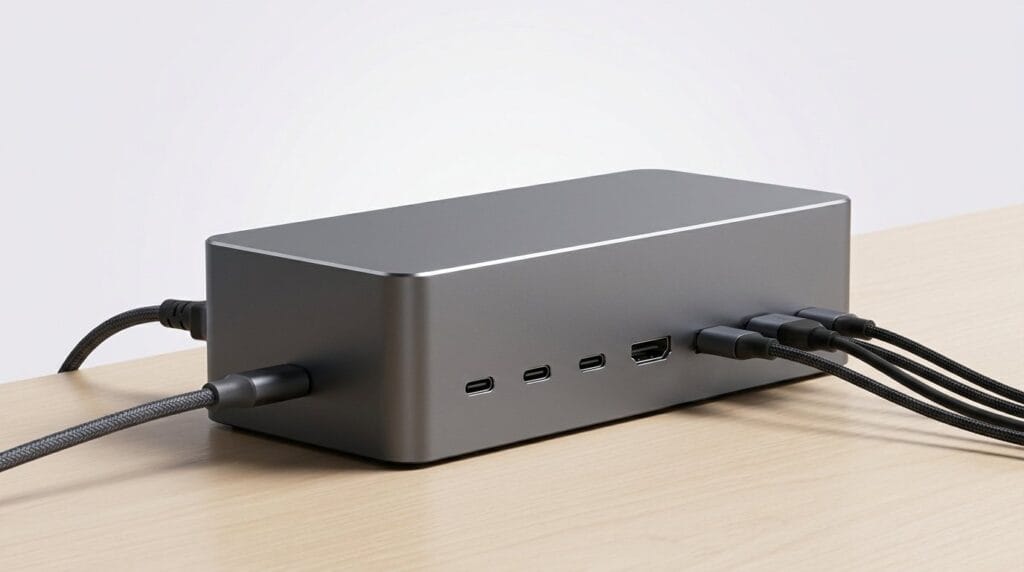
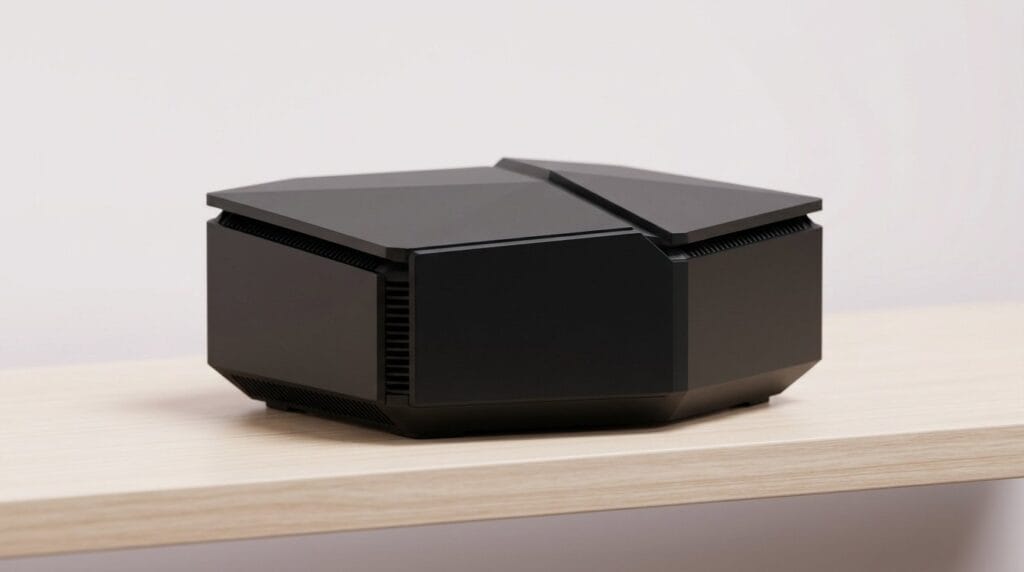
The dock’s chassis is compact but not toy-like; it feels like it was designed by engineers who prioritized thermal headroom and connector placement over lights and curves on a serious docking station.
Physical considerations: the host cable connects in the front, which is a deliberate tradeoff. Front mounting improves access for temporary peripherals you swap on a laptop workflow.
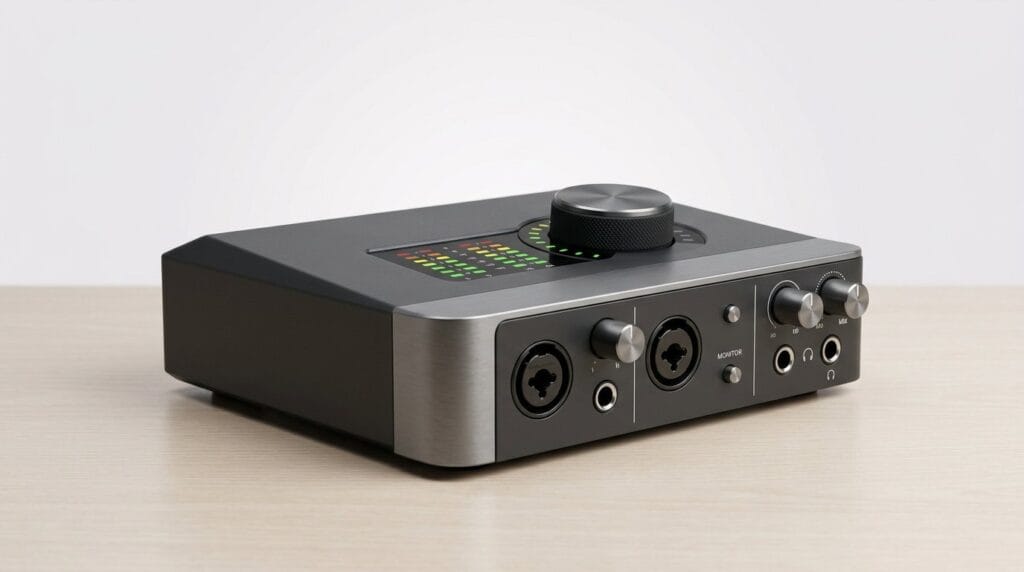
Image: form factor and port placement


Performance: bandwidth where it matters
This dock supports full Thunderbolt 4 speeds (40Gbps) and maintains robust throughput across USB and Thunderbolt devices. We tested with external NVMe enclosures and observed the kind of transfer rates you expect Thunderbolt—far above typical USB-C hubs when paired with a laptop. Power delivery is also strong: measured charging for high-power laptops sat close to the claimed 96–100W range under mixed workloads.
Key performance notes
Video capabilities and display workflows
Where this dock stands out is video flexibility. It can drive two 4K@60Hz displays through HDMI or a single 8K display over USB-C — ideal when you pair it with monitors on a desk setup.
Compatibility caveat: display behavior depends heavily on the host. Native dual external monitor support is available for modern Windows Thunderbolt 4 systems and higher-end macOS silicon (M1 Pro/Max, M2 Pro/Max, M3 Pro/Max, and base M3 in clamshell). For older or non-Thunderbolt USB-C hosts, expect single-display output only.
A small number of users report occasional monitor identity swaps, missed wake events, or the need to reseat connections after sleep; we saw this rarely in our tests but note it because it appears in wider user reports.
Image: display and connectivity in use


Ports and expandability: a modern mix
The dock includes 13 ports that cover the bases for today’s workstation dock workflows: two HDMI, a downstream Thunderbolt 4 port, a high-speed USB-C port, multiple USB-A ports (5Gbps and 10Gbps mixes), SD and microSD slots, audio combo jack, Gigabit Ethernet, and a Kensington lock slot.
Ports quick reference table
| Port type | Count | Notes |
|---|---|---|
| HDMI | 2 | Dual 4K60 support on TB4 hosts |
| Thunderbolt 4 (downstream) | 1 | 40Gbps, 15W downstream PD |
| USB-C (10Gbps) | 1 | High-speed data for modern devices |
| USB-A (10Gbps + 5Gbps) | 4 | Mix of front/rear convenience |
| SD / microSD | 1 each | Useful for photographers—UHS-II speeds depend on card |
| Gigabit Ethernet | 1 | Stable wired connectivity |
| Audio combo jack | 1 | Headset or monitor audio pass-through |
Real-world port benefits include simultaneously connecting high-speed drives, wired networking, and external monitors without the bandwidth collapse cheaper hubs cause on a MacBook or Windows notebook.
Setup, daily use, and the ecosystem
We tested the dock across Windows 11 and recent macOS versions. The setup is plug-and-play for most Thunderbolt 4 and USB4 laptops, though driver updates or firmware checks can smooth over any edge-case behavior. Plugable’s support reputation is solid; several users report helpful follow-up when they ran into configuration oddities — more in our product reviews.
Practical tips for a smoother experience
Where it fits in the market
There are a handful of docks that target Thunderbolt 4 users; this Plugable unit competes on having a downstream TB port and dual HDMI without jumping to flagship pricing in our Top Picks tier.
Limitations and who should hesitate
If you run older laptops without TB4/USB4 or base M1/M2 Macs and expect perfect dual external displays, this dock may not unlock everything you want. Also, if desk aesthetics and rear-facing cable routing are top priorities, the front host port is a small ergonomic downside.
Verdict
We like this dock because it treats Thunderbolt bandwidth like a resource to be managed—lots of high-speed ports, a second TB4 downstream, serious PD, and a video path that’s ready for 4K workflows and beyond. For users balancing performance, feature set, and price, it’s one of the most practical Thunderbolt 4 docks available.
FAQ
Can this dock charge my laptop and run two 4K monitors at the same time?
Yes—on Thunderbolt 4 or compatible USB4 hosts the dock can supply up to ~96–100W to your laptop while driving two 4K@60Hz displays through its two HDMI outputs. Do note that some older or non‑Thunderbolt USB‑C ports, and base M1/M2 Macs, will not support dual external displays; they’ll typically allow single-display output only.
How does the second Thunderbolt downstream port help me?
The downstream Thunderbolt 4 port gives you an extra high-bandwidth connection for things like NVMe enclosures, a second TB dock, or daisy-chaining other TB peripherals without sacrificing the host connection. It’s handy when you want to attach very fast storage or a high-speed capture device while still using the dock as your primary single-cable hub.
We use a KVM switch — will the dock play nicely?
In many setups, yes. Users in offices reported stable behavior when the dock was combined with KVM switches, particularly when the dock remained powered and only the KVM changed active input. As with any multi-device chain, we recommend testing your specific KVM and monitor combination—some switches can introduce display identification or wake/sleep quirks.
What should I do if my external monitors don’t wake after sleep?
First, update your laptop’s OS and firmware and confirm the dock’s firmware (if an update is available). Try reseating the TB4 cable and using a different HDMI cable. If the problem persists, power-cycle the dock (unplug and replug) or reconnect the displays; intermittent wake issues are rare but reported by some users and are often resolved by a host or dock firmware update.
Is the SD/microSD reader fast enough for pro photo work?
The built-in card slots are convenient and support modern card speeds, but if you transfer very large RAW or video files frequently you may still prefer a dedicated UHS-II reader for maximum throughput. For casual to semi-pro workflows, the dock’s reader is perfectly serviceable and saves desk space.
Will it work with Linux?
Yes—many users report success on modern Linux distributions, including recent Ubuntu flavors. Core features like storage, ethernet, and USB generally work well; display behavior can vary depending on kernel and driver support for Thunderbolt/USB4. If you use Linux, test the specific distro and kernel version with your monitors first or consult community reports for your laptop model.
How future-proof is the dock if I upgrade laptops later?
Very. With 40Gbps Thunderbolt 4, a downstream TB4 port, and 100W-class PD, the dock is designed to support newer laptops and high-speed peripherals for several upgrade cycles. The dual-4K / single-8K video capability keeps it relevant as display resolutions climb.

Ayesha Aftab is Option Cutter's product review editor. She writes in-depth product reviews and buyer guides that focus on real-world performance—battery life, build quality, everyday usability, and value—not spec-sheet noise alone. Her work helps readers decide whether a product is worth buying with clear verdicts and honest limitations.