
Why a single hardware change can transform an old laptop
We know the feeling: an otherwise usable laptop that drags through boot, app launches, and multitasking. Instead of buying a new machine, there’s one upgrade that usually delivers the biggest, most cost‑effective boost to everyday snappiness — swapping the old hard drive for a solid‑state drive. This change shortens startup, reduces waiting on files, and makes the system feel alive again.
We’ll explain what “feels faster” really means, why storage type governs responsiveness, and how to pick and install the right drive for your model. Expect practical compatibility checks, migration options, and honest trade‑offs so you can decide whether upgrading beats replacing. We focus on design, ecosystem, and real‑world impact today.


Upgrade a Slow Laptop on a Budget: SSD + RAM for a HUGE Difference
What ‘feels faster’ really means: the user experience gains we chase
We use “fast” to describe moments: the jolt of opening the lid and being able to tap keys, the second‑count pause before an app paints its window, and the smoothness of juggling tabs. Those moments are subjective, but they correspond to measurable interactions: boot time, wake‑from‑sleep latency, app launch delay, file‑copy throughput, and UI responsiveness.
What users actually notice
Different tasks stress different storage characteristics. Mapping them helps predict what an upgrade will change
Why benchmarks can mislead
Synthetic MB/s numbers and single‑threaded scores make for nice charts, but they often miss the human story. A drive that posts huge sequential throughput might still feel sluggish if its random read latency is poor. We’ve seen midrange NVMe drives shave seconds off app startup compared with high‑end SATA drives — and that’s what changes behavior: we stop reaching for our phone during a long app launch.
Quick wins — and what won’t change
Upgrading storage typically gives immediate wins: faster boot, snappier app launches, quicker backups, and smoother multitasking. It won’t make a weak CPU render video faster or improve GPU‑bound games, and thermal limits can still throttle sustained workloads. If your machine has very little RAM, swapping to an SSD helps but pairing the two is the real sweet spot.
Next, we’ll dig into the technical core: how different drive types and interfaces produce those real‑world gains.
The technical core: how storage type determines responsiveness
We promised to tie the “feels faster” story to real hardware, so here’s the short version: hard drives are mechanical with measurable pauses; flash is electronic and massively parallel. Those differences drive the experience.
Drives and latency: seek, spin, and flash immediacy
A spinning 2.5‑inch hard disk drive must move heads and wait for rotation — think milliseconds of delay for each random access — so lots of tiny reads (like opening apps) add up into seconds. NAND flash responds in microseconds and can service many requests in parallel, so the same bursty workload feels instantaneous. In practice, that’s why an SSD turns “wait, where did I put my patience?” into “oh, done.”
Interfaces matter: SATA vs PCIe/NVMe
SATA caps out around 550 MB/s and uses AHCI, which wasn’t designed for the parallelism of flash. NVMe over PCIe unlocks far higher queue depth and throughput, so NVMe drives like the Samsung 970 series or Crucial P5 actually reduce latency under load. But a laptop’s physical and firmware limits (single‑lane M.2, old BIOS) often bottleneck NVMe, so check compatibility before assuming gains.
Random I/O, IOPS, and queue depth beat raw MB/s
Human tasks are dominated by many small, random reads/writes. Benchmarks that report high sequential MB/s don’t predict snappiness; low random read latency and high IOPS at realistic queue depths do. Controller design, DRAM/cache, and parallel channels inside an SSD make a big difference here.
System-level features and gotchas
TRIM, proper NVMe/AHCI drivers, firmware updates, and a healthy overprovisioning policy keep performance steady — how TRIM works explains why the OS must tell flash which blocks are free. Older laptops may lack NVMe drivers in firmware, have thermal limits that throttle fast drives, or expose only one PCIe lane — all factors that blunt the advantage.
Quick practical checklist
Next we’ll walk through choosing the right form factor and capacity for your machine.
Picking the right drive for your machine: form factor, interface, and capacity
Identify what your laptop accepts — quick checks
First, we figure out which physical slot you actually have. Look up your laptop model’s maintenance manual or spec sheet for “M.2 slot,” “SATA,” or “2.5‑inch bay.” If you’re comfortable, flip the machine and check: a 2.5‑inch bay is obvious; M.2 slots show a single screw and a thin stick. Note M.2 length (2230/2242/2260/2280) and keying (B, M, or B+M). If you can’t open it, use HWiNFO, Speccy, or the manufacturer’s support page to confirm NVMe vs SATA support — then shop SSDs that match your slot.
Capacity and endurance: what to buy
For everyday speed, we find 500–1000 GB hits the sweet spot. Why? A mid‑capacity drive usually has more NAND channels and better parallelism, which actually makes the drive snappier than the cheapest 240–256 GB options, yet it keeps cost reasonable. Look at TBW (terabytes written) and warranty length — 150–600 TBW and a 3–5 year warranty are common. Higher TBW scales with capacity; if you do heavy video work, step up capacity and TBW. For light web/productivity use, 256–512 GB is often sufficient.
SATA vs NVMe — practical trade-offs
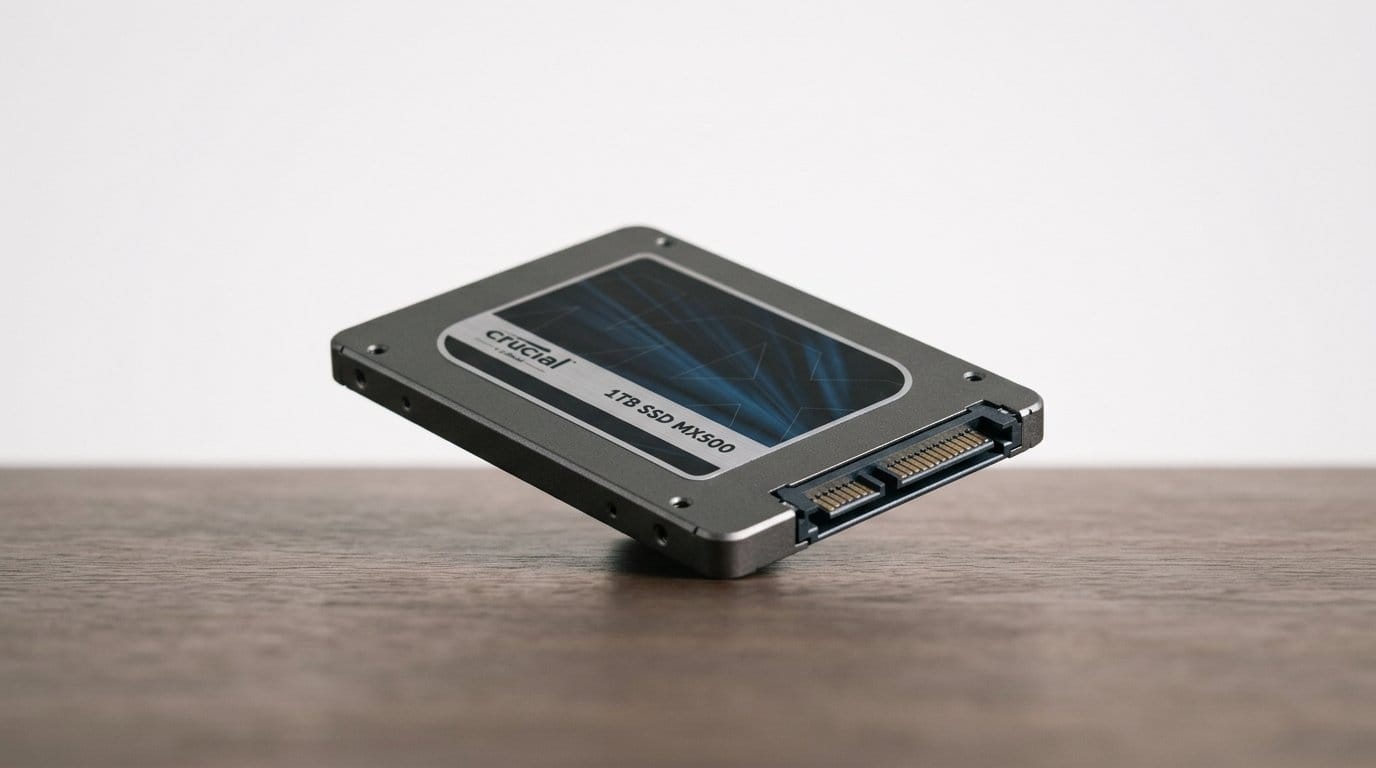
From a buyer’s standpoint: a SATA SSD (Crucial MX500, Samsung 860 EVO) wipes the floor with HDD-era sluggishness at low cost and is all you need for faster boot and app launches. NVMe (Samsung 970/980, WD SN570) matters when you transfer large files, edit media, or run many parallel I/O tasks — or if your laptop firmware supports full PCIe lanes. Don’t buy a PCIe 4.0 drive for a laptop capped at PCIe 3.0; you’ll pay for headroom you can’t use.
Brands, warranty, and software matter
Quality controllers (Samsung, Phison, Silicon Motion) and DRAM vs DRAM‑less designs change real responsiveness under load. Prefer brands with solid firmware and utilities (Samsung Magician, Crucial Storage Executive) — firmware updates and cloning tools save headaches. Warranty and clear TBW specs are better predictors of long‑term value than splashy sequential MB/s numbers.
Next, we’ll cover the migration steps and common upgrade pitfalls so you don’t lose data or performance gains during the swap.
How to upgrade: migration strategies and common pitfalls
We’ll walk through practical, screwdriver‑level steps so you don’t trade a sluggish laptop for a confusing mess. There are two sane migration paths: cloning the existing system for a fast, familiar swap, or doing a clean OS install for a lean, long‑term result. We’ll explain when to use each and how to avoid the common gotchas.
Two paths: clone vs clean install
Cloning copies everything — settings, apps, and that desktop mess — so you’re back up and running in an hour. Use Macrium Reflect Free, Samsung Data Migration (for Samsung drives), or Clonezilla. Pros: minimal reconfiguration, faster turnaround. Cons: inherits old cruft and driver issues; can leave legacy partitions behind.
A clean install gives you a tidy system and often better stability and battery life. Use Windows Media Creation Tool or a Linux USB installer. Pros: fewer driver conflicts, smaller install, clear TRIM behavior. Cons: time to reinstall apps and restore files.

Practical checklist (do this in order)
Troubleshooting & common pitfalls
If your machine uses weird connectors, has cryptographic boot, or you don’t feel confident, it’s worth paying a local tech — a bad swap can cost more than the drive.
Real-world trade-offs: battery, heat, longevity, and the RAM question
Battery and thermal behavior: what to expect
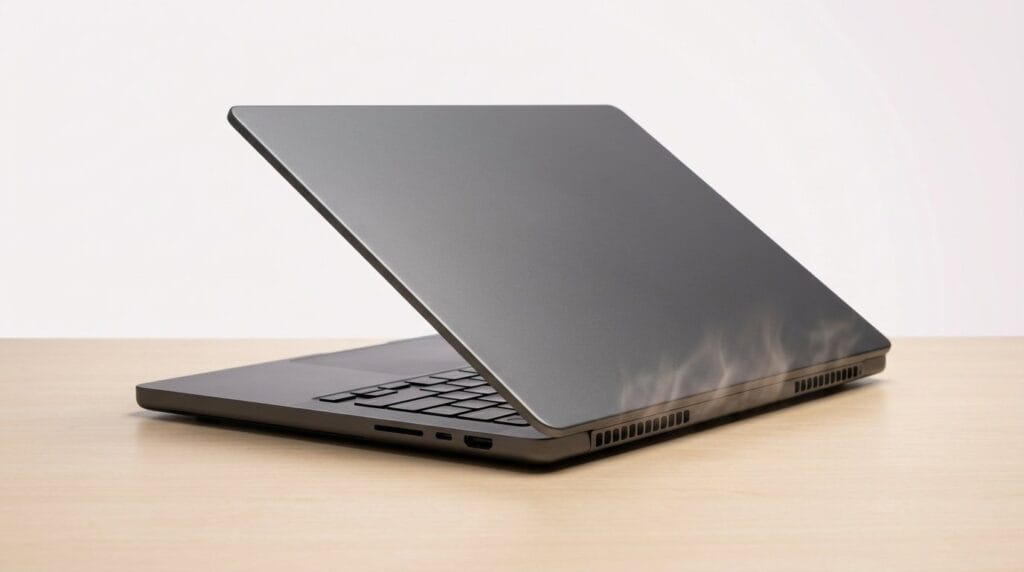
Swapping a spinning disk for an SSD usually makes laptops quieter and more power‑efficient in everyday use: lower idle power and far fewer spin‑up cycles. But NVMe drives can draw higher short‑term power during sustained reads/writes, which in thin, marginal‑cooling chassis sometimes wakes fans or triggers thermal throttling. In practice that means web browsing and app launches get both faster and cooler, but long file transfers or backups can feel hotter and chew battery faster than a 2.5‑inch SATA drive would.
If your laptop is a thin ultrabook, favor low‑power NVMe models (or a SATA SSD if it’s the only option) and keep firmware updated. If you see spikes, a tiny M.2 heatsink or reseating the drive away from heat sources often helps.
Lifespan, wear‑leveling, and health checks
Modern consumer SSDs use wear leveling and overprovisioning; their endurance ratings (TBW) are generous for normal use. For most of us — email, browsing, office work, light photo edits — endurance is not a realistic worry. What matters more is good hygiene: enable TRIM, avoid filling the drive above ~90%, and keep firmware current. Use vendor tools (Samsung Magician, Crucial Storage Executive) or CrystalDiskInfo to monitor SMART attributes; that’s a simpler, more useful habit than obsessing over bench‑derived write numbers.
The RAM question: when memory beats a faster drive
If your system constantly hits the page file, shows excessive disk activity when switching apps, or struggles with many browser tabs, adding RAM can outpace an SSD upgrade. For light multitasking, an SSD alone does wonders; for VMs, large spreadsheets, or creative apps, RAM is the better first fix. Often the best result is both: an SSD for responsiveness and more RAM for smoothness.

Quick, actionable rules
Next, we’ll broaden the view: how software, warranties, and resale value shape whether an SSD is the best long‑term move.
Ecosystem and long-term outlook: software features, resale, and the competitive context
We widen the lens here: an SSD isn’t just a speed part, it’s an entry in a larger platform story. How the operating system, firmware, and market options evolve determines whether that swap still pays off a year or three from now.
How modern OS features use (and abuse) SSDs
Features like FileVault/BitLocker, APFS snapshots, Windows Restore Points, and VM images lean heavily on fast random I/O. That means an SSD unlocks functionality — near‑instant snapshots, snappier WSL2 or Docker containers, and smoother VM checkpoints. But encryption and copy‑on‑write systems also raise sustained writes. For most consumer drives (think Samsung 970 EVO Plus, WD Blue SN570, or Crucial MX500) this isn’t a problem, but we recommend enabling TRIM and checking your OS’s NVMe driver so the drive can manage wear efficiently.
Firmware, drivers, and ongoing performance
Firmware updates matter. Manufacturers push fixes that improve stability and sometimes performance; tools like Samsung Magician, Crucial Storage Executive, or Linux’s fwupd can keep drives current. On Windows, confirm you’re using the inbox NVMe driver or the vendor’s recommended driver; on Macs, Apple handles updates. Bad or outdated firmware is the most common long‑term surprise we see.
Resale value and trade‑in math
An SSD swap reliably raises resale value — especially swapping a slow HDD for a 512GB NVMe. That can recoup a sizable fraction of the part cost on trade‑in sites (Back Market, Apple Certified Refurbished channels, Amazon Renewed). Document receipts and serials, and consider a clean OS image before resale.
Alternatives in the market
Compare the upgrade to buying refurbished units or entry‑level new laptops. Refurbs often bundle newer CPUs and soldered fast storage — great if you need CPU wins. Cloud workflows (Google Drive stream, cloud VDI) reduce local storage needs but introduce latency for heavy creative work. Our rule: upgrade if the machine’s CPU and thermals are adequate; buy new or refurbished if you need significantly more CPU/GPU headroom.
Quick checklist before buying
With that ecosystem view in hand, we can turn to when an SSD is the right investment — and when we should consider other options in our how-to guides.
When to upgrade — and when to look elsewhere
For most of us with a slow but otherwise viable laptop, swapping a mechanical hard drive for an SSD is the single most effective, perceptible performance upgrade: faster boot, snappier apps, and a longer usable life at modest cost. Choose a drive that fits your bay/interface, size it for your needs, clone or fresh‑install, and expect trade‑offs in battery, heat and longevity.
If the chassis, CPU, or ports no longer meet your needs, replace the machine. Otherwise, upgrade first, experiment cheaply, and reassess. Try the upgrade on a backup drive first.
Frequently asked questions
What is the main point of “The One Upgrade That Makes Old Laptops Feel Faster”?
This piece explains where the one upgrade that makes old laptops feel faster matters in real buying decisions—not just headline specs. We focus on trade-offs, who benefits most, and what to verify before you spend.
Who should read this the one upgrade that makes old laptops feel faster guide?
Read it if you are actively shopping, upgrading, or trying to separate marketing claims from day-to-day use. Skip it if you already own the gear and are not planning a change this season.
What changed recently around the one upgrade that makes old laptops feel faster?
Prices, firmware, and feature tiers shift quickly in this category. We call out what is new enough to affect your decision and what is incremental hype you can safely ignore.
How should I use this editorial when buying?
Treat it as context before you compare models: note the risks and priorities here, then cross-check specs and current pricing on the picks that match how you actually use the product.
What is easy to get wrong about the one upgrade that makes old laptops feel faster?
Buyers often overweight one spec—brightness, speed, or brand—and underweight fit for their room, ecosystem, or warranty support. We flag the mismatch we see most often in reader questions.
Where should I go next after reading?
Use the related comparisons and top picks linked near the end of this article for model-level shortlists, then confirm return policies and compatibility with the devices you already own.

Iqra Jumar is Option Cutter's editorial writer. She writes practical editorials and buyer guides that focus on real-world upgrades—better Wi‑Fi, cleaner cable setups, smarter streaming, and everyday fixes—not spec-sheet noise alone. Her work helps readers decide what to change now, what to skip, and why.