

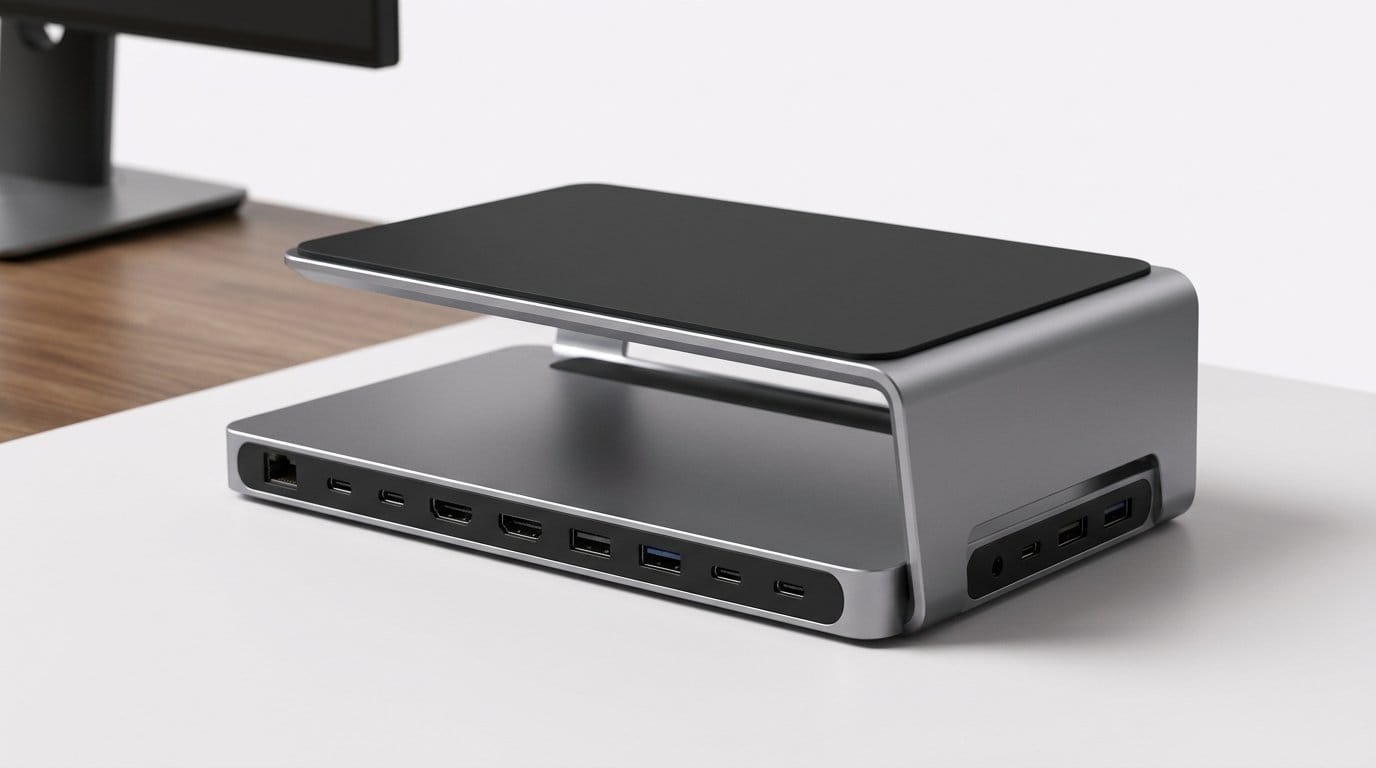

Our Desk Setups Got Built Backwards — Here’s How
We treat desk setup like a checklist: buy a laptop, add a monitor, plug in a keyboard, call it finished. That sequence privileges device specs, marketing, and supply chains over how we actually work.
Built backwards means we end up with lost focus, visual clutter, and friction between devices and accessories. In the sections that follow we trace five roots of the problem: design constraints, spec-driven choices, accessory ecosystems, retail storytelling, and stacks that ignore workflows.
We’ll argue that rethinking the stack starts with humans first: ergonomics, interaction flow, and ecosystem coherence. Then we offer practical principles to build forward‑facing desks that reduce friction and align products with real work and longevity.


Top 10 Desk Setup Mistakes Sabotaging Your Comfort
Design Constraints First: Devices Dictating the Desk
Devices designed for showrooms, not sessions
We’ve watched product teams chase thinner bezels, wafer‑thin profiles, and integrated batteries because those attributes photograph well and move units. The MacBook Air M2, Dell XPS 13, and Surface Laptop series are great examples: fantastic spec sheets and beautiful in ads, but they tilt the ergonomics equation. Low screens force us to hunch; razor‑flat keyboards demand different hand posture; and sealed batteries mean fewer repairable parts and fewer docking options. Designers are optimizing for shelf impact and unboxing thrills, not eight‑hour work sessions.
How those choices shift work onto accessories
When devices concede ergonomics for aesthetics, the burden of usability gets pushed to what we buy after the fact: laptop stands, external keyboards, adapters, and docks. A couple of ubiquitous trends illustrate this:
We end up cobbling together solutions: a vertical stand to free desk space, a riser to get the screen to eye height, a full‑sized ergonomic keyboard to restore typing posture, and a multiport hub to regain lost ports. Each add‑on fixes one problem and introduces another — cable clutter, incompatible power delivery, or a mix of finishes that don’t match the device.
Practical checks to avoid retrofit regret
We don’t need to accept this as inevitability. Before buying, test for the things manufacturers rarely advertise
Choosing modular, standards‑based accessories reduces vendor lock‑in. Prefer USB Type-C docks and hubs that provide power, video, and USB passthrough in one package rather than brand‑specific connectors.
Next, we’ll pull back the curtain on the spec wars that drive these choices — and why benchmark chasing often beats basic usability in product roadmaps.
Spec Wars Over Usability: When Benchmarks Beat Ergonomics
Specifications as the North Star
We live in a world where core counts, pixel pitch, and refresh rates headline every product page. Reviewers and buyers reward the big, easy numbers — “12‑core CPU,” “4K 120Hz,” “0.6‑inch chassis” — and manufacturers respond. The problem: those metrics are proxies for performance on paper, not comfort at your desk. When specs become the primary design goal, ergonomics becomes an afterthought.
Everyday trade‑offs we actually feel
The trade‑offs show up in predictable ways
We’ve spent full workdays on laptops that felt fast but left us with sore shoulders and irritated eyes by hour six.
Market incentives that steer design
Why does this happen? Because specs are easy to market and benchmark. A reviewer can meaningfully compare refresh rates or core counts; they can’t easily test “comfort after eight hours.” Buyers glance at headline numbers; enterprises compare scorecards. This creates a feedback loop where product teams prioritize measurable wins over subtler human factors.
That loop also shapes ecosystems: accessory makers, firmware teams, and support channels scramble to fill gaps — docks to restore ports, external keyboards to rescue posture, driver updates to patch display scaling issues.
How to pick better from current offerings
We can tilt the scales back toward usability with a few practical checks before buying
Who’s doing it better
Flagship consumer lines chase thinness; business and workstation lines (ThinkPad T/X, Dell Latitude, HP EliteBook, and some workstation laptops) often trade a few millimeters and ounces for real‑world comforts: better keyboards, more ports, and easier docking. Those tradeoffs usually correlate more closely with sustained productivity.
Next, we’ll look at how that mismatch between product decisions and daily needs fuels an entire accessory economy — and what that economy costs us in complexity and money.
The Accessory Economy: How Add-Ons Patch Product Shortfalls
Accessories as both symptom and scaffolding
We used to buy a desk and a couple of devices. Now we buy a product, then buy a pile of products to make that product behave like what we actually need. Docking stations, monitor arms, and magnetic chargers aren’t neutral extras — they’re reactive patches that tell the real story: the original design didn’t account for our workflows. That mismatch shapes how our desks look and feel more than any single device ever could.
Proprietary connectors lock the desk
When a laptop maker ships a proprietary port — Surface Connect, Apple’s older Lightning/MagSafe iterations, or vendor‑specific Magic Keyboard docks — it doesn’t just sell hardware. It erects a moat. We end up matching chargers, docks, and cables by brand instead of by capability. That’s convenient if we only own one brand; it’s a nightmare in mixed-household setups where every device demands its own adapter.
Hubs that prioritize specs over neatness
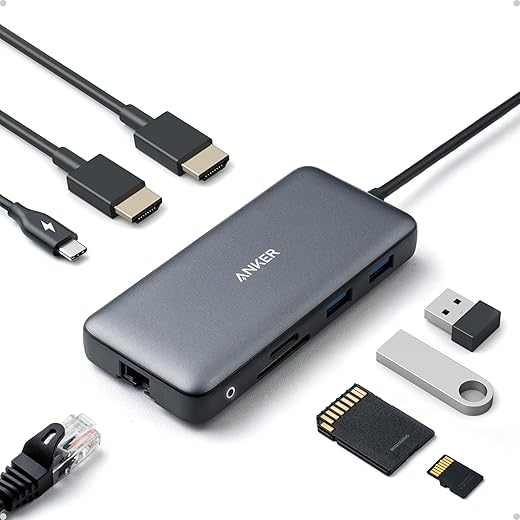
Hub makers chase specs: more ports, higher throughput, extra HDMI outputs. The result: wide, brick‑sized docks with stiff short cables that sit in plain sight, and daisy chains of adapters under our desks. TB3/TB4 docks like the CalDigit TS3 Plus trade compactness for full‑fat functionality; cheaper USB‑C hubs pack features onto tiny boards with heat and cable‑management problems. The UX hit shows up as tangle time and device‑by‑device compatibility testing.
Market dynamics: fragmentation is profitable
Accessory makers profit from fragmentation. The more non‑standard ports and awkward tradeoffs OEMs ship, the greater the addressable market for third‑party “fixes.” Platform owners, meanwhile, have a countervailing incentive: lock users into ecosystems so recurring revenue and accessory sales stay in‑house. The net effect for us is predictable — more cords, more firmware updates, more trips to compatibility threads.
How we can fight back (practical tips)
We can stop treating accessories as permanent duct tape and start choosing them as intentional system parts — but that requires valuing standards and predictability over headline specs.
Retail, Marketing, and the Illusion of the Finished Desk
Polished photos, messy realities
Retail photography and showroom merchandising sell a promise: a finished desk that arrives ready to make us productive and photogenic. We respond to those images — clean cable runs, a single laptop, a perfectly centered monitor — and expect the same ease at home. What we don’t see in the ad is the tangle of power bricks, spare adapters, and size mismatches that make that image impossible for many households. A CES booth or an IKEA showroom is curated for optics and throughput, not for the messy math of mixed-device ownership and daily ergonomics.
The influence economy amplifies the gap
Influencers and “desk tour” videos accelerate this distortion. A creator stacks premium peripherals with a sponsored desk and a wireless everything setup; viewers assume achieving that look only requires money. In reality, the creator often has a dedicated workflow: matching brands, a studio power setup, and hidden professional cable management. The result is impulse purchases — we buy a desk because it looks good in a thumbnail, then chase compatibility and ergonomics with add-ons we didn’t budget for.

Competitive tactics that favor form over function
Retailers and brands use cross-promotions and bundles to increase cart value: monitor + arm + keyboard bundles look cohesive but lock us into a single upgrade cycle. Trade-show demos emphasize visual cohesion — a single power strip, wireless peripherals, and staged lighting — which minimizes friction for the viewer but hides integration challenges like PD wattage, VESA patterns, or desk depth needed for monitor tilt.
Practical changes retailers and buyers can make now
We can’t rely on aspirational shots to teach good systems thinking. Better in‑store education and honest bundling would shift us away from impulse aesthetics toward resilient, long‑lived setups — a practical bridge into rethinking the stack.
Rethinking the Stack: Principles for Forward-Facing Desk Design
We’ve diagnosed why desks are built backward. Now let’s flip the process: start with how we work and move outward to the devices, accessories, and retail choices that support that work — not the other way around.
Start from workflow and ergonomics, not specs
Map your tasks first: where do you read, where do you type, where do you reference paper or a tablet? Build “active zones” on the desk — primary screen, input zone, reference zone — and prioritize human factors: monitor top at eye level, 20–30 inches distance, elbows at 90–110 degrees, keyboard flat or slightly negative tilt. Don’t buy a monitor because it’s 4K; buy one that fits your zone and supports single-cable connection to your laptop.
Prioritize interoperable standards
Choose hardware that plays nicely with everything else: USB-C PD (65W or 100W as needed), DisplayPort/Alt Mode or Thunderbolt for video, and VESA-compliant mounts for mechanical compatibility. These standards reduce adapter chains and future-proof upgrades. Dell’s USB-C monitors (for example, the U2720Q) and Thunderbolt docks from CalDigit show how consistent standards simplify setups and repairs.

Choose adaptable, future‑proof accessories
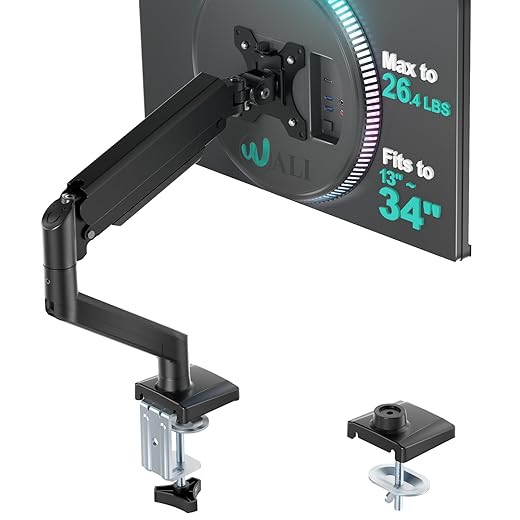
Buy flexible building blocks: a solid monitor arm (VESA 75/100), a dock that consolidates power/ethernet/video (CalDigit TS3 Plus, Anker PowerExpand), and modular power strips or in-desk power modules. Favor clamp or grommet mounting over fixed stands, and pick cable management that’s accessible, not hidden. These choices let us swap laptops, tablets, or monitors without rebuilding the desk.
Favor simplicity over stacked complexity
One robust hub beats three tiny adapters. Keep the critical path short: laptop → dock → monitor → keyboard/mouse. Label cables, standardize on one fast PD charger per workstation, and resist “stacking” devices unless they add clear value. We reduce fragility and make troubleshooting a non‑event.
Ecosystem strategies and market context
Platform players win when they make continuity obvious — Apple’s continuity features or Dell’s monitor+dock combos reduce friction. Accessory makers that embrace open standards and publish clear specs (VESA, wattage, alt‑mode support) will capture users fed up with adapter piles. Retailers that surface compatibility filters and show “behind the desk” demos create trust and fewer returns. There’s still room for newcomers who build modular, standards-first products that prioritize ergonomics over aesthetics.
Practical rules for action
These principles give us a roadmap to reverse the backward build and make desks that are durable, humane, and easy to evolve — which sets up the small-but-powerful changes we’ll wrap up next — browse our how-to guides.
A Small Shift, A Big Difference
We prioritize workflows, demand interoperability, and reward ergonomic, integrated design.
Let’s choose people first.
Frequently asked questions
What is the main point of “Why Most Desk Setups Are Built Backwards”?
This piece explains where why most desk setups are built backwards matters in real buying decisions—not just headline specs. We focus on trade-offs, who benefits most, and what to verify before you spend.
Who should read this why most desk setups are built backwards guide?
Read it if you are actively shopping, upgrading, or trying to separate marketing claims from day-to-day use. Skip it if you already own the gear and are not planning a change this season.
What changed recently around why most desk setups are built backwards?
Prices, firmware, and feature tiers shift quickly in this category. We call out what is new enough to affect your decision and what is incremental hype you can safely ignore.
How should I use this editorial when buying?
Treat it as context before you compare models: note the risks and priorities here, then cross-check specs and current pricing on the picks that match how you actually use the product.
What is easy to get wrong about why most desk setups are built backwards?
Buyers often overweight one spec—brightness, speed, or brand—and underweight fit for their room, ecosystem, or warranty support. We flag the mismatch we see most often in reader questions.
Where should I go next after reading?
Use the related comparisons and top picks linked near the end of this article for model-level shortlists, then confirm return policies and compatibility with the devices you already own.

Iqra Jumar is Option Cutter's editorial writer. She writes practical editorials and buyer guides that focus on real-world upgrades—better Wi‑Fi, cleaner cable setups, smarter streaming, and everyday fixes—not spec-sheet noise alone. Her work helps readers decide what to change now, what to skip, and why.









