


Why One Accessory Changes Everything on Your Desk
Desks have become a tangle: the average knowledge worker swaps three devices and manages five cords every day. We’ve watched shrinking laptop I/O and a proliferation of ports turn simple setups into scavenger hunts.
The solution we recommend is straightforward: a single, well‑designed docking hub that consolidates power, displays, data, and peripherals. It’s not glamour—it’s practical. In this piece we examine what that accessory does and the problem it solves; what good design and build look like; how it plays with ecosystems and protocols; and the real daily experience of setup, use, and troubleshooting.
We compare competing approaches and end with a concise buying guide so you can choose a dock that fits your workflow, future‑proofs your desk, and gets you back to work faster. After reading, you’ll know which dock belongs on your desk and why. We focus on practical tradeoffs and longevity.
What the Accessory Is and the Problem It Solves
What we mean by “one cable” docking
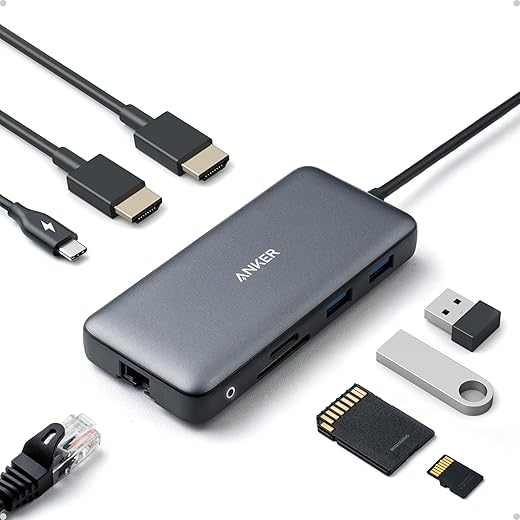
At its simplest: a one‑cable docking hub is a single, powered hub — usually USB‑C or Thunderbolt — that connects to your laptop with one upstream cable and centralizes power delivery, external displays, wired networking, and peripheral ports. This isn’t a pass‑through dongle or a jerry‑rigged cluster of adapters. It’s an active, often powered box that replaces a forest of chargers, HDMI adapters, Ethernet dongles, and USB extenders with one predictable endpoint.
The specific pains it eliminates
Think of the everyday frictions we live with:
A proper dock solves each: instant connect/disconnect, guaranteed power (we aim for PD that meets or exceeds laptop draw), stable wired Ethernet, and native display outputs that respect refresh rates and resolutions.
Who benefits — quick user archetypes
Why consolidation matters now
Laptops got thinner and ports got fewer; meanwhile, display and network standards keep evolving. That mismatch makes single‑purpose dongles brittle. A dock buys resilience: firmware updates, active cooling, and multiple protocols (USB, DisplayPort alt mode, Thunderbolt) mean your setup adapts rather than fails when you upgrade hardware.
Practical how‑to tips right away
Next, we’ll look at what “good” dock design actually looks like — the materials, port layout, and build choices that determine whether a dock is a neat anchor or another desk eyesore.
Design and Build: What Good Looks Like
We evaluate docks the same way we evaluate any desk tool: by how quickly it disappears into the background and how reliably it performs when we need it. Below are the concrete design choices that matter in daily life — and the user-facing effects they produce.
Form factor: compact hub vs full‑sized dock
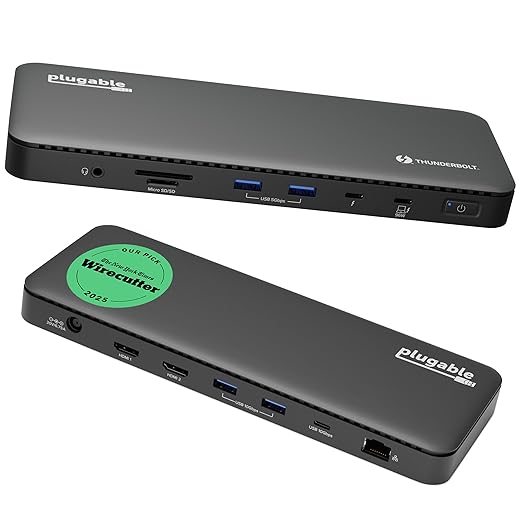
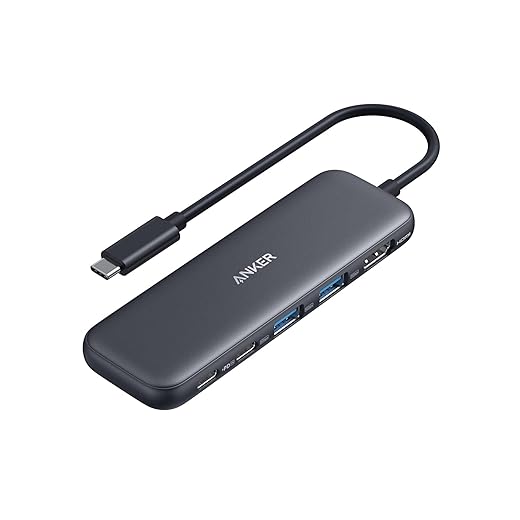
A compact puck or slim brick wins on portability and minimal footprint; it’s what we reach for when we travel or want a tidy apartment desk. Full‑sized docks (think CalDigit‑style units or larger Thunderbolt stations) give you many more ports, bigger power bricks, and usually better cooling.
Pick the form factor to match how often you move and how many external displays/peripherals you actually use.
Materials and thermal design
Aluminum shells and thoughtful ventilation aren’t just aesthetics; they’re how a dock sheds heat without a noisy fan. Passive, metal‑bodied docks are ideal for quiet desks if you’re not powering multiple 4K displays or high‑speed NVMe enclosures. When you push a dock — multi‑display, high‑wattage PD, fast Ethernet, active SSDs — active cooling prevents thermal throttling and dropped connections.
A noisy fan can turn a convenience into a liability; we prefer docks that stay cool under expected loads or, failing that, use low‑RPM, smart‑on fans.
Footprint and cable management
A dock that lives on the desk should have rubber feet, a vertical option, and an upstream cable length that keeps clutter minimal. We like docks that let you route monitor cables to the rear and keep front‑facing ports for ephemeral items (thumb drives, phone charging).
Port layout ergonomics
Port placement is not cosmetic — it’s workflow. Front‑facing USB‑A or USB‑C ports should be for temporary connections (thumb drives, phones). Rear‑facing HDMI/DisplayPort, Ethernet, and permanently attached USB devices should live in the back.
Key tips:
Power delivery and pass‑through
PD wattage determines whether your laptop charges at full speed and whether peripherals get enough juice. Match PD to your laptop with 10–20W headroom. Also check whether PD is constant under load — some docks reduce PD when all ports are active.
Trade‑offs to accept
In practice, the sweet spot for most users is a compact but capable dock with a metal body, sensible front/rear port separation, and reliable PD — the best balance of tidiness, uptime, and real‑world performance.
Ecosystem Integration: Compatibility, Protocols, and Real-World Interoperability
We dig into the technical glue so the accessory actually works across the devices we swap in and out of our desks. Below are the practical compatibility stories and the checks that save time and headaches.
The video and bandwidth stories: Alt Mode, MST, Thunderbolt, USB4
What happens when you plug in a laptop matters a lot.
If you try to push more displays than the available bandwidth, expect drop to 30Hz, lower resolution, or your laptop to offload video over compressed streams. Practical tip: match the dock’s spec to your desired monitor count (2×4K60 requires more than basic USB‑C).
Power, Ethernet, and card readers: more than simple passthrough
Power Delivery matters: confirm wattage — 65W vs 100W — and whether PD is throttled when other ports are active. Ethernet and SD card readers are usually USB NICs and UHS‑I devices respectively; throughput can be shared with other ports.
Platform quirks and user stories
Switching from a work Windows laptop (MST‑friendly) to a personal MacBook (Thunderbolt‑native) can change how displays appear; you might lose independent multi‑monitor extension unless your dock supports Thunderbolt. Docking a Pixel or Pixelbook? Only phones/tablets that implement DP Alt Mode (or Samsung DeX) will mirror reliably; iPads output video but may limit charging speed or input devices.
Drivers, firmware, and vendor ecosystems
Driverless is ideal: Alt Mode and Thunderbolt generally need no extra software. If a dock uses DisplayLink to multiplex displays, plan to install drivers — that adds latency and possible update issues. Vendor apps can add convenience (firmware updates, port configuration) but tie you to that brand’s ecosystem — convenient until you replace the dock.
The market’s improving: USB4 and wider Thunderbolt adoption are reducing friction, but Thunderbolt remains the premium, easiest guarantee for multi‑display, high‑bandwidth scenarios. Future USB standards promise more unified behavior — which is precisely the point: fewer surprises when we swap devices.
User Experience: Setup, Daily Use, and Troubleshooting
We talk from the desk: unboxing, plugging in, and the small rituals that decide whether a dock becomes invisible or a daily annoyance.
First hour: unboxing to one-cable workflow
Out of the box the promise is simple: one cable to power, Ethernet, and multiple monitors. In practice we unpack, connect the dock to its power brick, run the display cables (DisplayPort/HDMI), and plug a single USB‑C/Thunderbolt cable into our laptop. Good docks — think CalDigit TS4 or OWC Thunderbolt docks — hand us 100W PD, a wired NIC, and multi‑display outputs that resume our session almost instantly. Expect a brief OS negotiation (30–60 seconds) the first time; after that it should be instantaneous.
Daily use: what to watch for
The workflow is elegant, but a few quirks persist:
Quick, practical troubleshooting
When something goes wrong, try these steps in order:
If a port is dead after these steps, gather evidence (photos, logs, alternate‑host tests) and contact vendor support.
Maintenance and lifecycle
Keep the dock current: register the device, apply firmware updates when stable, and replace cheap cables proactively. Clean ports with compressed air, keep the original box and receipts for resale, and consider replacement when PD no longer meets your laptop’s needs or persistent driver/firmware issues remain unresolved.
Competitive Context and a Simple Buying Guide
We place the accessory in the competitive landscape so you can choose with confidence. Below we split the market into three clear tiers, then give a short checklist and scenario-based recommendations.
Ultra‑portable hubs
Mid‑range multifunction docks
Full‑featured Thunderbolt stations
A quick, prioritized checklist
Match your needs to these features in order:
Price vs. longevity
Spend up if you need bandwidth and future‑proofing: Thunderbolt/USB4 pays off for multi‑monitor or heavy‑data workflows. Save if your needs are simple: a low‑cost hub often lasts three years for light office use. Consider expected host upgrades: if you’ll replace your laptop in 18 months, a cheaper hub may be smarter.
Brand and ownership trade‑offs
Integrated ecosystems (Apple, Dell, CalDigit) can be smoother end‑to‑end but lock you into proprietary behaviors; open‑standards brands (Anker, Satechi, Plugable) prioritize cross‑compatibility. Check warranty length and how often the vendor issues firmware — frequent, well‑tested updates reduce long‑term headaches.
Quick scenario recommendations
Next, we bring these threads together and show how one right accessory delivers disproportionate gains for your desk.
Bringing It All Together: One Accessory, Many Payoffs
We argue that a well‑chosen docking hub is the single accessory that genuinely simplifies every desk by consolidating power, displays, and peripherals into one reliable touchpoint. It reduces friction, declutters surfaces, and makes context switching faster and less stressful — which matters as workflows demand more devices and hybrid setups.
When buying, prioritize compatibility, supported protocols, port mix, and delivered power; test the dock with your key devices and workflows before committing. Treat the dock as an investment: the right choice yields clearer desks, smoother days, and fewer interruptions to our work.

Chris is the founder and lead editor of OptionCutter LLC, where he oversees in-depth buying guides, product reviews, and comparison content designed to help readers make informed purchasing decisions. His editorial approach centers on structured research, real-world use cases, performance benchmarks, and transparent evaluation criteria rather than surface-level summaries. Through OptionCutter’s blog content, he focuses on breaking down complex product categories into clear recommendations, practical advice, and decision frameworks that prioritize accuracy, usability, and long-term value for shoppers.






