
Why a Multi-Device Desk Matters
We test setups so our desk choices tame laptops, tablets, phones, and monitors into one efficient workspace. We weigh ergonomics, cable clutter, power and OS ecosystems, explaining design trade-offs and market shifts that change how devices coexist and perform better.
What You'll Need
We recommend:

Audit Your Devices and Workflows
Which devices actually deserve desk real estate? We ask the hard questions.Audit every device we rely on and the tasks we run on them. Start by listing phones, tablets, laptops, desktops, and peripherals, then note OS, connector types, and whether screens must be shared or isolated.
Write down common workflows and map devices to steps—video calls, photo editing, coding, note-taking—and call out friction points like missing ports, slow charging, or weird display scaling.
Document these findings and prioritize which device demands full ergonomic treatment versus which can stay auxiliary.
Pick the Right Desk and Layout
Bigger isn’t always better — but depth, grommets, and adjustability matter more than you think.Prioritize a surface that fits our device density: a wider desktop for two 27″ monitors, a laptop, tablet stand, and wireless chargers; a compact desk forces compromises.
Choose a height-adjustable desk so we can switch sitting and standing—different devices demand different sightlines and typing angles, and modern USB-C power delivery makes standing setups practical.
Account for depth: ensure at least 30–36 inches for monitor distance and a forward laptop riser; use a monitor arm if we need variable viewing angles across devices.
Look for built-in cable routing, grommets, or attachable trays; once we own multiple chargers and hubs, tidy routing matters more than finish.
Plan for modularity: prefer desks with standardized mounting points, under-desk trays, or clamp-friendly edges so we can add docks, a drawing tablet arm, or a power shelf without replacing the whole desk.

Choose Displays and Input Strategy
Two monitors, one ultrawide, or island of tablets? Here’s how to decide.Choose a display configuration that balances size, bezel count, and inputs. Dual 24–27″ monitors still give the best multitasking real estate; pick a 34–38″ ultrawide to replace two small screens and cut bezels and cables.
Prefer monitors with diverse inputs — USB‑C (PD + DisplayPort Alt Mode) for single‑cable laptop charging/display, HDMI for consoles and streaming boxes, and DisplayPort for high‑refresh workstations.
Match panel type to work: opt for touch or color‑accurate IPS for sketching and photo editing; otherwise choose matte, low‑glare panels for long sessions.
Standardize inputs with a keyboard and mouse that switch via Bluetooth or a unifying dongle so we can jump between laptop, tablet, and desktop without replugging.
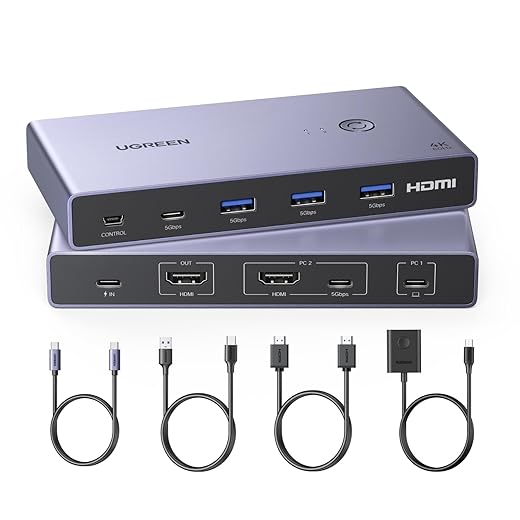
Prioritize monitors with built‑in USB hubs and KVM to simplify switching and future‑proof our setup.
Select Docks, Hubs, and Power Solutions
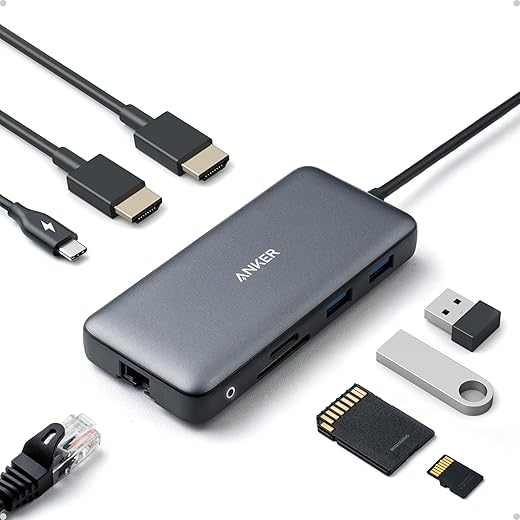
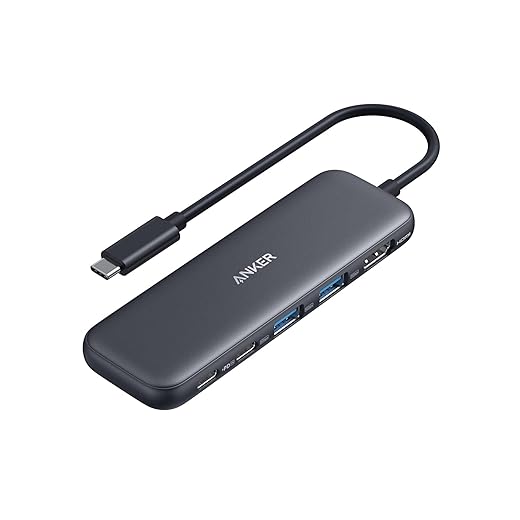
Buy once, update forever? Not exactly — but the right dock makes everything seamless.Choose a Thunderbolt 4 dock for MacBooks and high‑end Windows laptops to unlock PCIe lanes for eGPUs, fast NVMe enclosures, and reliable multi‑display setups.
Pick USB‑C hubs for tablets and budget laptops when cost and broad compatibility matter.
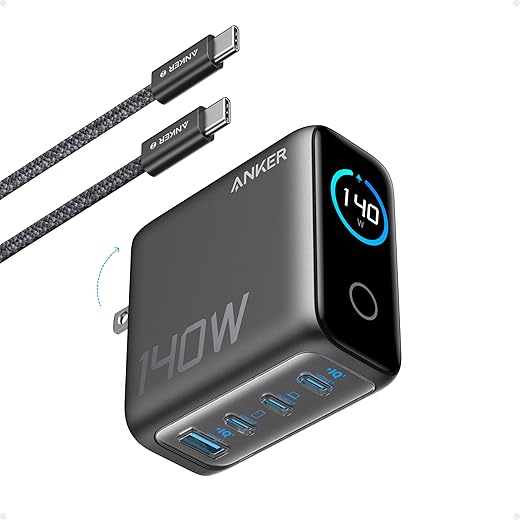
Assess power delivery needs — aim for ~90–100W for 16″ laptops, 45–65W for ultraportables — and confirm the dock supplies that under load.
Prioritize port diversity:
Prefer vendors with active firmware and driver support; cheaper hubs can disappear and break hot‑plug workflows.
Consider wireless chargers and powered USB‑C monitors to cut cables if our devices support Qi or USB‑C PD.
Match docks to our devices’ peak capabilities and choose ecosystems we plan to keep long term.
Design Cable Management and Power Infrastructure
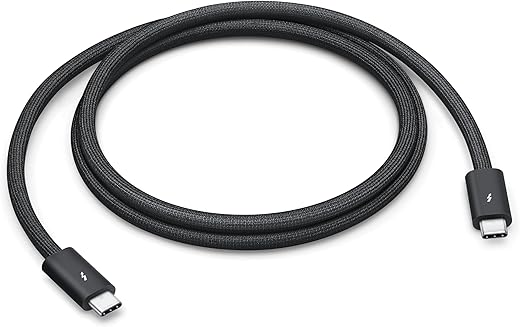
Out of sight, not out of mind — tidy cables reduce headaches and failures.Map cable runs and separate power, data, and display lines so signals don’t compete. Use short, high‑quality braided cables for Thunderbolt/DisplayPort runs (0.5–1m for desktop docks) to preserve bandwidth and reduce latency—avoid long, cheap leads that cause dropouts.
Route power through a surge‑protected strip or an under‑desk PDU and add a UPS for routers, NAS, or critical workstations; treat surge protection and UPS as non‑negotiable in multi‑device setups. Label and color‑code chargers and adapters so identical bricks don’t get swapped during a frantic morning.
Test cable paths for heat buildup, strain points, and EMI near monitors or Wi‑Fi hubs. Keep spares and common adapters in a nearby drawer so we can hot‑swap without rewiring the desk.

Optimize Ergonomics, Sharing, and Maintenance
Make multiple devices feel like one cohesive system — it’s about flow, not toys.Position primary screens at eye level and mount them on adjustable arms so we can tweak height and angle for different devices and users; this prevents neck strain and keeps visual continuity when switching machines.
Keep keyboards, trackpads, and mice within a single comfortable reach zone; place a shared mechanical keyboard and low-latency trackpad on a sliding tray, and connect them via a KVM or USB switch so peripherals feel native to each device.
Share a single webcam and mic on a boom or monitor mount and route them through a KVM/USB switch; for pen or touch work, create a dedicated active area aligned to the monitor to avoid long reaches.
Standardize shortcuts and syncing—use cloud clipboards, universal file services (Drive/OneDrive/iCloud), and cross‑platform apps—to reduce cognitive switching.
Schedule regular maintenance: firmware updates for docks/monitors, cable audits, battery checks, and design fallback paths (direct USB/HDMI bypasses) so a hub failure doesn’t stop work.

Make It Last
We align devices, docks, and layouts around workflows so ecosystems play nice, reducing friction and futureproofing our desk; this design-forward, maintenance-friendly approach keeps focus on work, adapts as tech shifts, and invites us to try and share.

Chris is the founder and lead editor of OptionCutter LLC, where he oversees in-depth buying guides, product reviews, and comparison content designed to help readers make informed purchasing decisions. His editorial approach centers on structured research, real-world use cases, performance benchmarks, and transparent evaluation criteria rather than surface-level summaries. Through OptionCutter’s blog content, he focuses on breaking down complex product categories into clear recommendations, practical advice, and decision frameworks that prioritize accuracy, usability, and long-term value for shoppers.