

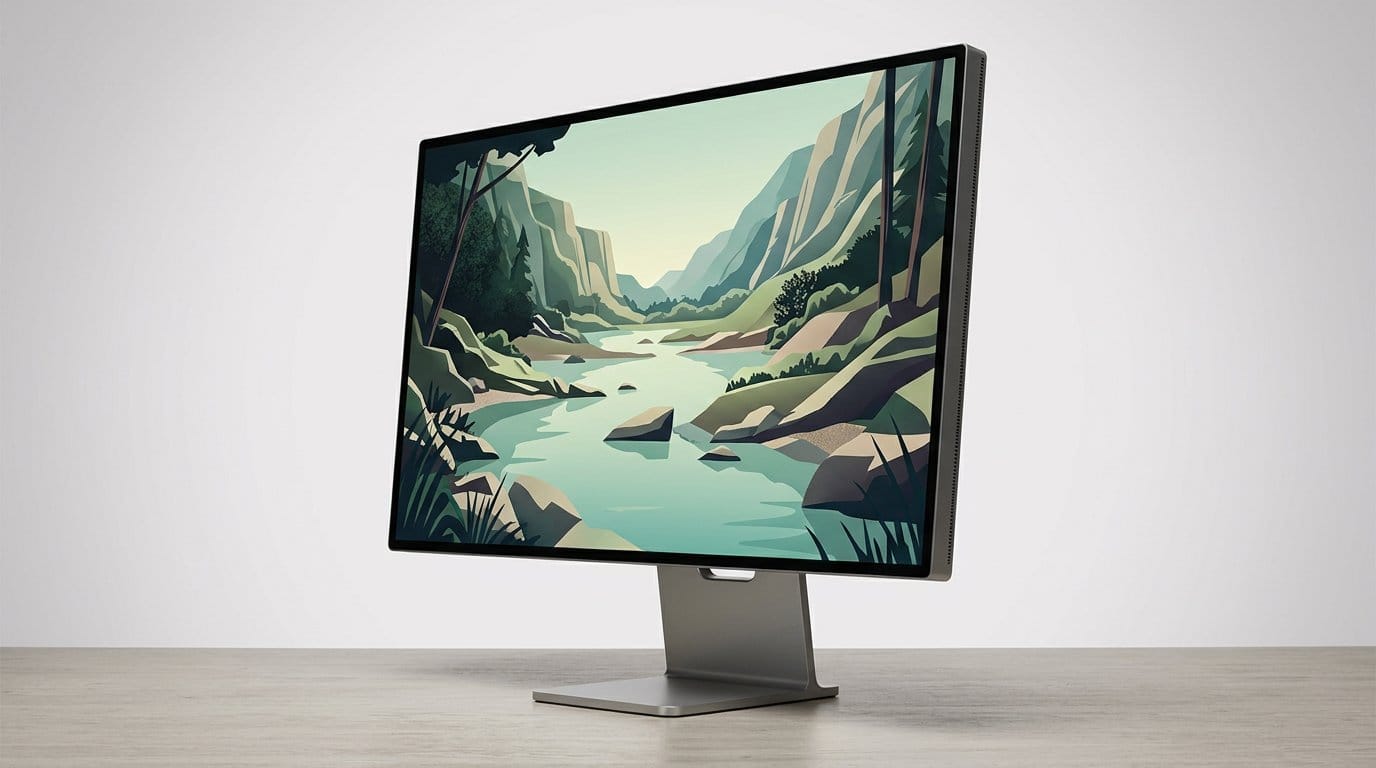

The display is the final arbiter of your experience
We obsess over GPUs, but the monitor is the final arbiter of every frame, color, and pixel we actually see. We argue that frame rate, resolution, color accuracy, latency, and ergonomics only matter when the display can present them faithfully. Our approach blends hands-on testing, ecosystem awareness, and practical trade-offs to show what truly changes day to day.
In the sections that follow we explain six areas where a monitor often trumps raw graphics horsepower: what the monitor controls, the trade-offs of resolution and scaling, color and HDR as system issues, latency versus perceived speed, design and ergonomics, and how to spend wisely. We focus on user experience, integration, and market context so you can prioritize the right upgrade first.
We want clear, practical advice that matches today’s hardware and market.

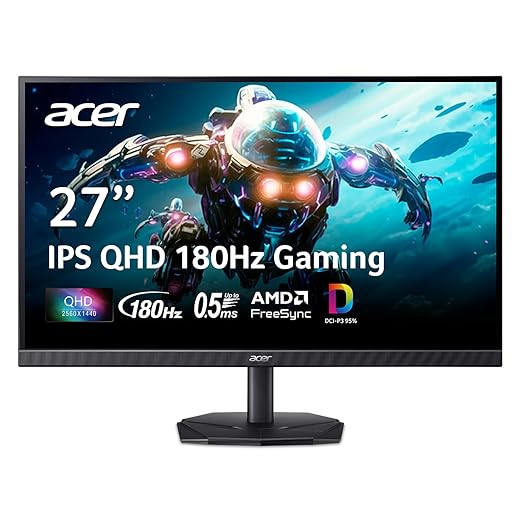

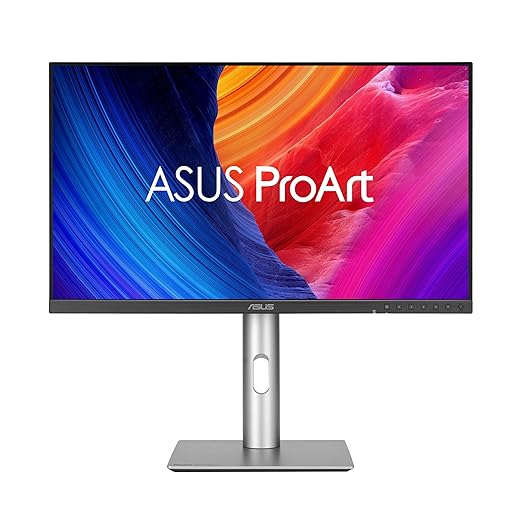
Why Quality Matters: Top Custom Screens Explained by Pro Steve Tristan
What the monitor actually controls (and what the GPU can’t)
The line between rendering and display
We build frames on the GPU, but the monitor is the gatekeeper that decides how those frames appear. The card calculates pixels; the screen chooses resolution, refresh rate, panel response, color gamut, HDR tone mapping, and physical ergonomics. You can have a 3080 spitting out 120 fps, but if your display is capped at 60 Hz or limited by HDMI 2.0 bandwidth, most of that work never reaches our eyes.
Interface, formats, and where artifacts come from
Cables and ports matter. DisplayPort and HDMI versions set maximum resolution, refresh, chroma subsampling, and bit depth. Mismatches can force chroma 4:2:0 subsampling at 4K60, introduce banding, or require the GPU to downsample. Variable refresh tech (G-Sync, FreeSync) needs both GPU and monitor support or you’ll see stutter and tearing.
Real-world consequences
Quick, actionable checks
We’ve seen users upgrade GPUs only to discover their display was the true bottleneck — understanding these distinctions turns raw horsepower into visible gains.
Resolution, scaling, and the everyday trade-offs
Why native pixels matter — and when they don’t
We can render a scene at 4K, but if the monitor’s scaling, pixel packing, or native density don’t support that clarity, the extra GPU work vanishes. A crisp 27‑inch 4K panel gives dense detail; a 32‑inch 4K with a weak scaler often looks softer at typical desktop distances. We’ve sat with both and the difference is obvious: one makes UI and photos sing, the other forces us to crank OS scaling and lose fine detail.
OS and app scaling: the messy middle
Scaling lives in three places: the GPU/game, the OS, and the monitor. Windows’ fractional scaling and legacy apps that aren’t DPI-aware create blurry text or tiny toolbars. macOS and modern apps handle HiDPI much better, but even there, non-native assets or plugins can betray the native resolution. For gamers, render-scaling tech (DLSS/FSR) lets us keep GPU load reasonable while staying close to native-like sharpness — but only if the panel actually shows those pixels cleanly.
Practical heuristics: match size, use, and expectations
Quick tips we use
These trade-offs determine whether GPU horsepower converts into visible quality or just wasted frames.
Color, HDR, and why fidelity is a system issue
Gamut and panels: what really changes the picture
Color accuracy isn’t a GPU checkbox — it’s what the monitor can physically reproduce. sRGB, DCI‑P3, and Adobe RGB are simply different slices of visible color; if your panel only hits 90% of DCI‑P3, your brights and saturated hues will be predictably muted. Panel tech matters too: IPS gives consistent color and viewing angles, VA pushes contrast at the cost of some color shift, and OLED delivers true blacks and punch but can introduce burn‑in worries for static UI. We’ve seen editors swap a 100% sRGB IPS for a 95% DCI‑P3 panel and immediately notice richer skin tones in footage — not because the GPU changed, but because the display did.
HDR, local dimming, and tone mapping
HDR isn’t just brighter highlights — it’s dynamic range and how a display maps metadata to light. TVs use aggressive global tone mapping; monitors with full‑array local dimming (FALD) or per‑zone backlights can hold specular detail without crushing shadow detail. OLED’s per‑pixel control avoids zone blooming entirely. A high‑end GPU can output HDR frames, but if the monitor clips highlights or floors blacks, the pipeline’s work is wasted.
Calibration, metadata, and why drivers aren’t enough
Color-managed apps read monitor metadata (EDID/ICC profiles) and rely on accurate factory tuning or measured calibration. GPU drivers convert spaces, but they can’t recreate colors a panel can’t show or fix uneven backlights. For photographers and colorists, a hardware LUT, 10‑bit panel, and a calibration device (X‑Rite i1Display Pro, for example) are non‑negotiable. Check reviews for Delta‑E scores and uniformity charts — they tell you what the monitor actually does, not what specs promise.
Practical tips we use
Latency, refresh, and the myth of raw horsepower
What “performance” actually means
We often equate higher FPS with snappier games, but latency is multi‑stage: the GPU’s frame output, the compositor’s delivery, and the monitor’s display latency. A graphics card that pumps 240 frames per second doesn’t guarantee that the image reaches your eyes with low delay. We’ve sat at benches where a flagship GPU’s fps counter looked great, yet the play felt sluggish because the monitor and input chain were the bottleneck.
Pixel response and motion clarity
Motion clarity is a panel issue. Pixel response (rise/fall times) determines trailing and ghosting; overdrive can improve it — until overshoot artifacts appear. IPS panels can have slower transitions than TN, and VA panels can smear in dark scenes. The result: a high refresh rate is wasted if pixels can’t keep up.
Adaptive sync ecosystems and real‑world behavior
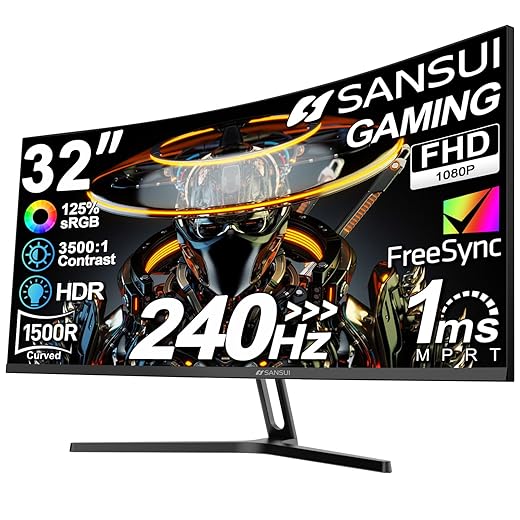
Adaptive sync (FreeSync, G‑SYNC Compatible, native G‑SYNC) smooths delivery, but vendor implementations vary. Some monitors only enable VRR over DisplayPort; others add LFC (low framerate compensation) inconsistently. We’ve seen FreeSync monitors with stutter outside a narrow FPS window. That’s why compatibility testing matters more than badges.
How we measure — and what you can test at home
We focus on
At home: enable an on‑screen fps counter, toggle VRR, test with the monitor’s low‑latency/game mode, and compare feel using a high‑speed camera or simple aim drills in a shooter.
Practical buying tips
Next we’ll move from responsiveness to the ergonomics and design choices that keep you comfortable for long sessions — because a fast display that’s poorly made still ruins the experience.
Design, ergonomics, and the long-term cost of a poor display
Physical comfort: the monitor as furniture
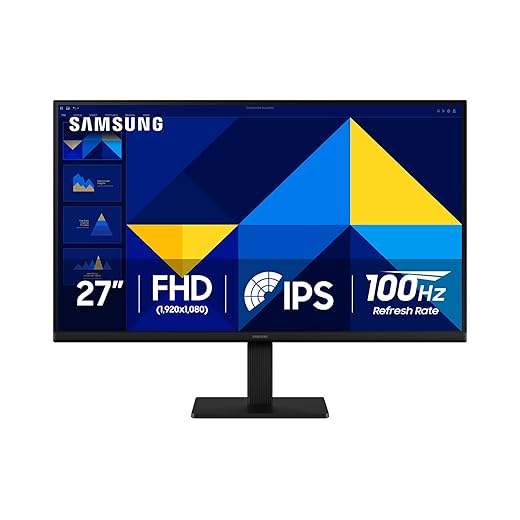
Monitors are daily‑use furniture. A flimsy tilt or a pedestal that won’t raise to eye level forces posture compensations we feel after an hour — not a benchmark. We look for at least 100mm of height travel, smooth pivot for portrait work, and a tilt range that lets you align the top third of the screen with eye level. Standard VESA 100×100 compatibility matters: a good arm or wall mount buys you ergonomic flexibility down the road.
Workspace layout: size, bezel, and aspect ratio
Physical size and bezel thickness shape what your desk can do. A 27–32″ 16:9 screen is compact and predictable; a 34″ ultrawide changes the game for spreadsheets, video timelines, and side‑by‑side windows. But ultrawides need deeper desks and different monitor arm tolerances. If you multitask heavily, prioritize horizontal pixels over raw refresh rates — you’ll save time every day.
Ports, hubs, and ecosystem integration
A monitor can be a docking station. We prioritize
A monitor with poor port selection multiplies dongles and desktop clutter.
Coating, power, and operational reliability
Matte vs. glossy affects glare and perceived sharpness; matte is the practical choice for bright rooms. Watch the on‑screen display: deep menus that hide basic settings frustrate quick adjustments. Also check power and thermal behavior — warm panels can shift color and longevity; quieter, cooler designs matter if you work long hours.
Quick, actionable checklist
Next, we’ll weigh these long‑term usability wins against price and performance to decide where your upgrade dollars actually belong.
Value and the competitive landscape: where to spend first
Market snapshot: dollars vs. perceptible gains
We look at raw market math first. Monitors often deliver the most immediate, visible upgrade for less money — moving from a 60Hz panel to a 144Hz 1080p display can be a $150–$250 change that you feel every session. Midrange GPUs that push higher frame rates or resolutions typically run several hundred dollars more. That gap matters: a better screen usually changes daily comfort and clarity; a GPU upgrade mostly shows up in benchmark numbers unless you’re GPU‑bound.
Profiles and practical guidance
Competitive gamers

Console players
Content creators
General productivity and mixed households
Ecosystems, compatibility, and edge cases
Simple decision rules
With that practical framework established, we’re ready to choose the right bottleneck to fix.
Choosing the right bottleneck to fix
We wrap up: identify the weakest link in your visual chain and fix that first. If your display can’t show the fidelity, timing, or ergonomics your work and play require, a GPU upgrade won’t deliver practical gains. Conversely, when a monitor already meets your needs—accurate color, suitable resolution and refresh, comfortable ergonomics—spending on GPU horsepower can unlock new workflows and smoother experiences. In today’s fragmented market, thoughtful pairing of monitor, GPU, and software matters more than raw specs alone.
Quick checklist: Can the monitor reproduce the colors you depend on? Is refresh/latency limiting responsiveness? Is resolution appropriate for your viewing distance? Are ergonomic and connectivity needs met? Answering these tells us where to spend. Buy to balance the system, not chase a headline spec — browse our how-to guides.
Frequently asked questions
What is the main point of “Why Your Monitor Matters More Than Your Graphics Card”?
This piece explains where why your monitor matters more than your graphics card matters in real buying decisions—not just headline specs. We focus on trade-offs, who benefits most, and what to verify before you spend.
Who should read this why your monitor matters more than your graphics card guide?
Read it if you are actively shopping, upgrading, or trying to separate marketing claims from day-to-day use. Skip it if you already own the gear and are not planning a change this season.
What changed recently around why your monitor matters more than your graphics card?
Prices, firmware, and feature tiers shift quickly in this category. We call out what is new enough to affect your decision and what is incremental hype you can safely ignore.
How should I use this editorial when buying?
Treat it as context before you compare models: note the risks and priorities here, then cross-check specs and current pricing on the picks that match how you actually use the product.
What is easy to get wrong about why your monitor matters more than your graphics card?
Buyers often overweight one spec—brightness, speed, or brand—and underweight fit for their room, ecosystem, or warranty support. We flag the mismatch we see most often in reader questions.
Where should I go next after reading?
Use the related comparisons and top picks linked near the end of this article for model-level shortlists, then confirm return policies and compatibility with the devices you already own.

Iqra Jumar is Option Cutter's editorial writer. She writes practical editorials and buyer guides that focus on real-world upgrades—better Wi‑Fi, cleaner cable setups, smarter streaming, and everyday fixes—not spec-sheet noise alone. Her work helps readers decide what to change now, what to skip, and why.









