Why USB-C Charging Still Feels Messy — And How We Fix It
We strip down USB-C‘s promise vs. reality: negotiation quirks, shady cables, and fuzzy wattage claims. We show practical checks, ecosystem-minded charger choices, and simple tests so our devices charge faster, safer, and predictably across phones, laptops, and peripherals in use.
What You’ll Need

Be Careful What USB Cables You Use to Charge Your Phone
Understand What USB-C Actually Does
Is USB-C one cable or ten? Spoiler: the spec economy matters more than the connector.Demystify USB‑C by separating the connector, the data lanes, alternate modes, and Power Delivery so we stop trusting logos and start reading behavior — start in our computer accessories hub when you shop.
Break down the four layers we care about
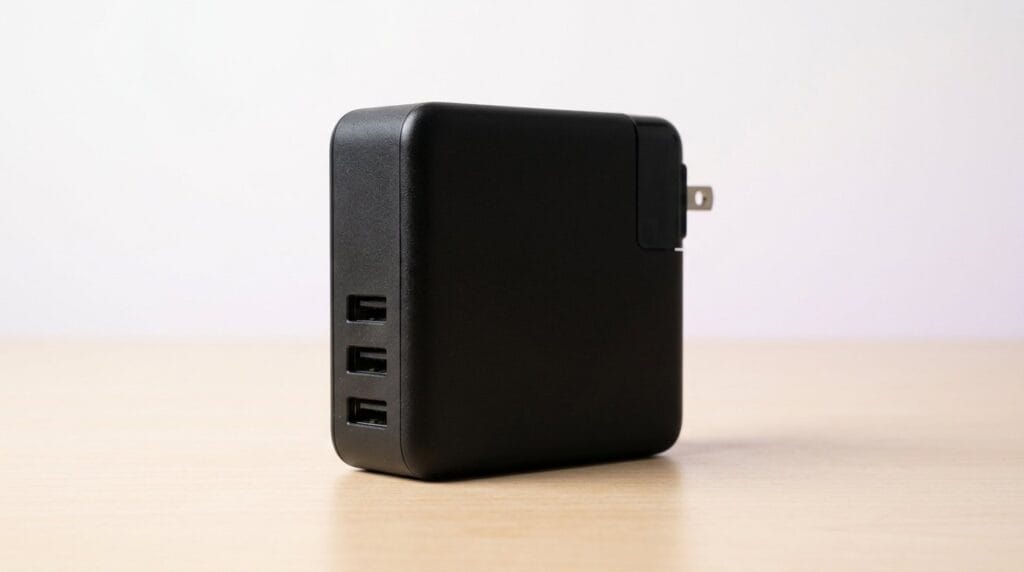
Read cables and adapters like a detective. A 100W brick only helps if the device and cable negotiate a 100W PD profile; otherwise a laptop may default to 30–65W. Check for 3A vs 5A markings and an e‑marker chip for high current. Favor chargers that support PPS for smoother, more efficient phone charging. Note how GaN shrank chargers and reduced heat — that’s why today’s tiny 65W wall wart can beat last‑generation bricks.
Understanding these layers helps us prioritize which specs to pay for and when a pricier cable or charger is actually necessary.

Choose the Right Charger for Your Ecosystem
Stop buying watts; buy ecosystem compatibility. One charger doesn’t fit every device well.Match chargers to what our devices actually expect. Prefer PD‑PPS bricks (45–60W) for modern Android phones — pair them with honest phone chargers & cables — Samsung and Google phones adjust voltage continuously for faster, cooler charging. Buy a true 65–100W PD 3.1 or PD 3.0 charger for laptops; don’t assume a phone brick’s “65W” label will negotiate the fixed laptop profile you need.
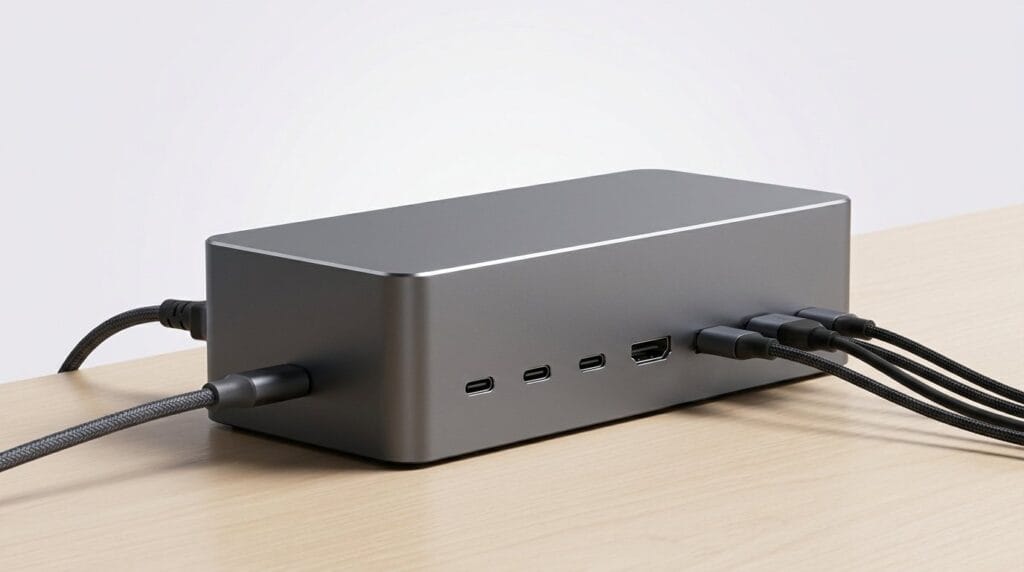
Weigh multi‑port convenience against per‑port performance. Expect a 100W multi‑port hub to split power (for example, 65W + 30W under load); expect a single‑port 100W brick to deliver consistent full wattage when you really need it. Choose GaN for travel: smaller size, better thermal control, and fewer throttling surprises.
Select brand‑certified or reputable third‑party chargers. Look for clear PD curves or spec sheets and firmware update support — that’s how makers patch quirks or improve compatibility. Test in practice: if a charger won’t sustain your laptop at full load or your phone refuses fast charge, swap to a charger that lists the matching PD/PPS profiles rather than chasing wattage stickers.

Pick Cables That Don’t Lie
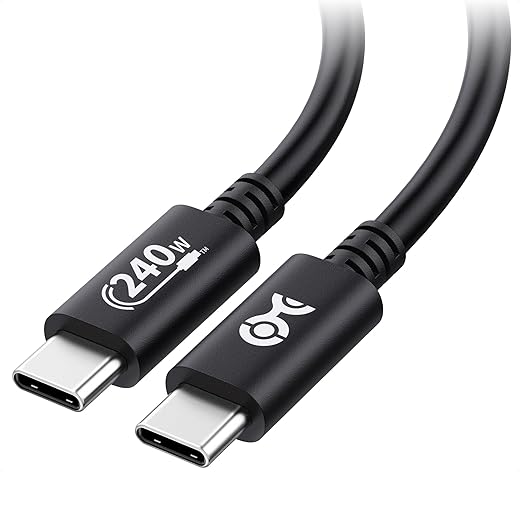
A cable is not just a rope for power — it’s a contract. Want speed? Read the fine print.Choose USB‑IF certified or clearly e‑marked 5A cables for high‑wattage charging. Use full USB‑C to USB‑C cables with explicit data/video specs (USB4/Thunderbolt 4, USB 3.2 Gen2) when you need display or high throughput through docking stations. Avoid legacy Type‑A→C cords for modern phones and laptops — they often limit power and data.
Read labels like a pro: look for the USB‑IF logo, “EMarked 5A,” or an AWG callout for power conductors — remember: lower AWG = thicker wire = less resistance. Check product pages and reviews; resist marketing blurbs like “fast cable” without real specs.
Prefer shorter cables for speed; we keep a 1m 60W cable in our commuter bag because it balances portability and performance, and a 2m e‑marked 100W at our desk for laptops. Color‑code cables by device class and keep an original OEM charger for critical gear.
Beware counterfeit or cheap cables — they can throttle charging, corrupt data, or cause safety hazards; cross-check wattage claims with USB-IF cable certification guidance and FTC online-shopping guidance before you press “buy.”
Inspect and Test — Don’t Trust Print Alone
Curiosity pays: a five-minute cable and charger check prevents slow charging and meltdowns.Look closely. Visually inspect connectors, solder joints, and strain relief on both ends — frayed insulation or brittle relief usually means high resistance and heat. Check packaging or markings for e‑marker chips or an AWG number.
Buy a USB‑C power meter. We recommend this as the single best purchase for troubleshooting: it shows negotiated PD/V/A, real watts, and if the device requests PPS. Use it to confirm actual behavior rather than marketing claims.
Read and interpret meter values
Swap components methodically. Change cable, then charger, then port to isolate the fault. Reset laptop SMC/firmware and test with the OEM charger if unsure. Suspect hubs and docking stations when multiple devices or passthrough charging drops wattage.
This detective approach improves UX by revealing whether the bottleneck is cable, charger, device firmware, or accessories.

Optimize Habits and Troubleshoot Common Issues
Faster charging isn’t just gear — it’s behavior. Want longer battery life and fewer headaches?Keep chargers cool and ventilated. We avoid stuffing GaN bricks into bags or under laptops; heat raises resistance, reduces negotiated power, and shortens component life.
Prefer PD/USB‑C over legacy adapters. Match charger wattage to the device — don’t run a 15–16″ laptop off a 20W phone brick — because chronic underpowering causes slow charge and battery stress.
Update device firmware and SMC/EC firmware. Many negotiation bugs appear after OS updates; installing vendor firmware often restores expected PD behavior.
Identify common failure modes and apply fixes
Favor single‑brand chargers/cables for the smoothest cross‑device experience; accept occasional edge cases in mixed ecosystems. Pack a minimal kit:

Make USB-C Work for You, Not the Other Way Around
By mastering specs, choosing compatible chargers and honest cables, testing performance, and refining our habits, we secure faster, safer charging across devices — see more how-to guides and our Computers & Tablets shop before you buy. Small investments yield better daily experiences and clearer ecosystem choices — aren’t these usability gains worth making for us?
Frequently asked questions
What should I prepare before I optimize charging with usb-c (and avoid bad cables)?
Start with the checklist in the “What we’ll need” section above—measure your space, confirm compatibility with your gear, and read the full walkthrough once before you change settings or buy parts. Optimize charging with usb-c (and avoid bad c… goes faster when prep is done upfront.
How long does it take to optimize charging with usb-c (and avoid bad cables)?
Most readers finish in about 30–90 minutes if they already have the right parts, but budget extra time for measurements, firmware updates, or a second pass when something does not behave the way the manual suggests on the first try.
What is the hardest part when you optimize charging with usb-c (and avoid bad cables)?
The step that trips people up is usually alignment or configuration—getting measurements, cable routing, or software settings right before you commit. If results still look off, re-check the basics in order instead of swapping hardware immediately.
What mistakes should I avoid when I optimize charging with usb-c (and avoid bad cables)?
Skipping measurements, ignoring ventilation or port limits, and rushing the final test are the common failures. Photograph your starting setup, label cables, and verify the outcome with the same content or workflow you will use every day—not a one-off demo.
When should I call a pro instead of trying to optimize charging with usb-c (and avoid bad cables) myself?
Bring in help when the job needs structural work, licensed wiring, or tools you do not own, or when repeated attempts still fail after you have followed the troubleshooting section. A short paid visit can cost less than replacing gear you damaged by forcing the install.

Princess Rioboca is the Lead Editorial Writer at Option Cutter, bringing over seven years of hands-on experience in consumer technology journalism. Specializing in home networking and smart home architecture, she transforms complex technical data into practical, real-world upgrades. Princess personally tests and audits every product she reviews—evaluating real-world Wi‑Fi throughput, cable management durability, and streaming ecosystem stability—to filter out spec-sheet noise. Her rigorous, field-tested insights are designed to give readers transparent, unbiased buying advice on what to purchase, what to skip, and exactly why.