Why Wi‑Fi Still Breaks Our Games and Streams — and How We Fix It
We cut through ISP marketing and vendor hype to show practical steps that improve latency, stability, and video quality on your home router. We explain measurable diagnostics, UX-driven tweaks, and trade-offs across devices and ecosystems so you can pick upgrades that actually matter today.
What We’ll Need
We’ll need a smartphone or laptop for diagnostics, router admin access, an Ethernet cable, basic router‑menu familiarity, and (optionally) a budget for new hardware.

Boost Your PC WiFi: Quick, Easy Ways to Improve Connection
Measure First: Establish a Reliable Baseline
Don’t guess — test. Which numbers actually predict lag and buffering?Measure latency, jitter, throughput, and packet loss across rooms and devices before changing anything. Run Speedtest on a wired laptop and on phones, use Wi‑Fi Analyzer to map signal strength, and run simple ping/traceroute checks to spot routing or ISP jitter — the CISA home Wi‑Fi security guide explains what those numbers actually mean before you change hardware.
Keep notes and repeat at different times (evening game peak vs midday). Compare 2.4GHz vs 5GHz and record each device’s capability (Wi‑Fi 5 vs Wi‑Fi 6). Knowing device limits prevents pointless upgrades; Wi‑Fi Certified 6 spells out which client features (OFDMA, multi‑user gains) your gear can actually use.
Knowing where packets fail helps us prioritize fixes.

Placement and Environment: The Physical UX of Wi‑Fi
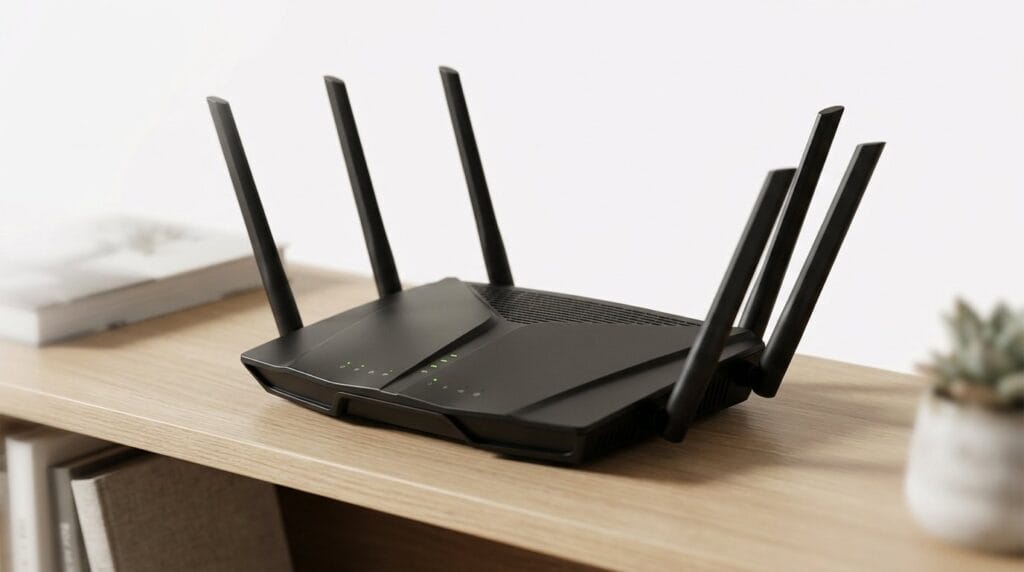
Router feng shui matters more than marketing photos — who knew?Treat the router as a design object. Place it where its radio patterns help people, not where cables hide. Elevate the unit on a shelf, centralize it in the home, and keep antennas aligned to match device orientation—upright for phones, angled for couch‑level consoles.
Move the router 1–2 meters if it’s crammed in a metal TV cabinet; we’ve seen simple shifts reduce latency for a gaming couch. Avoid proximity to microwaves, cordless phones, and large metal objects. Consider building materials and multi‑floor layouts: put the main unit on the floor with the most active devices, or centralize between levels.

Router Settings: The Power Is in the Firmware
Want better pings? Stop letting defaults decide your fate.Select a manual 5GHz channel after scanning the neighborhood — in dense apartments we find manual selection usually outperforms “Auto.” Pick a non‑overlapping 20/40/80MHz channel; reserve 160MHz for single‑room setups with few neighbors and compatible clients.
Enable 802.11k/r/v and beamforming to improve roaming and link stability for modern devices — see Wi‑Fi Certified 6 for what those roaming standards cover; test band steering — aggressive steering can confuse older phones and legacy consoles, so disable it if devices drop connections.
Adjust DFS and transmit power deliberately: use DFS channels to dodge congestion but expect occasional radar‑induced drops; lower power to reduce neighbor interference and improve spatial reuse.

Prioritization and QoS: Tell the Network What Matters
Can we make games beat Netflix in a fair fight? Yes — with rules.Configure QoS in the router or mesh app to give low‑latency priority to consoles and gaming PCs, and reserve steady bandwidth for 4K streams.
Prefer device‑level rules over app detection so we avoid misclassification — pin an Xbox or gaming PC by MAC/name and mark it “high priority” or “low latency.” Enable UPnP or set specific port forwarding for games that fail matchmaking; that fixes NAT issues without broad open ports.
Set rate limits on heavy downloaders (PCs, NAS) so a single torrent doesn’t tank everyone’s stream — a common rule is capping uploads at ~80% of your link to preserve ACKs and latency.
Test for ISP shaping and CDN/peering problems if local QoS doesn’t help: run latency tests to game servers, try a VPN to check for improvements, and escalate to the ISP when external throttling is the real bottleneck — document tests first using the CISA wireless network security guidance so support tickets cite evidence, not hunches.
Hardware Upgrades: Buy Where It Matters
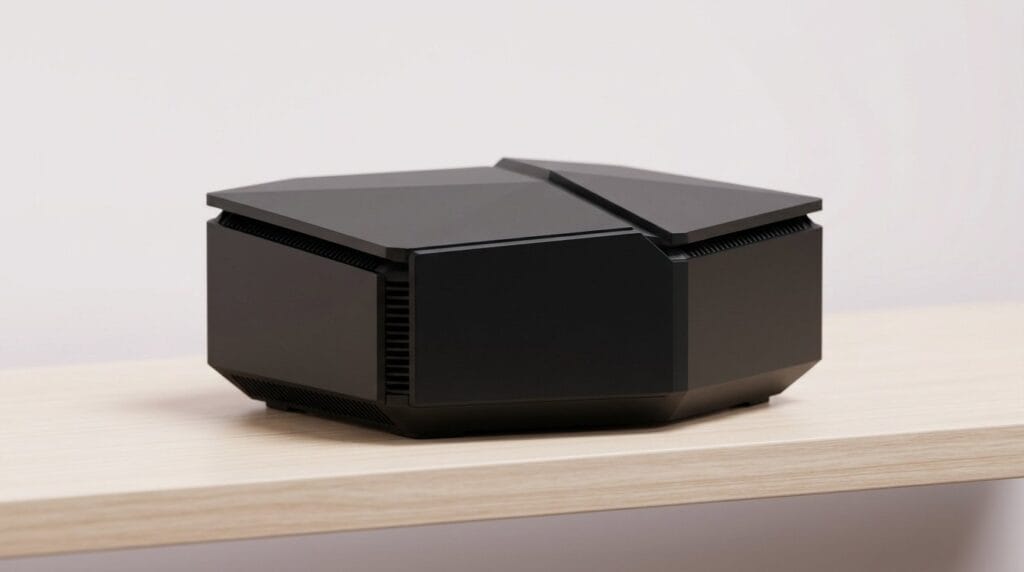
Mesh or monster router? More antennas aren’t always the answer.Decide between Wi‑Fi 6, a mesh, or wired backhaul using the measurements we already took. We pick 6 for lower latency and better multi‑device handling; we only pick 6E if our clients actually support 6GHz and local congestion is the real problem.
Prefer a mesh when coverage beats complexity, but deploy Ethernet backhaul for any gaming node whenever possible. For example, put the console on a wired satellite or use a dedicated wireless backhaul band on a tri‑band system to avoid sharing the client links.
Evaluate vendor ecosystems — ASUS, Netgear, Eero, Google — by app UX, firmware cadence, and feature set, not headline Mbps. Look for reliable updates, granular QoS/game features, and easy device management to protect long‑term value.

ISP, Wired Backhaul and Maintenance: The Long Game
Sometimes the bottleneck isn’t our house — what do we demand from ISPs?Validate your plan and modem first: run ISP speed and latency checks, confirm your modem meets DOCSIS/FTT[x] specs, and use the ISP‑approved model where possible.
Test directly at the modem next: plug a laptop into the modem, run sustained pings and a packet capture (Wireshark or your router’s diagnostics). Document timestamps, loss, and jitter so we can show evidence to support.
Prefer wired Ethernet for consoles and streaming boxes; where cable isn’t possible, consider MoCA over coax or HomePlug AV2 powerline adapters as practical alternatives.
Set a maintenance routine: update firmware monthly, schedule periodic reboots, enable automatic updates when safe, and harden security (change defaults, disable WPS, use WPA3) — see our how-to guides for router placement tips.
Choose routers/mesh systems with a steady update cadence or OpenWrt support — long‑term firmware health matters as much as headline speed.
Make It Measurable, Make It Last
We retest, document gains, and prefer targeted tweaks over wholesale hardware swaps; when upgrading we choose maintainable ecosystems in our Wi‑Fi & networking shop that improve UX and longevity. Try it, share your results, and iterate.
Frequently asked questions
What should I prepare before I improve wi-fi for gaming and streaming?
Start with the checklist in the “What we’ll need” section above—measure your space, confirm compatibility with your gear, and read the full walkthrough once before you change settings or buy parts. Improve wi-fi goes faster when prep is done upfront.
How long does it take to improve wi-fi for gaming and streaming?
Most readers finish in about 30–90 minutes if they already have the right parts, but budget extra time for measurements, firmware updates, or a second pass when something does not behave the way the manual suggests on the first try.
What is the hardest part when you improve wi-fi for gaming and streaming?
The step that trips people up is usually alignment or configuration—getting measurements, cable routing, or software settings right before you commit. If results still look off, re-check the basics in order instead of swapping hardware immediately.
What mistakes should I avoid when I improve wi-fi for gaming and streaming?
Skipping measurements, ignoring ventilation or port limits, and rushing the final test are the common failures. Photograph your starting setup, label cables, and verify the outcome with the same content or workflow you will use every day—not a one-off demo.
When should I call a pro instead of trying to improve wi-fi for gaming and streaming myself?
Bring in help when the job needs structural work, licensed wiring, or tools you do not own, or when repeated attempts still fail after you have followed the troubleshooting section. A short paid visit can cost less than replacing gear you damaged by forcing the install.

Princess Rioboca is the Lead Editorial Writer at Option Cutter, bringing over seven years of hands-on experience in consumer technology journalism. Specializing in home networking and smart home architecture, she transforms complex technical data into practical, real-world upgrades. Princess personally tests and audits every product she reviews—evaluating real-world Wi‑Fi throughput, cable management durability, and streaming ecosystem stability—to filter out spec-sheet noise. Her rigorous, field-tested insights are designed to give readers transparent, unbiased buying advice on what to purchase, what to skip, and exactly why.