Stop Suffering Through Slow Boots: We Can Fix This
We outline fast, practical steps to make an aging laptop feel modern again—without buying new hardware — browse more in our how-to guides. We focus on UX gains, design trade‑offs, ecosystem compatibility, and affordable tweaks that deliver the biggest perceived speed improvements for the least effort now.
What You'll Need

Speed Up a Slow Windows 10 PC or Laptop Quickly
Clear the Clutter: Free Up Storage and Memory
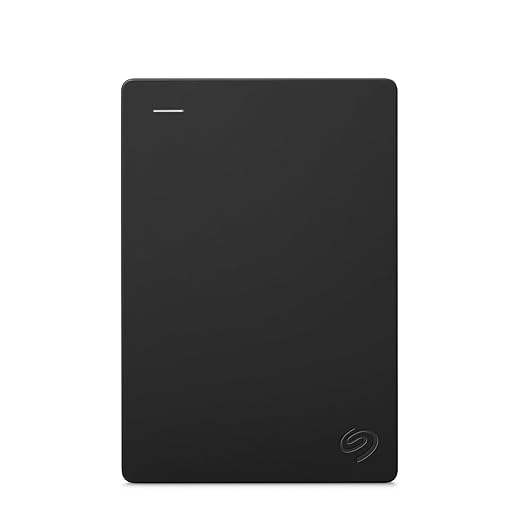
Think of it as a spring clean—will your laptop finally be able to breathe?Free up storage and memory first — it’s the fastest, highest‑ROI move. Remove large unused files, uninstall apps we never open, clear caches, and move photos/videos to an external drive or cloud. Modern OSes slow dramatically when free space dries up: HDDs suffer fragmentation and long seeks, and SSDs lose write performance and have less room for internal wear‑leveling and efficient paging.
Use these quick checks and tools to find space hogs and free things safely
Check RAM pressure in Task Manager/Activity Monitor and quit memory‑hungry apps or browser tabs to reduce swapping. We’ve seen laptops with tiny OEM drives reclaiming most of their perceived sluggishness just by freeing space — faster launches, snappier multitasking, and fewer freezes — because fewer I/O waits mean the UI feels immediate again.
Tame Startup and Background Processes
Which apps are stealing your morning performance—do you really need three cloud syncers?Audit what runs when the machine boots. Open Task Manager (Windows), System Preferences → Users & Groups → Login Items (macOS), or your distro’s startup tools, and list everything that launches automatically. Use Autoruns, CleanMyMac, or LaunchControl if the built‑in view misses services.
Open the process monitor and identify resource hogs. Sort by CPU, Memory, and Disk I/O to spot auto‑updaters, chat clients, and redundant cloud syncers (Dropbox + OneDrive + Google Drive). Disable nonessential startup items and set large sync apps to manual or selective sync.
Use these quick checks to act fast
Accept that manufacturers bundle extras to push services; removing them often yields the biggest UX win. Expect shorter boot times, lower memory pressure, and a steadier UI — the real-world measures that matter more than raw CPU specs.

Upgrade Strategically: RAM and Storage (When It Actually Helps)
Upgrading RAM beats buying a new laptop more often than you might think—when the laptop lets you.Evaluate whether a hardware upgrade will actually move the needle. Add RAM to reduce paging and improve multitasking. Swap a spinning HDD for a SATA SSD—or better, an NVMe drive—to cut I/O latency and make apps feel instantly responsive.
Check compatibility and serviceability before you buy
Compare real UX differences: HDDs choke on random reads—expect slow boot and laggy app launches. SATA SSDs make the system feel snappy: fast boot, quick app start. NVMe drives accelerate high‑I/O workloads and reduce wait times for complex apps (photo/video editing, large project loads) when you shop solid-state drives matched to your laptop slot.
Weigh portability against serviceability: manufacturers favor thin sealed designs, so some laptops can’t be upgraded. Prioritize an SSD swap or RAM bump when possible—those two changes usually deliver the biggest “new laptop” feeling for the least money. Start by checking your model on iFixit and Crucial, then compare parts in our computer components aisle.

Lean Software: Choose Lighter Apps and Optimize the OS
Do we really need the full Photoshop just to crop images? Lightweight choices speed everything up.Choose lighter apps first. We swap bloated suites for focused tools—use Paint.NET or Photopea instead of a full Photoshop install for quick edits, and pick Simplenote or Obsidian instead of a heavy, cloud‑hungry workspace. These swaps reduce background services and I/O, so the machine feels snappier in daily use.
Harden your browser. We keep tabs and extensions to a minimum and prefer browsers that match the OS (Edge on Windows, Safari on macOS) or ones with built‑in tab sleeping (Brave, Vivaldi, Firefox). Try:
Adjust OS settings. We disable animations, reduce transparency, and pick a performance or balanced power profile to favor responsiveness over eye candy — see laptop power management basics on power settings that actually save energy. Run built‑in utilities—Disk Cleanup/Storage Sense or macOS First Aid—and rely on Windows Defender or built‑in security tools to avoid heavy third‑party scanners — pair with security software only when you need extra coverage.
Manage cloud tradeoffs. Progressive Web Apps and cloud suites free local space but can keep background syncs and cache. Turn off constant sync for large apps or use offline‑capable PWAs. Start by swapping one heavy app and applying one OS tweak today.

Maintain and Prevent: Routine Care and Smart Habits
Treat it like a plant—small rituals today prevent slow decay tomorrow.Schedule monthly cleanups. We set a 15‑minute calendar reminder to clear caches, uninstall unused apps, and run built‑in tools (Disk Cleanup/Storage Sense or macOS First Aid) — pair that habit with data backup and recovery basics before you wipe old files. Small, regular purges keep I/O low and boot times consistent.
Update drivers and firmware regularly — follow software patch basics. We check Windows Update and vendor utilities (Lenovo Vantage, Dell SupportAssist) for BIOS and driver fixes—these often restore performance or thermal profiles broken by older firmware.
Manage thermals. We blow dust out with compressed air, inspect fan curves with a utility, and only reapply thermal paste if we’re comfortable opening the chassis; otherwise use a trusted shop. Cooler internals mean sustained speed, not just short bursts — see laptop accessories like cooling pads if you cannot open the chassis.
Scan for malware routinely. We rely on Defender or built‑in macOS protections and run Malwarebytes for a second opinion—malware often masquerades as slowdowns — follow phishing awareness basics and our smart-home security checklist on public Wi‑Fi.
Refresh the OS sparingly. We prefer in‑place resets before clean installs, because sealed, ultra‑thin designs make repairs harder; maintenance often extends usable life more than upgrading to a marginally faster new laptop.
Follow these safe backup practices

A Faster Laptop, Without the Upgrade Cycle
We’ve shown practical steps to revive older laptops by prioritizing storage, processes, strategic upgrades, lean apps, and routine care — improving speed, UX, and longevity compared with buying new — see more how-to guides and our full laptops & desktops aisle. Try these tactics, share your results, and help others choose wisely today.
Frequently asked questions
What should I prepare before I speed up a slow laptop (without buying a new one)?
Start with the checklist in the “What we’ll need” section above—measure your space, confirm compatibility with your gear, and read the full walkthrough once before you change settings or buy parts. Speed up a slow laptop (without buying a new … goes faster when prep is done upfront.
How long does it take to speed up a slow laptop (without buying a new one)?
Most readers finish in about 30–90 minutes if they already have the right parts, but budget extra time for measurements, firmware updates, or a second pass when something does not behave the way the manual suggests on the first try.
What is the hardest part when you speed up a slow laptop (without buying a new one)?
The step that trips people up is usually alignment or configuration—getting measurements, cable routing, or software settings right before you commit. If results still look off, re-check the basics in order instead of swapping hardware immediately.
What mistakes should I avoid when I speed up a slow laptop (without buying a new one)?
Skipping measurements, ignoring ventilation or port limits, and rushing the final test are the common failures. Photograph your starting setup, label cables, and verify the outcome with the same content or workflow you will use every day—not a one-off demo.
When should I call a pro instead of trying to speed up a slow laptop (without buying a new one) myself?
Bring in help when the job needs structural work, licensed wiring, or tools you do not own, or when repeated attempts still fail after you have followed the troubleshooting section. A short paid visit can cost less than replacing gear you damaged by forcing the install.

Princess Rioboca is the Lead Editorial Writer at Option Cutter, bringing over seven years of hands-on experience in consumer technology journalism. Specializing in home networking and smart home architecture, she transforms complex technical data into practical, real-world upgrades. Princess personally tests and audits every product she reviews—evaluating real-world Wi‑Fi throughput, cable management durability, and streaming ecosystem stability—to filter out spec-sheet noise. Her rigorous, field-tested insights are designed to give readers transparent, unbiased buying advice on what to purchase, what to skip, and exactly why.