Can one mouse replace your charger — and still make spreadsheets enjoyable?
Stop chasing outlets. We’ve been there: mid-report, battery warning blinking, and a frantic search for a spare cable. A mouse that lasts and speeds up work isn’t a nicety — it’s a workflow upgrade.
We tested these contenders across laptops, iPads, and multi-monitor desktop setups. We focused on comfort, cross‑device switching, scroll precision, and real battery endurance. The results show which mice reduce interruptions and which simply look nice on a desk.
Top Picks


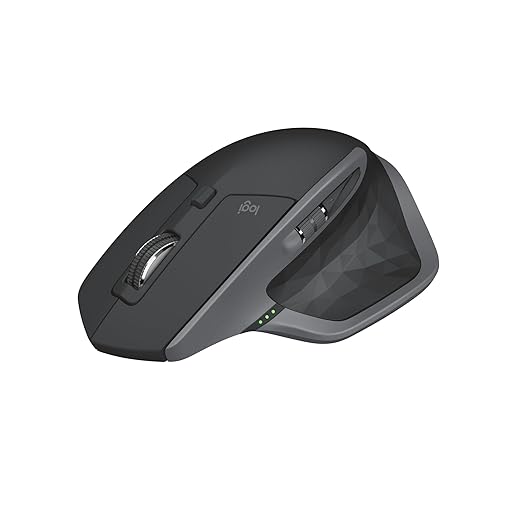



MX Master 3S — Ergonomic Productivity Mouse
We find it hard to beat for sustained desk work — the shape, thumb controls, and MagSpeed wheel meaningfully speed up everyday tasks. Battery life, Flow cross‑computer features, and Logi Options+ integration make it a productivity-first choice.
Why we consider it the benchmark
We view the MX Master 3S as the most complete wireless mouse for people whose day revolves around spreadsheets, long documents, and jumping between apps. Its hand‑sculpted shell and well‑placed thumb controls reduce friction in common workflows — copy/paste, horizontal scrolling, and app switching feel faster because the hardware anticipates how we work.
Key features and how they matter
Ecosystem and battery
We appreciate how well Logitech ties this mouse into its ecosystem. Logi Options+ gives deep per‑app button remapping and the FLOW feature lets us move the pointer and copy files between macOS and Windows machines. The rechargeable Li‑Po battery lasts for weeks in normal use and supports USB‑C fast charging — enough that charging is rarely disruptive.
Caveats and practical takeaways
Overall, for desk‑centric productivity users who prioritize comfort, customization, and multi‑device workflows, this is our Top Picks go‑to recommendation.
MX Master 3S Bluetooth Edition — Slim Receiverless
We like this version for users who rely on Bluetooth and want the same MX Master ergonomics without a USB receiver. It keeps the advanced sensor, MagSpeed wheel, and app profiles, but trades the included Logi Bolt dongle for a slightly lower price point.
Same platform, Bluetooth focus
This bluetooth stack edition gives you almost everything that makes the MX Master 3S special — the sculpted shell, side thumb wheel, MagSpeed scrolling, and an 8K Darkfield sensor — while omitting the Logi Bolt dongle. For people who prefer a dongle‑free desk or work primarily with modern laptops, that simplifies setup and travel.
What changes in daily use
Who this suits and who it doesn’t
We recommend this model to MacBook and ultraportable users who want MX Master comfort without a dongle. If you frequently switch between machines that don’t handle bluetooth low energy beacon well or you work in a managed IT environment, the receiver‑included Standard Edition may be the safer pick.
Final note
The bluetooth mesh networking. For us, the real selling point remains the wheel and ergonomic layout; connectivity choices are secondary but important depending on your environment.
MX Anywhere 3S for Mac — Compact Productivity Mouse
We find it an excellent balance between portability and desktop performance for Mac and iPad users. The small footprint doesn't sacrifice precision, and the Mac‑focused finishes and USB‑C charging make it feel native on Apple hardware.
Why we like a compact MX
The MX Anywhere 3S for Mac is built for people who split time between a home desk setup and locations like a coffee shop or client site. Logitech has tuned the Anywhere line to preserve many MX Master conveniences — a good scroll wheel, reliable tracking, and programmable buttons — but in a much smaller chassis that matches MacBook aesthetics.
Features that punch above its size
Integration and ergonomics
We appreciate that Logitech offers a Mac‑optimized mouse: colorways and Logi Options+ support that feel integrated with macOS and iPadOS workflows. That said, the compact shape is inherently a compromise; users with larger hands will notice reduced palm support during long sessions.
Practical takeaways
If your priority is portability without losing professional‑grade scrolling and tracking, browse our wireless mice for the sweet spot. If most of your work is at a desk and comfort is paramount, the full‑size MX Master will still be the better long‑term choice.
MX Master 2S — Multi‑Device Workhorse Mouse
We see the MX Master 2S as a strong value for users who want FLOW multi‑computer control and the signature side scroll without the latest bells. It’s comfortable, dependable, and still relevant for most productivity workflows.
Why the 2S remains useful
The MX Master 2S is the earlier generation that proved Logitech could make a productivity mouse optimized around productivity rather than gaming. It introduced many of the conventions we now expect from higher‑end mice — FLOW for controlling multiple machines, a generous thumb rest, and a free‑spinning scroll wheel — and those attributes still make it an appealing choice for office setups.
Real‑world strengths and compromises
Where it fits in the market
We often suggest the MX Master 2S when users want MX ergonomics and FLOW at a lower price than the current flagship. It’s a practical, proven mouse for professionals who care more about cross‑device workflows and comfort than having the absolute newest sensor or software features.
Bottom line
If you find a 2S on sale, it represents a solid compromise: fewer cutting‑edge specs but the same fundamental productivity advantages.
M720 Triathlon — Long‑Life Multi‑Device Mouse
We appreciate its endurance and straightforward multi‑device switching — a comfortable, no‑nonsense mouse that lasts months on a single AA. It’s a pragmatic pick for people who want reliable features without premium pricing.
A pragmatic, workaday companion
The M720 Triathlon is designed around endurance and utility among wireless mice rather than headline specs. It’s the kind of mouse we recommend when portability isn’t mandatory but battery life, comfort, and straightforward multi‑device control are. For many knowledge workers, it covers 90% of what a premium mouse offers at a fraction of the cost.
What it delivers well
Practical limitations
The M720 isn’t trying to be a boutique device: its sensor is adequate for office tasks but not tuned for glass surfaces or ultra‑high DPI use. The scroll wheel’s hyper‑fast mode is satisfying, but some units exhibit looseness after long use.
Use cases we recommend
Choose the M720 if you want a reliable, inexpensive work mouse that will last through months of heavy everyday use. It’s especially attractive for multi‑computer setups where you don’t need the premium extras of the MX line.
Microsoft Bluetooth Ergonomic Mouse — Glacier
We like the comfortable thumb rest and long battery endurance for everyday office use. It pairs quickly over Bluetooth and feels more premium than basic mice, but thumb‑rest comfort can be subjective and a few users report scroll behavior quirks.
A premium Microsoft take on ergonomic comfort
This Glacier model aims to combine the ergonomics of Microsoft’s Sculpt line with a cleaner, more premium aesthetic and Bluetooth convenience. The soft thumb rest and machined scroll wheel give a higher‑end tactile experience than many entry‑level mice, and the Bluetooth pairing is typically seamless with modern laptops.
Battery and daily behavior
Integration and limits
We like that the mouse supports three programmable buttons, but full customization requires Microsoft’s Mouse and Keyboard Center, which is unavailable on some OS variants (Windows 10 S, older macOS). A few users report a minor idle lag or scrolling anomalies in certain environments, so test it with your workflow if you rely on snappy wake behavior.
Who should buy it
If you want an ergonomic mouse with strong battery life and a premium feel without the MX price tag, this is a solid middle ground. We recommend it for office users who prioritize comfort and fuss‑free Bluetooth pairing more than deep per‑app remapping.
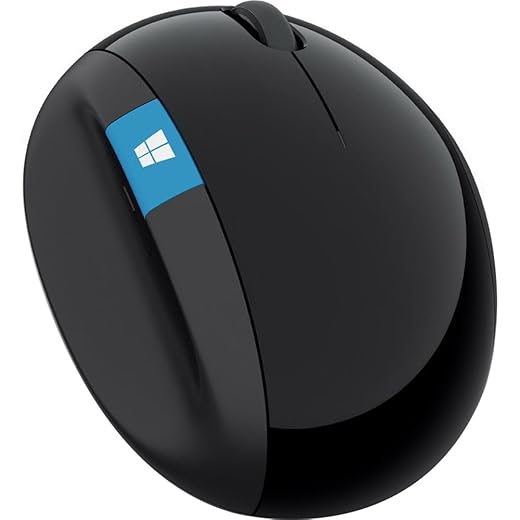
Microsoft Sculpt Ergonomic Mouse (L6V‑00001)
We value its vertical‑biased shape for users prioritizing wrist health over speed. The thumb scoop and elevated profile reduce pronation, though the unusual form factor takes a learning period and may not suit every desk setup.
Designed around comfort, not speed
The Sculpt Ergonomic Mouse (L6V‑00001) is one of Microsoft’s attempts to reimagine mouse ergonomics: it tilts the hand into a more neutral posture and adds a thumb scoop that keeps the hand relaxed during long work sessions. For people with wrist strain or who want to minimize pronation, it can be a meaningful ergonomic improvement.
Controls and daily behavior
Practical considerations and trade‑offs
The Sculpt’s shape is polarizing: some users report that the height causes accidental knocks or makes the mouse feel unfamiliar, especially when reaching for it reflexively. The glossy surfaces can show oils over time and the larger base can leave residue on certain desk finishes.
Who should consider it
We recommend trying the Sculpt if wrist comfort is your primary criterion and you can tolerate a learning curve. If you prefer a traditional mouse feel or need left‑hand support, stick to a symmetric or travel‑friendly option.
Microsoft Sculpt Ergonomic Mouse — Classic Shape
We find it comfortably contoured for many users and straightforward to set up. Durability and occasional connectivity or click‑mechanism issues are the main downsides in long‑term ownership for some reviewers.
A familiar ergonomic silhouette
This incarnation of the Sculpt Ergonomic Mouse offers the same core idea: raise and tilt the hand to reduce uncomfortable wrist postures. The rounded, high‑profile body creates a resting position that many people find reduces fatigue compared with flat, low‑profile mice.
Everyday performance and workflow
Durability and trade‑offs
There are mixed experiences with long‑term reliability: while many users find it indispensable for comfort, others report issues like click wear or connection drops after months of use. That inconsistency makes it a better fit as a low‑risk trial for ergonomics rather than a long‑term enterprise standard.
Our guidance
If you want an approachable ergonomic mouse that prioritizes posture, the Sculpt is a reasonable, budget‑friendly place to start. For heavier customization, higher durability expectations, or left‑handed use, evaluate other options alongside it.
Final Thoughts
Our pick for most people who want the best mix of productivity features and long battery life is the Logitech MX Master 3S — Ergonomic Productivity Mouse. We chose it because the sculpted shape reduces fatigue during long sessions, the MagSpeed wheel and configurable thumb controls genuinely speed repetitive tasks, and Logitech’s Flow and Options+ ecosystem make multitasking across machines painless. It’s the best option if you spend hours at a desk, switch between computers, and want a mouse that feels like a productivity tool rather than a disposable accessory.
If your priority is absolute battery endurance and straightforward multi‑device use on a tighter budget, the M720 Triathlon — Long‑Life Multi‑Device Mouse is our budget endurance pick. It won’t match the MX Master’s refinement, but it lasts for months on a single AA, switches between three devices with a tap, and delivers dependable performance for heavy email, web research, and long editing sessions.
Honorable mention: the MX Anywhere 3S for Mac is the one to get if you’re frequently mobile on Mac and iPad — it blends compact portability, strong sensor performance, and native Mac finishes. We recommend it for Mac-first commuters who want desktop‑class features in a pocketable package.
Frequently asked questions
How did we pick these wireless mice for productivity and long battery life options?
We shortlist models that balance performance, reliability, and value for typical buyers—not just the highest spec sheet. Hands-on notes, owner feedback, and return/warranty policies all feed the ranking.
Which wireless mice for productivity and long battery life pick is best for most people?
Start with our top overall choice if you want the safest balance of price and features. Move up or down the list only when a specific need—budget, ecosystem, or a must-have feature—clearly applies to you.
Do prices on this wireless mice for productivity and long battery life list change often?
Yes. Retailers run frequent promos, so use the live price buttons on this page and compare shipping and return windows before checkout—the best deal is not always the lowest sticker price.
Should I buy the cheapest wireless mice for productivity and long battery life on the list?
Only if the trade-offs fit your use case. The budget pick can be excellent value, but check what you give up in build quality, software support, or key features you will use every week.
What if none of these wireless mice for productivity and long battery life picks fit?
Use the comparison and guide links on this page to narrow by size, platform, or feature, then revisit the list with your must-haves written down—forcing a mismatch creates more returns than savings.
How often is this wireless mice for productivity and long battery life roundup updated?
We refresh rankings when major models launch or pricing shifts enough to change the value story. Check the publish date at the top and compare current specs if you are reading months later.

Princess Rioboca is the Lead Editorial Writer at Option Cutter, bringing over seven years of hands-on experience in consumer technology journalism. Specializing in home networking and smart home architecture, she transforms complex technical data into practical, real-world upgrades. Princess personally tests and audits every product she reviews—evaluating real-world Wi‑Fi throughput, cable management durability, and streaming ecosystem stability—to filter out spec-sheet noise. Her rigorous, field-tested insights are designed to give readers transparent, unbiased buying advice on what to purchase, what to skip, and exactly why.