Haptics, MagSpeed, and app-powered shortcuts that make long workdays less painful — if you’re willing to pay for them.
By the time we hit the third hour of editing or debugging, our wrists start negotiating a truce — and a clumsy mouse only makes the case for quitting louder. The Logitech MX Master 4 tries to quiet that noise with a comfort-first sculpted shape and pro-level controls: tactile haptic feedback, an Actions Ring for app shortcuts, and a MagSpeed wheel that flips between pixel-precise and hyper-fast scrolling.
On paper these are evolutionary updates, but they matter now because hybrid workflows demand tools that save seconds constantly — and those seconds add up. The high-res sensor (yes, it even tracks on glass), low-latency USB‑C dongle, and long battery life keep us working without interruption, while the app-driven shortcuts materially speed up real tasks; still, it’s a premium, somewhat bulky device and the full experience depends on Logi Options+ and occasional firmware updates, so it’s best suited to regular heavy users rather than casual buyers.
Logitech MX Master 4 Ergonomic Haptic Mouse

We find it blends pro-level control with everyday comfort, making long editing and coding sessions less fatiguing. Its haptic cues and app-driven shortcuts materially speed up workflows, though it’s a premium, slightly large device best suited to regular heavy users.
Logitech MX Master 4 Review: The Ultimate Productivity Mouse
Overview: a focused upgrade for serious workflows
We approached the MX Master 4 looking for tangible productivity gains rather than flashy specs. The new model doubles down on features that affect how you work hour-to-hour: a programmable haptic surface, the fastest MagSpeed wheel Logitech offers, and more reliable wireless links. The result is an incremental but meaningful improvement for people who depend on a mouse all day.
What Logitech changed and why it matters
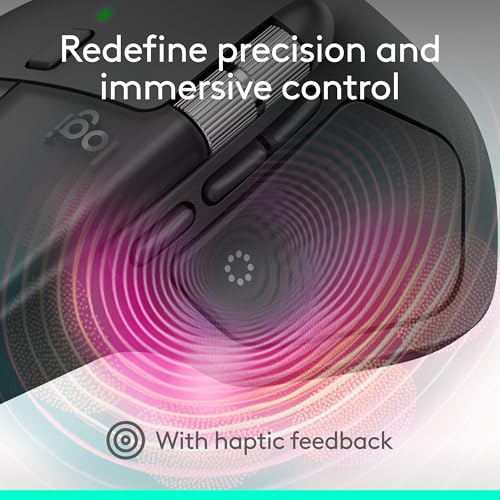
The headline additions — haptic feedback and an Actions Ring overlay — are not gimmicks. They change the feedback loop between hand, cursor, and app: instead of hunting for a menu, you get tactile confirmation and a menu at your cursor. That reduces friction in repetitive workflows: editing, layout adjustments, timeline scrubbing, and tool switching all feel faster because you do fewer reach-and-click motions.

Design and ergonomics: built for long sessions
The MX Master 4 retains the wide, thumb-friendly profile the series is known for, but with subtle refinements: a gentler thumb cup, improved surface finishing to resist oils and stains, and quieter clicks to keep open-plan offices less distracting. The sculpted angle keeps the wrist in a neutral posture, which we appreciated during multi-hour editing runs.
Scrolling and pointer performance: precision meets speed
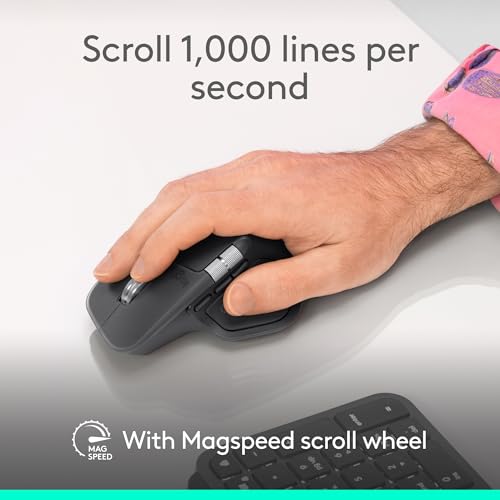
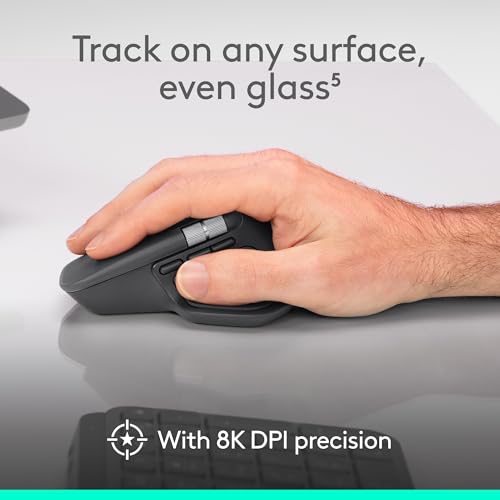
Logitech’s MagSpeed wheel is the star here. It can flip between a free-spinning hyper-fast mode and a detented, pixel-precise mode nearly instantly. That makes it equally useful for scanning long documents and making fine adjustments in creative apps. The 8k DPI sensor is responsive across surfaces we use daily — desks, mousepads, and even glass — which removes the need for frequent positioning corrections.
Haptics and Actions Ring: new interaction layers
Haptic feedback on a mouse is unusual, and Logitech implements it pragmatically. You can get subtle vibration when switching desktops, hitting a preset threshold, or invoking an Actions Ring menu. That feedback helps confirm actions without your eyes leaving the screen. The Actions Ring is a contextual overlay that surfaces app-specific shortcuts at your cursor — we found it especially useful in Photoshop and Premiere for quickly toggling brushes, panels, or playback controls.
Connectivity and battery: dependable and long-lasting
Logitech redesigned the wireless stack for more consistent performance. The included USB‑C dongle and an improved antenna layout mean fewer dropouts, especially in crowded 2.4 GHz environments. Bluetooth pairing remains available for on-the-road use; multi-device switching is seamless. Battery life expectations are excellent — measured in weeks — and a short 60‑second charge can deliver hours of use, which is a practical lifesaver when you forget to charge overnight.
| Connectivity | Battery |
|---|---|
| USB‑C dongle + Bluetooth | Up to ~70 days typical use* |
*Actual battery life depends on haptic intensity, wheel usage, and connectivity mode.
Software and customization: powerful but app-dependent
The full capability of the MX Master 4 is unlocked in Logi Options+. There we mapped app-specific Actions Ring layouts, adjusted haptic intensity, reassigned buttons, and tuned pointer sensitivity. Logi Options+ is mature — it supports many apps out of the box — but it is necessary for advanced workflows. For users who prefer plug-and-play, core functions work fine without the app, but we think the software is worth installing.
Build, sustainability, and longevity
Logitech continues to lean into sustainable materials: recycled plastics and cobalt in the battery. The finish tolerates skin oils and occasional spills better than previous generations, and the scroll mechanism feels engineered for high cycle counts. We expect this mouse to last years in a professional setting, assuming normal wear.
Who should buy it
Who should look elsewhere
Final take: incremental but meaningful improvements
We see the MX Master 4 as a refinement rather than a reinvention. Its combination of haptics, a versatile scroll wheel, reliable tracking, and long battery life make it a compelling pick for people who treat a mouse as a productivity tool rather than a commodity. The caveats — size and price — are important, but for the audience this product targets, the day-to-day gains in speed and comfort justify the investment.
FAQs
No, the mouse works as a standard pointing device out of the box for basic tasks. However, Logi Options+ unlocks app-specific Actions Ring layouts, haptic intensity adjustments, and full button remapping. If you want to customize shortcuts or use the haptic features, installing the app is highly recommended.
Haptics provide tactile confirmation so you don’t have to look at the screen when invoking shortcuts or switching modes. For example, you can feel a slight pulse when you open an Actions Ring or hit a timeline marker, which reduces hand-to-mouse-to-keyboard back-and-forth and speeds up repetitive workflows.
Yes — the high-resolution sensor is rated to track on many glass surfaces. Performance can vary with the thickness and finish of the glass, so we still recommend testing your specific desk or using a thin mousepad for maximum consistency.
No — the MX Master 4 uses a right-handed ergonomic shape and thumb wheel placement that are not mirrored, so it’s not comfortable or practical for left-handed users. Logitech’s product line includes ambidextrous and left-friendly options if needed.
It’s moderately portable — the mouse is larger than compact travel mice, and its sculpted shape doesn’t tuck into small laptop sleeves easily. It’s designed for desktop or laptop-desk use rather than pocket carry. The inclusion of Bluetooth pairing helps when you move between devices without the dongle.
Open Logi Options+ to dial down or disable the haptic intensity. You can also reassign which actions trigger haptics so only the most useful cues remain active. This lets you fine-tune feedback to your tolerance and workflow.

Chris is the founder and lead editor of OptionCutter LLC, where he oversees in-depth buying guides, product reviews, and comparison content designed to help readers make informed purchasing decisions. His editorial approach centers on structured research, real-world use cases, performance benchmarks, and transparent evaluation criteria rather than surface-level summaries. Through OptionCutter’s blog content, he focuses on breaking down complex product categories into clear recommendations, practical advice, and decision frameworks that prioritize accuracy, usability, and long-term value for shoppers.