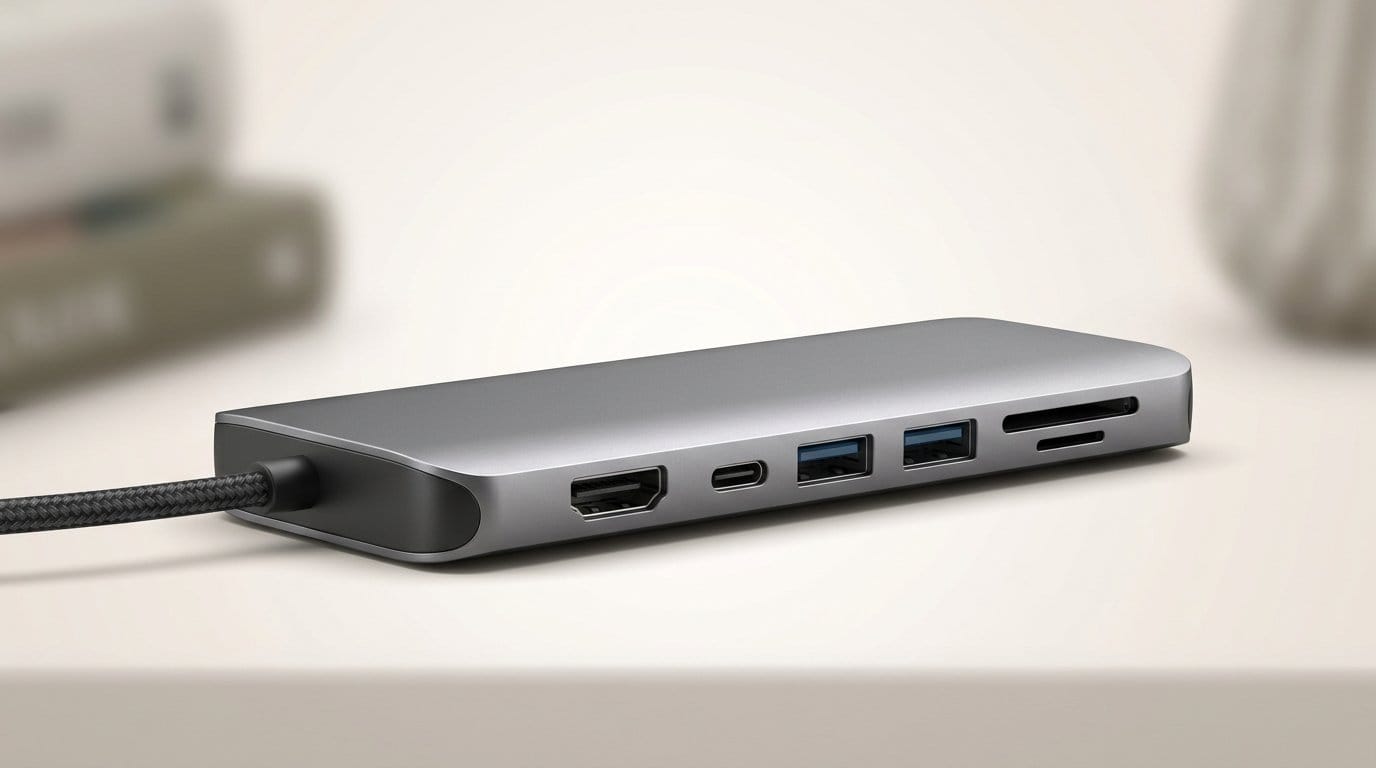

Can one slim brick fix our cord chaos? We tested hubs so you don’t have to.
Everyone’s laptop used to be a rectangle. Now it’s a rectangle plus a cable forest. We keep a small collection of hubs on hand because single-port USB-C laptops still rule the roost, and HDMI remains the easiest way to hook up an external display.
We looked for things that actually make life simpler: solid video at 4K@60Hz, steady pass-through charging, and a layout that doesn’t tangle your day. Design, heat behavior, and how well each hub plays with macOS and Windows mattered as much as the raw specs.
Top Picks



CalDigit Element 5 Thunderbolt Hub
We find this hub nails the high-end use case: exceptional bandwidth, sustained charging, and a small footprint that doubles as a heatsink. Its thermal behavior and advanced display modes make it the sensible pick if you need pro-level connectivity and future-proofing.
What this hub is for
We think of this hub as a bridge between today’s most demanding Thunderbolt hosts and a desktop-grade peripheral set. It’s designed for users who need multiple high-bandwidth displays, fast external NVMe, and reliable laptop charging without sacrificing throughput.
Key features and why they matter
We highlight the Bandwidth Boost because it changes how the hub allocates throughput when you attach multiple high-resolution displays — something many hubs simply can’t handle. The 64Gb/s PCIe passthrough on TB5 ports also means external Thunderbolt SSDs can operate near their native speeds, which matters for video editors and anyone moving multi‑gigabyte files frequently.
Practical notes and trade-offs
In short, this is a premium, future-forward hub that justifies its price for professionals who need the highest bandwidth and the flexibility to connect multiple high-resolution displays and fast storage simultaneously. If you mostly plug in a single monitor and a few peripherals, a simpler hub will save money, but for heavy workflows, this one shines.
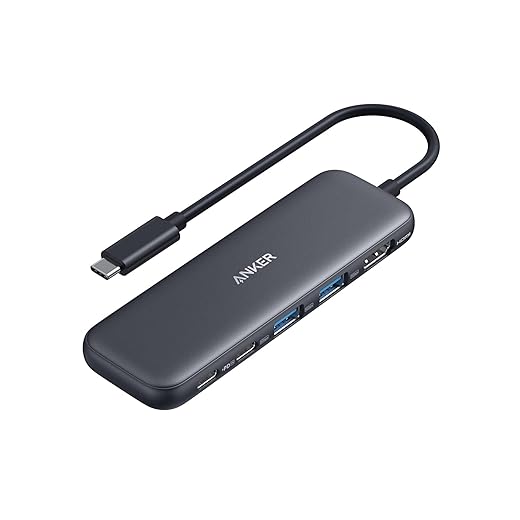
Anker 5-in-1 USB-C Productivity Hub
We appreciate the clean balance of ports and reliable daily performance — a 4K HDMI, two USB-A ports, a USB-C data port, and PD charging. It’s the kind of compact hub that just works with minimal fuss for the majority of users.
Why we recommend it
We see this hub as the everyday workhorse: compact, reliable, and from a brand with a track record for dependable accessories. It strips the feature set down to what most people actually use and executes those features well.
Key details
In our testing, the hub handled office workflows — video calls, external displays for slides or editing, and fast file transfers — without the complications of drivers. The cable-attached design is convenient and less prone to wear than a directly attached stub connector.
Trade-offs and target users
This isn’t a specialist dock: it lacks SD card slots and Ethernet, so pros who routinely import photos or need wired office networking will want a larger hub. For users who want a compact, reliable hub that minimizes surprises and keeps a tidy desk, it’s an excellent, low‑maintenance choice.
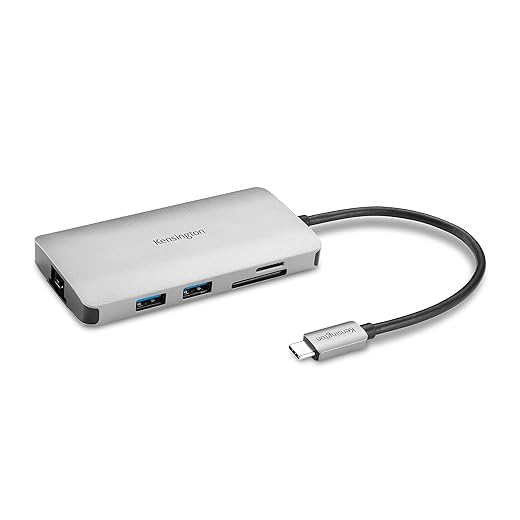
Kensington UH1400P 8-in-1 Office Hub
We appreciate its mix of ports, 4K@60Hz HDMI, and up to 85W pass-through, which suit a typical office or hybrid worker. It’s not the flashiest hub, but it’s durable, driverless, and built for predictable daily use.
Positioning and intended use
We view this as a pragmatic office-focused hub. It’s built to be a stable, driverless companion for desks where Ethernet, a crisp external display, and a handful of USB ports are the day-to-day requirements.
Main features and benefits
Kensington’s straightforward design minimizes software headaches — there are no drivers to install, which reduces the chance of a setup hiccup across macOS, Windows, or ChromeOS systems.
Practical considerations
We found it well-suited to docking at a fixed desk or for people who move between home and office. The unit does warm under load and, like similar hubs, HDMI behavior can depend on host port capabilities; if video acts up, verifying the host’s DP Alt Mode and power profile often helps. Overall, it’s a dependable middle-ground choice that balances features with price.
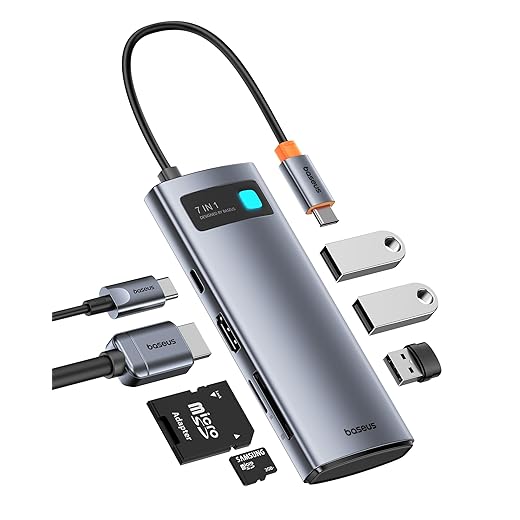
Baseus 7-in-1 USB-C Docking Adapter
We found this delivers great bang for the buck: solid 4K@60Hz HDMI, PD charging, and multiple USB ports in a compact chassis. It’s a smart everyday hub for creatives and generalists who don’t need enterprise features.
Purpose and positioning
We see this hub as a versatile mid-range option that covers the most common needs without costing a premium. It’s suitable for content creators on a budget, frequent travelers who need a reliable dock, and anyone who wants a single cable for display, storage, and charging.
Core capabilities
In everyday use, the hub handled photo imports, external SSDs, and a primary 4K display reliably. Several reviewers reported flawless multi-device switching across laptops and tablets, which makes it an easy recommendation for mixed-device households.
Limitations and context
A small number of users have reported units that developed intermittent problems after months; Baseus refunded or replaced units in those cases. Also, expect some heat under sustained heavy use. If you need enterprise-level longevity or professional multi-monitor enterprise features, consider a higher-end or Thunderbolt dock — otherwise, this offers a compelling mix of features and price.
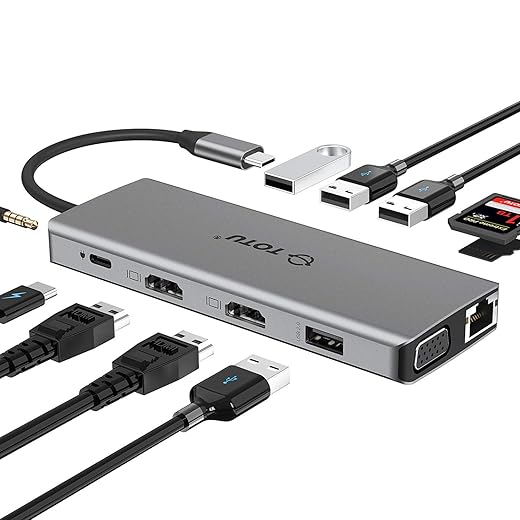
TOTU 13-in-1 USB-C Docking Station
We like the sheer breadth of ports and the twin HDMI outputs for Windows users who need triple-display support. It’s an affordable way to consolidate many adapters, though macOS users should watch for MST limitations.
Who should consider this dock
We recommend this for Windows users who want to drive multiple displays from a single USB-C connection and need a comprehensive set of legacy and modern ports. It’s aimed at desk-bound users who want to replace a tangle of adapters with one box.
What stands out
The dock’s support for triple display on compatible Windows hosts makes it attractive for productivity setups. On macOS, however, the lack of MST support means displays are handled differently — expect mirrored or host-limited configurations rather than independent extended desktops in some cases.
Real-use trade-offs
We found the TOTU helpful for consolidating peripherals and legacy displays, but its many moving parts mean more points of failure: cable order, host port capability, and the power source all affect behavior. For users who need robust macOS multi-monitor support, a Thunderbolt dock is a safer bet. For mixed Windows/legacy setups, this is a cost-effective all-in-one solution.
MOKiN 7-in-1 USB-C Travel Dongle
We like this as a small, inexpensive dongle that adds HDMI, SD cards, and PD charging without weighing down a bag. It’s especially handy for photographers and mobile workers who need basic expansion on the go.
Who should buy this
We recommend this dongle for people who prioritize portability: photographers importing SD cards at shoots, road warriors who need a single HDMI output and charging, and users who want a simple pocket-sized hub for occasional use.
What it does well
It’s straightforward plug-and-play and matches the color and finish of many laptops. The small size means it won’t clutter a backpack and it’s easy to tuck into a carry case.
Practical caveats
Because of its compact design the hub is not meant to drive multiple power-hungry peripherals and multiple simultaneous heavy transfers. We recommend connecting only one high-power external drive at a time and verifying SD card detection order on some phones — a few hosts detect the card only if it’s inserted before the hub connects. For frequent heavy desktop use, a larger dock is a better choice.
Acer 7-in-1 USB-C Multiport Adapter
We like this as a no-frills, affordable way to add the essentials — HDMI, two USB-A ports, SD card slots, and PD pass-through. It’s not aimed at power users, but it’s a sensible travel companion and desktop extender for light workflows.
Who this is for
We recommend this hub for users who need an inexpensive way to expand a laptop or tablet with basic ports — think occasional external display use, SD card transfers, and charging while you work. It’s a practical pick for students, travelers, or anyone who doesn’t need high-refresh 4K output.
What it offers
The trade-offs are straightforward: HDMI tops out at 30Hz (so it’s not ideal for high-refresh displays) and some video features require a host port that supports DP Alt Mode. But for the price, the hub is a well-rounded practical tool.
Real-world use
We used this with Chromebooks, older Windows laptops, and modern MacBooks for light multi-device setups. It performed reliably for web conferencing, document work, and photo imports from SD cards. If you need sustained high-resolution video or lots of simultaneous high-bandwidth devices, step up to a more expensive dock; otherwise, this is a tidy value option.
Final Thoughts
For pro users and anyone building a future-proof workstation, we recommend the CalDigit Element 5 Thunderbolt Hub. It nails high-end connectivity: sustained bandwidth, dependable charging, and smart thermal behavior that keeps performance steady during demanding tasks. If you run video editing, multiple pro monitors, or want a hub that will still be relevant in the next laptop cycle, this is the sensible pick — browse our Top Picks.
For most people who want a no-nonsense daily dock that simply works, the Anker 5-in-1 USB-C Productivity Hub is our pick. It balances a 4K@60Hz HDMI port, useful USB-A ports, a USB-C data port, and PD pass-through in a compact, affordable package. It’s the best mix of price, simplicity, and cross-platform compatibility for everyday MacBook and Windows PC use.
FAQ
Will this hub give me 4K at 60Hz on my MacBook?
Maybe — it depends on the hub and your Mac. Many of the hubs we tested advertise 4K@60Hz HDMI and deliver that over USB-C Alt Mode or Thunderbolt. On Intel Macs and Thunderbolt-equipped machines, 4K@60Hz is straightforward. On some Apple Silicon Macs, you’ll also get 4K@60Hz, but multi-monitor behavior can be limited by macOS (more on that below). Always check the hub’s listed HDMI version and whether the laptop’s USB-C port supports video output or Thunderbolt.
I need multiple external displays. Which hubs actually work well?
Windows laptops with multiple DisplayPort/HDMI endpoints or hubs that use MST can usually drive two or more monitors without extra software. The TOTU 13-in-1 is a strong, budget-friendly option for Windows multi-monitor setups. macOS, however, historically limits extended displays via DisplayPort MST — many hubs end up mirroring screens unless they use Thunderbolt or DisplayLink. If you have a Mac and need three monitors, prefer a Thunderbolt dock (like the CalDigit) or a dock that uses DisplayLink and be prepared to install a driver.
Thunderbolt vs USB-C hub: when should we pay extra?
Pay up for Thunderbolt when you need sustained bandwidth for high-bit-rate video, fast external NVMe, or reliable multi-monitor support with Macs. Thunderbolt hubs like the CalDigit Element 5 act more like modular docking stations with consistent performance. For everyday tasks — one external monitor, a couple of USB drives, and phone charging — a USB-C hub like the Anker or Baseus is usually the smarter value.
Do I need to worry about power-delivery (PD) wattage?
Yes. PD pass-through varies a lot. Lightweight hubs often offer 60W or less, while office-focused docks push 85W or more. If you have a power-hungry 16-inch laptop, check for higher PD ratings or use your laptop’s dedicated charger. For phones, tablets, and most 13-inch laptops, a 60–100W hub will handle charging and normal workloads fine.
Are drivers required or will these hubs be plug-and-play?
Most basic USB-C hubs (HDMI, USB-A, SD card readers) are plug-and-play on both macOS and Windows. Multi-display hubs that go beyond the OS’s native display capabilities may rely on DisplayLink software on Windows and macOS. That software adds flexibility for lots of monitors but can introduce driver updates and occasional compatibility quirks. We like driverless docks for a cleaner, lower-maintenance experience if you don’t need exotic multi-monitor setups.
What should photographers and travelers choose?
For photographers who travel light, compact dongles like the MOKiN 7-in-1 or the Acer 7-in-1 offer SD card readers, HDMI, and PD passthrough in a tiny package. They won’t replace a full dock, but they make on-the-go workflows painless and won’t add bulk to a camera bag.

Princess Rioboca is the Lead Editorial Writer at Option Cutter, bringing over seven years of hands-on experience in consumer technology journalism. Specializing in home networking and smart home architecture, she transforms complex technical data into practical, real-world upgrades. Princess personally tests and audits every product she reviews—evaluating real-world Wi‑Fi throughput, cable management durability, and streaming ecosystem stability—to filter out spec-sheet noise. Her rigorous, field-tested insights are designed to give readers transparent, unbiased buying advice on what to purchase, what to skip, and exactly why.