Why Migration Is More Than Copying Files
We walk through transferring every scrap of data to a new phone, balancing practical steps, design choices, and ecosystem trade-offs. We explain how migration tools differ across platforms, why those differences matter for experience, and how to keep data intact.
What We Need Before We Start

Transfer All Your Data from Old iPhone to New iPhone— Free & Official Guide
Audit What We Actually Need
Do we really have to move everything? A quick audit saves time and preserves the good stuff.Audit everything we want to keep before we touch the new phone.
Check storage quotas and backup status on both devices so we don’t start a transfer that will fail halfway.
List the data categories and mark essentials vs optional
Test backups for key items (open a saved photo, verify a chat export, restore a game save) so we know a restore will work.
Note apps tied to specific accounts (banking, work, streaming) and decide whether to migrate credentials or sign in fresh.
Document decisions so later troubleshooting is faster and clearer.
Back Up First — Don’t Skip This
Skipping backups is reckless — here’s how to make them bulletproof and testable.Back up everything before we touch the new cell phone. Backups are our safety net for photos, messages, and app states — and they reveal which platform makes recovery painless.
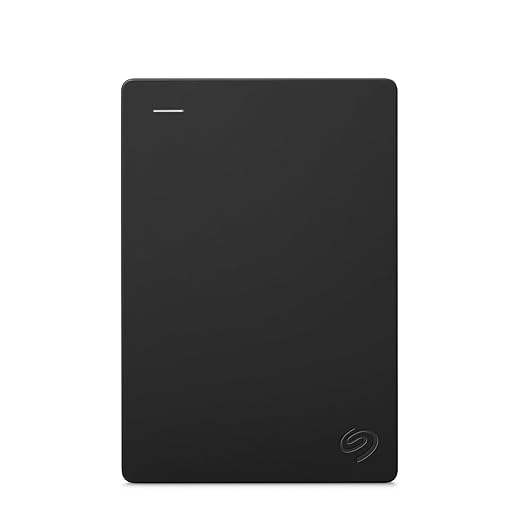
Verify Android backups in Google Drive and any OEM tools (Samsung Cloud, Pixel Restore); confirm iCloud status on iPhone and make an encrypted local iTunes/Finder backup for full app-data fidelity. Export messaging where needed — WhatsApp chat export or Google Drive backup for Android. Prefer cloud photo sync plus a one-time local copy on a computer or external drive.
Check backup completion times and free space so transfers don’t fail mid-way — follow FTC personal-information security tips before you store backups in the cloud. Test restoring a single photo or chat to confirm integrity. For example, we once needed the encrypted iTunes backup to restore a banking token iCloud ignored. Keep account passwords, backup passwords, and 2FA recovery codes handy to avoid lockouts during restore.
Pick the Right Transfer Method
Device swap, cloud restore, or cable — which one actually gives us a faithful new-phone experience?Choose device‑to‑device cable or direct Wi‑Fi when staying in the same ecosystem: Quick Start for iPhone or Android cable/Smart Switch preserve app data, layouts, and home screens — they’re fastest and least disruptive.
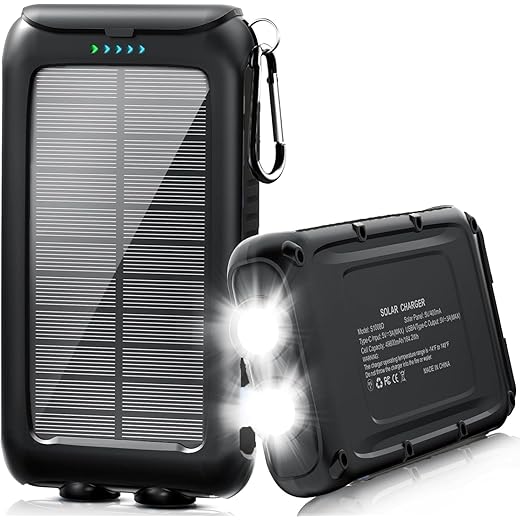
Prefer cloud restore when we want a fresh install with synced content: iCloud or Google restores move purchases and settings but depend on bandwidth and full backups on your new phone accessories setup.
Consider manual reinstall when we’re trimming bloat or changing platforms: reinstall apps, sign in, and rely on app cloud saves; expect loss of in‑app state unless the app provides its own backup — see our how-to guides for cross-platform moves.
Evaluate app ecosystem lock‑in and third‑party tools: Apple and Google offer integrated flows; cross‑platform moves may need Move to iOS, Samsung Smart Switch, or PC-based utilities.
Test a dry run on nonessential data to confirm speed, privacy, and app continuity expectations.
Move Accounts, Auth, and Subscriptions
Did we remember to migrate billing, logins, and MFA? Small misses break big parts of daily life.Inventory all account-linked apps and services: email, banking, cloud storage, streaming, home devices, and any app with recurring charges. Write down usernames and recovery emails.
Export session tokens or enable account recovery where supported. For example, use Google’s account transfer, Authy’s multi‑device, or the Google Authenticator export tool to move codes.
Migrate two‑factor authentication and recovery codes. Print or save backup codes, enable a secondary authenticator device, or temporarily switch to SMS for the move if necessary — use NIST authentication guidance so you do not lock yourself out.
Sync or export your password manager vault securely before wiping the old phone — pair the move with chargers and cables so the new device stays powered through long restores. For example, confirm 1Password/Bitwarden desktop sync or perform an encrypted export.
Verify app‑store accounts and payment methods (Apple ID, Google Account) and notify critical providers (bank, brokerage, workplace SSO) ahead of time to avoid fraud flags or interrupted billing when you swap unlocked phones.
Transfer Photos, Media, and Files
Because memories are nonreplaceable — how to preserve originals, metadata, and album structure.Preserve master copies: keep originals, RAW files, and embedded metadata; treat albums and edits as part of your library.
Note designers are improving metadata fidelity, but cross‑ecosystem moves still risk losing album structure or non‑destructive edits.

Test, Tidy, and Secure the New Phone
The migration isn’t done until everything works — and we’ve locked it down properly.Run a checklist after transfer: we sign into major accounts, open key apps, confirm messages and call history, browse photo albums, and check widgets and home‑screen layout. This matters because platform restores and privacy defaults vary, and small mismatches degrade the UX. We compare settings — privacy, location, notifications — and restore any missed system preferences; for example, iOS app privacy toggles and Android notification channels often reset. We monitor performance and battery for 24 hours to spot background restores or reindexing. We secure the phone: install OS updates, enable encryption, set a strong passcode and biometrics, and reconfigure Find My/iPhone or Find My Device — the same hardening steps in our smart-home security checklist apply to always-on phones. We wipe the old phone only after a secure erase and verifying backups and account removal. We keep concise notes on quirks and share tips for cross‑ecosystem restores.

Deliberate Migration Pays Off
We framed migration as design, not merely technical: audit needs, back up, pick the right method, move accounts and subscriptions, migrate media, then test and secure — more how-to guides when you travel with travel accessories. Try checklist, share your results, and help others migrate confidently.
Frequently asked questions
What should I prepare before I transfer data to a new phone without losing anything?
Start with the checklist in the “What we’ll need” section above—measure your space, confirm compatibility with your gear, and read the full walkthrough once before you change settings or buy parts. Transfer data to a new phone without losing a… goes faster when prep is done upfront.
How long does it take to transfer data to a new phone without losing anything?
Most readers finish in about 30–90 minutes if they already have the right parts, but budget extra time for measurements, firmware updates, or a second pass when something does not behave the way the manual suggests on the first try.
What is the hardest part when you transfer data to a new phone without losing anything?
The step that trips people up is usually alignment or configuration—getting measurements, cable routing, or software settings right before you commit. If results still look off, re-check the basics in order instead of swapping hardware immediately.
What mistakes should I avoid when I transfer data to a new phone without losing anything?
Skipping measurements, ignoring ventilation or port limits, and rushing the final test are the common failures. Photograph your starting setup, label cables, and verify the outcome with the same content or workflow you will use every day—not a one-off demo.
When should I call a pro instead of trying to transfer data to a new phone without losing anything myself?
Bring in help when the job needs structural work, licensed wiring, or tools you do not own, or when repeated attempts still fail after you have followed the troubleshooting section. A short paid visit can cost less than replacing gear you damaged by forcing the install.

Princess Rioboca is the Lead Editorial Writer at Option Cutter, bringing over seven years of hands-on experience in consumer technology journalism. Specializing in home networking and smart home architecture, she transforms complex technical data into practical, real-world upgrades. Princess personally tests and audits every product she reviews—evaluating real-world Wi‑Fi throughput, cable management durability, and streaming ecosystem stability—to filter out spec-sheet noise. Her rigorous, field-tested insights are designed to give readers transparent, unbiased buying advice on what to purchase, what to skip, and exactly why.