Why the Right USB-C Hub Changes Your MacBook Pro Setup
We break down how to pick a USB‑C hub that genuinely improves our MacBook Pro workflow—focusing on ports, power, build, and macOS fit so the hub lasts, reduces friction, and plays well with our other devices in a crowded, hype-driven market and saves us time.
What we need before we start

Top 5 USB-C Hubs for MacBook – The Ultimate Guide
Step 1: Audit Your MacBook Pro and Workflow
Which ports are actually missing — and do they change how we work?Identify our MacBook Pro model and count its native ports. Check System Information (Apple menu > About This Mac > System Report) for how many Thunderbolt/USB‑C ports, HDMI, and SD card slots, and whether those ports advertise Thunderbolt 3, Thunderbolt 4, or USB4—they aren’t interchangeable in bandwidth or display routing.
Map what we actually do every day. List the peripherals and tasks that must work simultaneously
Decide which of those are non‑negotiable. If we edit 4K footage and tether an external SSD while driving two monitors, we need a full‑bandwidth dock with high PD. If we only charge and use a keyboard, a slim dongle is fine. Measure real usage (log ports used for a week, check power draw) so we buy what serves our real workflow—not just the fanciest spec sheet.
Step 2: Prioritize Ports by Use Case
Do we really need an SD card reader more than an extra USB-A? Let’s be ruthless.Prioritize ports based on what we actually do every day in this how-to guide. Rank features by impact, not by headline specs.
Translate our MacBook Pro workflow into a short priority list. Focus on the ports that solve the biggest pain points:
Check HDMI and chipset caveats on MacBook docks: vendors may claim 4K@60Hz but only on certain ports, chipsets, or with reduced color depth. Test or confirm which lane drives each display. Watch for hubs that multiplex everything over one internal controller—that’s where throughput and power get sacrificed.
Limit ourselves to 2–3 must‑haves so the rest becomes acceptable trade‑offs.

Step 3: Balance Power Delivery and Throughput
Don’t let underpowered hubs throttle our MacBook — here’s the math and the safety checks.Check the MacBook Pro’s charger wattage and match the hub’s PD passthrough. If we use a 96W 16‑inch charger, we pick a hub rated for 100W PD so the laptop can charge at full speed. Aim for a 16–20W buffer when you regularly push the CPU/GPU—otherwise the machine may draw from the battery or throttle under load.
Verify how the hub allocates internal lanes. Many USB‑C hubs share power, video, and data on the same USB hub controller; that’s where throughput falls apart. Prefer hubs or docks that explicitly list:
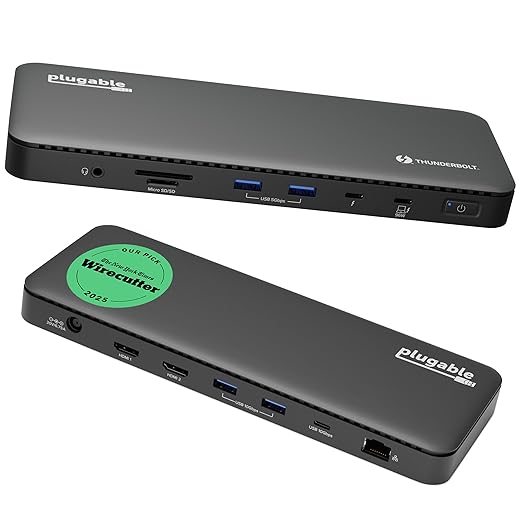
Choose a Thunderbolt 4 dock if we need simultaneous full‑speed charging, multiple high‑resolution displays, and fast NVMe enclosures—yes, it costs more, but it solves the power vs throughput tradeoff cleanly. Read reviews for real‑world PD numbers; many inexpensive hubs advertise 100W but only pass 60–70W under load.

Step 4: Evaluate Build Quality, Design, and MacOS Integration
A hub isn’t just ports—it's part of our desk aesthetic and software ecosystem.Inspect the housing and feel. Prefer aluminum bodies: they often dissipate heat better and feel premium, though they add weight. Check for vents or a warm‑to‑the‑touch warning—poor thermal design throttles ports and chargers.
Compare cable styles. Prefer a detachable USB‑C cable for portability and replacement; choose an integrated dongle only if you need minimal bulk. Test the strain relief and connector stiffness in reviews—short fused cables break faster in bags.
Match finishes to your MacBook. Look for color and beveling that don’t make the hub look like an afterthought. A well‑fitted hub changes the desk aesthetic and avoids wobble when plugged into thin aluminum edges.
Verify macOS compatibility and update policy. Check vendor sites for macOS driver-free operation, firmware updates, and change logs. Avoid hubs that rely on Windows utilities or unsigned drivers—those are more likely to break after macOS updates.
Use this checklist before buying

Step 5: Compare Brands, Test, and Buy with Confidence
How we balance price, reviews, and hands‑on testing to pick the hub that lasts.Compare candidate hubs across price tiers. Read hands‑on reviews that measure display bandwidth, PD under load, and sustained transfer speeds—look for tests that run two 4K monitors, push 100W charging, and copy large files to an external SSD.
Test MacBook Pro hubs with our own peripherals whenever possible. Plug in an external NVMe enclosure, chain two monitors, and run a power‑hungry task (export a Lightroom batch or compile a project) to spot dropped frames, throttling, or PD sag. We note thermal throttling, intermittent disconnects, and any firmware update needed.
Check return policy, warranty, and support responsiveness before buying. A hub that bricks our workflow mid‑deadline costs far more than its sticker price; fast, helpful support matters.
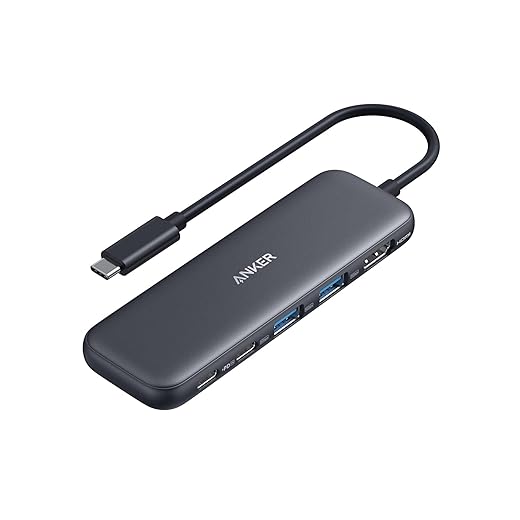
Consider future‑proofing vs. portability. Buy a Thunderbolt dock for growth and heavy I/O (video editing, docking multiple displays). Pick a compact USB‑C hub for travel and light work.
Choose a seller with a fair return window and compare these essentials
Wrap-up: Make the Hub Work for Your MacBook
We’ve audited needs, prioritized ports, balanced power and throughput, and vetted design to ensure macOS-friendly, uncluttered choices—because in a crowded market the right hub matches our workflow, minimizes compromise, and amplifies everyday productivity; which one will change yours meaningfully today?
Frequently asked questions
What should I prepare before I choose a usb-c hub for macbook pro?
Start with the checklist in the “What we’ll need” section above—measure your space, confirm compatibility with your gear, and read the full walkthrough once before you change settings or buy parts. Usb-c hub goes faster when prep is done upfront.
How long does it take to choose a usb-c hub for macbook pro?
Most readers finish in about 30–90 minutes if they already have the right parts, but budget extra time for measurements, firmware updates, or a second pass when something does not behave the way the manual suggests on the first try.
What is the hardest part when you choose a usb-c hub for macbook pro?
The step that trips people up is usually alignment or configuration—getting measurements, cable routing, or software settings right before you commit. If results still look off, re-check the basics in order instead of swapping hardware immediately.
What mistakes should I avoid when I choose a usb-c hub for macbook pro?
Skipping measurements, ignoring ventilation or port limits, and rushing the final test are the common failures. Photograph your starting setup, label cables, and verify the outcome with the same content or workflow you will use every day—not a one-off demo.
When should I call a pro instead of trying to choose a usb-c hub for macbook pro myself?
Bring in help when the job needs structural work, licensed wiring, or tools you do not own, or when repeated attempts still fail after you have followed the troubleshooting section. A short paid visit can cost less than replacing gear you damaged by forcing the install.

Princess Rioboca is the Lead Editorial Writer at Option Cutter, bringing over seven years of hands-on experience in consumer technology journalism. Specializing in home networking and smart home architecture, she transforms complex technical data into practical, real-world upgrades. Princess personally tests and audits every product she reviews—evaluating real-world Wi‑Fi throughput, cable management durability, and streaming ecosystem stability—to filter out spec-sheet noise. Her rigorous, field-tested insights are designed to give readers transparent, unbiased buying advice on what to purchase, what to skip, and exactly why.