Why a Thunderbolt eGPU Still Matters
We explain how to choose an external GPU enclosure that balances performance, compatibility, and usability. Surprisingly, a Thunderbolt eGPU can extend a laptop’s gaming, creative, or AI life, letting us upgrade graphics without replacing the whole system and save money.
What we need before we start

Thunderbolt eGPU Bandwidth Explained: RTX 4090 + 13700H
Confirm host compatibility and Thunderbolt implementation
Does your laptop actually support an eGPU — or are we chasing hope over hardware?Verify whether our laptop truly supports external GPUs. Check the Thunderbolt version (3 vs 4), whether the OEM exposes PCIe lanes over the controller, and whether the OS will let us use an external GPU.
Check model specs and system tools (macOS System Information, Windows Device Manager or Intel/Thunderbolt software), and read vendor notes — some ultrabooks have the port physically present but only expose x2 PCIe lanes.
Important checks to run:
For example, buying an eGPU for a thin Ultrabook that exposes only x2 lanes can cut real-world GPU throughput substantially — verify before you spend.
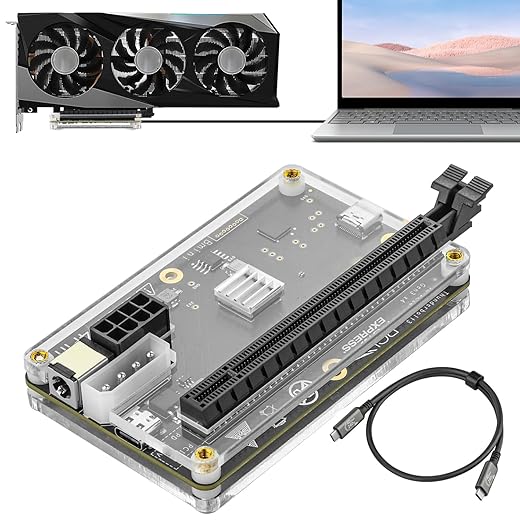
Clarify performance expectations and real-world bottlenecks
Do we want desktop-class 4K gaming or faster Photoshop exports — and what are we willing to accept?Define what “good enough” looks like for our use. Expect a Thunderbolt eGPU to lose roughly 10–20% versus the same card on a desktop PCIe slot because of protocol overhead and a fixed PCIe bandwidth ceiling.
Measure the workload and plan accordingly. For gaming, step up a GPU tier if we target steady 60+ FPS at higher resolutions. For compute or content work, prioritize throughput and VRAM—more memory beats the smallest latency wins.
Weigh these hardware attributes before buying:
Example: if a desktop card would just hit 60 FPS at 1440p, pick the next tier in an eGPU to compensate for the Thunderbolt penalty.
Pick enclosure features: power, cooling, and ergonomics
This is more than a box — the PSU, fans, and ports determine whether we'll enjoy using it.Choose an enclosure with an internal PSU sized for your GPU’s TDP plus headroom — aim for ~300–600W for modern, high‑TDP cards.
Check for proper 6/8‑pin PCIe connectors and stable 12V rails so the GPU isn’t starved under load.
Measure GPU length, height, and slot width against the enclosure’s clearance; test-fit examples in reviews to avoid surprises.
Prefer modular, easily replaceable PSUs and roomy interiors to future‑proof upgrades and avoid tiny, noisy units that throttle in long sessions.
Evaluate cooling strategy: favor open‑air layouts with large, quiet fans and good intake/exhaust paths over cramped blowers.
Include host charging via USB‑C Power Delivery and a built‑in USB hub if you want a single‑cable dock replacement for laptops.

Understand Thunderbolt cables, controllers, and topology
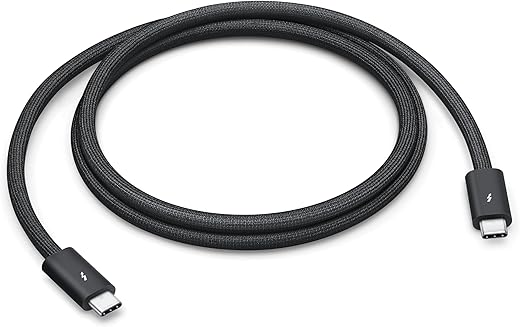
Tiny cable, big impact — choose the right Thunderbolt gear, or performance and reliability suffer.Prefer certified cables and a proven controller combo over chasing headline speeds. Short passive Thunderbolt cables usually preserve full 40 Gbps; longer runs typically need active cables and can introduce latency or reduced bandwidth. Choose TB4‑certified cables when you want consistent behavior across lengths and devices.
Check your host’s controller — Alpine Ridge, Titan Ridge, or newer — because controllers affect hot‑plug reliability, security prompts, and how the host shares lanes. Avoid long daisy chains for GPU use; each device in-line competes for the same Thunderbolt lanes and can choke bandwidth for latency‑sensitive apps.
Check platform software and driver support
macOS, Windows, Linux — each platform treats eGPUs like a different animal; plan accordingly.Assess OS-level compatibility and driver ecosystems before buying.
Note macOS supports eGPUs on Intel Macs but not on Apple Silicon; Windows supports AMD and NVIDIA via vendor drivers, though hot‑plug and resume‑from‑sleep quirks still appear. Treat Linux as capable but more hands‑on.
Verify vendor driver maturity for the exact GPU model you plan to buy.
Read community threads on Reddit, eGPU.io, or NotebookReview for host+GPU reports — search phrases like “egpu sleep wake [model]” or “Thunderbolt disconnect [laptop model]”.
Confirm the enclosure vendor issues firmware updates and support tools.
Test the features you need — for example, check that CUDA acceleration, external GPU passthrough to VMs, or resume‑from‑sleep behavior actually work on your specific host.
Balance budget, upgrade paths, and ecosystem fit
Spend where it counts: a flexible enclosure beats a bargain box with no future.Build total-cost scenarios that combine enclosure, GPU, cables, and possible PSU upgrades so we know the real upfront spend.
Prioritize modular enclosures that accept larger GPUs, higher‑watt PSUs, and provide laptop PD so we don’t outgrow the chassis when we upgrade the card.
Watch slim or compact cases — a chassis that fits a GTX 1660 today can block an RTX 40‑series later.
Include resale value and dock‑like features in our calculus; one-cable setups reduce clutter and often justify paying more up front.
Prefer Thunderbolt 4–capable units from vendors that issue firmware updates — that choice buys longevity as the TB ecosystem matures.
Balance sensible up‑front investment against cheap buys that force early replacement.
Make the trade-offs and pick the right balance
Weigh compatibility, performance, connectivity, and software support, prioritizing an enclosure that matches our Thunderbolt host and enables future GPU upgrades; the result optimizes user experience, design coherence, ecosystem fit, competitive value. Try it, test performance, share your results with us.

Chris is the founder and lead editor of OptionCutter LLC, where he oversees in-depth buying guides, product reviews, and comparison content designed to help readers make informed purchasing decisions. His editorial approach centers on structured research, real-world use cases, performance benchmarks, and transparent evaluation criteria rather than surface-level summaries. Through OptionCutter’s blog content, he focuses on breaking down complex product categories into clear recommendations, practical advice, and decision frameworks that prioritize accuracy, usability, and long-term value for shoppers.