Why 240 Hz 4K deserves a careful buy
We cut through hype to decide if 240 Hz 4K fits our needs. We weigh speed, panel design, GPU cost, input latency, and ecosystem fit to choose a monitor that delivers real‑world gaming performance and lasting value without overspending today.
What we assume you have

Set realistic expectations: Is 240 Hz 4K right for us?
Do you really need native 4K at 240 Hz, or are we paying for bragging rights?Define who truly benefits from 240 Hz at native 4K. If we play fast, competitive shooters (CS2, Overwatch 2) and run a top-tier PC, the extra frames matter; otherwise the marginal gain over 144 Hz or 4K@120 Hz is small.
Match our GPU budget honestly. Expect an RTX 4080/4090—or equivalent—to approach 240 fps at 4K, and plan to drop ray tracing or ultra presets in many titles.
Check platform fit. Current consoles don’t target 240 Hz 4K, so this is a PC-first purchase.
Prioritize real-world ergonomics and support. Inspect stand height/tilt, VESA mounts for arms, and warranty/panel-replacement terms before buying.
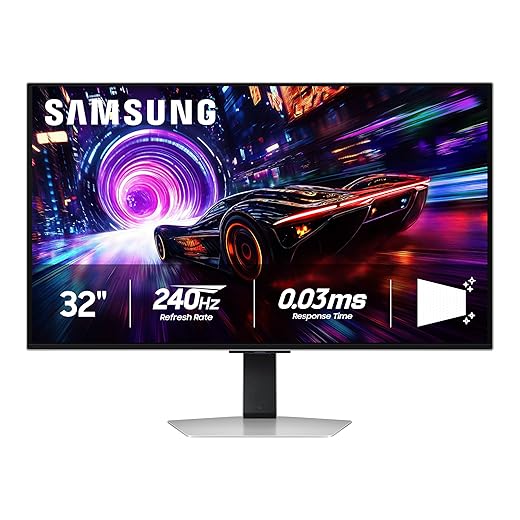
Understand panel tech: IPS, VA, OLED, and the real trade-offs
Panel type changes everything — are we chasing pixels or perceptual improvements?Dig into panel technology because that single choice shapes color, contrast, viewing angles, and speed — and it determines whether a 240 Hz 4K monitor fits our use case.
Ignore marketing numbers like MPRT and GtG alone; prioritize independent response‑time tests and user reviews. Verify HDR claims — demand full‑array local dimming and high peak luminance — and check factory color accuracy, gamut coverage, and available calibration profiles. Match panel choice to our priorities and budget.
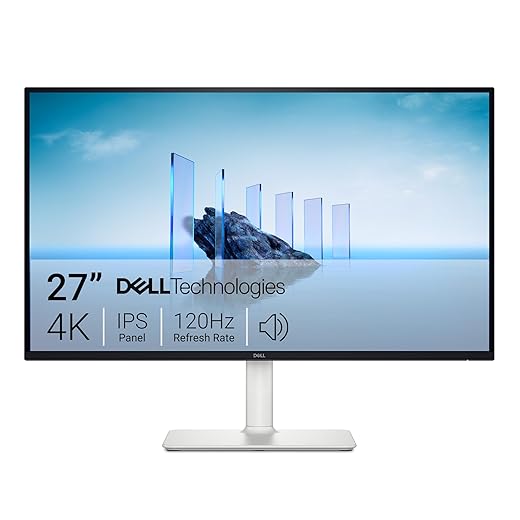
Match resolution, refresh rate, and our GPU budget
Should we upgrade our GPU, lower resolution, or compromise on settings to get smooth gameplay?Calculate whether our hardware can sustain 240 Hz at 4K for the games we play. Test real-world frame rates at native 4K, high settings, on a few of our go-to titles — if averages sit well below 240 fps, don’t chase the headline.
Consider practical alternatives:
Check interface and VRR: prefer DisplayPort 2.1 for clean 4K240, or DisplayPort 1.4 with DSC if the monitor supports it, and confirm G-Sync/FreeSync compatibility to avoid tearing without added input lag.
Start by testing typical frame rates at native 4K on our preferred titles at high settings.
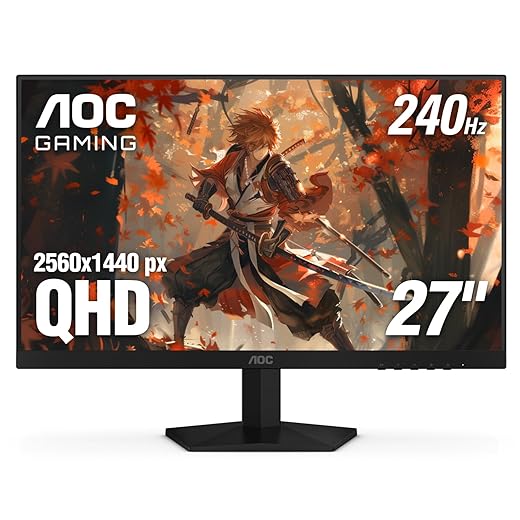
Audit practical features: latency, ports, scaling, and ergonomics
Does the monitor make our setup easier — or just look impressive on a spec sheet?Audit the real-world details that determine whether a 240 Hz 4K monitor feels premium or gimmicky. Check reviewer latency charts and input‑lag measurements — we skip models with unexplained frame-to-display delays even if the spec sheet lists 240 Hz.
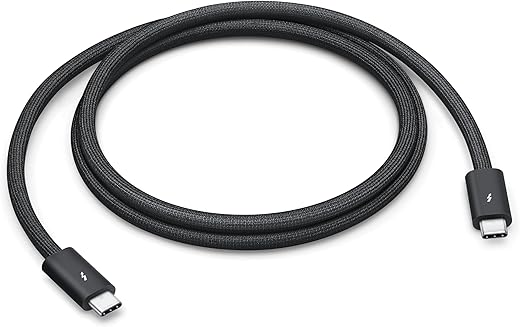
Check ports and connectivity. Verify HDMI 2.1 or DisplayPort 2.1, multiple inputs, and USB‑C with PD/DisplayPort Alt Mode. For example, keep a console and laptop plugged while your PC uses DisplayPort. Consider built‑in KVM, USB hubs, or daisy‑chaining if we run multiple devices on a compact desk.
Confirm ergonomics and mounting. Insist on height, swivel, tilt, and VESA compatibility — poor stands wreck comfort. Prioritize clean OSD, firmware updates, and solid support: good warranty, panel‑replacement policies, and reasonable return windows.

Shop smart: timing, rebates, and which models actually deserve trust
Why paying full price on day one is often our worst choice — and which bargains are legit?Wait for holiday sales, GPU launches, or product-cycle dips that force prices down — early adopters pay premiums; we don’t.
Consider last‑generation flagship panels as bargains: they often keep color, latency, and VRR performance while dropping cost.
Inspect refurbished units from reputable retailers and insist on clear warranty coverage; a certified refurb can save hundreds.
Cross‑reference model SKUs and firmware notes — panel suppliers and revisions vary between variants, and a “Pro” SKU can legitimately justify a small premium.
Trust in-depth reviews over spec sheets: prioritize measured latency, color accuracy, and VRR stability rather than claimed Hz numbers.
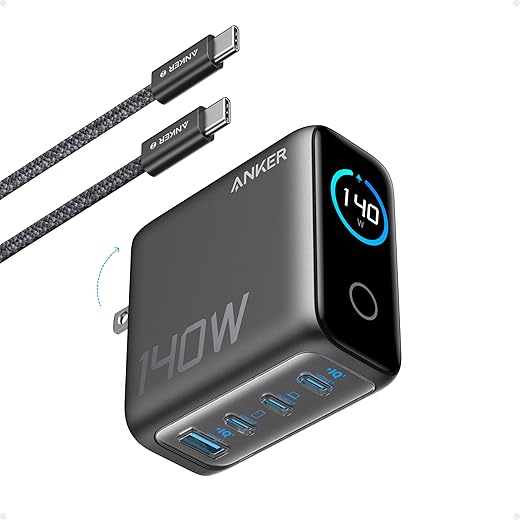
Factor in total cost of ownership — add high‑quality cables, a calibration tool, and potential GPU upgrades into our budget before pulling the trigger.
Test and validate before committing — our checklist
How long should we test, and what red flags should get us to return a monitor?We finish by laying out a testing checklist we use before pulling the trigger. In-store demos reveal backlight uniformity and viewing-angle behavior, but beware demo settings and shipping units.

Buy with context, not hype
Weigh real performance, fit, and cost; test before buying, then report back—let’s share results and help others decide honestly today.

Chris is the founder and lead editor of OptionCutter LLC, where he oversees in-depth buying guides, product reviews, and comparison content designed to help readers make informed purchasing decisions. His editorial approach centers on structured research, real-world use cases, performance benchmarks, and transparent evaluation criteria rather than surface-level summaries. Through OptionCutter’s blog content, he focuses on breaking down complex product categories into clear recommendations, practical advice, and decision frameworks that prioritize accuracy, usability, and long-term value for shoppers.