Why picking the right router matters now
We walk you through matching a router to multi‑gig internet so your whole home benefits, focusing on real UX not headline numbers, removing real bottlenecks, picking useful features, balancing ecosystems, and avoiding wasted expense or needless complexity over time, too.
What we need before we start

Router Buying Guide: What to Look for When Shopping
Step 1 — Audit your actual path to multi‑gig
Is your home really ready for multi‑gig? Spoiler: often it isn’t.Audit the weakest links before you buy. Trace the handoff, check wiring grade on your modem, and run a wired speed test so we know what will actually feed the router.
Before shopping we verify the weakest links: the ISP’s provisioned speed vs what the ONT/modem actually delivers, whether the handoff is copper or fiber, and what cabling your router will sit behind. We check whether the ISP supplies a router‑modem combo or just an ONT, and whether their WAN port supports 2.5G/5G/10G natively. We inspect in‑home Ethernet—many Cat5e which can cap at 1 Gbps over longer runs. This matters because buying a 10G router won’t help if the ISP or wiring can’t feed it. We also confirm real speeds with a wired laptop and the ISP’s test server to set realistic expectations and avoid overpaying.

Step 2 — Choose the right multi‑gig WAN and LAN interfaces
2.5G is cheaper, 10G is sexy — when does each one make sense?Choose ports that match both your ISP and home backbone. Favor routers with a 2.5G WAN or LAN port for most households getting 2–3 Gbps; they’re the best value today. Prefer 10G copper (RJ45) or SFP+ if you run a NAS, do heavy local transfers, or already own a 10G switch.
Use the following checklist to decide
Consider uplink compatibility and right‑size ports to avoid wasted expense.

Step 3 — Pick the Wi‑Fi standard and spectrum that actually helps
Wi‑Fi 6E (and Wi‑Fi 7 soon) promise more spectrum—will your devices notice?Match the Wi‑Fi standard to your devices and habits. Choose Wi‑Fi 6E only if a meaningful share of your phones, laptops, or gaming handhelds support 6 GHz — it reduces congestion and trims latency for cloud gaming and video calls, but older clients won’t see it. Treat Wi‑Fi 7 as an early‑adopter upgrade: 320 MHz channels and multi‑link promise big gains, but hardware and firmware are immature and costly today.
Use these quick rules to decide
Balance current client support against futureproofing; prioritize router radios that improve your day‑to‑day apps.

Step 4 — Evaluate the router’s real‑world hardware and software
A fast SoC and sane firmware beat beachy RGB and marketing every time.Inspect the CPU, cores, clock speed, and whether the vendor includes router hardware NAT acceleration. We stress‑test spec sheets: a quad‑core SoC with hardware offload usually sustains multi‑gig NAT and VPN; weak single‑core chips choke and raise latency under load.
Check RAM, thermal design, and cooling. More RAM and a metal heatsink on a mesh system keep queues short when dozens of clients stream or game—remember the router is a small server in your home.
Demand a polished firmware experience on your router. Look for an intuitive app, clear QoS, reliable parental controls, and a visible security‑update cadence. Prefer vendors that publish roadmaps and support advanced options (static routes, VLANs, OpenVPN/WireGuard).
Compare UX details: clean web UI, one‑tap mobile setup, and solid recovery/reset options—this is where we’ll live day‑to‑day in our how-to guides.

Step 5 — Mesh, ecosystem, and management tradeoffs
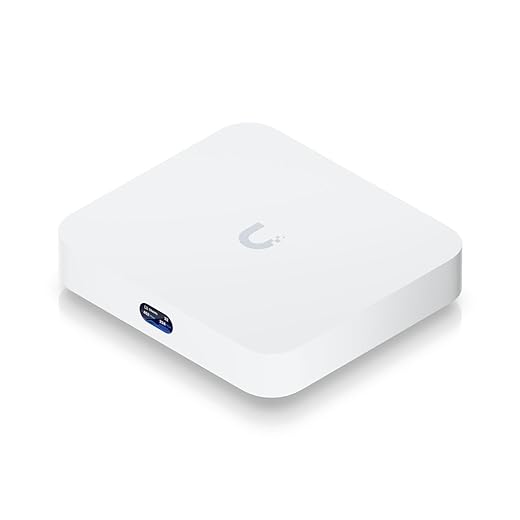
One‑brand simplicity vs best‑of‑breed power—what we recommend for different homes.Compare a single powerful router to a vendor mesh system that offers seamless roaming and proprietary backhaul. Favor mesh with dedicated multi‑gig radios or 2.5G wired backhaul when you need whole‑home coverage without fiddly tuning.
Weigh vendor lock‑in, cloud dependency, and subscription features—these buy convenience but can limit hardware mixing and control. Consider mixing a best‑in‑class router with wired APs or an enterprise switch for better throughput and VLAN control; we do this in our home lab when we need VPN performance and traffic slicing.
Evaluate cloud management, remote diagnostics, and zero‑touch provisioning for families or small offices; use them when ease of recovery and remote troubleshooting matter. Verify the vendor’s security and update cadence before committing to an ecosystem.
Step 6 — Buy‑and‑setup checklist plus testing and futureproofing
Buy once, configure properly, and validate—this checklist saves months of fuss.Follow this buy‑and‑setup checklist so a multi‑gig purchase actually delivers.
Final take
We recommend matching interface speeds, Wi‑Fi spectrum, and ecosystem to real household needs, prioritizing sustained throughput, software polish, and clear upgrade paths over headline numbers; try our checklist, test your setup, and share results so we can all learn together.
Frequently asked questions
What should I prepare before I choose a wi‑fi router for multi‑gig internet?
Start with the checklist in the “What we’ll need” section above—measure your space, confirm compatibility with your gear, and read the full walkthrough once before you change settings or buy parts. Wi‑fi router goes faster when prep is done upfront.
How long does it take to choose a wi‑fi router for multi‑gig internet?
Most readers finish in about 30–90 minutes if they already have the right parts, but budget extra time for measurements, firmware updates, or a second pass when something does not behave the way the manual suggests on the first try.
What is the hardest part when you choose a wi‑fi router for multi‑gig internet?
The step that trips people up is usually alignment or configuration—getting measurements, cable routing, or software settings right before you commit. If results still look off, re-check the basics in order instead of swapping hardware immediately.
What mistakes should I avoid when I choose a wi‑fi router for multi‑gig internet?
Skipping measurements, ignoring ventilation or port limits, and rushing the final test are the common failures. Photograph your starting setup, label cables, and verify the outcome with the same content or workflow you will use every day—not a one-off demo.
When should I call a pro instead of trying to choose a wi‑fi router for multi‑gig internet myself?
Bring in help when the job needs structural work, licensed wiring, or tools you do not own, or when repeated attempts still fail after you have followed the troubleshooting section. A short paid visit can cost less than replacing gear you damaged by forcing the install.

Princess Rioboca is the Lead Editorial Writer at Option Cutter, bringing over seven years of hands-on experience in consumer technology journalism. Specializing in home networking and smart home architecture, she transforms complex technical data into practical, real-world upgrades. Princess personally tests and audits every product she reviews—evaluating real-world Wi‑Fi throughput, cable management durability, and streaming ecosystem stability—to filter out spec-sheet noise. Her rigorous, field-tested insights are designed to give readers transparent, unbiased buying advice on what to purchase, what to skip, and exactly why.