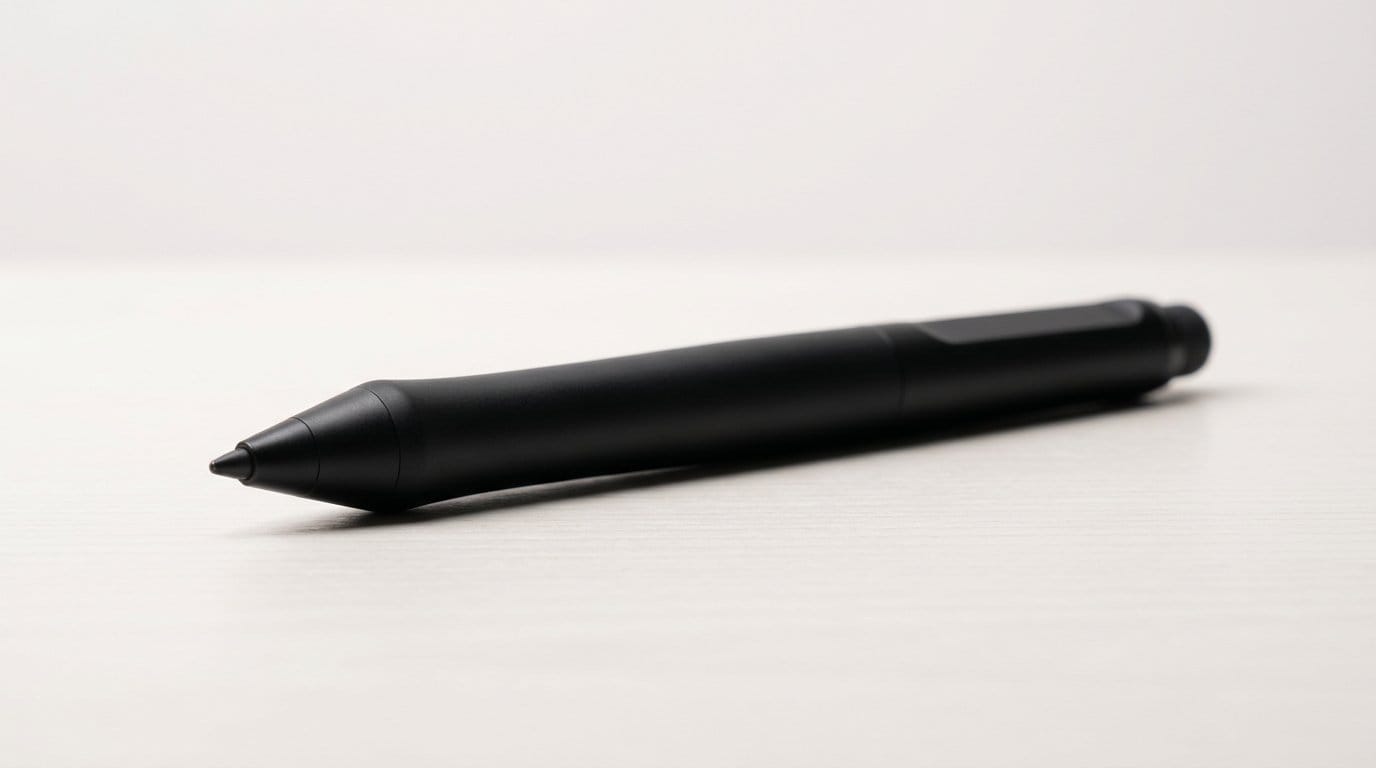

Can a pen change the way you draw? We tested pressure, latency, and a lot of nibs to find out.
A great stylus disappears. When it works, it feels like an extension of your hand. When it doesn’t, every stroke fights the screen and your workflow grinds to a halt.
The market has split into ecosystems: Wacom for pro displays, Apple for iPads, Samsung for Galaxy Tabs, and a handful of cross-platform pens for Windows laptops. We focused on feel, latency, tilt, nib options, charging and how each pen fits into its ecosystem — because those are the things that actually matter.
Top Picks



Wacom Pro Pen 2 with Case — Black
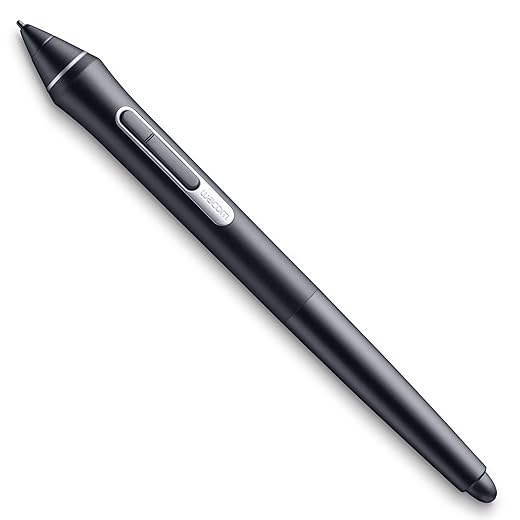
We think Pro Pen 2 remains the benchmark for stylus performance on Wacom hardware: 8,192 pressure levels, built‑in tilt, and virtually no lag provide the level of control pros demand. The bundled case and nib set are practical extras for frequent users.
The professional baseline
For us, the Wacom Pro Pen 2 is the reference point for what a professional‑grade stylus should feel like. The combination of 8,192 pressure levels, accurate tilt detection, and extremely low latency gives artists fine motor control over shading, line weight, and brush dynamics in apps like Clip Studio and Photoshop.
Practical details that matter
If you work on a Wacom Mobile Studio Pro, Cintiq Pro or Intuos Pro, this pen unlocks the tablet’s full creative potential. It’s what we reach for in the studio when precision and repeatability are non‑negotiable.
Limitations
The trade‑off is obvious: it’s not a universal stylus. The Pro Pen 2 only works with targeted Wacom devices, and if you switch to a tablet from another brand you’ll need a different pen. For professionals who rely on Wacom hardware, though, it’s a long‑term investment that justifies its premium.
Apple Pencil (2nd Gen) — Renewed
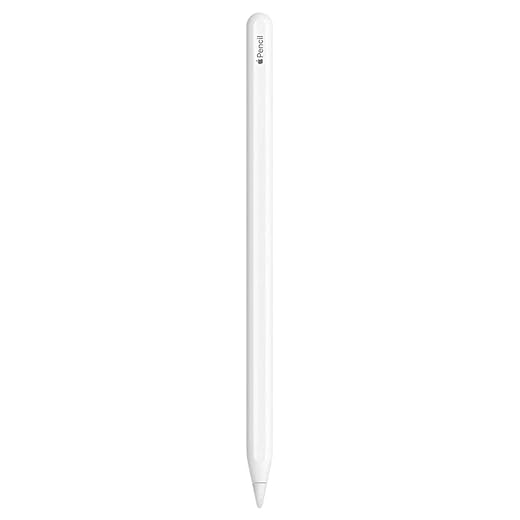
We find it hard to beat for pixel‑perfect precision and low latency on compatible iPads. Its magnetic charging and double‑tap tool switch make it feel like a natural extension of the tablet.
What we think
We treat the second‑generation Pencil as the baseline for an excellent iPad stylus: precise, low‑lag, and tightly integrated into iPadOS. In day‑to‑day use it feels like a traditional pencil — weight, balance and responsiveness are all dialed in; the tactile double‑tap adds a tiny but meaningful shortcut that keeps us in the flow when sketching or annotating.
Key features and workflow benefits
These elements make the device much more than a passive nib: the Pencil is an input device designed around iPadOS gestures and apps such as Procreate on an iPad, Notes, and Adobe tools. For professionals and students who move between quick annotations and serious illustration, that ecosystem integration matters more than raw spec numbers.
Limitations and competitive context
The biggest constraint is compatibility — this design only works with certain iPad models, so buyers should check fit before committing. As a renewed product you get most of the hardware benefits at a discount, but there are occasional reports of magnet strength or connectivity inconsistencies with refurbished units. Compared to first‑party alternatives and high‑end third‑party pens, the Pencil remains our top pick for iPad artists and heavy note‑takers because it prioritizes the user experience and software integration over gimmicks.
Apple Pencil (USB‑C) — Pixel Precision
We appreciate how it brings Apple’s core pencil experience to a broader set of users at a lower price point. Charging via USB‑C and the flat magnetic edge make it convenient for modern iPads without sacrificing accuracy.
Overview
We see the USB‑C Apple Pencil as Apple's answer to a simpler, more universally compatible stylus for the latest iPads. It preserves the core drawing and writing experience — accurate strokes, tilt support, and low latency — while swapping a few pro features for affordability and a cleaner charging approach via USB‑C.
Why it works in practice
In everyday use we found it to be unobtrusive; students and professionals who use an iPad for notes, document markup, and occasional art will get most of the experience they need without paying for Pro extras.
Trade‑offs and context
If you need the absolute top‑end features — like advanced gesture controls or the very latest hover capabilities on specific Pro models — a higher‑end Pencil variant or platform‑specific pen might still be worth the premium. That said, for many buyers the balance of price, precision, and convenience makes this the most practical Apple Pencil to recommend today.
Samsung S Pen for Galaxy Tab S9 Series
We like how Samsung tuned this S Pen to match the Tab S9’s display and workflows: near‑zero latency and Air Command integration make navigation and sketching fluid. IP68 water resistance and magnetic charging are thoughtful touches for mobile creatives.
How it fits the Tab S9 ecosystem
We view Samsung’s S Pen for the Tab S9 series as a tightly integrated accessory rather than a generic stylus. The hardware and software are designed to complement each other: the pen brings pressure sensitivity, a near‑paper feel, and system shortcuts like Air Command that reduce the number of taps needed to reach commonly used tools.
Features that matter day‑to‑day
For people who already own a Tab S9, this S Pen feels like part of the device rather than an add‑on. It’s especially useful for designers who value stable palm rejection and artists who want a pen that’s always charged and ready.
Where it falls short
The trade‑off is straightforward: this pen is optimized for the Tab S9 hardware and features, which limits cross‑device flexibility. Add protective cases or third‑party covers and the magnetic fit can suffer; we recommend checking case compatibility if you rely on the pen popping into place every time.
Microsoft Surface Pen (Model 1776)
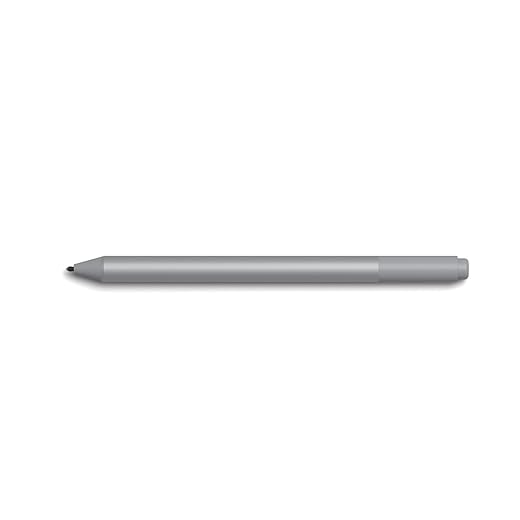
We find it one of the most natural pen experiences on Windows devices: 4,096 levels of pressure and tilt support make shading and sketching feel intuitive, and the eraser/programmable button improves workflow in OneNote and Office. Battery life is long and predictable thanks to a replaceable AAAA cell.
The Surface Pen in practice
We consider the Surface Pen a mature accessory for Windows tablets and hybrid PCs. The hardware is solid and the input feels immediate — which is essential for handwriting, markup and illustration. The eraser on the back and programmable button give us quick contextual controls that slide into Office and OneNote workflows.
Why professionals like it
For creatives and note‑heavy professionals who use Windows ink‑aware apps, the Surface Pen is more than a convenience — it unlocks workflows like replaying stroke sequences in OneNote and precise annotations in Office apps.
Drawbacks and ecosystem notes
The main caveat is device pairing and compatibility: older Surface models don’t always support every advanced function, and some features require drivers or the Surface app to be configured. Replacement tips are available but not always inexpensive, which matters if you’re a heavy user. Still, in the Windows ecosystem it’s one of the better investments for serious digital ink work.
Samsung S Pen Pro — Bluetooth Stylus
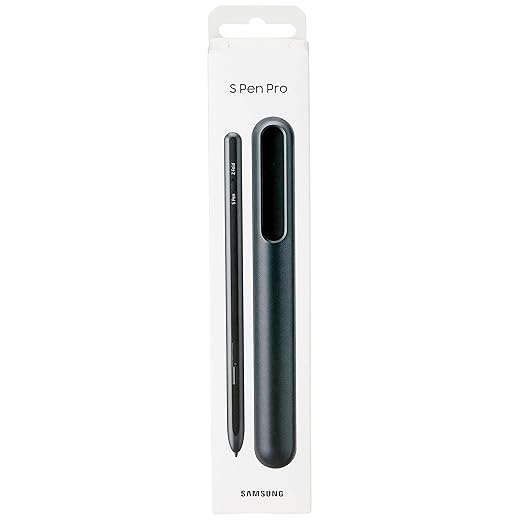
We appreciate the Pro’s larger, pen‑like shape and Bluetooth features that expand remote controls and air gestures. It’s aimed at power users who want a fuller toolset across Samsung devices, though compatibility quirks temper the recommendation.
Who it’s for
We treat the S Pen Pro as Samsung’s attempt to bridge the gap between a simple tablet stylus and a full‑featured accessory for creatives and productivity users. Its bluetooth stack features let you use the pen as a remote for presentations or camera control, while a thicker barrel improves ergonomics for longer drawing sessions.
Design and integration
In practice the Pro shines if you own multiple Samsung devices and want one pen for notes, sketching, and remote control — but that utility depends on the device pairing support. We found that older Galaxy tablets and phones get the full feature set while some newer models may only accept basic pen input.
Caveats
The key downside is compatibility. If your phone or tablet isn’t on Samsung’s supported list, you may lose the bluetooth low energy beacon. A few users have also reported charging issues, so if you rely on air actions for critical tasks, it’s worth testing the unit with your exact devices before committing.
Wacom Bamboo Ink (2nd Gen) — Gray
We like it as the most versatile option for Windows pen‑enabled laptops that support MPP or AES. Long battery life and customizable side buttons make it a practical daily driver for note‑taking and document markup.
Why we recommend it for Windows users
We see the Bamboo Ink (2nd Gen) as Wacom’s practical pen for people who work on Windows 2‑in‑1s and convertibles. It prioritizes long battery life and broad protocol support (MPP and AES), which helps it work across many laptops and tablets without forcing buyers into a single vendor’s ecosystem.
Day‑to‑day capabilities
For office workers and students who use Windows Ink apps, Bamboo Ink strikes a practical balance between capability and price. It’s not the Wacom Pro Pen 2, but it fits the real needs of many document‑heavy workflows.
Compatibility caveats
The one recurring theme we see is compatibility confusion: not every device implements the same pen protocol or supports every feature (tilt, pressure curves, or button mapping). Before buying, we recommend checking Wacom’s compatibility list for your exact model. When it works, it’s a comfortable, capable stylus that boosts productivity on pen‑enabled Windows devices.
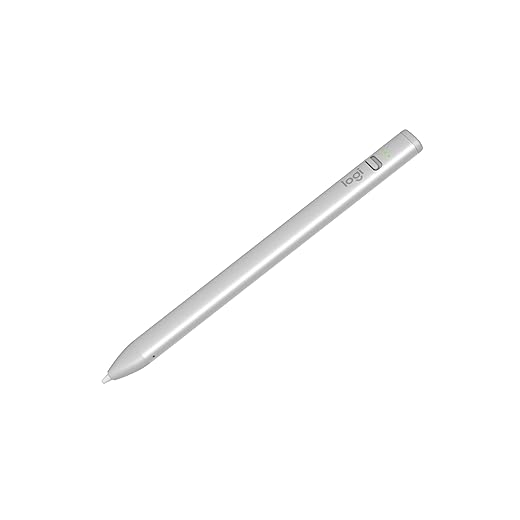
Logitech Crayon USB‑C for iPad — Silver
We like the Crayon for classrooms and families: it’s rugged, easy to use and affordable. Instant on/off pairing and a wide compatibility range make it a sensible substitute when Apple Pencil features aren’t required.
Who should consider it
We recommend the Logitech Crayon to teachers, students, and casual note‑takers who need a dependable stylus without the fuss of pairing and the premium price of an Apple Pencil. It borrows Apple Pencil technology but is intentionally simplified to prioritize reliability and value.
Real‑world strengths
In our testing the Crayon performed admirably for handwriting, markup, and basic sketching. Where it falls short is in nuanced pressure response and the lack of a magnetic attachment – both trade‑offs Logitech made to keep the price and complexity down.
Positioning in the market
If you’re an educator or parent buying for kids, the Crayon’s value and durability usually outweigh the compromises. For professional artists who need pressure curves and advanced gestures, an Apple Pencil or Wacom solution remains the better fit.
Final Thoughts
We recommend the Wacom Pro Pen 2 as our top pick for professional artists and illustrators using Wacom hardware. Its 8,192 pressure levels, reliable tilt, and near-zero latency still set the standard on dedicated pen displays. If you make a living from detailed shading, brush control, and absolute predictability on a Cintiq or Intuos Pro, the Pro Pen 2 is the tool that removes friction and lets you focus on the art.
For iPad users who want the smoothest, most integrated experience, we recommend the Apple Pencil (2nd Gen) — Renewed. The Pencil’s pixel-level precision, magnetic charging, and double-tap tool switch feel native to iPadOS and speed up real-world workflows like in Procreate, Notes, and Adobe apps. It’s the best choice for professional and hobbyist creatives who value mobility, low latency, and tight software integration.
Quick alternatives: the USB-C Apple Pencil brings that same Apple experience to modern USB-C iPads at a lower barrier to entry; the Samsung S Pen is the clear pick for Tab S9 owners who want tight display tuning and Air Command tools; and the Wacom Bamboo Ink is a solid, versatile option for Windows pen-enabled laptops. But for pure pro performance on dedicated hardware, go Wacom Pro Pen 2 — for the best tablet-first experience, pick the Apple Pencil (2nd Gen).
Frequently asked questions
How did we pick these stylus pens for tablets and digital art options?
We shortlist models that balance performance, reliability, and value for typical buyers—not just the highest spec sheet. Hands-on notes, owner feedback, and return/warranty policies all feed the ranking.
Which stylus pens for tablets and digital art pick is best for most people?
Start with our top overall choice if you want the safest balance of price and features. Move up or down the list only when a specific need—budget, ecosystem, or a must-have feature—clearly applies to you.
Do prices on this stylus pens for tablets and digital art list change often?
Yes. Retailers run frequent promos, so use the live price buttons on this page and compare shipping and return windows before checkout—the best deal is not always the lowest sticker price.
Should I buy the cheapest stylus pens for tablets and digital art on the list?
Only if the trade-offs fit your use case. The budget pick can be excellent value, but check what you give up in build quality, software support, or key features you will use every week.
What if none of these stylus pens for tablets and digital art picks fit?
Use the comparison and guide links on this page to narrow by size, platform, or feature, then revisit the list with your must-haves written down—forcing a mismatch creates more returns than savings.
How often is this stylus pens for tablets and digital art roundup updated?
We refresh rankings when major models launch or pricing shifts enough to change the value story. Check the publish date at the top and compare current specs if you are reading months later.

Princess Rioboca is the Lead Editorial Writer at Option Cutter, bringing over seven years of hands-on experience in consumer technology journalism. Specializing in home networking and smart home architecture, she transforms complex technical data into practical, real-world upgrades. Princess personally tests and audits every product she reviews—evaluating real-world Wi‑Fi throughput, cable management durability, and streaming ecosystem stability—to filter out spec-sheet noise. Her rigorous, field-tested insights are designed to give readers transparent, unbiased buying advice on what to purchase, what to skip, and exactly why.