Choosing the right high-refresh portable monitor — fast, practical, and future-ready
We’ll walk through practical choices, balancing performance, portability, and battery life so a high-refresh portable monitor actually improves work and play. We explain design trade-offs, connectivity limits, and ecosystem fit, helping us pick a future-ready, user-focused display for our setup.
What you’ll need before we start
We’ll need a target laptop/phone, a budget, awareness of ports and ecosystem (USB‑C/Thunderbolt/HDMI), and readiness to trade portability for performance.

Step 1 — Clarify your use case: performance vs. portability
Do you need esports-grade refresh rates or just pleasantly smooth scrolling? Let’s stop guessing and pick for real needs.Define what “high-refresh” means for us. Decide whether we optimize for competitive gaming, creative work that benefits from smoother pen input and timeline scrubbing, or a lightweight second screen for travel. Marketing refresh-rate badges don’t equal real-world smoothness — GPU capability, connection bandwidth, and power limits do.
Identify the primary use and map it to realistic specs:
Test assumptions: if we use an integrated or midrange mobile GPU, expect fewer frames than a desktop — choose a lower refresh panel or adaptive-sync support. Balance size and battery: bigger, faster screens drain power and add weight; smaller ones are more practical on the road.
Step 2 — Pick the right refresh rate and panel technology
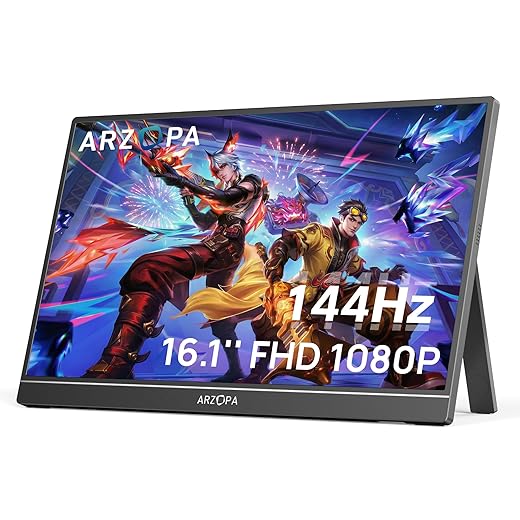
Is 240Hz always better? Sometimes it’s a luxury, sometimes it’s a necessity—let the context decide.Pick a refresh target that matches our device and workflow, not the biggest number on the spec sheet. Higher Hz reduces motion blur and input lag, but costs power and generates heat. Understand that refresh rate is only useful if the panel’s pixel response time and the GPU can feed frames fast enough.
Choose panels with these trade-offs in mind:
Match refresh tiers to real devices:
Check for adaptive sync (FreeSync/G‑Sync Compatible) to eliminate tearing, and verify OS/drivers, GPU limits, and connection mode (DisplayPort alt‑mode or HDMI) — those can bottleneck claimed refresh rates.
Step 3 — Verify connectivity, bandwidth, and power delivery
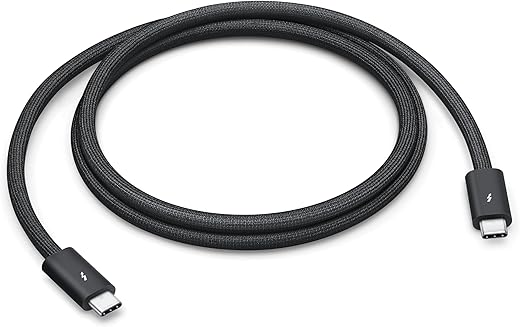
Ports aren’t glamorous, but they’ll make or break your experience — especially with high Hz displays.Check how your devices actually talk to a monitor. USB‑C with DisplayPort Alt Mode or Thunderbolt 4 is the cleanest path for many laptops, but real‑world bandwidth limits often force lower resolutions or refresh rates unless you use HDMI 2.0/2.1 or a dedicated GPU HDMI/DP output. We’ve seen 1440p@144Hz work fine over TB4, while some USB‑C ports only manage 60–120Hz because they expose fewer DisplayPort lanes or older DP versions.
Do these quick checks before buying:
Adjust OS and GPU driver settings (Windows display refresh, macOS limited outputs, GPU control panels) — driver quirks are a common reason a monitor won’t hit its rated Hz.

Step 4 — Assess design, ergonomics, and daily user experience
Size, stand, and finish: these are the details you’ll interact with every day — don’t skimp.Assess weight and thickness first — we want a monitor we’ll actually carry. Weigh it in grams and compare that to your laptop bag; a 900 g slab looks portable on spec sheets but feels heavy after a commute.
Check stand and case quality next — we favor sturdy folio covers or built‑in kickstands that hold position without wobble. Test tilt and height range in reviews; many slim units only offer a shallow tilt that kills long‑term comfort.
Evaluate heat and noise under load — run a sustained 120–144 Hz video or gaming session and watch for thermal throttling or fans. Passive designs can get warm; active cooling usually means noise.
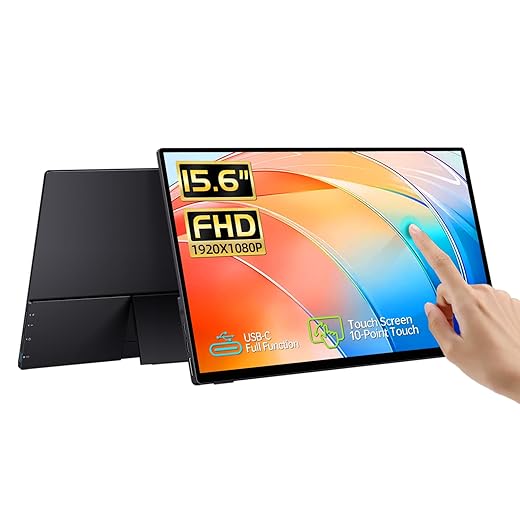
Review touch/pen support, brightness, and HDR behavior — touch adds utility but adds glare and thickness; look for 400+ nits for daytime use. Treat HDR on portables as marketing unless there’s local dimming.
Decide on color needs — accept factory calibration for general work; plan to buy a colorimeter if we do color‑critical photo/video work.
Compare accessory support — protective cases, magnetic covers, USB hubs, and VESA/mount options often separate cheap models from ones we’ll enjoy daily.
Step 5 — Compare value, ecosystem fit, and future-proofing
Paying more for a name or for meaningful features? Let’s separate marketing from lasting value.Compare price to practical performance. Weigh advertised specs against what our devices can actually use — a 240 Hz panel over USB‑C without a discrete GPU is often dead weight; reliable Thunderbolt or adaptive sync support is worth a modest premium.
Audit brand support and warranty. Check warranty length, repair policy, and past firmware update cadence on the manufacturer site. Search forums and Reddit for real user experience — we care more about fast fixes than flashy launch promises.
Test compatibility and real‑world behavior. Look for review data on ghosting, input latency, and driver quirks. Plug the monitor into our laptop and run simple tests (motion test videos, RTSS latency, and adaptive‑sync checks) to confirm advertised features actually work.
Factor ecosystem and resale. Prefer models with broad adapter options, spare parts, and third‑party cases; favor brands with consistent resale prices if we’ll upgrade soon.
Compare side‑by‑side benchmarks and real‑world tests, and factor resale value and aftermarket support — this step helps us choose the model that balances present needs with likely upgrades over the next few years.

Final verdict: match choices to real workflows
We should buy high‑refresh portable monitor after matching refresh, panel, ports, and design to our devices and habits; right compromise in performance, ergonomics, and ecosystem beats chasing specs—are we buying for real work?

Chris is the founder and lead editor of OptionCutter LLC, where he oversees in-depth buying guides, product reviews, and comparison content designed to help readers make informed purchasing decisions. His editorial approach centers on structured research, real-world use cases, performance benchmarks, and transparent evaluation criteria rather than surface-level summaries. Through OptionCutter’s blog content, he focuses on breaking down complex product categories into clear recommendations, practical advice, and decision frameworks that prioritize accuracy, usability, and long-term value for shoppers.