
Why HDR Matters for Modern Gaming
We show how careful HDR TV calibration unlocks deeper contrast, truer colors, and predictable tone mapping so games look as developers intended; we focus on practical steps across consoles, PC, and TV ecosystems to improve playability, fidelity, and competitive clarity.
What We Need
Improve Xbox HDR Fast with This Secret Hack
Confirm HDR Capabilities and Format Support
Not all HDR is created equal — which formats does your TV actually speak?Audit the TV’s HDR ecosystem so we know what signals it can handle and how aggressively it will re-tone-map content.
Check the TV’s on-screen menus and the manufacturer spec sheet or product page. Look specifically for:
Weigh brand tendencies when setting expectations. Samsung often favors brighter highlights; LG and OLEDs prioritize deep blacks; Sony frequently preserves filmmaker intent. Remember consoles, streaming services, and PC HDR can send different metadata types—static vs dynamic—and the TV’s response changes contrast, highlight detail, and color.
Set realistic calibration goals: optimize for punchy HDR highlights on a bright TV, or prioritize faithful shadow detail on a black‑level‑oriented display.

Update Software and Enable Game Mode
Lag is the enemy — let’s win the latency war by getting the software right.Update your TV firmware first. Firmware fixes often resolve HDR tone‑mapping bugs and add better ALLM/VRR handling; we always install the latest update before tweaking picture settings.
Enable Game Mode or Auto Low Latency Mode (ALLM) next. ALLM/ALLM-capable consoles (PS5, Xbox) and GPUs negotiate low-latency paths automatically; we prefer TVs that switch reliably so competitive shooters feel instantaneous.
Disable motion interpolation and adaptive smoothing. Turn off settings labeled Motion, TruMotion, Auto Motion Plus, etc., because they introduce judder or input delay that ruins frame pacing.
Check HDMI ports and system settings to ensure the TV routes HDR and bandwidth correctly:

Set Up Your Room, Source, and Cables
Ambient light and cables change picture quality more than you think.Reduce glare and distractions. Close curtains, remove bright reflections, and add neutral bias lighting behind the TV so blacks look deep without shifting perceived color.
Position the screen at a practical viewing distance. Sit so details are readable at typical HUD sizes—roughly 1–1.5× the diagonal for 4K TVs—and angle the TV perpendicular to your line of sight.
Verify HDMI bandwidth and ports. Use HDMI 2.1 (certified) for 4K/120 HDR; use a high-quality HDMI 2.0 or Premium High Speed cable for 4K/60 HDR.
Set the source to native 4K HDR, correct bit depth, and chroma:
Expect platform quirks: Windows’ HDR tone mapping behaves differently than consoles, so test both source types to validate the final image.

Calibrate Luminance: Black Level, Peak Brightness, and Tone Mapping
Make blacks deep without crushing shadow detail — sounds hard, but we’ll do it.Set black level (brightness) so shadow detail is visible without raising noise. Use a dark HDR scene or pattern and lower brightness until floor and texture appear, not crushed.
Adjust contrast/backlight to protect highlights. Increase contrast until specular highlights (sun glints, HDR explosions) show detail; back off if clipping or blooming becomes distracting.
Check local dimming and panel type. OLED gives true blacks but can roll off highlights; LED with aggressive local dimming can create halos. Many midrange TVs trade accuracy for spectacle—expect HDR tone-mapping when peak nits exceed a TV’s capability. In those cases, prioritize shadow detail and readable midtones for gameplay.
Use HDR test patterns or real-game scenes (bright sun in racing, dim interior in RPG) and verify:

Color and White Balance: Accurate Skin Tones and Vibrant Worlds
Want colors that pop without looking fake? Calibration, not oversaturation, is the secret.Choose a white point and stick with it — we recommend Warm2 (if your TV names it) or D65 for reference accuracy; D65 matches console/PC grading and keeps colors consistent across devices.
Run a two‑point or ten‑point white balance using the TV’s service menu or a pattern disc. Use low/high grayscale sliders to nudge red/green/blue until neutral; verify with a skin‑tone patch — faces should look natural, not orangey or green.
Set color space to Auto or BT.2020 passthrough so games/players drive the gamut. Avoid a forced “wide” or “vivid” gamut that clips developer grading.
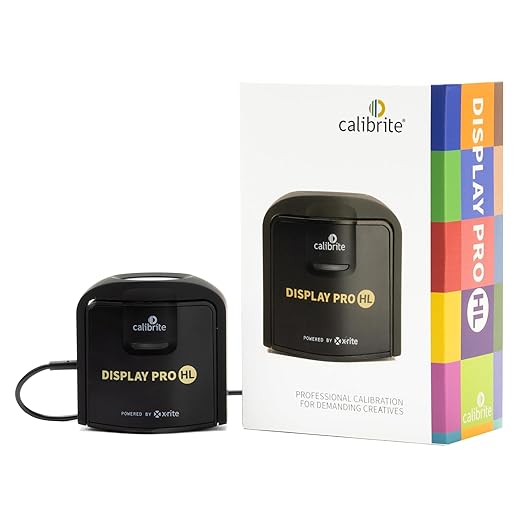
Use the CMS sparingly: tweak hue/saturation of primaries/secondaries with small steps, using either on‑screen patterns or a colorimeter. Expect trade‑offs — showroom punch often sacrifices fidelity, so favor realism for gaming and cross‑device consistency.

Verify with Games and Create Presets, Troubleshoot Common Issues
We test with real games so calibration survives real-world play — and fix hiccups fast.Test HDR with three game types: one highlight‑heavy racer or shooter (Forza, Halo), one dark/atmospheric title (Control, The Last of Us), and one colorful action/platformer (Ratchet & Clank). Play five minutes of each to see motion, bloom, and tone mapping in context.
Save per‑input or per‑game presets if the TV supports them. Name profiles (e.g., HDR‑Game, HDR‑Cinematic) and switch back to your SDR profile for non‑HDR content.
Fix common issues quickly:
Accept hardware limits on peak brightness and blooming; update firmware or contact support if behavior is abnormal.
Wrap-Up and Practical Takeaways
We’ve tuned firmware, inputs, luminance, and color so HDR gaming feels accurate, responsive, and immersive; try these steps, share your results, and help refine best practices across the ecosystem together.

Chris is the founder and lead editor of OptionCutter LLC, where he oversees in-depth buying guides, product reviews, and comparison content designed to help readers make informed purchasing decisions. His editorial approach centers on structured research, real-world use cases, performance benchmarks, and transparent evaluation criteria rather than surface-level summaries. Through OptionCutter’s blog content, he focuses on breaking down complex product categories into clear recommendations, practical advice, and decision frameworks that prioritize accuracy, usability, and long-term value for shoppers.