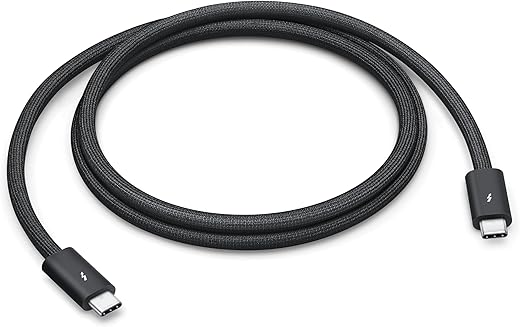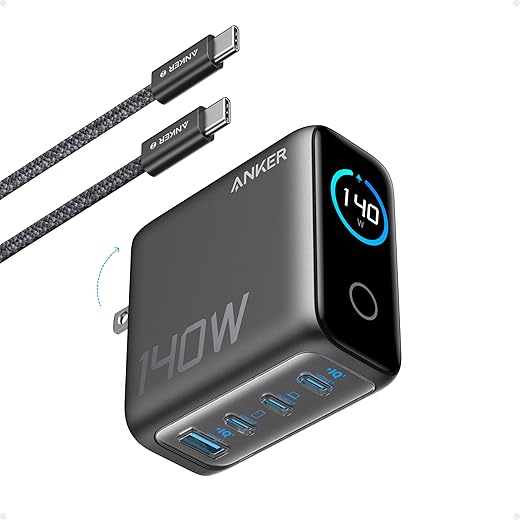
Why Thunderbolt 5 Matters for Dual 4K Setups
We explain how to pick a Thunderbolt 5 dock that reliably runs two 4K displays, balancing bandwidth, power delivery, and portability. We focus on real-world UX, ecosystem fit, and why these trade-offs matter for modern laptop workflows and futureproofing too.
What You’ll Need
We’ll need a Thunderbolt 5–capable host (or clear compatibility info), two 4K monitors, sample cables/adapters, basic display-settings knowledge, and willingness to compare bandwidth, PD, and design trade-offs.
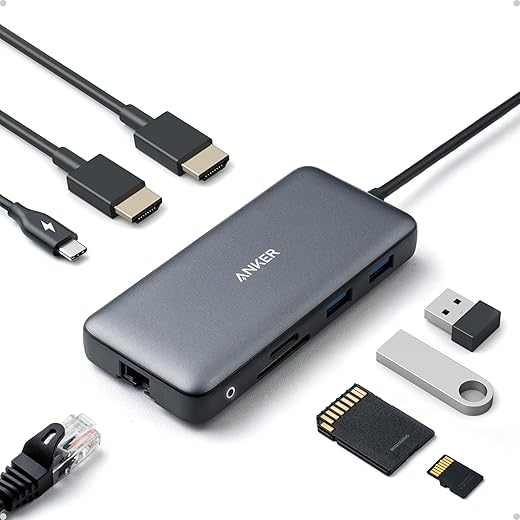
Thunderbolt 5 Dock Showdown: CalDigit
Confirm Host and OS Compatibility First
Is your laptop actually ready for Thunderbolt 5—or are we chasing vaporware?Confirm that your laptop or PC truly supports Thunderbolt 5 before shopping—don’t rely on port shape or marketing alone. We start by checking vendor specs, firmware, and driver support so the dock can actually drive two 4K panels at the refresh rate you want.
Check these host-side items:
Expect caveats: many Thunderbolt 4 hosts won’t unlock TB5 features via adapters because firmware and controller lanes limit bandwidth. Ultraportables, gaming laptops, and some SoC designs often restrict lanes or passthrough—so confirm before you buy.
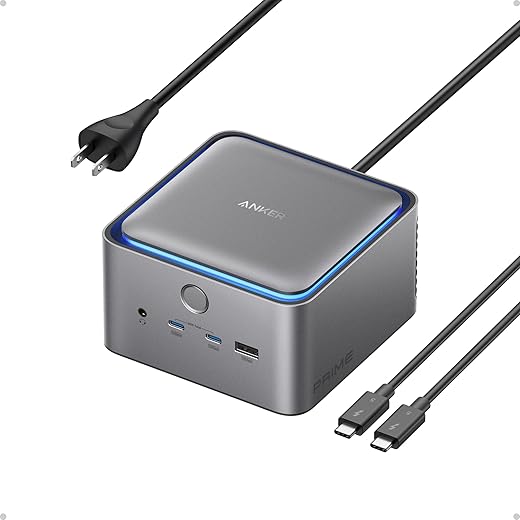
Understand the Video Transport and Bandwidth Trade-offs
Double 4K? Do we need raw lanes, DSC compression, or clever splitting?Understand the basic transports: native DisplayPort streams, DisplayPort Alt Mode over Thunderbolt, MST (Multi-Stream Transport), and DSC (Display Stream Compression). Know what each does and why it matters for refresh rate, chroma, and latency.
Ask whether the dock offers two independent DP streams or simply splits one link. If we need dual uncompressed 4K60 for color-critical work, insist on two native streams or a TB5 dock that exposes multiple DP lanes. If the dock multiplexes a single DP link, expect trade-offs: lower Hz, reduced color depth, or mirrored displays.
Decide when to accept DSC. Use DSC when you want 4K120, 10‑bit 4:4:4, or HDR across both panels; it’s visually transparent for most workflows but adds a compression stage and requires host and monitor DSC support.
Check for USB/display lane trade-offs:
Compare real scenarios (productivity vs. gaming vs. content creation) and pick docks whose display lane layout matches our monitors and workflow.
Match Ports, Power Delivery, and Peripheral Needs
Can one cable replace the laptop charger, ethernet, and the kitchen sink?Match the dock’s ports and power profile to our laptop and peripherals. Check the advertised PD number, but focus on sustained wattage (what it can deliver under continuous load) rather than peak bursts. For example, a 16‑inch laptop often needs ~90–100W to avoid battery drain under load; a gaming laptop may need more than TB5’s common 100W passthrough.
Verify these specifics before you buy:
Prioritize PD + video in the spec sheet if we use a portable laptop on the road. Prioritize preserving high‑speed USB/PCIe lanes if we’re creators using external drives. Practical tip: verify whether the dock maintains full PD while driving both 4K displays at high refresh rates—some models throttle charging when video load is high. This step ensures the dock integrates with our desk setup rather than forcing inconvenient compromises.

Evaluate Build, Thermals, and Cable Logistics
Does the dock get hot, noisy, or awkwardly placed on our desk? Spoiler: it matters.Assess the dock’s physical design and cable strategy before buying. We treat ergonomics and reliability as seriously as raw specs.
Look for these practical signposts when comparing dongles to brick‑style docks:
Test a candidate under realistic load: play two 4K HDR streams on loop for 30–60 minutes while copying large files to an external NVMe, and watch for fan noise, temperature rise, PD throttling, or temporary display dropouts. Those hands‑on checks reveal problems that spec sheets often hide.
Consider Ecosystem, Support, and Futureproofing
Is this dock a smart buy now, or a fast path to incompatibility next year?Assess the vendor ecosystem before you buy. We zoom out from specs to ask: will this dock still work well after OS updates, new laptops, or when we upgrade displays?
Look for these practical signals before committing:
Decide when TB5 is worth it: choose TB5 only if you need sustained higher bandwidth (dual 4K at high refresh/HDR, future 8K workflows, or multi‑NVMe passthrough). Otherwise, a well‑specified TB4/USB4 dock often covers typical dual 4K office setups at a lower cost.
Think resale and multi‑device use: docks with detachable cables, wide OS support, and firmware updates retain value. Buy from vendors who let us try it with our monitors—real compatibility is the final arbiter of value.
Choose with Context, Not Just Specs
We prioritize host compatibility, practical video transport, adequate PD, and solid build over headline specs; choosing based on real-world trade-offs gives a dock that simplifies our desk and outlasts laptop generations—are we buying convenience or futureproofing in the messy market?

Chris is the founder and lead editor of OptionCutter LLC, where he oversees in-depth buying guides, product reviews, and comparison content designed to help readers make informed purchasing decisions. His editorial approach centers on structured research, real-world use cases, performance benchmarks, and transparent evaluation criteria rather than surface-level summaries. Through OptionCutter’s blog content, he focuses on breaking down complex product categories into clear recommendations, practical advice, and decision frameworks that prioritize accuracy, usability, and long-term value for shoppers.