



Why our stream feels sluggish even when specs look fine
We buy fast plans, modern routers, and new streaming sticks expecting flawless playback. Yet streams stutter, start slow, or drop quality. That frustrates viewers and hurts creators. The issue isn’t one thing; it’s a chain — home network, device hardware and software, platform encoding, and ISP routing — that all must work together.
In this how-to guide we break the pipeline into parts and show practical fixes. We’ll cover bandwidth, Wi‑Fi design, weak devices and app bloat, ISP and CDN realities, and future‑proofing. Our tone is concise and practical — no jargon, just design-aware steps to make streaming feel smooth again.


Fix Buffering While Streaming: Quick Tips for a Smooth Internet Connection
Where the pipeline chokes: bandwidth, latency, and real-world throughput
Raw speed vs. real throughput
We all see a “100 Mbps” number on a bill and assume headroom. That advertised figure is a peak, not a guarantee. TCP/IP overhead, encryption, and bi-directional contention (real throughput is lower) (upload matters for live streaming) all shave the top off theoretical numbers. In practice, 100 Mbps ≈ 12.5 MB/s at best — and often much less once Wi‑Fi, multiple devices, or an underpowered router enter the picture.
Latency, jitter, and packet loss — why they matter
Download speed affects how fast a buffer fills; latency affects how responsive chat and live interactions feel; jitter (variance in latency) forces the player to increase buffers; packet loss forces retransmits or forces the encoder/player to drop quality. A live stream with 40 ms ping and near-zero loss feels smooth. The same bitrate with intermittent 5–10% packet loss looks like constant rebuffering.
Measurement traps to watch for
Speed tests can lie depending on which server, time of day, or protocol you pick. Common traps
Quick diagnostics: separate ISP vs. local
These steps tell us if the bottleneck is our home gear or somewhere beyond the ISP’s last mile.
Wi‑Fi isn’t magic: local network design, congestion, and placement
Router hardware and antenna trade‑offs
A lot of the sluggishness we blame on ISPs actually lives on our shelf — often a weak mesh Wi‑Fi layout or outdated router. Sleek, single‑box routers—think Google Nest Wifi or some designer models—look great but hide tiny antennas and modest radios. Vendors trade raw throughput and antenna gain for aesthetics and extra features (smart‑home hubs, parental controls). That ecosystem convenience can add CPU overhead, which matters when the router is also doing QoS, VPNs, or heavy NAT under many devices. By contrast, gear like the Asus RT‑AX88U or Netgear Orbi emphasizes throughput and larger antennas; they’re bulkier, but they move more bits.
Bands, walls, and real‑world behavior
2.4 GHz reaches farther and punches through drywall, but it’s congested—microwaves, Bluetooth, and legacy devices all live there. 5 GHz gives us higher throughput and more channels, but walls and distance kill effective range. 6 GHz (Wi‑Fi 6E) is great for short hops and low interference, but expect very limited penetration. In practice, a 5 GHz link can drop 30–50% when it traverses a couple of interior walls.
Mesh systems: help — and caveats
Mesh can rescue dead zones, but the implementation matters. A mesh with wired backhaul preserves full speed; a wireless backhaul often halves throughput when nodes repeat on the same radio. Consumer meshes differ: TP‑Link Deco systems balance price and simplicity, while Orbi and high‑end Asus meshes prioritize throughput for many simultaneous streams.
Quick, practical fixes we can do now
These steps usually yield the biggest perceptible gains before we start swapping ISPs or paying for higher plans.
The weak link: device hardware, encoding, and software inefficiencies
Hardware acceleration vs. software encoding
When we stream or broadcast on a 4K TV, the last mile is the device that decodes or encodes the media. On the capture side, software x264 running on a busy CPU can produce great quality but adds latency and heat. Modern hardware encoders—NVIDIA NVENC (Turing/Ampere and later), Intel QuickSync, and AMD’s newer encoders—offload work to dedicated blocks, cutting CPU use and lowering latency. The tradeoff used to be quality; today’s NVENC rivals x264 medium at common bitrates, but not every device ships with the latest silicon.
Cheap streaming sticks and OEM set‑top boxes often skimp on silicon and firmware optimization to hit a price point, which is why we sometimes see stutters on $25 devices even when the network is fine.
Thermals, memory pressure, and real‑world limits
We’ve all seen a phone or stick start smooth and then stutter after 20 minutes. That’s thermal throttling and memory pressure. Small SoCs reduce clock rates to avoid overheating; low DRAM limits buffer depth and forces frequent I/O. On PCs, background apps, browser tabs, or an old GPU driver can starve the player of cycles and cause frame drops.
App design and driver issues
App architecture matters. Players built on native playback stacks (ExoPlayer, AVPlayer) tend to use hardware decoders well. Web-based or Electron apps can introduce extra layers—garbage‑collected runtimes, compositor inefficiencies, or poor GPU utilization—that add tens to hundreds of milliseconds. Platform vendors sometimes disable the best encoding/decoding paths for power savings or DRM compliance, which hurts latency and quality.
Quick checks we can run now
These device and software choices shape the user experience just as much as network plumbing — and they set the stage for how ISP routing and CDNs will ultimately affect our stream.
Between us and the cloud: ISP routing, CDNs, and content delivery realities
Why the internet’s plumbing matters
We can tune our router and upgrade the stick, and still get buffering. That’s because much of the delay lives outside our home: how our ISP routes traffic, who they peer with, and where the streaming platform places copies of video. These are commercial decisions — not engineering neutralities — and they directly shape startup time, bitrate stability, and rebuffering.
CDNs: local caches that can choke
Content delivery networks (Cloudflare, Akamai, Fastly, CloudFront) cache chunks close to users to shave off latency. But caches fill and edges can be overloaded or misconfigured. When that happens, requests fall back to origin servers thousands of miles away, adding RTT and extra hops — the exact thing we’re trying to avoid. We’ve seen big live events expose edge limits; suddenly the “nearby” copy isn’t actually nearby.
Adaptive bitrate: helpful, but revealing
Adaptive bitrate (HLS/DASH) tries to hide network flakiness by switching quality. When a CDN edge is inconsistent, ABR oscillates: we get brief high-quality frames, then downshifts, which feels worse than a consistent medium stream. Platforms tune ABR differently; Netflix and YouTube optimize for stability, while some smaller services aggressively chase peak bitrate and expose CDN issues.
Quick diagnostics we can run now
When to escalate
Gather timestamps, traceroute output, and chunk URLs, then contact the streaming app and your ISP. If switching DNS or using a VPN fixes it, that’s strong evidence of routing/peering problems — and the commercial negotiations behind the scenes are worth bringing up with both parties as we push for a better path.
App bloat, codecs, and platform choices that hurt performance
Why apps can slow everything down
Streaming apps are the visible layer between our content and hardware — and badly designed ones chew CPU, memory, and network even before the video starts. Background syncing, aggressive telemetry, and UI threads that block playback are common culprits. We’ve opened a smart TV app and watched CPU spike while the UI loads animated carousels and targeted thumbnails — that delay is our problem, not the CDN’s.

Codecs: bandwidth savings vs. decoding cost
Codecs are a trade-off. H.264 is broadly compatible and easy for older chips to decode. H.265 (HEVC) and AV1 cut bandwidth dramatically for the same quality, which helps congested networks — but they demand more from decoders. On older devices, software fallback makes playback CPU-bound and stuttery. The practical rule: use advanced codecs only when the device advertises hardware decode.
Platform fragmentation and fallbacks
Streaming services must support many device generations, so they serve multiple codec variants and fall back to safe options. That leads to inconsistent UX: one app on our phone may stream AV1 fine while the same app on an older TV falls back to H.264 at lower quality. This mismatch is why “works fine on my phone” is a useless diagnosis.
The feature arms race
Higher resolutions, HDR, Dolby Atmos, and interactive overlays demand more network and compute. Platforms push these features because they sell subscriptions, not because our living-room setup can handle them. We end up paying bandwidth for bells we can’t actually enjoy.
How to prioritize settings right now
We should pick streaming ecosystems that balance app quality, timely updates, and codec support, rather than chasing the highest advertised bitrate.
Practical fixes and how to future‑proof our streaming setup
After we locate the choke points, the work is simple: reduce variables, prioritize where latency matters, and pick hardware and settings that age gracefully. Below are immediate fixes and longer‑term choices, ordered by impact.
High‑impact, right‑now checklist
Creator vs. viewer tweaks
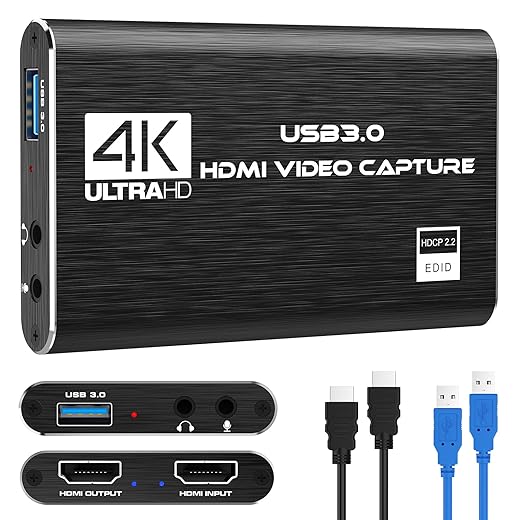
For creators: optimize encoder settings (CBR with sensible keyframe intervals for live; 4–6 Mbps for 720p60, 6–10 Mbps for 1080p60), prefer hardware capture devices, and test scenes offline. A reliable capture card reduces dropped frames and CPU spikes.
For viewers: keep apps and firmware updated, switch DNS to Cloudflare (1.1.1.1) or Google (8.8.8.8) for sometimes faster resolution, and document slow periods before contacting your ISP — screenshots and bufferbloat tests make support calls productive.
Future‑proofing for the next wave
Watch for AV1 hardware decode in new stream devices; it’s the most bandwidth‑efficient codec and will matter as streaming services fragment CDNs and add low‑latency features. Prefer routers with QoS and modular ports (SFP) if you plan fiber upgrades. In short, buy updateable hardware, prioritize standards (AV1/HEVC support), and optimize for stability over headline specs — that’s how we avoid being surprised by the next format shift.
Now that we’ve built and hardened the stack, we can wrap up with a practical path from frustration to smooth playback.
A practical path from frustration to smooth playback
We’ve found that poor streaming on a home theater setup is rarely a single failure; it’s an emergent property of modest bandwidth shortfalls, wireless design flaws, device limits, and delivery-path quirks interacting. Measure first, isolate whether the choke is in our home, our ISP, or the service, and then apply the biggest fixes first—better placement and wiring, newer codecs or hardware, and smarter app choices—because layered improvements compound.
We should expect providers and platforms to optimize delivery—CDNs, protocol updates will keep nudging performance—but market change is gradual. Use our checklist: measure throughput, test Wi‑Fi vs wired, update firmware/codecs, trim app bloat, contact your ISP after isolating the fault. That approach buys smoother playback today and resilience tomorrow.
Frequently asked questions
What is the main point of “Why Your Streaming Setup Is Slower Than It Should Be”?
This piece explains where why your streaming setup is slower than it should be matters in real buying decisions—not just headline specs. We focus on trade-offs, who benefits most, and what to verify before you spend.
Who should read this why your streaming setup is slower than it should be guide?
Read it if you are actively shopping, upgrading, or trying to separate marketing claims from day-to-day use. Skip it if you already own the gear and are not planning a change this season.
What changed recently around why your streaming setup is slower than it should be?
Prices, firmware, and feature tiers shift quickly in this category. We call out what is new enough to affect your decision and what is incremental hype you can safely ignore.
How should I use this editorial when buying?
Treat it as context before you compare models: note the risks and priorities here, then cross-check specs and current pricing on the picks that match how you actually use the product.
What is easy to get wrong about why your streaming setup is slower than it should be?
Buyers often overweight one spec—brightness, speed, or brand—and underweight fit for their room, ecosystem, or warranty support. We flag the mismatch we see most often in reader questions.
Where should I go next after reading?
Use the related comparisons and top picks linked near the end of this article for model-level shortlists, then confirm return policies and compatibility with the devices you already own.

Iqra Jumar is Option Cutter's editorial writer. She writes practical editorials and buyer guides that focus on real-world upgrades—better Wi‑Fi, cleaner cable setups, smarter streaming, and everyday fixes—not spec-sheet noise alone. Her work helps readers decide what to change now, what to skip, and why.









