


Why size alone doesn’t make a better picture
We often see bigger screens sold as the easy upgrade: more inches, more immersion. But bigger is only one variable in a complex picture. We want to untangle where size truly helps and where it creates new compromises.
In this piece we look at resolution, pixel density, room layout, and the content you can actually watch. We explain how distance, lighting, latency, and ecosystem support shape real-world experience. We judge not just how displays look, but how they fit into homes and workflows — see our how-to guides.
Our aim is practical. We’ll help you decide when to buy bigger—and when smarter choices deliver more value.
We focus on usable improvements, not headline specs or marketing.


The pixel-density trade-off: when bigger kills fidelity
Pixels per inch and what your eyes actually see
Size is obvious. Sharpness isn’t. A 4k signal spread across a 55-inch panel packs far more pixels per inch (PPI) than that same 4K image on a 75-inch TV. That PPI number directly affects how much fine detail hits your eye: more PPI = more detail at the same viewing distance. As a practical rule, a 55″ 4K set is about 80 PPI; a 75″ 4K set is roughly 59 PPI. Numerically identical resolution, visibly softer image.
You can eyeball this at home: sit where you normally watch—couch, desk, whatever—and ask whether text and fine textures look crisp. If you move back and the edges sharpen, you’re beyond the distance where extra pixels matter. For many living rooms (8–10 feet), 55–65″ 4K already exceeds the resolving power of average vision; going larger without increasing resolution just makes things huger, not more detailed.
How upscaling saves — and when it fails
Manufacturers know this, so modern TVs and streaming boxes use upscalers—classic edge-enhancement, ML-based reconstruction, motion-adaptive algorithms—to fill in missing pixels. High-end engines (Sony’s Cognitive Processor, Samsung’s Neural-based upscalers) can convincingly restore texture and reduce banding. Cheap scalers, though, often smear motion, sharpen noise, or exaggerate compression artifacts on Netflix and sports.
Practical tip: if you watch a lot of 1080p or streamed 4K, prioritize a TV with a proven upscaler; read motion, compression, and live-TV test impressions in reviews.
Panel quality often trumps inches
Subpixel layout (RGB stripe vs PenTile), native contrast (OLED vs VA vs IPS), and color volume all influence perceived clarity as much as PPI. A lower-PPI OLED with superior contrast and clean subpixel rendering will look “sharper” on skin tones and text than a larger, dim VA panel that blooms around highlights. This matters for HDR movies, night scenes, and desktop text.
Practical scenarios: couch, console, and desktop
Where projectors and ultrawides fit
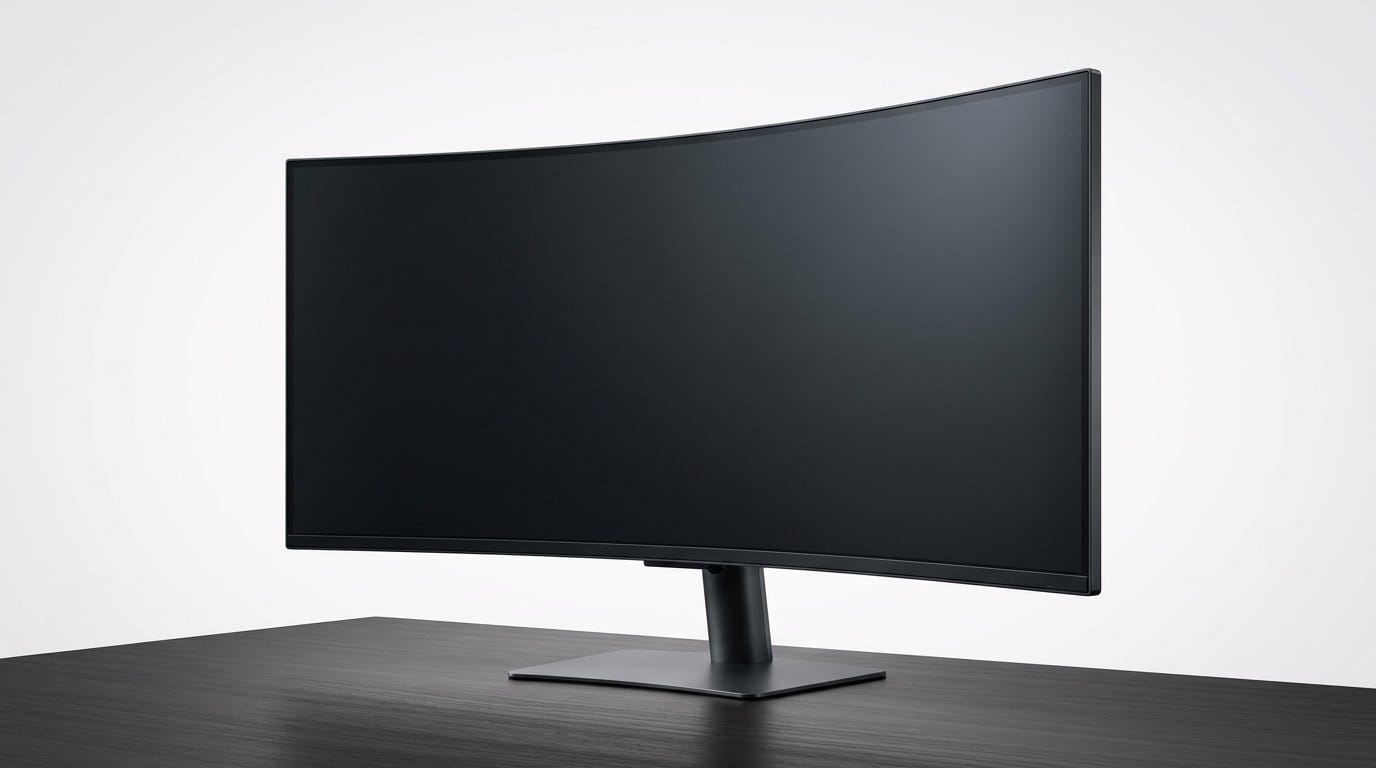
Projectors can deliver huge image size affordably, but throw in screen gain, room lighting, and lower native contrast. For dark-room cinema, a projector like the Epson Home Cinema 1100 1080p Bright Projector can outsize a TV cheaply—just know brightness and native resolution limit perceived sharpness on very large screens. Ultrawide monitors concentrate pixels where you sit close, giving immersive width without sacrificing per-inch fidelity.
Room, distance, and light: environmental constraints on immersion
Viewing distance and where pixels actually matter
A screen’s effect isn’t just diagonal inches — it’s how close we sit and how the room’s seating is arranged. In practice we find simple heuristics work better than math: if your primary seat is about 8–10 feet from the screen, a 55–65″ 4K set usually gives the sweet spot between immersion and clarity. At 10–12 feet, 75″ can make sense. For desktop or close-up gaming, stick with 27–32″ (or a high‑PPI 34″ ultrawide) so text and HUDs stay legible.
Think in terms of sightlines, not bragging rights: if a bigger TV forces everyone to turn their head, you’ve traded immersion for neck strain. Try the cardboard-box trick — cut a rectangle the size of your candidate TV and tape it to the wall to test real-world fit before buying.
Light, contrast, and the glare problem
Bigger screens reflect more of the room, and reflections scale with area. Anti‑reflective coatings help, but they don’t make a screen “invisible.” That’s why manufacturers ship bright QLED/Neo‑LED models (Samsung’s high‑brightness lines) to compete with ambient light, while OLEDs (LG, Sony) still lead in contrast but can look washed out in sunlit rooms.
Practical tips
Sound, placement, and perceived immersion
Bigger displays change audio geometry. As screens grow, built‑in speakers stay small and get pushed farther from listeners; wall mounting often hides downward‑firing drivers. That’s why many of us pair large TVs with soundbars (Sonos Arc, Samsung HW‑Q-series) or separate speakers. A soundbar brings dialogue forward and restores a believable soundstage without a full AVR setup, but true immersion benefits from a discrete sub and surrounds.
Quick listening tips
Installation realities you can’t ignore
A big screen can trigger renovations. Before you buy, check
A large TV can be a statement piece — but also a mini‑renovation project. We always measure twice, mock up the screen, and plan cable runs before committing to inches.
Performance and interaction: latency, scaling, and mixed uses
Gaming: when size exposes limits
We’ve found that bigger screens often raise expectations—and expose shortcomings—when you start gaming. A 65″ 4K set looks great for single‑player story beats, but competitive play turns a spotlight on input lag, variable refresh behavior (VRR), and the raw GPU horsepower required to hit high frame rates at native resolution. Consoles like the PS5 and Xbox Series X comfortably target 4K/60; 4K/120 is far more demanding and is only available in a limited set of titles. On PC, you need a current‑generation GPU (RTX 30/40 series, or AMD 6000/7000) to sustain high fps at 4K with settings cranked—otherwise you’ll rely on upscalers like DLSS/FSR, which are great but not a free pass.
Practical fast checks
Scaling and day-to-day computing
Large panels often combine large physical size with high or low pixel density, and that’s where UI scaling and app compatibility bite. Windows’ scaling can make legacy apps blurry; macOS is more consistent but still struggles with some cross‑platform apps. Cursor travel and muscle memory suffer on very wide displays: moving the pointer edge‑to‑edge on a 49″ ultrawide is a workout unless you bump pointer speed or use multiple desktops.
Quick fixes
Ergonomics, inputs, and living-room vs desk use
A TV’s fixed height and limited tilt can cause neck strain for desk work; monitors with height/tilt/swivel or VESA mounts are preferable. For video calls, a distant TV makes camera framing awkward—external webcams and proper microphones are often worth more than extra inches. For living rooms, remote control responsiveness, voice assistants, and smart‑home integration matter: a laggy OS or absent app can ruin the experience faster than slightly lower brightness.
Where to spend your money
In short, we recommend prioritizing refresh/input performance, adaptive sync, and ergonomic adjustability (or mounting flexibility) over chasing the largest panel possible. Next, we’ll turn to the content ecosystem — what’s actually available to stream, buy, and play on those big screens.
Ecosystem and content realities: what’s actually available to watch
Streaming bitrates and the compression gap
We put content front and center: a larger screen only looks its best when the source can support it. In practice, most streaming services trade bitrate for reach. Even when a title is “4K,” the delivered file is often heavily compressed; on congested Wi‑Fi or lower‑tier broadband the adaptive stream will drop resolution or bitrate long before your TV ever shows its native detail. We’ve watched the same 4K movie on different days and seen bitrate swings that change perceived sharpness and banding—size amplifies those artifacts.
HDR, wide color gamut, and display capability
HDR is another place where ecosystem mismatches bite. HDR mastering assumes higher peak brightness and a wide DCI‑P3 gamut; cheaper large panels with 300–400 nits of sustained brightness can’t reproduce those highlights or the punchy colors, so tone‑mapping systems crush or clip parts of the image. Even if a service offers Dolby Vision or HDR10+, the impact depends on both the file and the TV’s HDR implementation—brightness headroom and per‑scene tone mapping matter more than raw screen area.
Device support and codec compatibility
Not all platforms are created equal. A smart TV may advertise 4K but lack modern codecs (AV1, efficient HEVC profiles) or limit apps and casting options. That restricts which services can stream in the highest quality. Adding a streaming stick or box often fixes this—Apple TV 4K, Shield TV, and current Chromecast models frequently unlock better codec support and higher bitrates—so your ecosystem choice can be the difference between a washed‑out big screen and a truly cinematic one.
What benefits from scale (and what doesn’t)
Practical tips we use
Cost, convenience, and alternatives: when less is more
Visible and hidden costs of going big
Bigger screens look impressive on spec sheets, but the real price tag isn’t just the sticker. We weigh the obvious and the invisible costs: higher unit prices, delivery and professional mounting, reinforced furniture, and the jump in power draw if you run a 75‑inch set every night. That’s before you add decent audio (a soundbar or AVR and speakers), a quality streaming device, and possibly a calibration session to get accurate color and HDR performance.
Common pain points we see
Alternatives that often give more bang for the buck
Rather than reflexively upgrading inches, consider tradeoffs that improve daily use

Matching setups to household profiles
Different homes have different priorities. We recommend thinking in use‑case terms
Resale, future‑proofing, and value traps
Bigger TVs are heavier to move, harder to resell, and sometimes tied to vendor ecosystems or bundled services that evaporate over time. We’ve seen buyers trade a bulky, cheap 75‑inch for a compact 65‑inch premium set and a projector, and gain better everyday experience.
Next, we synthesize these trade‑offs so you can make a smarter, more practical choice.
Making a smarter size decision
Bigger screens can be transformative, but they’re not a universal fix. We’ve shown the trade-offs — pixel density and fidelity, room, viewing distance and light, system performance and input latency, content availability, ecosystem fit, cost, convenience — and why each matters: higher nominal sizes amplify weaknesses alongside strengths. To choose wisely, start with three questions: what space do you have, what sources will you use, and what will you do (movies, gaming, or multitasking)? Match size to viewing distance, then prioritize resolution and HDR if your source and GPU can deliver.
If you do that, you’ll find better real-world viewing more often than by chasing inches. Start small; upgrade only where it improves experience today.
Frequently asked questions
What is the main point of “Why Bigger Screens Don’t Guarantee Better Viewing”?
This piece explains where why bigger screens don’t guarantee better viewing matters in real buying decisions—not just headline specs. We focus on trade-offs, who benefits most, and what to verify before you spend.
Who should read this why bigger screens don’t guarantee better viewing guide?
Read it if you are actively shopping, upgrading, or trying to separate marketing claims from day-to-day use. Skip it if you already own the gear and are not planning a change this season.
What changed recently around why bigger screens don’t guarantee better viewing?
Prices, firmware, and feature tiers shift quickly in this category. We call out what is new enough to affect your decision and what is incremental hype you can safely ignore.
How should I use this editorial when buying?
Treat it as context before you compare models: note the risks and priorities here, then cross-check specs and current pricing on the picks that match how you actually use the product.
What is easy to get wrong about why bigger screens don’t guarantee better viewing?
Buyers often overweight one spec—brightness, speed, or brand—and underweight fit for their room, ecosystem, or warranty support. We flag the mismatch we see most often in reader questions.
Where should I go next after reading?
Use the related comparisons and top picks linked near the end of this article for model-level shortlists, then confirm return policies and compatibility with the devices you already own.

Iqra Jumar is Option Cutter's editorial writer. She writes practical editorials and buyer guides that focus on real-world upgrades—better Wi‑Fi, cleaner cable setups, smarter streaming, and everyday fixes—not spec-sheet noise alone. Her work helps readers decide what to change now, what to skip, and why.









