


Why one upgrade can cut through remote-work exhaustion
Remote work today feels like a series of small drains on attention and energy. Video calls, endless app switching, and improvised desks add up. We think one thoughtful upgrade can do more than dozens of accessories.
That upgrade is an integrated workstation hub — a cohesive station that combines display, docking, audio, and ergonomic controls. In the sections below we explain what that hub is, why its design reduces fatigue, how it makes devices behave like one system, and what performance and reliability actually mean for day-to-day energy use. Finally we put it against alternatives and give a practical buying strategy. Our focus is user experience, design, ecosystem fit, and value.
We approach this like product detectives: measuring real comfort gains, testing connection stability, and timing workflows to find tangible time and mental-energy savings. We compare cost and space trade-offs so readers know when to invest in a hub, when to upgrade pieces, or when to wait.


6 Easy Remote Jobs That Are Hiring Now — No Experience Needed
What the upgrade actually is: the integrated workstation hub
What we mean by “hub”
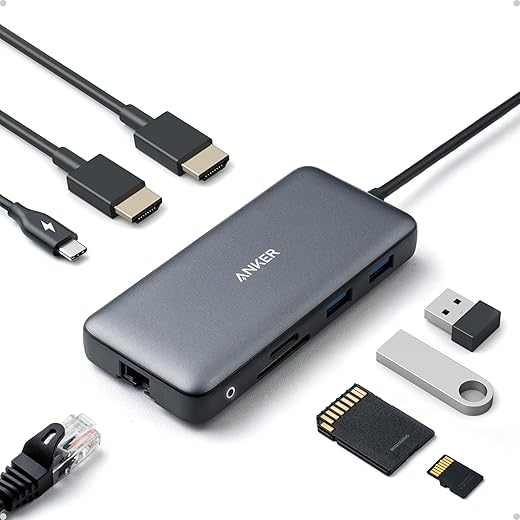
This isn’t a single gadget you clip on and forget. It’s a purpose-built desktop configuration: a large, high-quality external display (often with an integrated webcam and speakers), a robust dock that supplies power and connects everything over one cable, and a small set of ergonomic peripherals plus tidy cable management. Together they replace the scatter of dongles, precarious laptop stands, and last-minute scramble to unmute.
Core components, concretely
Why consolidation matters, in plain terms
Consolidation removes friction. When our laptop docks with one cable, the machine is instantly charged, the external display wakes at the right resolution, our headset charges, and peripherals are available. No hunting for adapters before a meeting. We found that saving 30–90 seconds per meeting to get fully set up quickly compounds into meaningful mental bandwidth over a week.
Quick setup tips you can use today
We’ve seen teams switch from ad-hoc setups to hubs and report fewer tech hiccups and less “meeting anxiety” about being ready. The hardware doesn’t feel glamorous — but the difference in day-to-day friction is immediate.
Design and ergonomics: how form eases fatigue
We’ve described the hub; now we look at the physical choices that make that hub feel effortless day after day. Small, intentional design decisions — screen size and tone, how a display moves, the keyboard’s profile, and even where cables run — change the number of micro-adjustments we make each hour. Fewer micro-adjustments = fewer interruptions to attention and less accumulated discomfort.
Screen: size, resolution, and color that reduce eye work
A display that’s too small or too dense forces us to lean forward and squint. For most people, a 27–32″ monitor at 1440p (or 4K if you need text scaling) hits the sweet spot: readable type at a natural distance (about 50–70 cm) and enough space for split windows. Prefer IPS or modern OLED panels with good factory color calibration and a reliable low-blue-light mode. OLED’s deep contrast and softer whites can reduce glare and improve focus compared with a high-refresh gaming panel, which often emphasizes motion clarity over comfortable color temperature. For office use, refresh rates above 60–120 Hz give diminishing returns and can even distract.
Height, tilt, and distance: minimizing neck and shoulder strain
Adjustability is non-negotiable. We set the top of the display at or just below eye level, tilt it slightly back (10–20°), and keep the screen at arm’s length. Monitors with integrated height adjustment or VESA-compatible arms beat static stands because they reduce the need for repeated posture fixes across different tasks or chairs.
Keyboard and pointing-device ergonomics
Long typing sessions favor a low, compact keyboard that keeps wrists flat and shoulders relaxed. We prefer split or tented designs (Logitech Ergo K860, Microsoft Sculpt) for users with fatigue or mild RSI; for others, a slim mechanical or scissor-switch board (Keychron K3, Apple Magic Keyboard) paired with a palm rest works well. Pointing-device choice matters: vertical mice and trackballs reduce pronation and forearm tension during sustained use — small swaps that stop wrist soreness from building up.
Cable routing and desk footprint: visual calm matters
A tidy desktop reduces cognitive load. Use a small dock, under-desk tray, and simple clips so power and peripherals tuck away. A shallower footprint keeps frequently used items in reach, cutting the number of reaching micro-adjustments per hour. In practice, that means fewer chair swivels, less neck turning, and longer stretches of focused work.
Design trade-offs — quick rules
Ecosystem integration: making devices and services behave like one
Ecosystem integration is where the hub stops being a nice desk toy and becomes the thing that actually saves time and attention. We tested how hubs play with different laptops, phones, conferencing platforms, smart lights, and cloud services to see whether the promise of “one cable, one click” survives real life: OS updates, oddball peripherals, and roommates using a different ecosystem.
Single-cable docking and native display scaling
The clearest win is a hub that hands over video, audio, Ethernet, and power over a single USB-C / Thunderbolt cable. When the host OS picks up native display scaling (Windows 11 and macOS do this differently), windows snap to sensible sizes and we stop fiddling with fonts or resolution.
Cameras, mics, and meeting-app friendliness
For last‑minute troubleshooting to disappear, cameras and mics must present as standard UVC (video) and UAC (audio) devices and expose useful controls (brightness, white balance, mic gain).
Smart lighting and room scenes
Smart lighting converts the whole room into low‑glare, eye‑friendly context with a tap. The best hubs either integrate directly or play nice with a bridge.
Cross-platform realities and buying rules
Mixed-device households and hybrid teams expose the weak spots: proprietary features often lock you to one brand (Apple’s Continuity, Dell’s ExpressCharge), while open standards win across devices.
Practical tips for steady reliability
Next, we dig into the performance and reliability details—latency, bandwidth, and how firmware and drivers shape the real-world energy savings of the hub.
Performance, reliability, and the technical nitty-gritty that affects real-world energy
When the hub is promising to save us mental energy, the specs matter in ways bench numbers don’t always capture. We focused on the attributes that turn a hub from “nice idea” into a tool that actually makes the day less draining.
Display latency and scaling
Low latency and proper scaling are the quiet wins. Thunderbolt/USB4 docks that pass video as a near-pass-through (CalDigit TS4, Plugable Thunderbolt 4) keep window redraws and screen-share smooth; cheaper hubs that re‑encode or use poor scalers introduce lag and frame-pacing problems. Look for:
Camera autofocus and exposure
Autofocus and auto‑exposure need to be fast and predictable. Hardware AF (Logitech Brio 500, Jabra PanaCast 50) beats software-only tricks in mixed lighting. Verify:
Microphone arrays and speaker clarity
Microphone arrays with beamforming, AEC, and decent noise suppression (Jabra, Shure) reduce the cognitive load of strained listening. Speaker clarity matters for long calls—thin, tinny drivers increase listening fatigue.
Power delivery and charging reliability
Nothing zaps focus faster than a laptop clinging to 1% because the dock won’t sustain peak power. Prefer docks that:
Network: wired wins, Wi‑Fi 6/6E helps
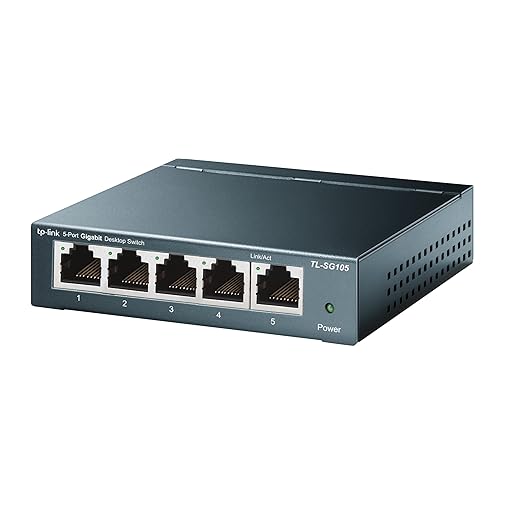
Integrated Ethernet or a reliable Wi‑Fi 6/6E radio reduces dropouts and reconnect overhead. For dense apartments, Ethernet is the least fuss; for mobility, Wi‑Fi 6E lowers contention.This is where a small, trusted switch can make a big difference.
Failure modes and practical checks
Driver flakiness and stale firmware are the usual saboteurs. Our checklist:
Competitive context and buying strategy: when to invest and what to choose instead
We put the integrated hub into the market so you can decide whether to refit your desk or make one targeted tweak. Below are the real-world trade-offs and a simple framework to help us — and you — choose.
Who wins and who should wait
Hold off or buy incrementally if:
A quick decision tree (answer the questions, then follow the recommendation)
- What’s your budget?
- How many devices/OSs do you switch between?
- Do you need high display bandwidth or power delivery?
- Is space tight or do you prefer a clean, single-cable desk?
If mostly yes, yes, yes, yes → buy an integrated hub.
If small budget, single laptop, few peripherals → upgrade one thing (webcam/mic/chair).
If multiple users or company-managed gear → consider enterprise docking (Dell/HP/Lenovo docks) for IT support and replaceability.
Long-term value and what to prioritize
Practical buying tips
With these guardrails, you can decide whether to rebuild your desk around a hub or to tune specific pain points first — and avoid upgrades that won’t move the exhaustion needle.
(Next: how this upgrade actually changes the daily grind — our verdict.)
How this upgrade changes the daily grind — our verdict
We’ve found that an integrated workstation hub reduces both cognitive and physical friction in ways standalone peripherals rarely do: cohesive ergonomics, predictable connectivity, and software-aware design cut context-switching and micro-adjustments that sap mental energy. In today’s market, where devices proliferate and seamless workflows are scarce, cohesion matters more than raw specs; reliable simplicity is the productivity multiplier.
We’d recommend upgrading immediately for people who juggle multiple devices, suffer from neck/shoulder strain, or spend hours on video calls. If you’re unsure, run this quick checklist: need fewer cables, want one-login access, crave consistent display and audio behavior, or prioritize long-term posture — if two or more apply, the hub is worth it.

Chris is the founder and lead editor of OptionCutter LLC, where he oversees in-depth buying guides, product reviews, and comparison content designed to help readers make informed purchasing decisions. His editorial approach centers on structured research, real-world use cases, performance benchmarks, and transparent evaluation criteria rather than surface-level summaries. Through OptionCutter’s blog content, he focuses on breaking down complex product categories into clear recommendations, practical advice, and decision frameworks that prioritize accuracy, usability, and long-term value for shoppers.








