


Why one simple upgrade changes gaming instantly
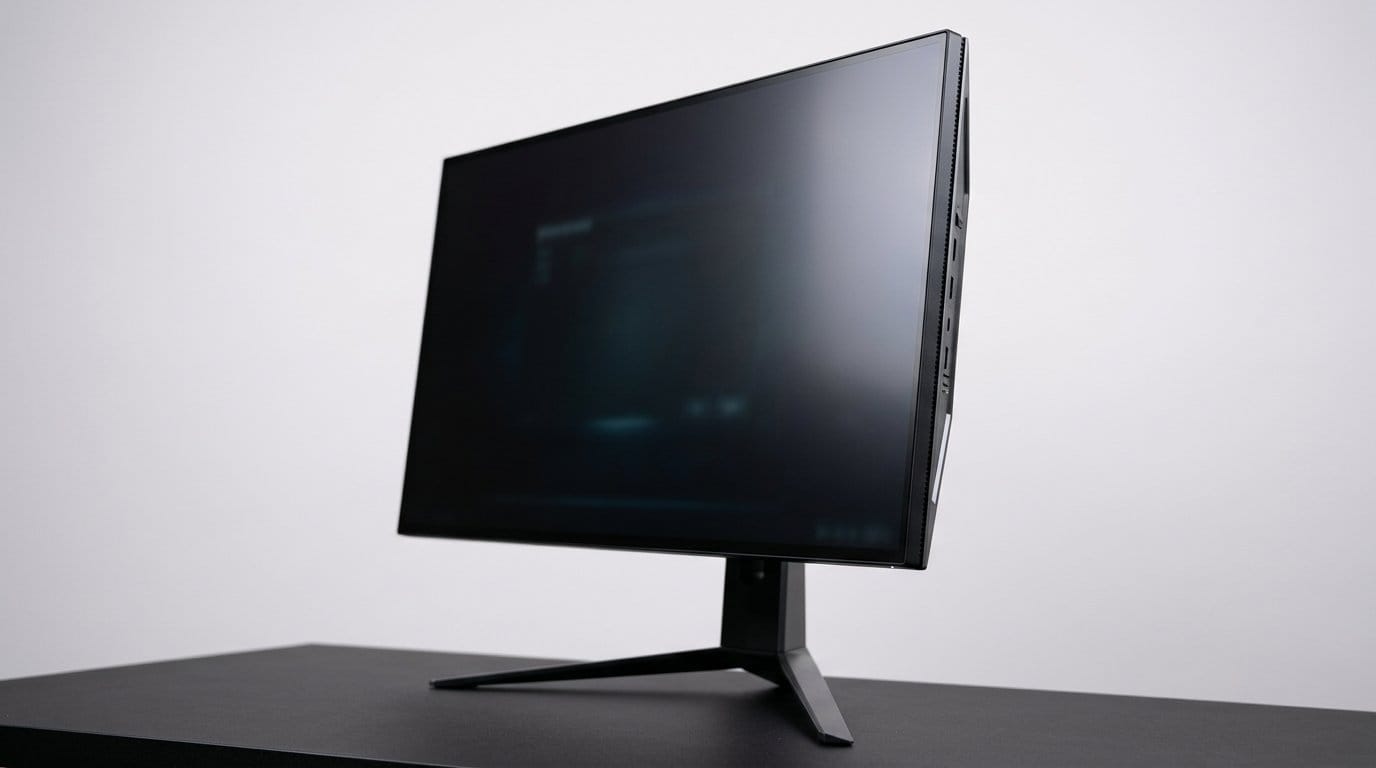
We argue that moving to a higher refresh rate display with adaptive sync is the single upgrade that makes most games feel dramatically smoother right away. Smoother here means less judder, faster perceived responsiveness, and motion that looks more believable — often more noticeable than a bump in resolution or texture detail.
In this piece we explain how refresh rate, frame timing, and variable refresh technologies change the feel of play, who benefits most, and what to check before you buy. We also cover panel choices, compatibility traps, and practical integration tips so you can upgrade without regrets.
Our focus is practical: design, ecosystem, and real-world UX rather than spec-sheet chasing. Let’s dive in.



Make Your Games Run Smoother
The upgrade: move to a higher refresh rate with adaptive sync
What we mean by “higher refresh rate”
Put simply: move from a 60 Hz panel to a 120 Hz, 144 Hz, or higher refresh rates, and turn on adaptive sync (FreeSync/G‑Sync/VRR). The raw numbers matter because the display updates more often — your GPU’s frames and the screen’s refresh are closer in time, which directly changes what you see and how quickly you react.
What you actually notice — fast
The differences are immediate and tactile
Genre snapshots
How to pair it with adaptive sync
Adaptive sync is the glue — it prevents stutter when your GPU can’t hold a steady frame rate. If your GPU can consistently hit the monitor’s refresh, high Hz alone is enough. If your frame rate bounces, VRR saves the day by letting the monitor follow the GPU, smoothing out dips without the cost of traditional VSync.
Quick setup checklist (practical steps)
This is the upgrade that changes the feel of play first and fastest — next, we’ll dig into the mechanics behind why higher Hz and VRR produce that smoother, more immediate experience.
Under the hood: how refresh rate, frame timing, and VRR change the feel
Key definitions, made simple
Let’s start with the vocabulary we’ll use so everything that follows is concrete.
These are the levers we can control with hardware and settings — and they directly affect what we feel while playing.
Why consistent timing matters more than raw FPS
A high average FPS is great, but what kills smoothness is inconsistent frame timing. If a game averages 120 FPS but delivers frames in an uneven rhythm (say 4ms, 12ms, 4ms, 12ms), you’ll notice microstutters — tiny hitching that ruins tracking and makes motion feel “shaky.” Conversely, a steady 60 FPS with consistent 16.7 ms frame times can feel smoother than a bursty 120 FPS run.
Practical reference points
Shorter frame times reduce motion blur and improve responsiveness, but only if the GPU delivers frames evenly.
How adaptive sync (VRR) closes the loop
The mismatch between GPU frame delivery and fixed-display refresh causes screen tearing, stutter, or extra input lag when we enable traditional VSync. VRR (FreeSync/G‑Sync) lets the monitor adjust its refresh to the GPU’s frame output, removing tearing without forcing frame rates into artificial timing. That means fewer frame drops, less stutter, and often lower input latency than VSync solutions.
Tip: VRR matters most when your FPS fluctuates. If your system can hold the monitor’s max refresh consistently, VRR helps less — but in real games with variable CPU/GPU load, it’s the most reliable fix for perceived smoothness.
Why everyone’s pushing this now
Three market forces converge: consoles and GPUs now push higher FPS more often; display interfaces (DisplayPort/HDMI 2.1) finally support high Hz at useful resolutions; and esports-driven demand makes high-Hz panels a priority. GPU vendors and panel makers promote VRR and higher Hz because they deliver a clear, demonstrable improvement in playability — and that sells. The upshot: 144 Hz and VRR are mainstream and affordable; ultra-high-Hz panels (240–360 Hz) and large high‑res VRR combos remain premium, but prices are dropping fast.
Next, we’ll walk through compatibility checks and what to confirm before you buy, so you don’t end up with a capability mismatch.
Compatibility and ecosystem: what to check before you upgrade
We want this upgrade to feel like an obvious win, not a frustrating mismatch. Below are the practical checks we run so you don’t buy a monitor or cable your system can’t fully use.
GPU capability: can it drive your target resolution and Hz?
First, ask what FPS your GPU actually produces at the resolution and settings you plan to use. A 1440p 144 Hz panel is realistic for an RTX 3070 or RX 6700 XT in many modern titles; 4K at 144 Hz is usually only feasible on high‑end cards (RTX 4080/4090, RX 7900 XTX) or with DLSS/FSR upscaling engaged. We test with built‑in benchmarks or tools like MSI Afterburner/RTSS to get average FPS and 1% lows — consistent frame delivery matters more than peak numbers.
Interface standards and cable needs
Make sure the monitor and GPU share a compatible port and bandwidth
Console support and caveats
Consoles are simpler but opinionated: Xbox Series X and PS5 can do 120 Hz at 1080p/1440p and selected games at 4K120 (console support and game patches vary). Check the game’s mode: many console titles trade resolution for higher refresh rate.
Drivers, firmware, and monitor features
Keep GPU drivers and monitor firmware up to date — VRR behavior, HDMI 2.1 fixes, and reducing stutter often arrive via updates. Confirm the monitor’s VRR type: G‑Sync Compatible vs. full G‑Sync vs. FreeSync Premium; cross‑vendor quirks still exist.
System‑level constraints and game optimization
CPU limits, VRAM caps, or poorly optimized titles can prevent you from hitting target FPS. Check CPU/GPU utilization while playing — if your CPU is pegged, higher Hz won’t help. Also look at VRAM usage; ultra textures at 4K can saturate memory and force stutters.
Quick diagnostics we use
These checks let us predict whether higher refresh + VRR will actually improve feel on a given setup. Next, we’ll use that foundation to weigh design choices — panels, resolution, and perceived clarity — to pick the right monitor for your priorities.
Design and user experience considerations: panels, resolution, and perceived clarity
Panel behavior: TN, IPS, and VA in the real world
Specs tell part of the story; panel chemistry tells the rest. TN panels still win for raw speed — the kind of near‑instant pixel transitions that esports players feel in fast shooters — but they sacrifice color and viewing angles. VA gives deep contrast and punchy blacks for single‑player cinema, but mid‑range pixel response can create smeary transitions on fast pans. Modern IPS hits the sweet spot: good color, wide angles, and fast GtG numbers on many gaming models.
When choosing, we look past “1 ms” claims and watch for real motion tests: dark‑to‑light transitions and overshoot artifacts. If you’ve ever seen a high‑speed halo after a quick camera pan, that’s overdrive gone too far.
Resolution vs. refresh: which wins for your setup
Higher refresh or higher resolution — pick your primary goal based on hardware and distance. Practical rules we use
Also think about viewing distance: at typical desk distances, 27″ 1440p looks noticeably crisper than 1080p, but the FPS cost might not be worth it for esports players.
Motion clarity: response time and overdrive tuning
Pixel response time and the monitor’s overdrive curve shape perceived motion clarity more than raw Hz. Our practical tips:
Everyday ergonomics and UI feel
Refresh rate affects everything — not just games. Cursor motion, window dragging, and UI animations get perceptibly smoother above 60 Hz. We often recommend at least 120–144 Hz for anyone who spends time in menus, editors, or streaming, because the nicer micro‑interactions reduce fatigue and feel outright faster — browse our how-to guides.
Esports vs. cinematic tuning and adaptive features
Manufacturers target extremes: esports monitors strip color processing and favor hyper‑fast panels; cinematic models prioritize HDR, gamut, and contrast. Adaptive features like variable overdrive, low‑motion‑blur modes, and factory color profiles determine the final experience. Our rule: match the monitor’s tuning to your primary use — don’t buy an esports screen for color‑critical photo work, and don’t buy a cinema panel if you chase 240 Hz.
How to buy and integrate the upgrade without regrets
We approach this like we do all our lab tests: pick a sensible target, verify compatibility, and prioritize the changes that make the most perceptible difference for the money.
Budget tiers and minimum specs to target
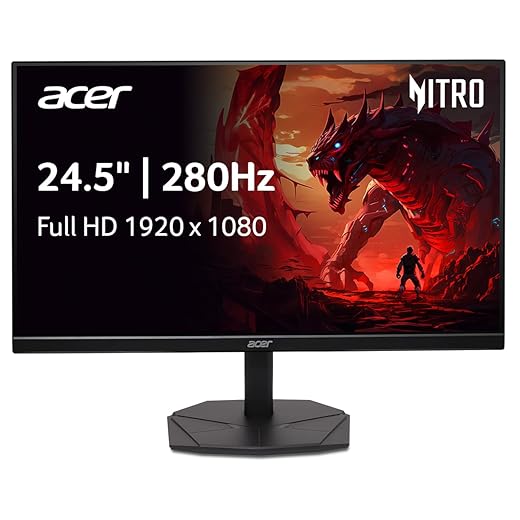
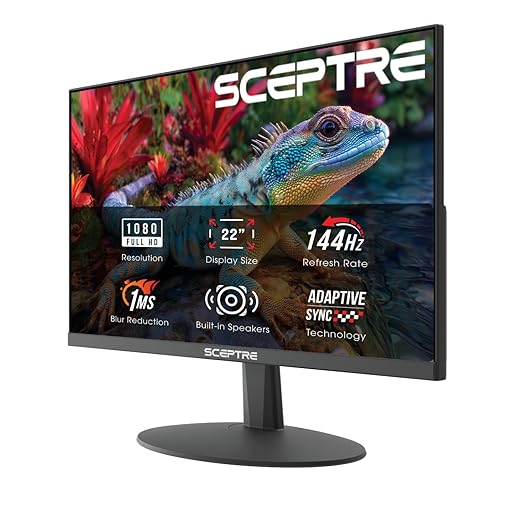
Entry — <$200: 1080p, 120–144 Hz, FreeSync (adaptive sync), IPS or fast VA, DisplayPort 1.2 or HDMI 2.0. Good picks: ASUS VG249Q, Acer Nitro 24″.
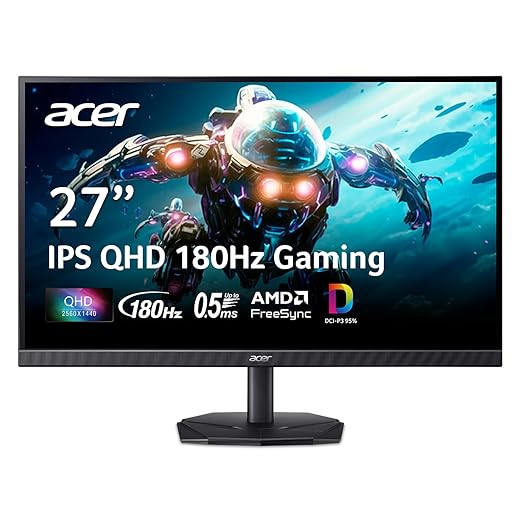
Midrange — $250–$450: 1440p at 144–180 Hz or 1080p at 240 Hz, Freesync/G‑Sync Compatible, DisplayPort 1.4, 1–4 ms GtG, good factory color. Examples: Dell S2721DGF, LG 27GL850.
Premium — $500+: 1440p@240+ or 4K@120, HDMI 2.1 + DP 1.4, certified G‑Sync or proven VRR behavior, low overshoot. Look at the Samsung Odyssey G7/G8 or ASUS ROG Swift models.
Buying checklist: what to verify before checkout
Setup steps we run in the lab
Common pitfalls
How this stacks versus other upgrades
A higher‑Hz monitor is the single most noticeable smoothness upgrade for many users. A faster GPU multiplies the monitor’s benefit (higher FPS to match higher Hz). An SSD speeds load times but not frame pacing; controllers improve ergonomics and latency but not display smoothness. If budget allows, pair a midrange GPU with a midrange monitor for the best value-to-feel ratio.
Quick troubleshooting checklist and sanity tests
If all checks pass, you should immediately notice less judder, fewer micro‑stutters, and a generally snappier feel — and that leads us into the practical takeaways in the Conclusion.
The practical takeaway: what we’d do and why it matters
We’d prioritize a higher-refresh display with adaptive sync — it’s the single most cost-effective way to make games feel faster and more responsive across platforms. Before buying, check panel native refresh rate, VRR standard (G-Sync/FreeSync/VRR), output ports (DisplayPort 1.4/HDMI 2.1), and whether your GPU/console can sustain frame rates near the panel’s ceiling. That avoids incompatible pairings.
Treat this as the next step in a measured upgrade path: it pairs with modest GPU improvements, controller and input tuning, or streaming adjustments, and usually delivers more subjective lift than raw resolution boosts. In short, spend first on refresh and VRR — smoother play makes everything feel snappier, across genres and platforms, and it’s an upgrade that stays relevant longer and durability.
Frequently asked questions
What is the main point of “An Upgrade That Makes Gaming Feel Smoother”?
This piece explains where an upgrade that makes gaming feel smoother matters in real buying decisions—not just headline specs. We focus on trade-offs, who benefits most, and what to verify before you spend.
Who should read this an upgrade that makes gaming feel smoother guide?
Read it if you are actively shopping, upgrading, or trying to separate marketing claims from day-to-day use. Skip it if you already own the gear and are not planning a change this season.
What changed recently around an upgrade that makes gaming feel smoother?
Prices, firmware, and feature tiers shift quickly in this category. We call out what is new enough to affect your decision and what is incremental hype you can safely ignore.
How should I use this editorial when buying?
Treat it as context before you compare models: note the risks and priorities here, then cross-check specs and current pricing on the picks that match how you actually use the product.
What is easy to get wrong about an upgrade that makes gaming feel smoother?
Buyers often overweight one spec—brightness, speed, or brand—and underweight fit for their room, ecosystem, or warranty support. We flag the mismatch we see most often in reader questions.
Where should I go next after reading?
Use the related comparisons and top picks linked near the end of this article for model-level shortlists, then confirm return policies and compatibility with the devices you already own.

Iqra Jumar is Option Cutter's editorial writer. She writes practical editorials and buyer guides that focus on real-world upgrades—better Wi‑Fi, cleaner cable setups, smarter streaming, and everyday fixes—not spec-sheet noise alone. Her work helps readers decide what to change now, what to skip, and why.









