


A smarter path than wholesale replacement
We often face a simple-looking choice: replace everything or try to squeeze more life from what we already own. We argue for a third route — selective, design-driven upgrades that prioritize user experience. We’ll show how focusing on what matters most lets us boost performance, preserve ecosystem value, and avoid wasteful spending.
This playbook walks through practical steps: choosing what to keep, mixing new parts with legacy systems, and making old and new feel like one unit. We also cover ecosystem services, aesthetics, and budgeting for long-term value. Our aim is device-agnostic advice that helps readers make smart, market-aware decisions. We want to help you prioritize impact, reduce clutter, and get more value from your tech.


Upgrade Your Windows Without Replacing Them: Easy DIY Tricks
Start with what matters: prioritize the user experience
Separate functional pain from experiential annoyance
We begin by diagnosing, not shopping. Functional issues — slow boot, short battery life, flaky Wi‑Fi, incompatible ports — are measurable and often fixed with a single targeted swap. Experiential problems — clunky UI, awkward keyboard, weight and balance — shape how we feel about a device and sometimes require broader changes. Distinguishing the two keeps upgrades focused and effective.
Quick diagnostics: what to measure
Run a few simple tests and track results for a day or two:
We use rough thresholds: a 50% cut in load times or a consistent 30% battery life gain usually justifies hardware work.
Why small swaps can feel like a new device
Targeted upgrades compound. Swapping an HDD for an SSD transforms boot, app-launch, and responsiveness — the daily moments that define “fast.” A modern mesh router can make cloud backups and video calls feel reliably instant across the home. These are marginal improvements that alter the critical path of everyday workflows.
We ground choices in real behavior: if browsers and tabs are the slow part, an SSD/fast storage helps; if video calls drop only in one room, a better router will. That focus saves money and preserves the parts that still work.
Next, we inventory what we own and test compatibility so upgrades don’t create new bottlenecks — the practical next step in deciding what to keep.
Decide what to keep: inventory, compatibility, and diminishing returns
Make a concise inventory
We start by listing what we actually rely on: core hardware (CPU, RAM, storage), peripherals (monitors, docks, keyboards), key apps and services, and any proprietary accessories. For each item note age, interface (M.2, SATA, USB-A, Thunderbolt), and the pain it causes. A simple table in Notes or a spreadsheet—name, role, bottleneck score—turns emotion into data and narrows where upgrades matter.
Map compatibility, not hopes
Next, we map which pieces can live together. Check physical interfaces (M.2 key, SODIMM vs. soldered RAM), protocol versions (USB 3.2 vs. Thunderbolt 4), and OS/driver support. Firmware and boot standards (UEFI vs. legacy) matter more than you’d expect.
If a laptop has soldered memory, adding RAM is off the table; if a desktop board only accepts SATA, buying an NVMe-only enclosure won’t help. We consult manufacturer PDFs, user forums, and teardown photos to avoid surprises.
Judge diminishing returns with a cost-per-notice metric
We quantify benefit: estimate perceived improvement on a 1–10 scale, then divide upgrade cost by that score. A $200 SSD that scores a 9 ($22/notice) often beats a $400 chipset bump that rates 2 ($200/notice). Rules of thumb:
Watch for compatibility traps
We avoid these by verifying return policies, checking community upgrade guides, and preferring open standards. Up next: how to combine the items we keep with new components in iterative, low-risk upgrades.
Iterative upgrades: mixing new components with legacy systems
Low-risk, high-impact swap patterns
We prefer swaps that transform the day-to-day without touching everything else. Common, effective moves:
How we sequence upgrades for compounding benefit
We follow a simple order to make each change multiply the last:
- Backup and baseline performance metrics (boot time, app launch, battery runtime).
- Start with storage or battery—big perceived gains for modest cost.
- Add RAM if apps still swap frequently.
- Refresh I/O and displays last to enjoy the improved core performance.
- Re-measure and iterate.
This sequence reduces friction and makes rollback straightforward: keep the original part on hand for a quick swap-back.
Risks and mitigations
When iterative wins vs. full replacement
Iterative is cheaper and faster for single-PC fixes or fleets with consistent hardware age (battery + SSD often buys 2–3 years). Full replacement makes sense when multiple subsystems age together (CPU, motherboard, security updates), or when platform lockdowns prevent meaningful upgrades—then the total cost of patchwork exceeds the benefit.
Design and aesthetics: making old and new feel like one system
Visual language: materials, color, and bezels
Upgrading one piece at a time can leave your setup looking like a collage. We watch for three visual anchors: material (aluminum, matte plastic), color temperature (warm vs cool whites), and bezel thickness. Quick wins: match accents (keyboard caps, cable sleeving, monitor stands) and choose peripherals with complementary finishes—Satechi and Twelve South often mirror MacBook aluminum, while Logitech’s darker line pairs with business laptops. When two devices clash, a consistent wallpaper or accent color across OS and accessories makes disparate pieces read as intentional.
Calibrate displays and profiles
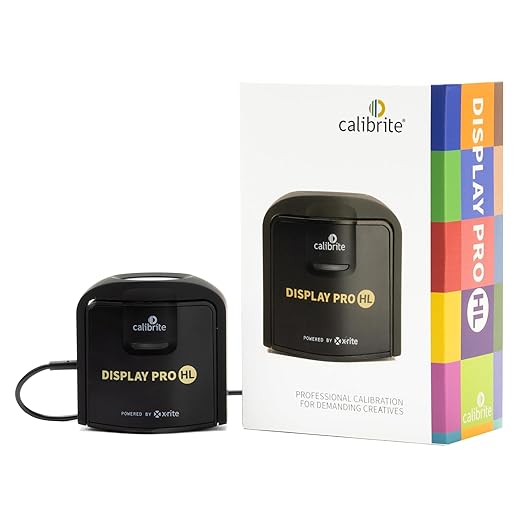
Color drift between an old laptop panel and a new external monitor is jarring for creatives and reviewers alike. We always profile primary displays after hardware swaps.
Use the colorimeter to create ICC profiles, match white point (6500K typical), and set identical gamma/brightness targets. In Windows and macOS, assign profiles per display and lock refresh rates where possible to avoid microstutter.
Interaction continuity: latency, haptics, UI conventions
Design isn’t only how something looks but how it responds. Match input lag and hint feedback—turn off heavy animations on newer devices to align with older hardware, or enable low-latency modes on monitors and mice. Sync keyboard repeat rates, pointer acceleration, and haptic intensity so muscle memory doesn’t break when moving between devices.
Ergonomics: weight, balance, and ports
Physical mismatch affects perceived quality. If a new ultrawide sits on a flimsy stand, the base machine feels cheaper. Use monitor arms, counterweights, or even third-party feet to align heights and center of gravity. Consolidate ports with a good dock (look for metal housings and stable power delivery) so cable routing and device placement stay tidy.
Quick checklist:
Ecosystem and services: think beyond hardware
Upgrading one device rarely ends at the parts list. We need to widen the lens to software integration, cloud services, accessories, and cross-device features — because those determine the real, day‑to‑day value of any change.
Integration and continuity matter more than specs
Ask how a new device will affect notifications, file sync, authentication, and quick actions. Tiny conveniences—AirDrop, Handoff, single‑sign‑on—save friction every day. If the new phone or hub breaks a workflow we rely on, the upgrade can feel like a downgrade even if benchmarks improve.

Watch subscription gates and hidden costs
Many manufacturers gate advanced features behind subscriptions: enhanced photo libraries, smart‑home video history, advanced backups. Before buying, check what’s free, what’s trialed, and what’s recurring. We’ve seen storage fees and “premium” cloud tiers turn otherwise sensible upgrades into long‑term budget items.
Platform lock‑in vs portability
Compare vendor ecosystems realistically:
Prefer components that rely on open standards (Matter, USB‑C, WebAuthn) when future flexibility matters.
Practical checklist before you buy
Choosing upgrades with ecosystem thinking means we’re buying continuity, not just components. When in doubt, prioritize platforms that broaden our workflow options rather than bottleneck them, and treat subscriptions as part of the total cost of ownership.
Budgeting, support, and long-term value: plan for tomorrow
We wrap the practical side of upgrading by treating spending and support as design choices. When we make an informed financial plan, upgrades feel intentional instead of reactive.
Set a realistic budget and a simple TCO model
We start with a one‑line total‑cost‑of‑ownership formula:
Initial price + expected repairs + annual subscriptions × years − resale/trade‑in value = TCO
A quick example: a renewed business laptop with a reliable warranty may cost less up front and have a lower TCO than a flashy new consumer model once subscriptions and repairs are added. Run numbers for 2–4 years to match typical hardware lifecycles.
Factor support, repairability, and update policies
Warranty length, spare‑part availability, and OS update promises matter as much as specs. Prefer devices with easy battery and storage swaps, documented repair guides, and at least a multi‑year update roadmap. Third‑party repairability scores and manufacturer support pages are quick filters when comparing models.

Forecasting how parts will age in a mixed setup
Apply basic rules of thumb:
When to defer, when to trade in — and how to recoup cost
Defer if the marginal UX gain is small or interoperability suffers. Trade in when resale value covers a meaningful slice of the new purchase; business laptops and Apple gear often retain more value on marketplaces (eBay, trade‑in programs, refurbished sellers). Use staggered replacements and resale proceeds to subsidize selective refreshes.
With budget rules, support checks, and an aging roadmap in hand, we can move to the article’s final thoughts on keeping what matters.
An upgrade strategy that keeps what matters
We close with a short checklist and a clear recommendation: treat upgrades as targeted investments in experience and ecosystem, not reflexive replacements. Checklist — prioritize pain points that affect daily use; inventory components and map compatibility; estimate diminishing returns; sequence changes so new parts unlock value; harmonize design and interfaces so mixed systems feel cohesive; factor in services, updates, and integrations; budget for support and long‑term value.
Our recommendation: move iteratively, spend where the user experience improves most, and choose components that extend ecosystem benefits. Doing so saves money, preserves what works, and keeps us competitive in a market that rewards thoughtful, modular upgrades over wholesale replacement. Let’s upgrade smarter, not more often.

Chris is the founder and lead editor of OptionCutter LLC, where he oversees in-depth buying guides, product reviews, and comparison content designed to help readers make informed purchasing decisions. His editorial approach centers on structured research, real-world use cases, performance benchmarks, and transparent evaluation criteria rather than surface-level summaries. Through OptionCutter’s blog content, he focuses on breaking down complex product categories into clear recommendations, practical advice, and decision frameworks that prioritize accuracy, usability, and long-term value for shoppers.








