


Why so many budget sets look dull out of the box
We often hear “washed out,” but that covers a few distinct problems: muted colors, flat contrast, and blown highlights. These are not just aesthetic quibbles. They shape how streaming apps, consoles, and live TV feel, and they make future HDR content underwhelm on budget sets.
In this piece we unpack the six parts of the problem — panel and backlight choices, color gamut trade-offs, tone mapping, presets, and market incentives. Our goal: show why budget makers cut corners, what that costs you, and how to spot or fix the issue.


What “washed out” really means — perception vs. measurement
When we say a TV looks “washed out,” we’re not making a vague aesthetic complaint — we’re pointing at measurable failures that change what you actually see. Below we break those failures into concrete problems you can spot during a demo or read about in tests.
Low contrast and compressed dynamic range
A screen with a low contrast ratio simply can’t make brights and darks feel distinct. On a budget LED set, midtones get pushed toward the middle, so shadows look gray instead of inky and highlights lose snap. That’s why a sunny sky or a dimly lit room both look flatter than they should.
Muted color saturation and reduced color volume
Advertised coverage of DCI-P3 or “Wide Color Gamut” sounds good, but percentage specs don’t tell the whole story. Cheap panels often can hit a few saturated primaries on paper but lack the color volume — the ability to render saturated colors at different brightnesses — so reds, greens, and blues look dull in real footage.
Clipped highlights and crushed shadows
Clipping happens when the TV’s electronics can’t represent very bright highlights or very dark shadow detail. Instead of subtle gradations you see banding or pure white/black areas; HDR content that should pop feels flattened.
How to diagnose it fast — what to look for in a demo
Human vision and room lighting amplify these faults: ambient light lowers perceived contrast, and our eyes prioritize midtones, so a technically “fine” spec sheet can still feel lifeless in your living room.
Panel and backlight choices: where manufacturers cut corners
We often assume “washed out” is a settings problem, but a lot of it starts with raw hardware choices. If you want to know why a model can’t produce punchy cinema blacks or vivid highlights, look at the panel and the backlight architecture before you blame the software.
Panel types: IPS vs VA vs OLED
Backlight architectures: edge-lit, simple full-array, and FALD
Edge-lit LED is cheap and thin, but it struggles to keep dark areas truly dark because the light source is only around the bezel. Simple full-array backlights improve uniformity, but without local dimming you still get elevated black levels. True local-dimming (FALD) or mini‑LED arrays let parts of the screen go very dark while keeping highlights bright — the difference you feel in HDR.
Why these choices desaturate and flatten images
Manufacturers save money on cheaper LEDs, lower-quality polarizers, and thinner diffuser stacks. Those parts reduce color saturation and clip spec’d color volume at higher brightness. Combine that with low native contrast and weak local dimming, and bright highlights lose punch while dark scenes look fogged. In a family room where multiple people sit at different angles, an IPS set might keep everyone seeing the same image, but it’ll often look muted compared with a VA or OLED display directly in front of you.
Quick buyer tips
Next we’ll dig into how those hardware limits interact with color gamut and color volume — and the shortcuts manufacturers take there.
Color gamut, color volume, and the shortcuts that shrink them
We can look good on paper and still look bland in the living room. That’s because manufacturers love quoting a single “gamut” percentage—like “95% DCI‑P3”—but that number only tells part of the story. What really matters for how colors feel on-screen is color volume: how saturated a display can stay as brightness increases. A panel that hits 95% of P3 at a dim, lab-style measurement can still collapse into muddy pastels once you crank up the HDR highlights.
Gamut vs. color volume — a practical distinction
Gamut = the range of hues a screen can produce at a given brightness.
Color volume = that range across the whole brightness range. We’ve seen cheap LED sets that look fine in dim demo clips but lose saturation on bright HDR scenes, because their color filters or backlight can’t sustain chroma at higher nits.
The shortcuts that cost you color
What to look for and test
These color limitations don’t exist in isolation — they interact directly with a TV’s tone mapping and HDR handling, which is where the user experience gets decided.
Tone mapping and HDR handling: software where the rubber meets the road
Why tone mapping matters
We can have a wide‑gamut panel and a bright backlight, but if the TV’s software mismanages HDR the picture still looks wrong. Tone mapping is the real-time translation of scene brightness and color into the set’s physical limits. Do it well and highlights pop without losing shadow detail; do it poorly and you get flattened skylines, clipped speculars, or crushed blacks that make everything feel lifeless.
The cheap software shortcuts
Budget sets often skip the nuanced work because per-frame HDR analysis and adaptive algorithms need CPU/GPU time and engineering resources. Common shortcuts include:

What to look for and quick tests
We recommend checking three practical things before you buy or tweak settings:
Quick user tips: run a streaming HDR demo (nature docs or HDR game menus), try the console’s HDR calibration tool (Xbox/PS adjust peak brightness), toggle any “dynamic tone mapping” or “scene adaptive” modes, then compare. If the TV still flattens detail, the limitation is likely hardware+software, not your eyes.
Presets, calibration, and the default experience
Why the “vivid” default exists
We’ve all seen it: the salesman’s showroom TV looks punchy, then at home the same model feels flat or oversaturated. Manufacturers ship aggressive “Vivid” or “Dynamic” presets because they win eyeballs in bright retail lighting and in marketing screenshots. Those modes punch up saturation, bump contrast, and overdrive sharpness to sell impressions — not accuracy. For consumers, that means the out‑of‑box experience is inconsistent: some sets are gaudy; others default to lifeless conservative curves that try to hide panel weaknesses.
Why proper calibration is harder on cheap hardware
Even when we switch to Movie/Cinema mode, limited hardware constrains what calibration can fix. A small gamut, weak backlight, and coarse internal LUTs mean software adjustments can only mask problems, not solve them. Low‑end SoCs also lack the processing power for fine 10‑point white balance, per‑zone tone mapping, or scene‑by‑scene HDR tweaks — so “calibrated” presets are often a compromise.

Remote UX, confusing menus, and phantom enhancers
The remote and OS matter. Menus that bury white balance, color space, or dynamic range options make honest tuning unlikely. Auto‑features — “Dynamic Contrast,” “Smart HDR,” “AI Enhance” — are often enabled by default and interact unpredictably. Streaming apps, built‑in picture modes, and HDMI inputs can each apply their own processing, so Netflix in the TV app may look different from the same stream via an Apple TV 4K.
What to try in store and at home
Next, we’ll look at how market incentives shape these software decisions and why manufacturers prioritize flashy features over honest calibration.
Market incentives and trade-offs: why budget makers prioritize features that don’t fix the problem
Shelf appeal beats subtlety
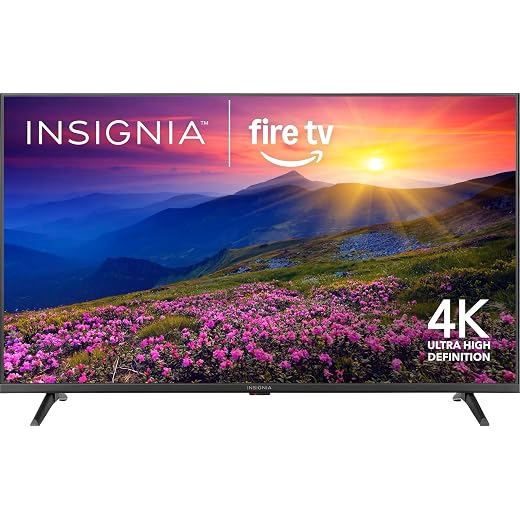
We step back from pixels and ask: what sells on a crowded shelf? Slim bezels, glossy marketing images, “4K HDR” badges, and snappy smart‑platform demos attract buyers faster than nuanced color science. It’s cheaper to spec a thinner frame, paint aggressive UI screenshots, or license Dolby Vision than it is to redesign a backlight, buy wider‑gamut panels, or spend engineering cycles on tone‑mapping. The result: sets that look exciting in a store under bright lights but underwhelm in dim living rooms.
Supply chains, parts choices, and margins
Panels, LED arrays, and controllers drive cost. Manufacturers reuse panel types across models, buy whatever inventory is available, and pick SoCs that balance price and feature lists. During shortages or to hit a price target, brands will accept narrower gamuts, simpler dimming schemes, or weaker HDR performance because those choices protect margins and let them advertise bigger spec checkboxes.
Which compromises are reasonable for your use case
When to spend a bit more
If movies and HDR fidelity matter, pay for models with native wide color (QLED/OLED), higher nits, and competent local dimming. A modest step up (e.g., TCL 6‑Series or Sony midrange) often buys a real improvement in color volume and tone mapping.
Ecosystem effects and services
Software support, firmware updates, and third‑party calibration offerings change value over time. A cheaper TV with good update history (and access to affordable calibration) can outlive a flashier spec sheet.
Understanding these commercial pressures helps us judge which compromises we can live with — and when it’s worth paying more. Next, we’ll offer practical, budget‑friendly buying and setup tips to get the best picture for your money.
How to get the best-looking TV for your budget
We’ll keep it practical: in-store, pick the mode that looks natural (usually “Movie” or “Cinema”), push brightness to comfortable levels, disable extra processing like “Dynamic Contrast” or “Motion Smoothing,” and compare HDR demos to check for strong highlights and deep blacks. Look for listed specs: wider color gamut (DCI-P3 coverage), local dimming, and a high peak brightness; if unavailable, prioritize better panel type (VA over low-end LED) and a reputable software ecosystem that updates tone mapping.
Small investments and good setup matter more than headline features. With calibration or simple tweaks and a brand that improves its software, many budget TVs can deliver vividly satisfying pictures—understanding why helps us spend smarter.

Chris is the founder and lead editor of OptionCutter LLC, where he oversees in-depth buying guides, product reviews, and comparison content designed to help readers make informed purchasing decisions. His editorial approach centers on structured research, real-world use cases, performance benchmarks, and transparent evaluation criteria rather than surface-level summaries. Through OptionCutter’s blog content, he focuses on breaking down complex product categories into clear recommendations, practical advice, and decision frameworks that prioritize accuracy, usability, and long-term value for shoppers.








