
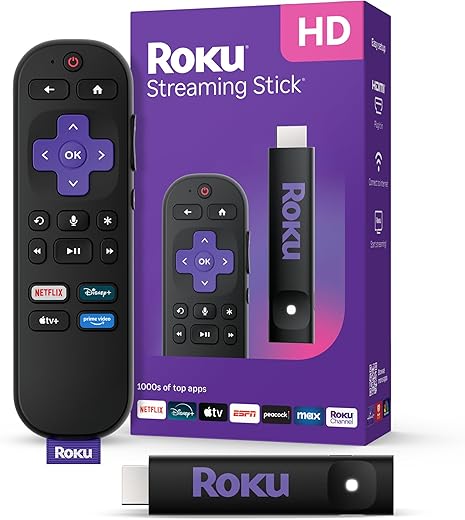

Why a single $50–$200 add-on can make an old TV feel brand new
We start with a simple premise: you don’t need a whole new set to get a modern TV experience. A compact streaming media player—the small box or stick that plugs into HDMI—often delivers the biggest, fastest user-experience improvements for the least money. We’ll explain why that one device matters more than a spec sheet.
What changed is mainly software: responsiveness, polished interfaces, instant app access, and OS-level integrations. These are the things you notice day to day. They make an old panel feel fast, capable, and connected without replacing the screen.
We’ll look at design, hardware choices, ecosystem fit, and real-world picture and sound trade-offs. Our goal is practical: show how to buy, set up, and get the most value from this inexpensive upgrade. Let’s get practical.
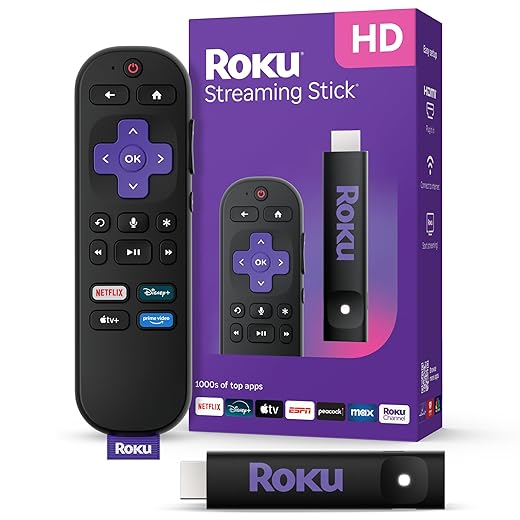


What the upgrade actually is — and why it beats a half-century of tinkering
Defining the upgrade, plainly
When we talk about “the upgrade,” we mean a modern streaming media player: the small HDMI stick or box plus the software it runs — Roku, Chromecast with Google TV, Fire TV, Apple TV, and their variants. It replaces an old TV’s built‑in smart platform, not the panel itself. That swap changes the part of the TV you touch most: the home screen, app catalog, search, and remote.
Why swapping the OS matters more than cables or firmware
You can buy a new HDMI cable or hunt a firmware patch forever, but those don’t fix the daily annoyances: a sluggish home screen, missing apps, constant “update available” nagging, or a remote that feels like it’s from 2012. Upgrading the player addresses those directly. In practice we see:
How modern players have matured
These boxes aren’t the same as the clunky dongles of a decade ago. Modern players bring:
Real-world trade-offs and quick tips
Think beyond price: choose a device that matches your TV and habits. If you have a 4K HDR set and want Dolby Atmos, pick a 4K-capable stick or box (Roku Streaming Stick 4K, Chromecast with Google TV, Fire TV Stick 4K Max, Apple TV 4K). If your Wi‑Fi is iffy, look for an Ethernet option or a USB‑to‑Ethernet adapter. Prefer simple, fast UI? Roku and Chromecast emphasize minimalism; Apple and Amazon push ecosystem features like HomeKit or Prime integrations.
We’ve swapped sticks into old sets and seen day‑to‑day satisfaction climb more than with a soundbar or fancy cable. Software is where people live on TV; fixing that is the single most effective upgrade.
Design and hardware: what to look for when picking the little box that does the heavy lifting
We care about physical design because it’s the gear you touch daily. A compact stick that cooks itself on the back of a TV, a flimsy power brick that dips voltage, or a remote that’s impossible to use will sour the experience faster than any spec sheet. Here’s what actually changes daily life—and how to judge it.
Size, heat, and power
Smarter thermal design equals longevity. A tiny, under‑ventilated stick can stream a show fine for ten minutes and then stutter as it thermally throttles. Boxes with a small fan or a chunkier chassis (think Apple TV or NVIDIA Shield) run cooler and stay snappy. Also check power: a stable 5V/2A supply or USB‑C is better than a weak micro‑USB brick that drops frames on fast scenes.
Processor responsiveness vs. headline specs
Raw MHz and cores are less useful than perceived speed. We prefer devices that feel instant: menus, app switching, and search answers should come without lag. Mid‑range chips paired with careful software optimization often beat overclocked bargain hardware. For example, a $40 stick can play 1080p, but a $70–$120 device will keep big streaming apps from stalling and will age better thanks to firmware optimizations.
Remote ergonomics and voice
Good remotes are ergonomic, have sensible button layouts, and make voice input easy. Mic placement affects how reliably the device hears you from the couch; latency in voice responses is usually a network or CPU issue. Bonus features to look for: dedicated power/volume (so you don’t need the TV remote), backlight, and a lost‑remote finder.
Networking and ports
If your Wi‑Fi is flaky, the presence of Ethernet (or official USB‑to‑Ethernet support) changes everything. For 4K HDR or Dolby Atmos, wired beats wireless. Look for Wi‑Fi 5 or 6 on newer devices, but don’t obsess—real throughput, not the version number, matters.
HDMI-CEC, power control, and legacy TVs
Check how the player handles HDMI‑CEC: will it turn the TV on, switch inputs, and mute when needed? Older TVs implement CEC badly; reviews and forums will reveal quirks. Some players offer granular CEC settings—useful to prevent your TV from cycling power unexpectedly.
Choosing a tier, not a spec
The market has settled into tiers: bargain sticks, solid mid‑range performers, and power‑user boxes. Pick the tier that matches how you use the TV—snappy menus and reliable updates beat extra CPU cores if you mainly stream. Next, we’ll look at how these choices affect the way your player fits into your wider digital life.
Ecosystem integration: how the upgrade connects your TV to the rest of your digital life
We used to treat a TV as an island: plug things in, switch inputs, live with the friction. Modern players turn that island into a node in a larger home network. That shift matters as much as picture and processor—because a TV that “plays well” with your phone, speakers, and lights feels modern in ways specs don’t capture.
What integration actually looks like day to day
Think handoffs, not just apps. Start a clip on your phone and tap a Cast or AirPlay button to move it to the big screen. Ask your voice assistant to play a show, and the player not only opens the app but also dims smart lights and lowers the thermostat. See unified recommendations across devices because the platform knows your subscriptions. Those little conveniences are what make an older panel feel current.
Platforms and real-world compatibility
Different players prioritize different ecosystems:
Practical buying checklist
Before you buy, ask:
Privacy and future-proofing
Integrated convenience comes with trade-offs: more data flowing through one company, targeted ads, and longer tails of firmware support. We favor platforms with clear privacy options and a decent update track record—because the last thing we want is a bricked smart TV five years from now.
Choosing a player is often choosing an ecosystem: match the player to the devices and assistants you already use, and your old TV won’t just stream better—it will become a smarter, more cooperative part of the home.
Picture and sound: realistic gains, compatibility wrinkles, and how to get the most from an older panel
We’ve already said the UI refresh matters. But the real sensory win from a modern player comes from its codecs, bitrates, HDR handling, and audio formats — as long as your TV and the player can speak the same language. Here’s what actually changes, what won’t, and the practical fixes that get the most from an aging screen.
What a better player can realistically improve
A modern streamer unlocks:
In practice that means cleaner skin tones, fewer macroblocking artifacts on streaming sports, and richer surround mixes — but not miracle-level contrast. A 10-year-old LCD still won’t produce deeper blacks like a new OLED.
Why older panels limit HDR gains
Most older TVs only cover Rec.709 color space and have limited peak brightness. When a player passes HDR10 or Dolby Vision metadata, the TV’s tone-mapper has to compress highlights into a narrower range. The result can be flatter highlights or posterization. If your set doesn’t advertise HDR support, you’ll get SDR with better color handling, not true HDR.
Audio passthrough, ARC/eARC, and simple workarounds
High-bitrate audio (Dolby TrueHD, Atmos) needs eARC or HDMI to an AVR that understands those streams. If your TV lacks eARC:

This is especially useful if you want Dolby Atmos-like processing from a modern streamer without replacing the display.
Quick compatibility checklist (do these first)
We’ve seen small changes — better color rendering, fewer compression artifacts, and markedly improved audio — make bingeing feel fresh again. Next, we’ll walk through the best buys and setup steps to turn those gains into a painless weekend project.
How to buy, set up, and decide: a pragmatic guide to getting the best value from the upgrade
We close our hands‑on notes with concrete buying guidance, a realistic budget, and a no‑nonsense setup flow so the upgrade stops being a weekend project and starts being usable that night.
Match the device to your use case
How much to spend and what to budget
Spend based on use: sticks for rooms, full boxes for your main lounge. Also budget for:

Step‑by‑step setup flow (what to do, in order)
- Pick and label an HDMI input; plug the streamer into it and power the device with its adapter.
- Turn on TV’s HDMI‑CEC (Bravia Sync/Anynet+ etc.) if you want single‑remote control.
- Use an Ethernet adapter if possible for the main TV to avoid buffering.
- Complete the device’s initial setup: update firmware first, then sign into your accounts.
- In video settings, set resolution to 4K/60 and enable HDR passthrough if the TV supports it; if HDR looks off, toggle HDR→SDR conversion.
- Configure audio: choose passthrough to your AVR if you have eARC, or set a compatible downmix (Dolby Digital) for older sets.
- Review privacy options: disable ad personalization and limit voice/data sharing if desired.
- Do a quick app tidy — uninstall rarely used apps to keep the UI snappy.
Buy vs replace: a simple cost‑benefit check
Ask three questions: Is the panel physically fine? Is brightness/color acceptable? Do you need larger size or better contrast? If the display is structurally good and lacks only modern codecs, UI, or audio features, a $50–$200 upgrade usually wins. If you want better blacks, higher peak brightness, or a much larger screen, replacing the TV may make sense. Factor in expected streamer lifespan (3–7 years), vendor update policy, and resale value of the set.
Quick comparison — pick the strategy
With a clear buy and setup plan in hand, we’re ready to summarize the practical payoff and when this small investment truly replaces a new TV.
The practical payoff: a small investment, a noticeably modern TV
We’ve argued that a modern streaming player is the single smartest upgrade for an older set: it buys instant responsiveness, current codecs and apps, and the ecosystem hooks that determine daily experience far more than panel specs. In today’s streaming-first market, software and integration — low-latency hardware, up-to-date DRM, voice and home-controls — shape what the TV actually feels like, and a compact box or stick delivers that lift for a fraction of a new screen.
Quick checklist to act: prioritize responsiveness and codec support; match the player to your phone/assistant; confirm HDMI/CEC and audio passthrough; pair with a modest soundbar if needed. Do this, and our old TV will behave like a new one.

Chris is the founder and lead editor of OptionCutter LLC, where he oversees in-depth buying guides, product reviews, and comparison content designed to help readers make informed purchasing decisions. His editorial approach centers on structured research, real-world use cases, performance benchmarks, and transparent evaluation criteria rather than surface-level summaries. Through OptionCutter’s blog content, he focuses on breaking down complex product categories into clear recommendations, practical advice, and decision frameworks that prioritize accuracy, usability, and long-term value for shoppers.








