



Why one desk upgrade deserves all of your attention
We used to chase keyboards, monitors, and chairs. A single statistic stopped us: people who use height-adjustable desks report markedly better posture and productivity. We tried dozens and the same upgrade kept coming out ahead.
In this piece we explain precisely what the desk upgrade is—turning a fixed desk into a reliable electric height-adjustable workstation—and why it reshapes daily work. We cover design and build decisions that affect stability and feel, the real user experience from posture to focus, and the accessories that make a setup seamless.
Finally, we walk through the competitive landscape in our how-to guides and offer buying strategies so you spend smart and get a desk that lasts. We tested them thoroughly.


10 Desk Upgrades That Are Truly Worth It
What the upgrade actually is: turning your desk into a height-adjustable workstation
The structural change, not a cosmetic one
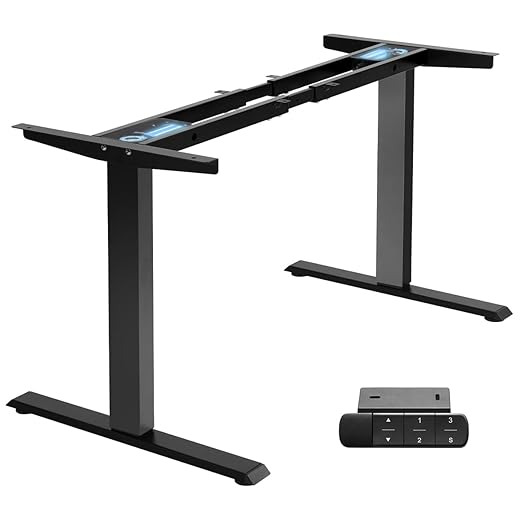
When we say “one upgrade,” we mean replacing the static base under your desktop with an electric height‑adjustable frame. That swap turns an inert slab into a moving platform you can trust to shift dozens of times a day. The immediate, user-facing wins are obvious: no more precarious stacks of books, programmable memory presets, and the freedom to stand for a 20‑minute sprint between meetings. But the real payoff comes from how the mechanism changes choices around monitors, cable runs, and workflow habits.
Core components you should understand
A desk frame is more than two legs and a crossbar. Look for these parts and what they mean in practice:
Typical specs to aim for on standing desk frames: travel ranges roughly 24–50 in (61–127 cm) from floor to tabletop and load capacities in the 200–330 lb (90–150 kg) range. Those numbers tell you whether your monitor arms, multiple displays, and desktop speakers will ride up and down without strain.
Minimal installation and quick how‑tos
We’ve installed a dozen desk frames; the pattern is consistent and straightforward.
Tools are usually a hex key and screwdriver; plan 30–90 minutes and a clean floor with your desk setup. Test for wobble at both extremes, and use the leveling feet to eliminate rattle.
Practical buying tips that matter today
In the current market, we pick dual motors for workstations with multiple monitors, prioritize frames with memory presets and anti‑collision, and verify VESA/bolt patterns if using monitor arms. Brands we return to in testing include Uplift, Fully Jarvis, Flexispot, and ErGear for price‑performance—each trades off warranty length, noise, and feel. The right frame is the baseline that makes everything else in your setup behave better.
Design and build: the engineering choices that affect daily stability and feel
Stability and motion
Not all frames move the same way. The column configuration (two‑stage vs. three‑stage), crossbar design, and motor torque are the trio that decide whether a raised monitor feels rock‑solid or like it’s riding a trampoline. Two‑stage columns tend to be stiffer and are fine for wider tops; three‑stage units give more height range but can introduce a bit more play unless engineered with heavier gauge steel or dual motors. Crossbars that tuck under the top reduce front‑to‑back wobble; single‑beam designs save cost but often transmit vibration when we jab at the keyboard.
We look for a rated load capacity that’s comfortably above our planned weight on standing desks—aim for 20–30% margin. In practice, a 220 lb rating for a ~150 lb setup translates to much less strain on bearings and quieter lifts. After an hour of use we notice looseness; after a day we notice how the desk returns to the same height; after a month we notice whether small shakes have become permanent.
Controls and memory
Controls are the human interface of the frame. A basic up/down keypad works, but memory presets are the feature we miss immediately when they’re absent—tap one button and you’re back to the exact standing height you prefer. Anti‑collision sensing is one of those features you hope never to use until the day it saves a monitor arm. Discreet LED or numerical feedback changes the feel too: seeing a number lets us fine‑tune posture instead of guessing.
Practical tip: program two presets—one for focused standing (monitor top at eye level) and one for seated typing. Test the anti‑collision at low speed to ensure sensitivity isn’t too high (which adds false stops) or too low (which risks damage).
Materials, finish, and geometry
Powder‑coated steel, machined brackets, and clean welds are more than aesthetics; they determine longevity. Cheap stamped parts can flex and the paint chips where the mechanism rubs. We also check mounting brackets and bolt patterns—poorly machined holes lead to uneven clamps and a tabletop that creaks over time.
Geometry matters: confirm tabletop thickness and center-of-gravity (heavy front loads change feel), check for grommet and cable access so wires don’t bind, and measure the frame’s foot spread for chair clearance. Quick checklist before buying:
Small engineering choices add up. They’re the difference between a desk that becomes invisible to your workflow and one that you’re constantly negotiating with.
User experience: how it changes posture, focus, and the rhythm of work
The first week after we replaced fixed desks with height‑adjustable frames, the change felt less like a gadget and more like a new set of habits. People stood more often, but not exclusively; they moved differently. Short stretches—stand for a 20‑minute sprint, sit for deep typing—became the default rhythm, and small shifts in posture accumulated into noticeably fewer mid‑afternoon slumps. Below are the concrete behaviors and tips that make the upgrade stick.
Immediate behavioral shifts
Teams we observed did three things almost immediately
A quick rule of thumb: start with 15–20 minute standing intervals and build toward 30–40 minute blocks as comfort allows.
Ergonomics and micro‑adjustments
The real ergonomic win is micro‑adjustability. Being able to dial in monitor height by a centimeter matters: it aligns sightlines, reduces neck craning, and prevents wrists from floating at awkward angles. Practical setup steps:
Cognitive effects and meeting culture
Standing amplifies alertness for short, focused tasks and tends to make brief meetings more efficient. Conversely, we’ve found lengthy collaborative planning is best when people can sit intermittently—so design meetings with alternating standing/walking breaks or encourage people to use the desk’s presets.
Friction points that decide adoption
Small irritations kill adoption faster than cost: cable snagging, monitor wobble while typing, and loud or jerky motors. Our practical mitigations:
How to onboard people quickly
Demonstrate presets, label buttons, share a simple “sit/stand cadence” guide, and make the first week a team experiment with feedback. Those quick rituals are what turn a desk upgrade from novelty to habit.
Next, we’ll look at the accessories and cable workflows that let an adjustable desk perform without daily friction.
Ecosystem integration: accessories, power delivery, and cable management that make it sing
A height‑adjustable frame is the spine of a modern desk ecosystem—what you attach to it determines whether you get a seamless experience or a tangle of compromises. Below we walk through the add‑ons that matter.
Monitor arms that actually travel
If your displays don’t move with the desk, you defeat the point. We recommend gas‑spring arms with VESA mounts and enough vertical range to preserve sightlines across the desk’s travel. Favorites in our testing: the Ergotron LX for heavier panels and the budget‑friendly WALI Gas-Spring Single Monitor Arm Mount for single‑monitor setups.
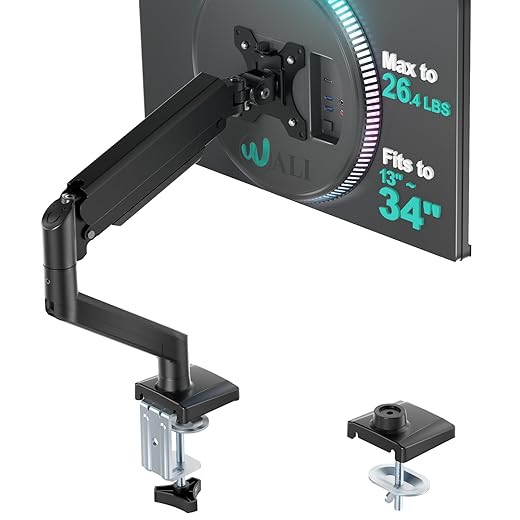
Practical tip: set the arm’s mounting clamp on the rear third of the desktop so the monitor pivots without colliding with a laptop or lamp when you raise it.
Cable management and vertical travel
Vertical motion needs slack by design. The three tools that prevent snags
We use 3M adhesive cable clips for light runs and a Velcro‑laced harness for bundles. Maintain a bend radius of ~30–40 mm on USB and power leads to reduce stress over time.
Power delivery: docks, pass‑through, and PD ratings
The single‑cable desk is the goal. Choose a dock with USB‑C Power Delivery that matches your laptop’s charger
Good options: CalDigit TS3 Plus, Anker PowerExpand Elite, OWC Thunderbolt docks. Mount the dock under the desk or near a grommet and run only one upstream USB‑C to the laptop; this prevents clutter and reduces strain on cable anchors.
Practical tip: use a short, high‑quality USB‑C cable for the dock→laptop run (PD‑rated, 100W) and a thicker, protected cable for the wall outlet to reduce wear.
Secondary additions and mounting compatibilities
Small accessories have big effects: an anti‑fatigue mat (Topo or Ergodriven), clamp‑mounted task light (BenQ e‑Reading arms or compact LED clamps), and under‑desk drawers that bolt to the frame rather than the desktop. Check weight limits and clearance: heavy drawers mounted incorrectly can interfere with lift motors.
Quick checklist before buying
Next, we’ll translate these choices into a buying strategy—what frame features and price points actually matter when you’re assembling this ecosystem.
Competitive context and buying strategy: picking the right frame for your needs
The adjustable‑frame market stretches from $150 budget kits to $800+ pro units. Our job here is to cut through specs and give you a simple framework: choose what matters most, set realistic load numbers, and pick the trade‑offs you can live with.
Clarify priorities first
Ask yourself three questions before you look at models
Set a realistic weight budget
We recommend adding up
Choose a frame with a rated capacity 20–30% above your total. For example: a 150 lb-rated frame (Fully Jarvis, Uplift V2) gives breathing room for heavy tops; lightweight frames like FlexiSpot EC1 are fine for laminated tops and single monitors.
Understand common trade‑offs
DIY vs packaged desks
If your tabletop is cherished, buy a frame only—swapping frames for an existing top gives the best value. If finish, matching veneers, or turnkey aesthetics matter wave, consider packaged desks from Uplift, Fully, or IKEA (Bekant) even if the price is higher.
Delivery‑day short checklist
Warranties and support
Expect frame warranties around 5–10 years on reputable brands; motors and electronics commonly cover 2–5 years. Fast replacement parts and local support are worth a small premium if downtime frustrates you.
Quick decision tree
With a frame selected and vetted by the checklist above, we’re ready to wrap up why this single upgrade changes how you work.
Our takeaway: small change, outsized impact
We watched setups evolve from cramped, static desks into adaptable, purpose-driven workstations once the base gains motion. The upgrade is deceptively simple: you buy reliable vertical travel, predictable stability, and a reason to reorganize cable runs and accessories. That combination changes posture, focus, and the rhythm of a workday in ways cushions and mouse pads never will.
If you pick frames with sensible load margins, robust leg geometry, and accessories that travel with the desk, the investment stops feeling like an ergonomic indulgence and becomes the central enabler of comfort, flexibility, and productivity. If you want one high-impact improvement, start here—and design the rest around it. We’ll help you choose the right frame today.
Frequently asked questions
What is the main point of “The One Desk Upgrade That Changes Everything”?
This piece explains where the one desk upgrade that changes everything matters in real buying decisions—not just headline specs. We focus on trade-offs, who benefits most, and what to verify before you spend.
Who should read this the one desk upgrade that changes everything guide?
Read it if you are actively shopping, upgrading, or trying to separate marketing claims from day-to-day use. Skip it if you already own the gear and are not planning a change this season.
What changed recently around the one desk upgrade that changes everything?
Prices, firmware, and feature tiers shift quickly in this category. We call out what is new enough to affect your decision and what is incremental hype you can safely ignore.
How should I use this editorial when buying?
Treat it as context before you compare models: note the risks and priorities here, then cross-check specs and current pricing on the picks that match how you actually use the product.
What is easy to get wrong about the one desk upgrade that changes everything?
Buyers often overweight one spec—brightness, speed, or brand—and underweight fit for their room, ecosystem, or warranty support. We flag the mismatch we see most often in reader questions.
Where should I go next after reading?
Use the related comparisons and top picks linked near the end of this article for model-level shortlists, then confirm return policies and compatibility with the devices you already own.

Iqra Jumar is Option Cutter's editorial writer. She writes practical editorials and buyer guides that focus on real-world upgrades—better Wi‑Fi, cleaner cable setups, smarter streaming, and everyday fixes—not spec-sheet noise alone. Her work helps readers decide what to change now, what to skip, and why.









