


When the stream stutters: why the player itself might be at fault
We instinctively blame Wi‑Fi or the streaming service when shows buffer, but the little black box on our TV can be the weak link. We see budget players with outdated chips, cramped storage, and flaky firmware that turn a premium service into a messy experience. This matters because design and ecosystem decisions shape real performance, not just specs on a box.
In this piece we walk through how we diagnose a slow, glitchy player and why it’s worth checking the device before swapping routers or calling support. Understanding the player saves time, money, and frustration in today’s fragmented market regularly.



Recognizing the signs: how to tell the player is the problem
Tell‑tale symptoms
We start by looking for patterns that point at the player itself, not the internet or the streaming service. Red flags include:
A useful real‑world check: if our Apple TV 4K or Chromecast plays 4K flawlessly but a cheap stick (like an older Chromecast or Fire TV Stick Lite) hiccups on the same show, that points to the player.
Quick diagnostic checklist (fast, repeatable tests)
Run these simple steps to isolate hardware or software faults:
Why each check matters
Each test isolates one variable. Rebooting clears transient software glitches; a factory reset eliminates configuration corruption or bad app states. Swapping HDMI ports or TVs rules out handshake or EDID issues that mimic stutter. Wired Ethernet removes Wi‑Fi as the culprit. And running a known‑good device is the decisive differential test: if it’s smooth there, the player is the likely bottleneck. These fast checks quickly narrow our focus so we don’t waste time blaming the ISP.
Hardware limits: why small boxes struggle
What small boxes give up
Manufacturers shave cost by trimming compute, memory, storage, and thermal headroom. That’s why a $25 stick and a $150 puck can behave like different classes of hardware. The system-on-chip (SoC) determines which codecs are handled in silicon; cheap SoCs may lack AV1 or even efficient HEVC decode. Limited RAM makes UI animations stutter when apps preload artwork or run background services. Tiny flash drives fill up with caches and updates, and cramped plastic enclosures with minimal heatsinking throttle under sustained 4K/HDR playback.
Why these trade‑offs hurt in real life
Modern streams are more than compressed pixels. AV1 and newer HEVC profiles reduce bandwidth but need decoding muscle. HDR and wide color gamuts require extra processing and metadata handling. Simultaneously, apps show dynamic overlays, personalized thumbnails, and ad engines that run in the background. With tight hardware margins, all of these tasks compete for the same limited resources — and the user feels it as skipping frames, slow menus, or app crashes.
How we pick or tune devices
Actionable things we actually use and recommend:
Understanding these engineering choices helps us tell whether slowdowns are intrinsic to the device or something we can fix — next, we’ll examine how the network and protocol layer can mimic or amplify those hardware limits.
Software and firmware: the invisible bottleneck
We can have a perfectly capable chip and still get a miserable streaming experience. Software — firmware, the device OS, vendor customizations and the apps themselves — shapes everything from frame drops to security and lifespan. Here’s how to spot and poke at the invisible bottlenecks.
Firmware vs. OS vs. apps: who does what
Firmware ties the hardware to the OS; the OS schedules work and exposes APIs; apps actually decode and render. Problems can come from any layer. Apple TV benefits from Apple-controlled hardware and software updates, so new codecs (and optimised apps) land quickly. By contrast, Android TV/Google TV boxes and many inexpensive “Android” sticks suffer fragmentation: manufacturers tinker with the OS, then stop issuing timely patches — leaving subpar codec support or buggy drivers.
Common software culprits
Small list of recurring issues we see in the wild:
Quick tests you can run right now
Why this matters beyond stuttering
Software choices affect privacy (unpatched devices are attack vectors), value retention (ecosystem abandons older models), and the overall UX (snappy menus, accurate HDR metadata). In today’s market, a device’s software lifecycle can be as important as its silicon — and often decides whether the box ages gracefully or becomes obsolete.
Network and protocol mismatches: it’s not always Wi‑Fi’s fault
Network problems are the easy scapegoat, but streaming hiccups often come from how a player talks to the network and to the streaming service. We see devices with identical “100 Mbps” Wi‑Fi labels perform very differently because of radio quality, antenna layout and how the device handles modern streaming protocols.
Radio, antenna, and Ethernet: the physical layer matters
Not all Wi‑Fi chips are equal. A device with a well‑tuned 5 GHz radio and multiple antennas will hold higher sustained throughput at range; cheap sticks often skimp on antenna tuning and thermal headroom. Also check whether a player offers true gigabit Ethernet or relies on a USB‑to‑Ethernet bridge — some low‑cost adaptors are USB 2.0 limited or use poor drivers, capping throughput well below what 4K streams require. And remember: many compact players (Roku stick, Fire TV Stick) omit wired ports entirely.
Protocols, codecs, and buffering — the invisible plumbing
Beyond raw Mbps, adaptive streaming (HLS, DASH) and DRM mean the player must switch bitrates smoothly and hand DRM‑protected streams to hardware decoders. If a device lacks HEVC or AV1 decode, it will request larger H.264 streams that stress the network. Poor bitrate‑switching logic or conservative buffer policies can trigger rebuffering even when the household connection is fine — we’ve measured players that pause during bitrate transitions on stable 200 Mbps links.
Quick tests and fixes we recommend
Devices with better radios, modern codec support and solid network stacks reduce per‑stream bandwidth and latency, which matters a lot in homes with multiple simultaneous 4K streams and mixed Wi‑Fi environments.
Ecosystem friction: when platforms lock you out
We’ve talked about chips, codecs, and packets — but a streaming device is also your gateway into a larger ecosystem. The way a platform handles apps, casting, account linking, voice assistants, and even remotes changes daily convenience more than a few extra Mbps. When those pieces don’t fit, the stream still “works,” but the experience feels broken.
App availability and update politics
Some platforms make installing apps trivial; others gatekeep updates or prioritize partners. That means an app you expect — a regional sports network, a niche streamer, or the latest UI overhaul — can be late or absent. We’ve seen devices that lag on new app features simply because of partnership negotiations or certification slowdowns. Check a device’s app store list and recent update cadence before you buy.
Casting, AirPlay, and account linking hiccups
Casting or AirPlay that “just works” is surprisingly rare. Devices often require the same Wi‑Fi network, specific router settings, or an account link that forces you to sign in on both phone and TV. That extra step turns a five‑second cast into a five‑minute hunt for a verification code. If you rely on phone-based casting (Chromecast), AirPlay mirroring (Apple TV 4K), or want seamless guest casting, verify those flows in real‑world reviews.
Voice assistants and remote control choices
Voice integration and remotes shape daily use: far‑field mics, IR vs Bluetooth remotes, volume passthrough, and programmable buttons matter. Some platforms lock out third‑party remotes or aren’t compatible with your smart‑home routines (HomeKit vs Google Home vs Alexa). If you like a single remote or voice routine that dims lights when you hit Play, test that combination first.
How we choose when friction matters
Ecosystem choices are about daily friction and future value — they determine whether your device adapts as services and habits change.
Fix, replace, or upgrade: a practical decision framework
After we’ve diagnosed where the pain point lives, the next step is deciding what to do. This is a pragmatic checklist — fast fixes first, replacement when warranted, and upgrade choices that actually buy you a better experience.
Start with quick fixes
Try these low-effort steps before spending money:
If a single app misbehaves and works fine on other devices, an app reinstall or sideload (Android TV/NVIDIA Shield) is usually enough.
When a replacement is justified
Move toward replacement when problems are systemic or the device is old:
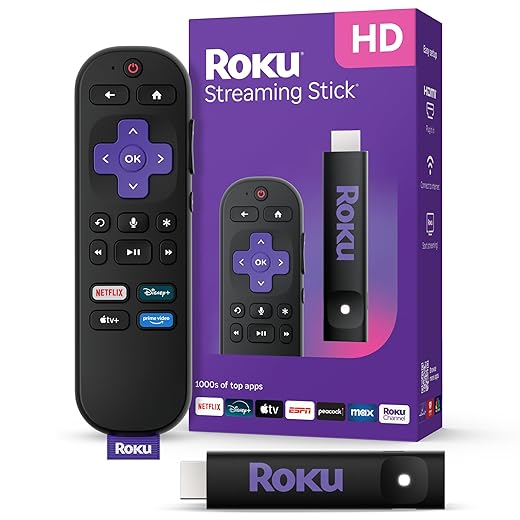
In practice, a three-to-four-year-old low-end stick that can’t decode AV1 or runs a slow UI is usually better replaced. Devices to consider: Roku Streaming Stick 4K for simplicity, Fire TV Stick 4K Max for value, Apple TV 4K for tight ecosystem work, NVIDIA Shield for power and sideloading.
Choosing an upgrade and thinking long-term
Prioritize what matters: codec/DRM support, a snappy UI, and openness (sideloading or developer modes). Balance cost versus expected lifespan and ecosystem lock‑in.
Resale and environmental notes
Sell, donate, or recycle — many retailers accept old devices for trade‑in. A quick trade‑in can offset replacement cost and keeps e‑waste out of landfills.
With that practical framework in hand, we can step back and look at how knowing the root cause guides better choices in the long run.
A better stream starts with knowing where the problem lives
Before we tear down routers or call support, we run a few focused tests to isolate the player: check bitrate, codecs, firmware, and park another device on the same stream. That quick diagnostic tells us whether hardware, software, network, or platform friction is the culprit and saves time and money.
Armed with that context, we can make cost-effective choices: tweak settings, push updates, or replace the player with one that fits our usage and future codecs. In a market now where streaming demands outpace devices, picking the right player matters more








