


One simple swap that clears the desk
We can clear a messy desk with one small change: replace a pile of chargers and adapters with a single‑cable USB‑C dock. That one upstream cable can carry power, display signals, Ethernet, and your USB peripherals. Plug once and your laptop becomes a desktop in seconds.
This isn’t a gimmick. Modern docks use standardized USB‑C and Thunderbolt links so a single connector handles multiple protocols. That matters now because laptops are thinner, ports are fewer, and home networks and monitors are more capable than ever. A dock simplifies the ecosystem and reduces daily friction.
We look at what these docks do, why the experience improves immediately, how to pick the right model, and when the trade‑offs mean a dock isn’t the best single upgrade. Our focus is practical: real gains for most modern desks with minimal spend and setup. No magic required here.
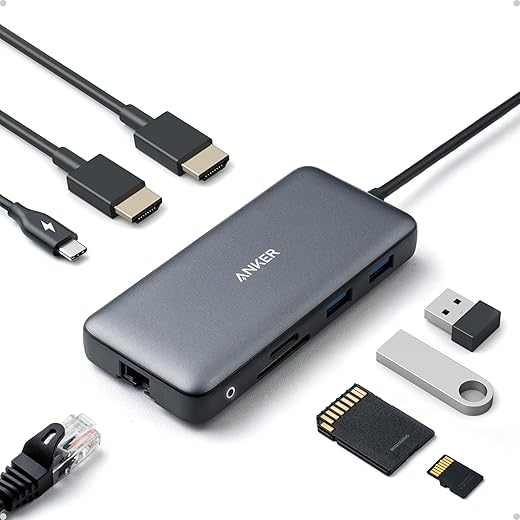
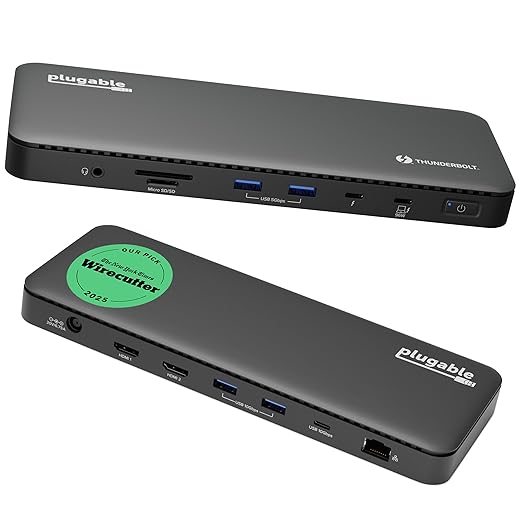
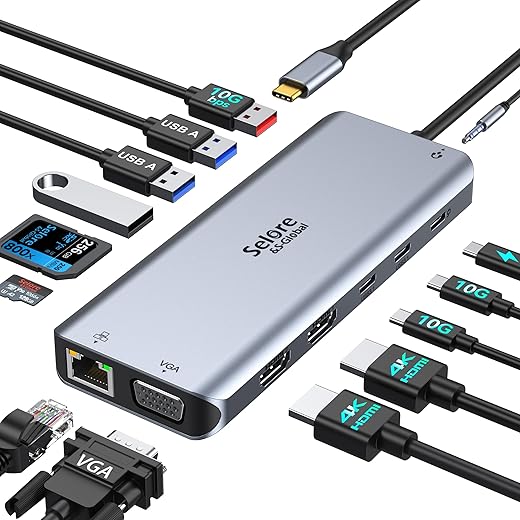

What a single‑cable dock does and how it actually works
We use “single‑cable dock” to mean a hub or docking station that connects to your laptop with one USB‑C or Thunderbolt cable and delivers power delivery (PD), USB data, video (via DisplayPort Alt Mode or native Thunderbolt), Ethernet, and audio. It’s the plumbing under the desk: one upstream pipe that splits into many downstream services so you don’t have to plug a half dozen dongles every morning.
Passive hubs vs active docks vs Thunderbolt docks (and PD‑only chargers)
A quick taxonomy helps avoid surprises:
How power, video, and bus bandwidth interact (and why it matters)
Three resources fight for space on that one cable:
Common pitfalls we see
Next, we’ll look at how this changes daily use and what you should expect when you swap to a single‑cable workflow.
Why this upgrade changes the day‑to‑day experience
We’ve explained what a single‑cable dock does. Now let’s talk about why swapping to one actually changes how we work every day — not just the look of our desks, but the feel, speed, and rituals of our routines.
Immediate, tactile wins
Docking becomes a single, fluid motion: plug one cable and the laptop springs to life — external displays, keyboard, Ethernet, and power all connected. That single gesture replaces the morning ritual of hunting for chargers and juggling adapters. We notice fewer trips to swap power bricks, fewer startled searches for the right HDMI dongle, and fewer “did I unplug the speaker?” moments when we move.
Visual and physical decluttering
A dock clears visual clutter fast. Without a spaghetti pile of cables, cleaning the desk is easier and quick dusting actually happens. Hiding a compact unit (we’ve used the CalDigit TS4 and Plugable TB4 dock as examples) behind a monitor or under a monitor arm makes the workspace feel intentional, not accidental.
Psychological and workflow benefits
A tidy workspace helps us focus. Removing cable noise creates a clearer mental boundary between work and home — we can close a laptop and literally walk away without dragging a tangle with us. For hybrid workers switching between home and office, single‑cable docks make transitions low-friction: we dock, focus, undock, go.
Design details that affect results
Not all docks deliver the same experience. Consider:
Practical tips we use
These everyday changes — speed, cleaner space, and fewer interruptions — are why one simple swap feels like a small revolution. Next, we’ll walk through how to pick the dock that delivers those outcomes for your exact setup.
How to choose the right dock for your setup
Picking a dock isn’t a one‑size‑fits‑all purchase. Below is a pragmatic checklist we use — quick, testable things to match a dock’s specs to our real workflows so the single‑cable promise actually works.
Compatibility: Thunderbolt vs USB‑C, macOS vs Windows
Start here: what your laptop actually supports. Thunderbolt/USB4 gives the highest bandwidth and multi‑display reliability; plain USB‑C (USB 3.x) is fine for single displays and peripherals.
If the vendor lists Thunderbolt 3/4 or USB4 compatibility with your OS and model, that’s a good sign. If not, call support.
Power delivery: wattage and passthrough vs dedicated PSU
Match the dock’s PD rating to your laptop’s charger. Many ultrabooks are happy with 45–65W; bigger workstations want 90–140W (PD 3.1 is expanding higher wattage support).
Display support: what “4K” actually means
Look beyond “4K supported.”
Ports and protocol limits
List the ports you actually use daily: Ethernet, SD card, USB‑A, audio in/out, microphone, and a spare upstream port.
Bus‑powered vs externally powered, and cable quality
Bus‑powered is compact and cheap — good for basic work and travel. For multi‑monitor setups and power hungry laptops, pick an externally powered dock.
Always use the supplied or a certified Thunderbolt/USB4 cable. Long, cheap cables often throttle to 20 Gbps or disable charging.
Where to spend vs save
Spend on docks from companies that provide firmware updates, documented compatibility (CalDigit TS4, Plugable TB4/UDZ, OWC), and decent warranties. Save on slim USB‑C hubs if your needs are light: phone charging, a keyboard, and a single 1080p monitor.
Next, we’ll take that chosen dock off the spec sheet and into the room: step‑by‑step setup, integration tips, and troubleshooting tricks to make the single‑cable life reliable.
Setting up, integrating, and troubleshooting a single‑cable workflow
We’ve picked a dock; now we make it live. These are the practical steps and small rituals that turn a pretty piece of hardware into a stable, everyday hub — the sort of things you wish someone told you before you moved your monitor.
Physical placement and cable routing
Place the dock where you’ll actually reach it: under the monitor stand, at the side of your desk, or tucked behind a monitor arm. Route the upstream cable (the one to your laptop) with a short velcro tie so it’s easy to unplug for travel but can’t snag. Keep the power brick near a surge protector and avoid running Ethernet and power in the same tight conduit to reduce interference.
Order of connection (it matters)
We recommend this sequence for the fewest headaches:
This order prevents peripherals from drawing power or being enumerated before the dock’s firmware and drivers are ready.
macOS and Windows driver quirks
On macOS, grant kernel‑extension or system‑extension permissions in Security & Privacy immediately after installing DisplayLink or vendor drivers; reboot when requested. On Apple Silicon, prefer Thunderbolt docks or official DisplayLink builds — older DisplayLink versions behaved inconsistently. On Windows, update chipset/USB drivers (Intel, AMD) and use Device Manager to manually reinstall unknown devices if a port disappears.
Keep vendor updater apps (CalDigit Utility, Plugable Firmware Tool, OWC Dock Updater) on hand and check firmware quarterly — many docking bugs are firmware issues, not hardware failures.
Sleep, multi‑OS docking, and displays
If displays don’t wake reliably, try toggling the dock’s firmware PSU mode (if available), or disable “Allow Bluetooth devices to wake this computer” on Windows. For multi‑OS setups, keep a small policy: one curated driver stack per OS and a travel cable. Display rules: prefer DisplayPort/DP‑ALT over HDMI when using MST/daisy‑chain.
Battery longevity and power management
Match PD wattage to your laptop’s charger. If you regularly run CPU/GPU loads, consider a dock with an external PSU or supplement with the OEM charger. For everyday battery health, avoid constant 100% charging — use macOS Battery Health or Windows battery settings to cap charge when docked.
Quick troubleshooting flows
Check PD: confirm dock reports expected wattage in system info.Swap cable: test with a known‑good Thunderbolt/USB4 cable.Isolate: unplug all peripherals; add them back one at a time to find the culprit.
If all else fails, reboot the dock (power cycle), then the laptop — that sequence unglues most stubborn peripheral states.
Alternatives and trade‑offs: when a dock isn't the right single change
When we step back, a single‑cable dock is only one path to a neater desk. Depending on what we carry, how we travel, and how many machines we support, one of these other “one upgrades” can actually do a better, cheaper, or simpler job.
Multiport GaN chargers — for phone‑first, travel‑heavy setups
If most of your day is on a phone or tablet and you only occasionally plug in a laptop, a small GaN multiport charger can replace three bricks with a single 65–100W hub. It gives us simultaneous laptop + phone + accessory charging, fits in a carry case, and is far cheaper than a full dock.
When it wins: you travel, you work from cafés, or you use your laptop on battery most of the time. Tip: pick one with one high‑watt USB‑C PD port (65–100W) and at least one spare 20–30W port for phones.
USB‑C monitors that consolidate power and display
A monitor with USB‑C upstream that supplies 60–100W acts like a mini‑dock: display, power, and a few USB ports in one cable. The trade‑off is fewer ports and usually lower Ethernet/audio flexibility than a full dock, but it’s cleaner and often cheaper than a dock + monitor combo.
When it wins: you want the cleanest visual setup, only one external display, and you mostly use consumer‑grade peripherals. Look for monitors that advertise 90–100W PD if you have a power‑hungry laptop.
KVMs — for multiple desktops in the same work area
If we regularly switch between two desks or two PCs (home office + work machine), a hardware KVM (USB‑C or HDMI/USB) can be smarter than a dock. It swaps keyboard, mouse, and monitor between machines with little fuss, without trying to be a full hub.
When it wins: you need fast, reliable switching across multiple computers and want to avoid duplicate peripherals. Choose a KVM that supports your monitor’s resolution and any USB 3.x devices you rely on.
Wireless peripherals and Qi — when cables are the real nuisance
For very small desks, ditching wired input devices and adding a Qi pad can be transformative. Logitech MX Keys + MX Master, Apple Magic Keyboard/Trackpad, and a 15–30W Qi puck remove several cables at once. Wireless has battery maintenance trade‑offs and (rare) latency hiccups for gaming, but it’s silky for day‑to‑day typing.
When it wins: you value minimalism above having every port on tap, or you’re pairing across multiple devices frequently.
Quick decision checklist
Each option trims clutter differently. Next, we’ll wrap up with how to cut the cord responsibly.
Cut the cord — responsibly
For most of us with modern laptops and a stable workspace, switching to a single‑cable dock is the highest‑impact way to declutter: it consolidates power, display, and peripherals while aligning with USB‑C/Thunderbolt ecosystems. It matters because design and interoperability now favor integrated hubs, improving workflow.
Before buying, match power and display specs to your machine and weigh alternatives if your needs are unusual. Audit your desk: identify upstream power and displays, make swap for instant payoff.

Chris is the founder and lead editor of OptionCutter LLC, where he oversees in-depth buying guides, product reviews, and comparison content designed to help readers make informed purchasing decisions. His editorial approach centers on structured research, real-world use cases, performance benchmarks, and transparent evaluation criteria rather than surface-level summaries. Through OptionCutter’s blog content, he focuses on breaking down complex product categories into clear recommendations, practical advice, and decision frameworks that prioritize accuracy, usability, and long-term value for shoppers.






