


Why new laptops still get hot — the short version
We expect a brand-new laptop to be cool out of the box. When it isn’t, we feel let down: fans spin up, surfaces warm, and performance gets noisy. But heat alone isn’t always a defect; it’s often the result of deliberate design and market choices that prioritize thinness, battery life, or raw performance.
In this piece we explain how engineering trade-offs, firmware tuning, manufacturing realities, and software behavior combine to make new machines run warm. We’ll also show how chargers, docks and updates change thermal reality. Our goal is practical: help you understand why it happens, what it means for use, and when to treat warmth as a problem.


Design trade-offs: thinness, materials, and the limits of thermal architecture
Chassis and cooling volume
We start with the obvious: slimmer laptops have less internal volume for fans, heat pipes, and airflow. That matters because cooling is fundamentally about moving heat from a small hot chip into a larger area of air. When the chassis is a few millimeters thinner, engineers lose fan diameter, intake/exhaust length, and room for complex heat paths—so either temperatures rise or fans must spin faster.
Materials: feel versus thermal performance
The choice between aluminum and plastic isn’t just about looks. Aluminum conducts heat well, so it spreads waste heat across the lid and palm rest — which can make a laptop feel warm but helps avoid hotspots on the CPU. Plastic insulates, so surfaces stay cooler to the touch while internal temps can be higher. Think MacBook Air (aluminum, dissipates heat across the body) versus many budget plastic notebooks (stay cool on the outside but throttle sooner).
Fans, heat pipes, and the visible trade-offs
Bigger fans and multi-heat-pipe or vapor-chamber assemblies carry heat better, but they add thickness, weight, and cost. Manufacturers chasing thinness or a premium silhouette will often accept smaller fans and simpler heat pipes. The result: louder fan curves, higher surface temps, or earlier CPU/GPU throttling. We’ve seen this play out across ultralight thin-and-light machines versus thicker workstation and gaming models like the Dell XPS 15 versus a Razer Blade Pro.
What this means when you buy
Look for design cues and review notes rather than marketing slogans. Practical checks we use when evaluating models:
These trade-offs are deliberate. Understanding them helps you pick a laptop that matches your real-world expectations rather than the showroom aesthetic.
Firmware and power profiles: how aggressive performance tuning creates heat
How boost clocks and power limits actually work
When we boot a new laptop it often feels instant — that’s partly deliberate tuning. Modern CPUs and GPUs use “boost” behavior: they exceed their base clocks for short bursts while chips stay within a power (PL1/PL2) and thermal budget. OEM firmware (EC/BIOS) and drivers decide how big and how long those bursts can be. Push the PL2 ceiling high and the machine screams ahead — but it also creates short, sharp heat spikes and louder fans.
Why identical chips can behave like different machines
Two laptops with the same Intel or AMD chip can feel wildly different out of the box because vendors choose different defaults. Some ship with aggressive “Performance” modes in Armoury Crate, Dragon Center, or Lenovo Vantage that favor responsiveness; others default to “Balanced” to keep noise down. That choice affects boost ceilings, fan curves, and when thermal throttling kicks in — so a Ryzen 7 or Core i7 will run cooler and quieter on one brand and hotter on another.
Real-world consequences for everyday use
The upshot for us: a system tuned for immediate snappiness will often be warm or loud even during light tasks (browsing, video calls) because short boosts keep firing. And because firmware settings can be changed with a BIOS/driver update, the laptop’s feel can change after purchase — sometimes for the better, sometimes not.
Simple steps we use to tame aggressive tuning
Firmware is a big part of the thermal equation. Next, we’ll dig into manufacturing realities — the thermal paste, assembly tolerances, and other physical details that determine how well those firmware choices actually work in practice.
Manufacturing realities: thermal interface materials, assembly tolerances, and quality control
TIM: what’s between the chip and the cooler matters
Even when the design looks sound on paper, the choice and application of the thermal interface material (TIM) is a quiet determinant of real-world thermals. Manufacturers might use silicone pads, standard paste, premium pastes, liquid metal, or even soldered interfaces depending on cost and serviceability. A cheap pad or a spotty bead of paste can create micro‑air gaps that dramatically reduce heat transfer under sustained load. In our testing and in teardown reports, swapping or improving TIM is one of the most reliable ways to lower peak temperatures — but it’s not always user‑serviceable or warranty‑friendly.
Heat pipes, seating, and assembly nuance
Heat pipes and vapor chambers must be perfectly seated against the die and heatsink. Small misalignments, uneven pressure from screws, or soft mounting brackets can leave an uneven interface that only shows problems under extended workloads. We’ve seen units from the same production run with different screw torque or a slightly warped plate perform noticeably differently.
Production variability and the cost trade-off
Tighter tolerances cost money. OEMs balance price, yield, and speed: higher-volume runs may accept looser specs, and quality control sampling can miss outliers. That’s why two laptops of the same SKU — even with identical firmware — can behave very differently in your lap versus the review bench.
Practical steps we recommend
These manufacturing realities show why the hardware layer can introduce variance that firmware alone can’t fix — and why, sometimes, a hands‑on fix or return is the right next step.
Background software and drivers: the invisible CPU and GPU loads
Why software can heat a new laptop
We expect a new machine to be cool and quiet out of the box, but software often works harder than hardware on day one. During initial setup the OS, bundled utilities, and background services race to index files, sync clouds, run security scans, and apply updates. That transient flurry can look like a hardware problem because it drives sustained CPU and GPU activity that raises temperature and fan noise — a bad first impression even when the chassis and cooling are fine.
Common culprits we see
A brand-new Dell XPS or Lenovo Yoga can feel loud immediately because OneDrive and vendor apps are competing with Windows Update for resources. On Macs, Spotlight and Time Machine initial backups do the same.
How to diagnose and fix it right now
Start with lightweight detective work, then apply fixes:
These steps often turn a hot, noisy out‑of‑box experience into a calm one within an hour or two.
User context and real-world use: surfaces, posture, and ambient conditions
Why placement matters
Not all heat starts inside the silicon — a lot of it is about where we put the laptop. Soft surfaces (sofas, beds, laps) crush air intakes and trap hot exhaust. Even a slight tilt that seals vent cutouts can turn a normally quiet MacBook Air or XPS 13 into a blower. Manufacturers test on flat, hard surfaces; our couches and airplane trays are not part of that lab.
Bright screens, extra displays, and peripherals
We often equate “new laptop” with “high-performance,” then stack it: max brightness, an external 4K monitor, Bluetooth audio, and a dock. Each of those increases sustained power draw — screen backlights and GPU outputs are real heat sources. Ultraportables (MacBook Air, Dell XPS 13) lack the chunky cooling of a Razer Blade or Legion; they trade headroom for silence and weight. In our experience, adding an external monitor or running 120% brightness is where thin machines stop feeling “cool.”
Lap use and thermal perception
Thin metal cases feel warmer because they transfer heat to our skin more efficiently. A thin aluminum chassis that disperses heat well is excellent for thermals, but it will also make our legs notice temperature changes sooner than thick plastic or well‑vented gaming laptops did. Posture matters too — hunched over blocks airflow and concentrates heat under the keyboard.
Practical, immediate fixes we use
If a device still has persistent hotspots, throttling, or fan behavior inconsistent with these tests, that’s when we consider a warranty claim or service inspection.
Ecosystem interactions and post-purchase changes: chargers, docks, updates, and the path to fix
Chargers: wattage, cables, and the power you invite in
A laptop’s thermal story doesn’t end at the hinge — it starts with the brick. When we swap the OEM charger for a higher‑watt third‑party unit, we’re effectively allowing the machine to draw more sustained power. That can mean faster clocks, higher GPU boost, and more heat. Equally important: not all USB‑C cables are created equal. A cheap cable that isn’t rated for 100W can throttle charging and create confusion about why the device is running hot. Our rule: match the manufacturer’s wattage and use e‑marked cables for high-power chargers.
Docks, eGPUs, and steady-state strain
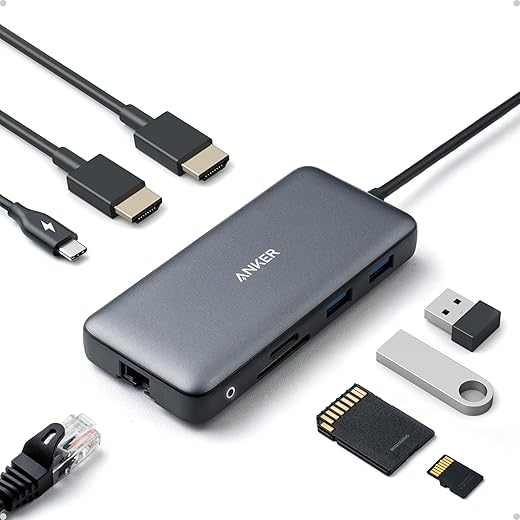
Docks are convenience incarnate, but they change the workload profile. A USB‑C hub that feeds 4K displays, Ethernet, NVMe enclosures, and a phone creates a small data center on your desk — and your laptop’s SoC has to service it. Add an external GPU over Thunderbolt and you’re running sustained GPU loads that compact cooling wasn’t designed for. The result is prolonged high temps rather than brief spikes.
Firmware updates: the “it runs warm, now it doesn’t” story
Manufacturers frequently ship with conservative or aggressive default curves and then refine them post‑launch via BIOS/EC and driver updates. We’ve seen vendors push firmware that softens boost behavior or alters fan ramps to reduce perceived warmth. So a laptop that felt hot out of the box may cool down after a few updates — and sometimes an update can make things worse, which is why rollback options matter.
Practical troubleshooting checklist
These ecosystem checks often reveal the easiest fixes. From here, we’ll pull together what this means for buying, using, and judging a new laptop in the market.
What we take away — reasoning and recommendations
We close knowing that overheating on new laptops is rarely a defect and usually the outcome of deliberate trade-offs across thinness, materials, firmware tuning, manufacturing and software. That matters because manufacturers optimize for different buyers: ultraportables chase thinness and noise, performance models chase sustained throughput, and balanced machines favor thermal headroom.
If a new machine runs hot, check power profiles and firmware, monitor background processes, try standard workloads, and use hard surfaces or a stand. Those checks clarify whether behavior is by design or repairable — and make us smarter shoppers next time.

Chris is the founder and lead editor of OptionCutter LLC, where he oversees in-depth buying guides, product reviews, and comparison content designed to help readers make informed purchasing decisions. His editorial approach centers on structured research, real-world use cases, performance benchmarks, and transparent evaluation criteria rather than surface-level summaries. Through OptionCutter’s blog content, he focuses on breaking down complex product categories into clear recommendations, practical advice, and decision frameworks that prioritize accuracy, usability, and long-term value for shoppers.







