


Why your monitor might be the weakest link
We obsess over GPUs and CPUs, but a monitor can be the difference between winning and just looking good. Studies show display lag and poor frame timing can erase milliseconds of advantage; in practical terms, that turns precision shots into guesswork. We’ll look past pixel counts to what actually shapes play: resolution and pixel density, refresh cadence and frame timing, latency and adaptive sync, color and HDR fidelity, ergonomics and UI, and long-term firmware and feature support.
This article breaks down each area—how it affects competitive feel, immersion, and system fit—and gives clear guidance on choosing a display that makes our rig perform like it should. We’ll also weigh price versus practicality.


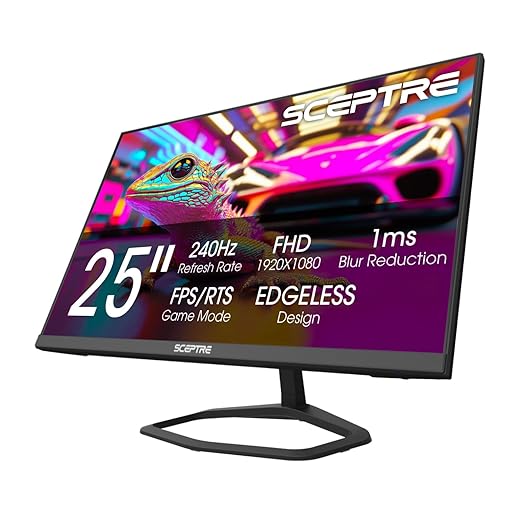

Resolution and pixel density aren’t the whole story
It’s tempting to think “more pixels = better monitor,” but that shortcut misses the practical trade-offs we live with. Resolution matters for clarity and immersion, but pixel density, viewing distance, and the framerate our GPU can sustain are the real pieces that determine whether those extra pixels actually help us play better.
Pixel density and where we sit
Pixel density (PPI) determines perceived sharpness more than raw resolution. A few quick anchors:
If we sit close to a 27″ screen, 1440p already looks crisp; 4K only adds value if we want tiny UI elements or plan to sit very close.
GPU load and the FPS cost
Doubling resolution ≈ doubling pixel work. In practice, moving from 1080p → 1440p or 1440p → 4K can slice achievable FPS dramatically. That’s not just numbers on a spec sheet — lower FPS or stuttering changes aim timing and feeling in competitive games. We’ve seen modern GPUs handle 4K/60 in many single-player titles, but hitting 144Hz at 4K is a very different, much costlier target.
Upscaling tech (NVIDIA DLSS, AMD FSR, or in-game upscalers) can rescue framerates, often with visual quality close to native at a fraction of the cost. They’re increasingly reliable, but implementation varies by game.
Practical heuristics — what to pick
Next up: even with the right pixel count, refresh cadence and frame timing decide whether those pixels feel smooth — and that’s where the monitor’s refresh specs start to matter.
Refresh rate, frame timing, and the illusion of smoothness
Why the number alone doesn’t tell the whole story
Refresh rate is the headline spec we obsess over—144Hz, 240Hz, 360Hz—but what actually changes our aiming and tracking is how consistently frames arrive. Two systems both showing “240 FPS” can feel very different if one produces steady 4.2 ms frame times and the other swings between 2 ms and 8 ms. Lower frame-time variance reduces micro-stutters and makes small mouse corrections feel reliable; that’s the real win for competitive play.
Motion blur reduction and overdrive: trade-offs to understand
Manufacturers add tricks to make motion look crisper: backlight strobing (ULMB, ELMB) and aggressive pixel overdrive. Strobing reduces perceived blur dramatically by slicing visible persistence, but it typically dims the image and can conflict with variable refresh. Overdrive speeds pixel transitions but push it too far and you get inverse ghosting—bright, trailing coronas around moving objects. We test both in-game: enable strobe, scan different brightness levels, then watch for artifacts during fast pans.
When FPS and refresh don’t align
If FPS > refresh, you’re wasting frames; if FPS < refresh, you can get tearing or stutter unless VRR (G-Sync/FreeSync) is active. VRR smooths mismatches but relies on GPU/drivers and game support. If VRR isn’t an option, cap your FPS a few frames under the monitor’s refresh (use RTSS or an in-game limiter) to get more consistent delivery.
Quick, actionable checklist
Latency, adaptive sync, and the feel of control
What “latency” actually means for us
Latency isn’t a single spec on a product page. It’s the sum of input lag (mouse/button to GPU), frame rendering delay, and display processing. For a competitive player that “feel” — the instant your aim corrects when you flick — is what matters more than any isolated millisecond claim.
Where monitors add time
Several parts of the monitor’s pipeline can add measurable delay:
Large 4K desktop monitors and many HDR-capable panels often include scalers and extra processing that feel slower compared with stripped-down esports screens like the ASUS ROG Swift PG259QN or Alienware AW2521H, which prioritize minimal pipeline delay.
Adaptive sync and its trade-offs
FreeSync and G-Sync smooth mismatched FPS, but their behavior depends on GPU/drivers and monitor firmware. Variable refresh reduces tearing and perceived judder, yet at very low FPS VRR often uses Low Framerate Compensation (LFC) or frame repeats — improving smoothness but sometimes adding a few milliseconds of latency. Driver-level solutions (NVIDIA Reflex, AMD Anti-Lag) also interact with monitor behavior; you get the best result when GPU-side low-latency features and the monitor’s low-latency mode are both enabled.
Practical, immediate steps
Next up we’ll look at how color processing and HDR pipelines can further complicate that balance between picture and responsiveness.
Color, HDR, and the shape of what we see
Panel types — trade-offs that change scenes
Resolution tells part of the story, but panel chemistry changes everything we actually notice. IPS gives us wide viewing angles and consistent color — great for cooperative couch play or sharing the screen — but its blacks are grayer than VA or OLED. VA panels (Samsung Odyssey G7-style) deliver deeper blacks and higher contrast, which can make shadowed enemies pop, but they can suffer from slower transitions and color shift at extreme angles. OLED hands you the truest blacks and instantaneous pixel response, at the expense of potential burn-in and usually higher price. Which one “feels” better depends on how we play, sit, and what we value: contrast for immersion, or consistency for accuracy.
Why HDR on monitors often falls short
HDR promises a richer image, but real-world results hinge on three things: peak brightness, local-dimming implementation, and tone-mapping. Many monitors tout high peak nits but achieve them only for tiny highlights; edge-lit local dimming can create haloing around bright objects; and games or consoles tone-map differently, so HDR can be too dark, too flat, or blown out depending on the title and OS pipeline.
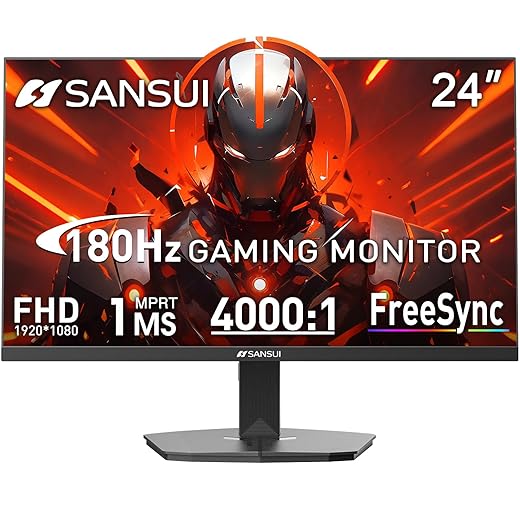
Why color accuracy matters for play
Accurate color and reliable contrast aren’t just for creators. When hues are off, enemy models can blend into backgrounds; correct saturation and gamma help us pick out movement and detail faster, reduce eye strain during long sessions, and deepen immersion when lighting behaves like real light.
How to read claims and what to do now
Ergonomics, UI, and how the monitor fits our setup
Physical fit and posture
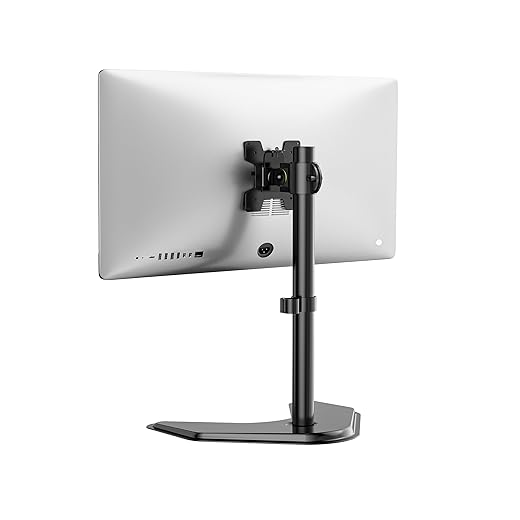
A monitor is furniture as much as electronics. Tilt, swivel, and especially height adjustment change whether we crane our necks after a marathon session. Check for true height range and portrait tilt if you use chat windows or vertical code. VESA compatibility isn’t optional — an arm lets us reclaim desk space and align multi-monitor arrays quickly.
Ports, passthroughs, and device juggling
Port selection often determines daily convenience more than raw specs. Prioritize:
If we switch between laptop, console, and capture gear, KVM or picture-by-picture (PBP/PiP) can save minutes of unplugging cables. Models like Dell’s UltraSharp line or LG’s higher-end screens combine USB‑C docking and KVM-like switching — useful when our desk is both battle station and home office.
OSD, firmware, and companion apps
On-screen menus and companion software shape the everyday experience. A tactile joystick plus a clear OSD speeds configuration; clunky menus and underpowered firmware frustrate us. Look for regular firmware updates and apps (e.g., LG OnScreen Control) that let us manage split screens, update microcode, or change color presets from the desktop.
Practical tips we can use today
These day-to-day choices determine whether a monitor disappears into the background or becomes a source of friction — next, we’ll examine how features and firmware age over a monitor’s lifecycle.
Features, firmware, and the monitor lifecycle
Long after we buy a monitor, the maker’s software decisions and support policies define how useful it stays. Shipping firmware can leave artifacts — odd color shifts after sleep, VRR quirks with specific GPUs, or unexpected ghosting — and whether those get patched matters more than a single spec-sheet number.
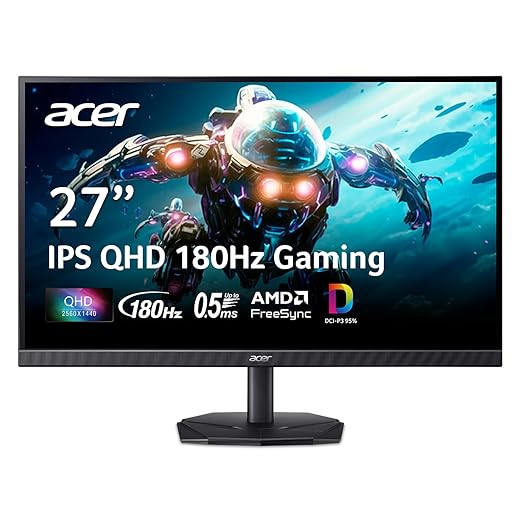
Firmware, compatibility, and real-world fixes
We’ve seen vendors push firmware that fixes HDMI 2.1 handshake problems or smooths out VRR stuttering between AMD and Nvidia drivers. Before buying, check changelogs and community threads: a history of post‑launch patches signals a manufacturer that listens. Quick tip: search for “firmware update” plus the model name and read release notes for stability, not just new features.
Features that actually help (versus marketing)
Features can be useful — or just noise. In our experience:
Evaluate feature claims by asking whether they improve day-to-day usability or simply look good in marketing shots.
Longevity, repairability, and warranty
Panel risks vary: OLED-like emissive panels face burn‑in; LCDs can suffer backlight or uniformity drift. Warranty and pixel policies matter. Prefer at least a two‑year warranty, transparent pixel defect rules, and accessible service centers. Brands with modular stands or swappable boards make repairs cheaper and resale value higher.
Buying tactics that reduce lifecycle risk
Understanding post‑purchase support often saves more frustration (and money) than chasing the newest spec. Next, we’ll pull these threads together and talk about matching a monitor to what we actually do.
Match the monitor to what we actually do
We should stop chasing single headline specs and match displays to priorities: competitive play needs low, consistent latency and high refresh; immersive single‑player benefits from resolution, color depth, and HDR tone mapping work. Consider how refresh, pixel density, latency, color accuracy, ergonomics, and firmware interact with GPUs, consoles, and game engines — ecosystem shapes real-world gains, not bullets.
Checklist before buying: target refresh & frame pacing for your playstyle; confirm GPU/console throughput; test HDR and color presets; check stand, ports, and firmware policy. Choose the monitor that removes bottlenecks, not creates them.

Chris is the founder and lead editor of OptionCutter LLC, where he oversees in-depth buying guides, product reviews, and comparison content designed to help readers make informed purchasing decisions. His editorial approach centers on structured research, real-world use cases, performance benchmarks, and transparent evaluation criteria rather than surface-level summaries. Through OptionCutter’s blog content, he focuses on breaking down complex product categories into clear recommendations, practical advice, and decision frameworks that prioritize accuracy, usability, and long-term value for shoppers.








