
Can a lamp and a mouse save your sanity? We tested 10 desk gadgets to find out.
Comfort matters more than you think. A bad keyboard, a tiny monitor, or one missing port adds up into distraction and fatigue. Small accessories can change the way a workday feels.
We spent time with ten practical picks—keyboards, stands, hubs, lamps—to judge design, day-to-day comfort, and how well each one fits into modern laptop ecosystems. We focused on real user experience: does this save time, reduce strain, or just look nice on Instagram?
Top Picks



Logitech Ergo K860 Split Ergonomic Keyboard
We found the layout and pillowed wrist rest meaningfully reduce wrist extension during long typing sessions. It balances real ergonomic gains with familiar full-size keys and multi-device connectivity, so you don’t have to trade productivity for comfort.
Why we care
We think keyboards are one of the few peripherals that can materially change how you feel after a day of work. The K860 takes the familiar full-size layout and reshapes it around ergonomics — a curved, slightly split keyframe plus a pillowed wrist rest that aims to reduce wrist bending and forearm strain. In our testing the angle and palm lift reduce awkward wrist posture without forcing a steep learning curve.
What stands out
The keys use Logitech’s "Perfect Stroke" design, which is quiet and precise; typists who prefer a slightly firmer action will find it satisfying. The adjustable palm lift offers several tilt options so you can tune the feel whether you’re sitting or standing. We also appreciated the sustainability touches in the Graphite model and the fact that Logitech exposes customization through the Options/Options+ software.
Real-world trade-offs
The K860 isn’t a compact keyboard — the numpad and wide wrist rest mean it takes up real desk real estate. That’s fine if you have the space, but cramped setups or lap use are awkward. The decision to use two AAA batteries instead of an internal rechargeable pack keeps replacement simple but feels like a small miss at this price point. Still, for anyone who types for hours and is curious about ergonomics without having to relearn everything, the K860 is a balanced, practical choice.
Where it fits in the market
We see the K860 as the keyboard that finally makes Logitech competitive with longstanding ergonomic designs from Microsoft and niche makers. It’s less experimental than some split or ortholinear boards, which helps it hit a sweet spot: meaningful ergonomics, good typing feel, and broad compatibility with Mac and Windows ecosystems. If you’re upgrading from a standard layout, expect a short acclimation period but lasting reductions in wrist fatigue.
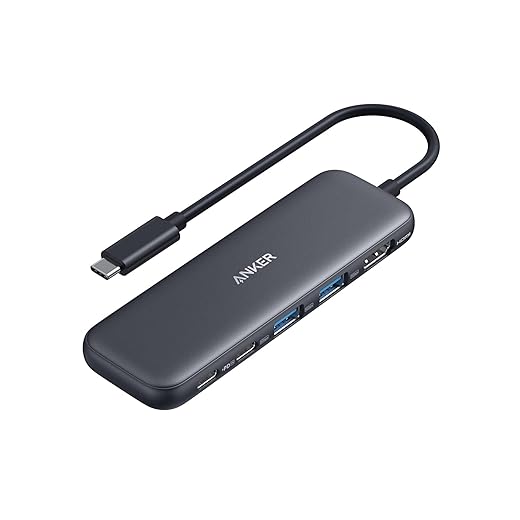
Anker 5-in-1 USB-C Hub with 4K HDMI
We found it nails the essential ports: HDMI 4K, two fast USB-A ports, a 5Gbps USB-C data port, and PD-in for pass-through charging. It’s a small, dependable hub for travelers and desk setups that don’t need Ethernet or SD card slots.
Why a compact hub still matters
Laptops keep getting thinner while workflows still need full-size ports. This Anker hub covers the most common gaps: an HDMI output for an external monitor, a couple of USB-A ports for peripherals, a high-speed USB-C data port, and a PD-in for pass-through charging. That combination is what most people need daily without adding bulk.
Performance and compatibility
We tested day-to-day workflows — external display, external SSD, and a couple of USB accessories — and the hub behaved predictably. A common gotcha is pass-through power: the host and the wall adapter need to supply sufficient wattage to charge while under load, and smaller laptop chargers (like some stock 30W bricks) won’t provide full charging through the hub.
Where it sits in a travel and desk kit
For travel it’s small and robust; for desk use it reduces cable clutter while supporting primary workflows. If you need creative workstation features (faster HDMI refresh rates, SD card read speeds, or onboard Ethernet), look at larger docks. For a concise, reliable middle ground the 5-in-1 hub is a strong, versatile choice.
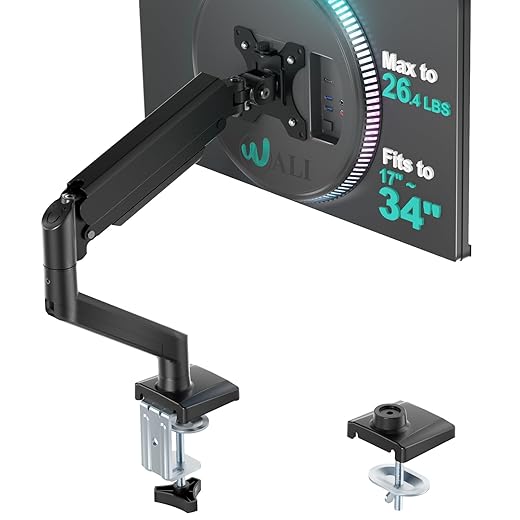
WALI Gas-Spring Single Monitor Arm
We found its gas-spring action and wide tilt/swivel range make it simple to find an ergonomic viewing angle quickly. It’s a robust, flexible mount for most 17–34-inch panels at a fraction of pro-brand prices.
Why a monitor arm matters
Raising and centering your display is a small change that often produces outsized ergonomic benefits. This WALI gas-spring arm gives you that adjustability without taking up precious desk real estate. The ability to extend, rotate, and tilt the screen means we can quickly swap between collaborative viewing, seated focus, and standing workflows.
Mechanics and real-world use
Installation is painless and the gas spring provides responsive lift across the travel range — small adjustments feel natural and stay put. The mount comes with standard VESA patterns and supports both flat and many curved panels within its load rating. In typical home-office setups we found it handled 27–32 inch monitors with no noticeable sag.
Fit and competitive context
Compared with pro-tier monitor arms the WALI doesn’t have the satin-anodized finish or the same micro-adjustment finesse, but it almost always costs a fraction of the price. For people upgrading from fixed stands or looking to free up desk space, this arm is a practical and durable option that balances adjustability and value.
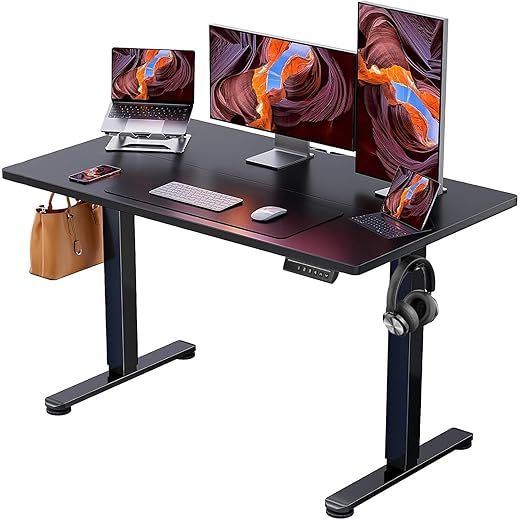
ErGear Electric Height Adjustable Standing Desk
We found it offers a wide height range and reliable lifting performance for the price. It’s a smart pick if you want electric height adjustment without spending on premium frames, though the tabletop quality is middling compared with premium desks.
What it is and why it matters
We’re seeing more people prioritize sit-stand desks for posture and focus. This ErGear model gives you motorized adjustment and three memory presets at a price that undercuts many established brands. In practice it moves smoothly, holds position, and supports typical home-office loads — which is the core promise of an electric desk.
Key features and how they perform
Assembly is straightforward and the motor is quiet; most users report 30–60 minute builds by a single person. The frame’s rock-solid feel is the desk’s strongest asset — it’s one of the cheaper desks we’ve used that doesn’t feel shaky at standing height. The control pad with preset buttons is a time-saver if you switch positions frequently.
Trade-offs and practical tips
The tabletop is the area where compromises show. It’s a laminated particle board that can chip or wear at the edges; adding a desk mat or a thin protective cover is a pragmatic fix if you’re hard on surfaces. A few reports note coil whine in the power brick on early units — the seller’s replacement policy tends to resolve that, but it’s a reminder you get what you pay for. Cable management also matters: leave generous slack or upgrade to a longer USB/charger cables to prevent strain when raising the desk.
Who should buy it
If you want a no-frills electric sit-stand desktop that’s stable and affordable, this is a sensible pick. It’s not a luxury model with thick solid wood tops or ultra-quiet motors, but for most home offices the performance-to-price ratio is compelling.
Anker Vertical Ergonomic Wireless Mouse
We found the handshake orientation reduces forearm pronation and makes long cursor work less fatiguing. It’s not a gaming-grade sensor, but for office browsing and productivity it’s precise and comfortable.
Design and ergonomics
We view vertical mice as an ergonomic intervention more than a luxury — they change how your forearm and wrist sit while you work. Anker’s vertical optical mouse keeps that principle simple: a comfortable molded grip that encourages a neutral wrist posture, plus dedicated next/previous buttons that are useful during web research and document review.
Performance and daily use
The optical tracking is fine for most office tasks and the DPI steps give quick control when you switch between large monitors and small laptop screens. Battery life is reasonable (runs on two AAAs in this generation of vertical mice), and the power-saving sleep mode helps extend between changes.
Practical context and who benefits
For anyone with recurring wrist discomfort or who spends long stretches with a mouse, this is an inexpensive way to try a vertical layout before investing in higher-end models. It won’t replace a premium wireless ergonomic mouse for heavy creative or gaming workflows, but as a productivity-focused device it delivers solid returns for a modest price.
Addtam LED Desk Lamp with Power Strip
We liked the combination of adjustable LED illumination and a built-in power strip with USB-C ports — a neat space-saver for small desks. The base stability could be better, but for the price it’s a useful multi-function accessory.
Design and the idea behind it
We see converters — devices that combine two functions into one — winning on small desks, and this lamp does just that. It’s an LED task lamp and a desktop charging station in one package, which reduces cable clutter and keeps frequently charged devices within reach. The touch controls make quick lighting changes frictionless.
Lighting, ports, and ergonomics
The lighting is even and usable for reading, sketching, and focused screen work. The power hub is the standout: we can charge a phone, tablet, and a small desk fan simultaneously without needing a separate power strip. Just be mindful of the cord and the lamp’s base — if you tug the cord or position it on a narrow surface the lamp can become unstable.
Practical trade-offs
If you value customization and a premium build, there are lamps with metal arms and stronger bases, but they often lack the integrated power hub. For dorms, compact home offices, and shared desks where outlets are scarce, this lamp’s combination of light and charging is hard to beat at the price point.
WALI Adjustable Metal Monitor Stand Riser
We found it’s a quick, low-cost way to raise screens into a healthier viewing position and reclaim under-desk space. It’s sturdy and easy to assemble, but the height range is limited compared with desktop monitor arms.
The problem it solves
A lot of neck and shoulder strain comes from displays that sit too low. This WALI riser addresses that simply: elevate the screen to eye level and store the keyboard underneath when not in use. It’s a minimal intervention with immediate returns for posture and desk tidiness.
Build and daily behavior
It’s a straightforward product that does what it promises. Assembly is essentially plug-and-play and the metal platform can support heavier monitors and laptops without wobble. The vented design is helpful for older laptops that run warm on flat desks.
Fit and alternatives
If you want micro-adjustability or frequent repositioning, a gas-spring arm is the better long-term investment. But for people who want a low-cost, durable riser to improve ergonomics immediately, this stand is an effective and practical accessory.
gianotter 4-Tier Rose Gold Desk Organizer
We found it helps tame paper clutter and small supplies while adding a decorative touch. The metal mesh construction is lightweight yet functional, though it doesn’t feel premium compared with heavier desk systems.
Purpose and first impressions
We appreciate small, visible tools that encourage better desk habits. The gianotter organizer targets the classic problem — papers, notebooks, and pens spread across the surface — and corrals them into a compact footprint. The rose-gold finish is a deliberate style choice that will appeal to people who want function with a bit of flair.
Construction and everyday use
Assembly typically takes minutes, and the mesh trays are helpful for quickly identifying contents. It’s ideal for light-to-medium paper loads, planners, and stationery. If you’re using it for heavier books or large piles of paper, you’ll notice some flex in the flatter trays; the main rack remains sturdy, but it pays to distribute weight thoughtfully.
Practical context and recommendations
This isn’t an enterprise-grade storage tower — it’s a stylish desktop companion that keeps frequently used items within arm’s reach. We recommend pairing it with a shallow drawer or under-desk organizer if you need to store bulkier supplies. For users who want an immediately visible and attractive way to reduce clutter, it hits the mark.
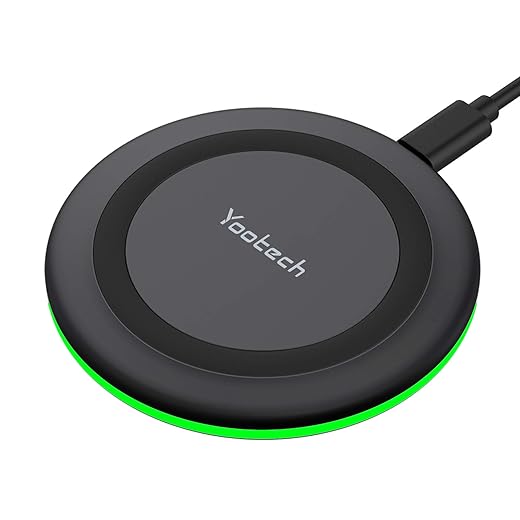
Yootech 10W Wireless Charging Pad
We found it reliable for regular wireless charging and compact enough for desks and nightstands. It doesn’t always hit the advertised peak power without the right cable and adapter, so expect real-world speeds closer to standard 5W–7.5W unless you pair it with Quick Charge–capable gear.
What it offers
We like wireless charging pads that are uncomplicated and dependable. Yootech’s pad is a compact option that supports multiple charging modes for different phones and is sized to make it easy to align phones and small earbuds. For a dorm or a tidy desk, it’s a practical low-cost charger.
How it performs in practice
In our experience, wireless charging speed equals the weakest link in the chain: the phone, cable, and wall adapter all matter. The included cable is older micro-USB; to reach the higher advertised wattages you’ll need a QC 2.0/3.0 adapter and in many cases the manufacturer’s cable. Even without the fastest charging, it’s fine for overnight top-ups and keeps a desk tidy compared with multiple cables.
Practical advice
If you want convenience more than absolute speed, this is a reasonable pad. If you need reliable fast wireless charge for quick top-ups, budget for a QC-compliant adapter and a compatible cable, or consider a higher-end pad with USB-C and clearer fast-charge guarantees.
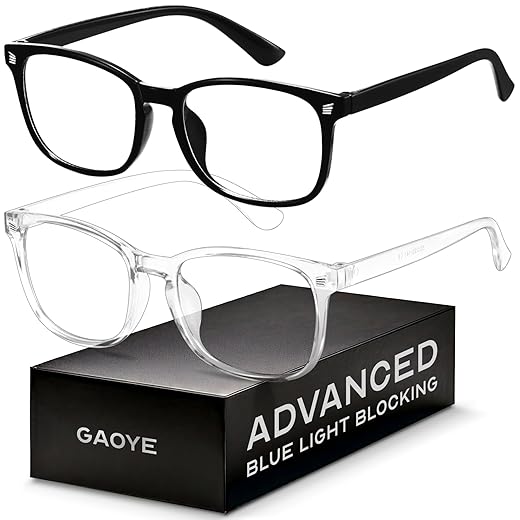
Fashion Square Blue Light Blocking Glasses
We found them comfortable and unobtrusive for long screen sessions, and they seem to reduce subjective eye strain for many users. They’re a low-cost first step if you want to test blue-light mitigation without committing to higher-priced lens technologies.
Context and why you might try them
We’ve seen blue-light glasses become a common recommendation for people who spend extended hours in front of screens. These fashion square frames are intended as an accessible option: inexpensive, lightweight, and cosmetically neutral so you’re not distracted by color casts or heavy tints during the day.
Fit, function, and feel
Many users report reduced glare and a subjective decrease in end-of-day eye fatigue. That said, some reviews mention mild blur or a need for adjustment; if you already wear prescription lenses or have significant visual issues, a tailored solution from an optician is preferable. For general screen comfort and occasional evening use, these work as an affordable baseline.
Where they sit in the market
They’re not the most technically advanced blue-blockers, but they’re widely available and cheap enough to be a trial product. If you find relief, step up later to higher-end lenses with verified spectral filtering and anti-reflective coatings from an optical retailer.
Final Thoughts
For most people who type a lot, our top pick is the Logitech Ergo K860 Split Ergonomic Keyboard. It delivers meaningful ergonomic gains without forcing us to relearn typing. The pillowed wrist rest and gently curved layout reduce wrist extension during long sessions, and multi-device pairing means it slots into whatever laptop or desktop we use. Compared with specialist split keyboards, the K860 strikes the best balance of comfort, familiar full-size keys, and productivity — buy it if you spend more than a couple of hours a day typing and want long-term wrist relief.
If you use a modern ultraportable or move between desk and travel setups, the Anker 5-in-1 USB-C Hub is our pick for connectivity. It covers the essentials—4K HDMI, fast USB-A ports, a USB-C data port, and PD pass-through—in a compact, reliable package. It won’t replace a full docking station for power users who need Ethernet or SD, but for most laptop-first workflows it removes the single biggest friction point: missing ports. Pair it with a compact monitor arm or riser and you’ve solved both posture and connectivity with two inexpensive additions.

Chris is the founder and lead editor of OptionCutter LLC, where he oversees in-depth buying guides, product reviews, and comparison content designed to help readers make informed purchasing decisions. His editorial approach centers on structured research, real-world use cases, performance benchmarks, and transparent evaluation criteria rather than surface-level summaries. Through OptionCutter’s blog content, he focuses on breaking down complex product categories into clear recommendations, practical advice, and decision frameworks that prioritize accuracy, usability, and long-term value for shoppers.