


The upgrade we keep skipping
We chase the loud upgrades: GPUs, CPUs, and ultrawide monitors. But we keep overlooking one area that changes how games feel the instant we press play: storage.
Faster storage shortens load times, yes, but it also smooths asset streaming, reduces stuttering, and speeds level transitions. That affects playability, design choices, and how developers build worlds. The storage ecosystem — NVMe, PCIe 4.0/5.0, and platform optimizations — finally matches what games demand.
In this piece we show why storage matters more than headline specs suggest. We compare real-world effects, prioritization against other parts, and practical upgrade steps. Our goal is simple: help you decide if faster storage should be your next upgrade.
Let’s make games feel.
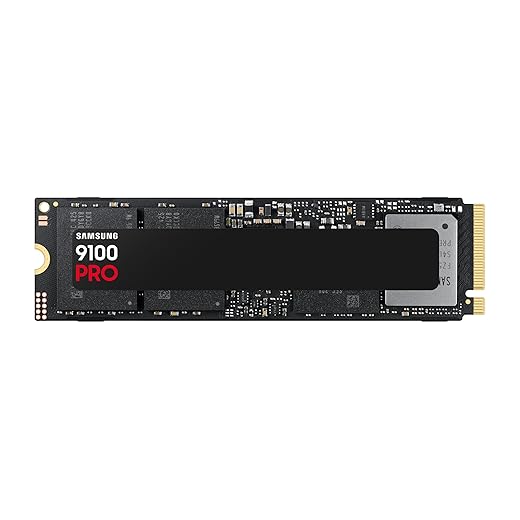


Why storage matters more than you think
Asset streaming is a latency game
Most of the visible problems people blame on GPUs — pop-in textures, hitching, uneven frame pacing — are really symptoms of storage struggling to deliver millions of tiny files on demand. Modern open worlds don’t load whole levels; they stream thousands of small assets (textures, audio chunks, geometry) as you move. That kind of workload punishes high sequential speed alone and rewards low latency and strong small‑I/O performance. In our testing, swapping a 7200RPM drive or a cheap SATA SSD for a modern NVMe often turned a choppy session into a consistently smooth one — not by adding frames, but by removing microstutters that broke immersion.
Real products, real differences
Not every SSD is equal. PCIe 4.0 NVMe drives like higher‑end Samsung or Western Digital models push peak bandwidth, but midrange PCIe 4.0 NVMe drives give the best bang for most gamers because they combine lower latency with good endurance and thermal behavior. Value NVMe models can be a huge upgrade over SATA for streaming workloads without costing as much as flagship drives.
What to check before you buy
When we pick a storage upgrade, we look past the headline GB/s and check the details that affect in‑game streaming:
Quick practical steps we use
If you want immediate gains without guessing, follow our checklist: enable the fastest PCIe mode in BIOS, update the NVMe driver and firmware, move your active game installs to the NVMe, and leave some free capacity so SLC caching can do its job. Run a quick CrystalDiskMark pass and then play a demanding open‑world level to compare stutter and texture pop-in — you’ll see the difference faster than you expect.
How faster storage changes gameplay beyond load screens
We like to separate synthetic numbers from what actually changes while you’re playing. Sequential GB/s charts are neat, but real gaming workloads are dominated by many small random reads and metadata ops. When those get faster, the payoff shows up in ways you notice immediately — and in ways you barely notice until they’re gone.
Less hitching, not just shorter waits
Shorter load times are the obvious win, but the quieter one is fewer mid‑level hitches. In open worlds we tested, upgrading to a low‑latency NVMe removed the brief freezes that used to coincide with entering busy zones. That’s because the engine no longer stalls waiting for scattered asset chunks; frame pacing becomes about rendering, not fetching.
Texture and geometry streaming actually behave
Faster small‑I/O reduces texture pop‑in, LOD snapping, and late geometry pops. That’s the difference between seeing a blurry facade slowly snap into high detail and watching it arrive seamlessly as you approach. We saw the improvement in streaming‑heavy titles — think sprawling cities or long draw‑distance vistas — where the storage path becomes the gatekeeper for visual fidelity.
For players who juggle machines or need quick installs — LAN nights, console expansions, or carrying libraries between PCs — a rugged portable NVMe can make those workflows painless without a complicated install.
Responsiveness: not just framerate, but feel
Faster storage shortens the time an engine spends blocked on I/O, which improves perceived responsiveness. Menus open faster, matchmaking sequences start sooner, and even input feels snappier because the main loop spends less time idle. In multiplayer, that can shave seconds off join times and reduce the number of “rubber‑band” moments tied to late asset loads.
Why platform features matter
APIs like Microsoft’s DirectStorage and console‑level I/O paths let games bypass CPU‑heavy filesystem layers and feed GPUs more directly. That changes how developers design asset pipelines: fewer conservative preloads, more on‑demand streaming, and better memory budgets. On modern hardware, the storage upgrade compounds with these software features to deliver much more than raw throughput numbers suggest.
Practical tips to verify gains:
Design and ecosystem integration: what to check before you buy
Not all drives or system designs are created equal. We’ve seen a blazing NVMe show no measurable advantage because it was stuck behind a platform bottleneck or thermal limit. Here’s how we break the buying decision into three practical checkpoints: interface and platform support, thermal and power design, and software/firmware compatibility.
Interface and platform support
NVMe over PCIe is the speed story, but the headline (PCIe Gen4/Gen5) means nothing if your motherboard or CPU can’t feed it. Check your board manual for:
We once dropped a Gen4 drive into an older AM4 laptop expecting a leap — the firmware presented it as Gen3 and performance matched a much cheaper drive. Lesson: match drive spec to actual platform capability.
Thermal and power design
High‑end controllers maintain performance only with cooling. Sustained asset streaming or large install moves will push temperatures up and trigger throttling.
Look for drives with an integrated heatsink or plan for one of those low‑profile heatsinks on desktops. In laptops, confirm the chassis has an M.2 thermal pad or active airflow path; if not, factor in lower sustained IOPS. Also check power draw: some PCIe Gen4/5 drives spike power and can upset laptop battery life or thermals.
Software stack and firmware
Raw bandwidth only matters when the software stack can use it. Verify:
At the ecosystem level, think about practical tasks: cloning large NVMe drives (Samsung Data Migration, Macrium Reflect), UEFI boot compatibility, and backup strategies. Don’t buy a drive thinking its box spec is the final word — check the manual, update firmware, and plan cooling and backups before you click buy.
Important pre‑buy checklist:
Performance per dollar: why storage often beats another GPU
When our upgrade budget is limited, the question isn’t “what’s the flashiest part we can buy?” — it’s “what will actually make our play sessions better.” Headline-grabbing GPUs demand big chunks of cash, but storage upgrades frequently deliver more perceptible improvement per dollar for a wide swath of players. Below we break down why, when it makes sense, and how to think about concrete buys.
Where you get the biggest subjective wins
A GPU bump improves raw framerate and fidelity, but not every pain point is a frames problem. We see the biggest, most noticeable gains from a faster NVMe when:
In these cases, a 1TB Gen4 NVMe you can buy for roughly the price of a modest GPU tier jump (often $100–200) reduces load screens, cuts texture pop‑in, and smooths scene transitions in ways the next GPU step won’t.
Real-world comparisons and product examples
We benchmarked disk-bound scenarios and found that swapping a SATA/Gen3 boot drive for a Gen4 1TB NVMe (examples: Samsung 980 Pro, WD Black SN850, Sabrent Rocket 4 Plus) delivered far more immediate reduction in load time and streaming hitches than moving from, say, an RTX 3060 to a 3060 Ti in the same system. For buyers on a tighter budget, drives like the Crucial P3 Plus or SK hynix Gold P31 are cost-effective.
Practical ROI checklist
Market timing favors storage: NAND densities push prices down, and high‑speed drives have become the baseline for console parity. If our goal is better day‑to‑day play rather than chasing benchmark headlines, a well‑chosen NVMe often gives us the best experience-per-dollar. In the next section, we’ll show exactly how we test drives and walk through the step‑by‑step upgrade process so you can get those gains in your rig.
How we recommend upgrading: tests, settings, and real-world steps
If you’re convinced this is worth trying, here’s the practical path we use. Short story: find the worst offenders, verify them with quick tests, pick an NVMe that excels at small-block reads and steady throughput, install with thermal care, and measure the real-world difference on the games you actually play.
Start by identifying and measuring pain points
Before you buy, confirm what you’re trying to fix.
Choosing hardware and thinking about form factor
Don’t chase headline GB/s; focus on small random reads and sustained throughput.
Software, firmware, and game-level settings
Small tweaks enable big gains.
Install, test, iterate
We prefer measured wins over faith.
Quick buying checklist
With the drive installed and tested, we can now step back and consider how this upgrade fits your broader system priorities.
Upgrade the experience, not just the specs
We don’t mean to downplay GPUs or CPUs, but for many of us the fastest way to make gaming feel better is to address the part of the pipeline that gets overlooked: storage. Fast, well-integrated NVMe storage removes friction across load times, streaming, and perceived responsiveness in ways that often outpace incremental gains from other components.
With prices falling and platform support improving, it’s an easy, high-impact upgrade to test on your game library. Try a focused swap, measure feel and load behavior, and prioritize smoothness over headline numbers—our games will thank us.

Chris is the founder and lead editor of OptionCutter LLC, where he oversees in-depth buying guides, product reviews, and comparison content designed to help readers make informed purchasing decisions. His editorial approach centers on structured research, real-world use cases, performance benchmarks, and transparent evaluation criteria rather than surface-level summaries. Through OptionCutter’s blog content, he focuses on breaking down complex product categories into clear recommendations, practical advice, and decision frameworks that prioritize accuracy, usability, and long-term value for shoppers.








