



Why we don’t always need a new PC
Nearly half of everyday PC complaints—slow boots, laggy apps, and sluggish file access—come down to replaceable SSD. We see people reach for a whole new machine when they could get the same feeling of speed back for a fraction of the cost. That’s not just thrift; it’s smart product stewardship in an era when designs are tightly integrated and upgrades are limited.
In this piece we make the case for the budget upgrade that beats replacing your PC — one of our product reviews on smart upgrades. We’ll explain what it is, why it moves the needle more than its price suggests, how to pick and install it, and when it still makes sense to buy a new system. We blend practicality with design thinking so you decide.


The upgrade that delivers the most for the least: what it is and why it matters
What we’re talking about
When we talk about a budget upgrade that outperforms the price tag, we mean swapping your aging drive for a solid‑state drive — ideally a fast SSD storage if your machine supports it, or at minimum replacing a spinning hard drive with a SATA SSD. This single swap changes the whole feel of a machine: cold boots that used to take a minute drop to seconds, app launches feel instant, and swapping between lots of browser tabs or virtual machines stops grinding the system to a halt.
Why it moves the needle
SSD latency is the story, not just sequential throughput. NVMe SSDs have orders-of-magnitude lower access times than HDDs, which means many small file reads and writes — exactly what operating systems and browsers do constantly — happen almost instantly. The practical result: fewer pauses, less waiting for save dialogs, and background tasks that no longer interrupt whatever we’re doing.
Real-world wins and quick tips
Pick a drive capacity that matches your workflow (500GB is an entry sweet spot; 1TB is the most practical upgrade for power users), and prefer NVMe drives for portable and desktop machines that support it; otherwise a SATA SSD like the Crucial MX500 or WD Blue still delivers dramatic gains.
We’ll next walk through what you’ll actually feel after the swap — concrete user‑experience changes that turn an older PC from frustrating to usable again.
What you'll actually notice: the user experience improvements that change daily life
Immediate, everyday wins
We judge upgrades by what changes in our daily interactions. HDD for an SSD and the small, constant waits evaporate: cold boots that felt like a chore shrink to a few seconds, waking from sleep is instantaneous, and launching apps (from Chrome to Photoshop) goes from “let it sit” to “ready now.” File copies for many small files feel nearly instant because the drive services dozens of micro-reads without stalling the UI. Background tasks — antivirus scans, indexing, backups — stop interrupting our flow.
Battery, thermals, and noise—laptop wins you can hear
laptops, less mechanical work equals quieter, cooler devices. We notice fewer fan spikes during disk-heavy tasks, and because SSDs draw lower peak power during random I/O, light-to-moderate workloads often eke out longer battery life. The result is a device that feels more refined, not just faster.
Gaming and creative workloads
Gamers level loads and reduced texture pop-in; open-world games are noticeably smoother during streaming scenes. Content creators benefit in two ways: projects open faster, and scratch-disk performance improves exports and render prep. That’s where NVMe’s extra bandwidth pays off — not so much for the UI, but for large sequential reads/writes.
Why latency matters (and when throughput does)
The secret is not raw MB/s but latency and small-block performance. random-read latency and high IOPS keep the OS responsive because browsers and mail clients perform many tiny reads. Synthetic benchmarks show this clearly, but the lived effect is fewer pauses and instant typing responsiveness. Moving from SATA SSD to a mid-range NVMe improves UI responsiveness marginally, but massively helps sustained tasks like 4K video exports.
Quick, actionable tips
Next, we’ll look at compatibility and what to check before you buy.
Compatibility and fit: what to check before you buy
Upgrades that feel simple on paper can fail at the last inch. We start with a checklist that prevents awkward returns and keeps the swap painless.
Slot, keying, and physical size
First, open your laptop or consult the motherboard manual.
A good rule: if you aren’t sure, photograph the slot and search the board model online before buying.
Power, firmware, and boot support
Motherboard matters. Older BIOSes may need updates to boot from NVMe drives; check the manufacturer site. On desktops, ensure the CPU/motherboard exposes enough PCIe lanes for full NVMe speeds. OS support is also a factor—Windows 7 lacks native NVMe drivers, and hardware‑based encryption (OPAL/TCG) needs controller + OS compatibility for BitLocker or FileVault.
Thermals and mounting
M.2 SSD modules can get hot. If the slot sits under a GPU or inside a cramped laptop bay, drives will throttle. Look for:
External NVMe as a workaround
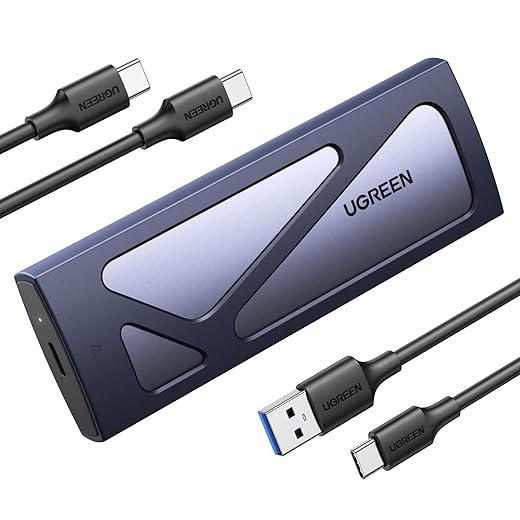
If internal fit or boot support is a problem, an external NVMe enclosure can be a lifesaver for cloning or ongoing storage. Performance is capped by the enclosure’s interface (10Gbps USB-C vs full PCIe), but it’s an elegant workaround for tight laptops.
Quick pre-buy checklist
Picking the right drive: capacity, flash type, and real-world value
Capacity: how much local working data matters
Capacity is less about bragging rights and more about what you keep actively on your machine. For general productivity, web, and light photo work, 500 GB is often the sweet spot — the OS, apps, and a ready-to-open project fit comfortably. If you edit large video timelines or keep big VM images, lean to 1 TB or larger so you don’t fight temporary file bloat and scratch‑disk churn. We’ve seen 250 GB systems become frustrating fast when a single 4K export eats free space and slows everything.
Flash type: TLC vs QLC
TLC offers better endurance and steadier performance than QLC (four bits). QLC drives can be tempting on price-per-gig, but they rely on big SLC caches that collapse during long writes — that’s when you’ll notice massive slowdowns in exports or backups. For a primary boot drive, we prefer TLC for predictable behavior.

DRAM, controller, and firmware
DRAM cache and a capable controller matter for random I/O and sustained workloads. DRAM‑equipped drives hold mapping tables in fast memory, so desktop snappiness, app launches, and database‑style reads stay consistent. Controller firmware handles garbage collection and thermal mitigation — cheap controllers can trigger frequent throttling on heavy write bursts.
Interface: Gen3 vs Gen4
PCIe Gen4 doubles peak bandwidth over Gen3, but only matters if your workload can stream huge files or you’ve got very fast GPUs/CPUs. On typical office and web workflows, a good Gen3 NVMe often feels as fast as Gen4. Buy Gen4 if you want some future-proofing or if you routinely move multi-gig files.
Practical buying checks
We’ll next walk through the simple, low-risk steps to install and migrate data so you get these benefits without losing a single file.
Installation and migration: the steps that keep data and sanity intact
Upgrading storage is gratifying, but the migration is where most people hesitate. We walk through practical installation and migration strategies so the swap feels safe and fast.
First, backup — two layers
We always take a cloud sync plus a local full-image. Cloud covers documents; a local image (Macrium Reflect, Acronis, or Clonezilla) protects system state and apps. Create a bootable rescue USB before you touch anything.
Clone vs clean install
Cloning: fast and familiar — you keep settings and apps. Good for short timelines or complex app setups.Clean install: slower, but fixes years of cruft and driver conflicts; it’s often the snappier long-term choice.If you’re on Windows and want a fresh start, reinstalling Windows 10/11 and restoring files usually costs a couple of hours but saves future headaches.

Partitioning, alignment, and UEFI
Modern NVMe booting expects GPT partitioning and UEFI mode. Check BIOS is set to UEFI firmware (not legacy/CSM) before cloning. Proper alignment matters for performance; most cloning tools preserve alignment, but confirm if you’re hand-editing partitions. MBR is legacy — avoid it for NVMe boot drives.
Tools and platform quirks
Vendor utilities (Samsung Data Migration, Crucial Storage Executive) are convenient; full-image apps (Macrium, Acronis, Clonezilla) give control. Watch for:
For single‑bay laptops, clone via an external enclosure or SATA dock before swapping — it’s less nerve‑wracking than juggling a screwdriver mid‑migrate.
Post-install checklist and troubleshooting
After installing, enable TRIM (Windows Optimize Drives or fsutil behavior set DisableDeleteNotify 0; Linux: fstrim -v / and enable fstrim.timer). Confirm AHCI/NVMe drivers are active and check BIOS NVMe boot order. Rough times: cloning 250–500 GB over SATA ~15–45 minutes; via USB‑SATA/USB‑NVMe enclosures add 30–90 minutes; clean OS installs 30–90 minutes with app restores. If the system won’t boot, try UEFI toggles, rescue USB, or firmware updates; contact the drive vendor if the SSD shows no presence or exhibits errors.
When to upgrade and when to replace: a competitive context for the decision
Who wins with a storage swap
For most of us — students, office workers, web-heavy users — a faster drive is the highest-impact, lowest-cost fix. A $60–$120 1TB NVMe (think Crucial P3, WD Blue SN570, or Sabrent Rocket) turns an eight‑year laptop from sluggish to spry and restores confidence in everyday tasks. We’ve seen machines feel “new” overnight after this one change; boot times and app launches are the obvious wins, and that daily snappiness compounds into tangible time saved.
When an SSD won’t solve the problem
There are clear limits. If your workload is GPU-bound (3D rendering, real‑time effects, high‑end gaming), or CPU‑bound (long multi-thread video exports, large computational simulations), a faster storage device won’t shorten render times or add cores. Likewise, if you’re stuck on 4 GB of RAM while running virtual machines or huge RAW catalogs, the fix is RAM or a platform change, not storage alone.
Cost-per-performance and time-to-benefit
Compare a $80 NVMe vs a $800 new laptop: the SSD often “pays back” in months by deferring that purchase and keeping your ecosystem intact. If upgrading storage plus a modest RAM bump (to 16 GB) yields acceptable performance, that’s almost always the smarter financial move.
Platform quirks and ecosystem notes
Some platforms lock you in: many modern MacBooks and ultraportables have soldered storage, so replacement isn’t possible — external SSDs or a new machine are the only routes. Upgrading storage in a repairable laptop preserves accessories, software licenses, and our familiar workflow, and boosts resale value while delaying e‑waste.
When to replace — and the minimal extras to consider
Replace when hardware is physically broken (dead motherboard), when sockets are fundamentally incompatible with modern CPUs, or when core limits (CPU cores, integrated GPU, RAM slots) prevent acceptable performance. If you must replace, consider these minimal add-ons first:
With that framework for trade-offs and quick wins, we can confidently move to our bottom-line recommendation.
Our bottom line: an inexpensive swap with outsized impact
For most of us feeling the drag of an older machine, swapping in a modern SSD is the budget upgrade that beats replacing the PC. It turns slow boots, sluggish app launches, and poor multitasking into a snappy, responsive experience — storage latency is a primary bottleneck in modern software. An SSD also maps cleanly onto OS features like fast resume and built-in encryption, so gains are immediate.
We recommend checking compatibility, choosing a capacity that fits your workflow, and following a simple migration plan. Do that and you get laptop- or desktop-level rejuvenation for a fraction of replacement cost. If storage isn’t the issue, we’ll outline other upgrades in the article.
Frequently asked questions
What is the main point of “The Budget Upgrade That Beats Replacing Your PC”?
This piece explains where the budget upgrade that beats replacing your pc matters in real buying decisions—not just headline specs. We focus on trade-offs, who benefits most, and what to verify before you spend.
Who should read this the budget upgrade that beats replacing your pc guide?
Read it if you are actively shopping, upgrading, or trying to separate marketing claims from day-to-day use. Skip it if you already own the gear and are not planning a change this season.
What changed recently around the budget upgrade that beats replacing your pc?
Prices, firmware, and feature tiers shift quickly in this category. We call out what is new enough to affect your decision and what is incremental hype you can safely ignore.
How should I use this editorial when buying?
Treat it as context before you compare models: note the risks and priorities here, then cross-check specs and current pricing on the picks that match how you actually use the product.
What is easy to get wrong about the budget upgrade that beats replacing your pc?
Buyers often overweight one spec—brightness, speed, or brand—and underweight fit for their room, ecosystem, or warranty support. We flag the mismatch we see most often in reader questions.
Where should I go next after reading?
Use the related comparisons and top picks linked near the end of this article for model-level shortlists, then confirm return policies and compatibility with the devices you already own.

Iqra Jumar is Option Cutter's editorial writer. She writes practical editorials and buyer guides that focus on real-world upgrades—better Wi‑Fi, cleaner cable setups, smarter streaming, and everyday fixes—not spec-sheet noise alone. Her work helps readers decide what to change now, what to skip, and why.









