


Why we should rethink the flagship laptop obsession
We all assume flagship laptops are the safest pick: top-tier chips, polished metal bodies, and the latest features. They promise peak performance and a bit of prestige.
But for most of us those headline specs translate to marginal gains. We find that everyday tasks—browsing, document work, streaming, light photo editing—rarely need the full power or price premium. Small design trade-offs, software integration, and total cost of ownership often matter more than raw spec sheets.
In this piece we examine five areas: realistic performance needs, diminishing returns, design and portability trade-offs, ecosystem fit, and the real economics of flagship versus midrange choices. Our goal is practical advice rooted in user experience and context.



What flagship laptops promise — and what most of us actually need
The flagship pitch: more, faster, flashier
Manufacturers sell flagships with a clear story: latest silicon (all the cores, all the cache), jaw-dropping OLED or mini‑LED displays, exotic materials like titanium and carbon fiber, and bundled perks—priority support, extra cloud storage, or bundled apps. The marketing demo shows instant video rendering, 3D workflows, and pro-grade color grading at 4K 120 Hz. Benchmarks headline higher clock speeds and synthetic scores, and that number gets repeated until it feels like necessity.
The real day-to-day: what our workflows actually look like
Most of our laptop hours are spent in browsers with a handful of tabs, video calls, Slack or email, spreadsheets, and the occasional light photo edit. For those tasks, raw peak GHz and a thinner bezel aren’t transformative. What matters more is sustained battery life across a workday, a cool chassis that doesn’t throttle after 20 minutes, reliable webcams/mics for meetings, a comfortable keyboard, and a screen that’s readable outdoors.
Flagships often sacrifice those things for headline specs: ultra‑thin designs with fewer ports (hello dongles), glass surfaces that show every fingerprint, and displays so power-hungry that they cut battery life in half. Even “gaming-grade” GPUs on thin machines can thermally throttle under sustained loads, so peak benchmark wins don’t always mean faster real projects.
A practical checklist — how to choose what actually helps us
We’ll dig into how those peak spec promises map to real-world performance next, and why the extra horsepower often has diminishing returns for everyday users.
Performance and diminishing returns: how much horsepower do we actually need?
Single‑thread vs multi‑thread: where the work actually happens
We often fixate on core counts and benchmark scores, but for a lot of everyday work the limiting factor is single‑thread speed. Web browsers, office suites, and even many creative apps still rely heavily on fast individual cores to pop open tabs, render webpages, or redraw UI elements. More cores help with parallel jobs — batch exports, large video renders, or compiling code — but they don’t make your email or Zoom call feel snappier.
Thermals and sustained clocks: the hidden ceiling
Flagships advertise peak clock speeds, but what matters is sustained performance over time. Thin, power‑dense laptops hit those peaks for a second or two, then fall back as thermal limits kick in. That means a midrange chip running near its limit in a well‑cooled chassis can feel faster for long sessions than a hotter flagship that throttles. In practice, a Core i5 or Ryzen 5 in a thoughtfully designed laptop often delivers a more consistent, pleasant experience across a full workday than a bruising i9 in an ultra‑thin shell.
Software optimization and real workloads
Optimized software can erase a lot of the spec gap. Apple’s M1/M2 era showed how efficient architectures and tight OS‑app integration can give lower‑spec machines snappy performance and excellent battery life. On Windows, tuned power profiles, SSD speeds, and good drivers matter more than a higher Cinebench score for ordinary tasks. We’ve seen browsers and office apps feel fatigue‑free on midrange silicon because the whole system is balanced.
When flagship silicon makes a real difference
There are clear edge cases where flagship chips matter:
If your day is mostly these workloads, cores and CUDA/metal performance pay off. Otherwise, the extra cost and heat rarely translate into better day‑to‑day utility.
Practical tips — how to avoid spec chasing
Design and portability trade-offs: small flaws that shape daily use
Thinness and shiny aesthetics make headlines, but our day‑to‑day relationship with a laptop is mostly tactile: how it feels on our lap, how long the fans hum, whether the hinge folds flat. Small design choices compound into big annoyances over weeks and months. Below we break down the practical trade‑offs we actually live with — and how a slightly thicker, smarterly engineered machine often beats the skinniest showpiece.
Weight, balance, and real‑world comfort
A 200‑gram savings looks great on spec sheets, but carry it for an hour and you’ll notice the tradeoffs. Slightly heavier machines (1.2–1.6 kg vs sub‑1 kg) tend to have:
We’ve lugged an ultra‑light sub‑1 kg laptop across a transit commute and felt it dance on our lap; a chunkier ThinkPad or Dell XPS variant sat steadier and let us type without readjusting. If you work on planes or couches, prioritize balance over headline weight.
Hinge design, keyboard travel, and trackpad feel
Hinges that wobble or loosen dramatically change usability. Equally important: keyboard travel. Flagship thinness often means shallow key travel (0.8–1.2 mm) that accelerates fatigue for long typing sessions. We prefer ~1.4–1.8 mm travel for extended work — you don’t need a mechanical switch, but you do want feedback.
Trackpads deserve their own callout: glass, responsive drivers, and a stable palm rest beat a large glossy slab that flexes. Try a 15–30 minute typing test in store; if your wrists bounce, move on.
Ports, thermals, and repairability: the unseen cost
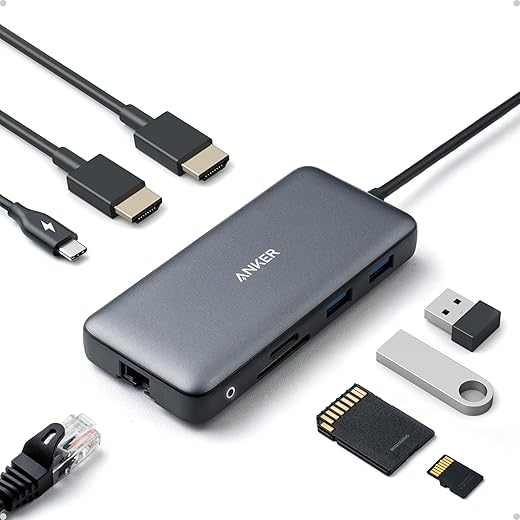
Ultrathin designs often strip ports (no HDMI, no USB‑A, no SD) and solder components to save space. That means dongles, limited future upgrades, and a shorter usable life.
Thermals are where thinness hurts performance and comfort. Tight chassis equals higher surface temps, louder fans, and thermal throttling during sustained loads — we’ve seen thin gaming flagships hit advertised clocks for seconds, then dip while the fans howl. A slightly thicker laptop usually provides:
Before buying, check iFixit/repairability scores, confirm what’s user‑replaceable, and read real‑world battery tests instead of claimed watt‑hours.
Practical checklist:
These physical decisions shape how software and ecosystem choices feel in everyday use — which is where we’ll turn next.
Ecosystem and software: integration often beats raw specs
We’ve talked hardware; now let’s look at the context that dictates how a laptop actually performs day to day. An extra CPU thread won’t help if your photos are scattered across devices, your video call keeps dropping, or your peripherals don’t talk to each other. Smooth OS polish, tight app optimization, and real‑world cloud workflows often deliver more productivity than bleeding‑edge silicon.
What “integration” actually buys us
Integration means predictable, frictionless interactions: files available where we need them, peripherals recognized without drama, and consistent updates that don’t break workflows. Examples that matter:
We’ve sat in a coffee shop where a midrange MacBook Air slid seamlessly into a collaborative workflow because iCloud, FaceTime, and optimized apps just worked. Contrast that with a high‑end Windows flagship that needed multiple driver reinstalls to get the webcam and headset working cleanly.
Drivers, updates, and accessory compatibility
Flagship hardware can be impressive until a peripheral stops working after an update. Consistent vendor support matters:
Vendor lock‑in vs practical convenience
There’s a trade‑off: deep integration can feel like a walled garden. Our advice:
Practical checklist:
A well‑integrated midrange laptop in our existing ecosystem will often feel faster, more reliable, and less frustrating than a flagship that’s powerful but an island.
Cost, longevity, and value: the economics of choosing flagship versus midrange
We put dollars and lifespan on the table: the sticker shock of a flagship feels justifiable until we quantify what we actually use it for. Below we compare the real costs — not just the MSRP — and give practical rules of thumb for deciding whether that premium buys value or just bells and whistles.
Upfront premium vs opportunity cost
Flagships (MacBook Pro 14/16, Dell XPS 15, Lenovo ThinkPad X1 Extreme) carry a premium for materials, display, and peak performance. That money has an opportunity cost: spending $500–1,000 more might instead buy a 4K monitor, a quality backup drive, or six years of cloud storage and productivity apps that materially improve our workflow. For most users, those investments deliver bigger day‑to‑day returns than marginal CPU or GPU gains.
Depreciation and resale math
Premium laptops often maintain higher resale prices, but they also cost more to begin with. A simple metric: total cost per year = (purchase price − resale) / years of use. A midrange MacBook Air or Dell Inspiron bought for substantially less can end up cheaper per year because depreciation and lost value scale with price. Real‑world resales often recover 20–40% after 2–3 years on high‑end machines; midrange devices, if kept in good condition, can be almost as efficient on a per‑year basis.
Repairability, warranty, and upgrades
Flagships sometimes hide upgrades (soldered RAM, glued batteries). Midrange business lines (ThinkPad T/X series, some Dell Latitude models) prioritize repairability and offer user‑replaceable parts and longer warranty options. Check iFixit scores and vendor service plans; an extended warranty or on‑site repair can justify higher cost for heavy users.
Software, cloud, and practical upgrade paths
Cloud services and optimized software can extend a cheaper machine’s useful life. Offloading rendering, VM builds, or backups to cloud instances and using web apps reduces the need to buy peak‑tier silicon. When upgrading, prioritize RAM and battery longevity over maximum CPU/GPU unless your work absolutely requires it.
Who should pay for flagship — and who shouldn’t
Practical heuristics:
With the economics clearer, we can now synthesize these threads and outline a straightforward buying decision in the conclusion.
How to pick the right laptop for our needs
Flagship laptops shine for niche professional workloads, but most of us gain more from balanced choices. We should favor everyday performance, comfort, and software integration over headline specs because real-world speed, battery life, and fit within our ecosystem shape daily satisfaction. Design trade-offs that matter—thermals, keyboard, and portability—often trump peak benchmarks, and repairability and support determine longevity.
Quick checklist: 1) Identify primary tasks and margins for growth. 2) Prioritize battery life and ergonomics over raw horsepower. 3) Prefer ecosystems and serviceability that match our habits. 4) Calculate total cost of ownership.

Chris is the founder and lead editor of OptionCutter LLC, where he oversees in-depth buying guides, product reviews, and comparison content designed to help readers make informed purchasing decisions. His editorial approach centers on structured research, real-world use cases, performance benchmarks, and transparent evaluation criteria rather than surface-level summaries. Through OptionCutter’s blog content, he focuses on breaking down complex product categories into clear recommendations, practical advice, and decision frameworks that prioritize accuracy, usability, and long-term value for shoppers.








