



Why the Cable in Your Hand Can Make or Break the Experience
We often assume HDMI cables are invisible—yet a cheap cord can turn a flawless 4K HDR stream into a jittery mess, drop audio, or ruin a high‑frame‑rate gaming session. We’ll explain how HDMI carries signals, handshakes, and bandwidth, and why modern consoles, streaming sticks, and compact AV receivers make cable choice more consequential than ever.
Across the piece we compare cheap vs well‑made HDMI materials and manufacturing, list common failures users face, show practical tests and why lab numbers don’t tell the whole story, map how cables interact with 4k TVs and devices, and give a clear buying framework for when to save, when to spend, and sensible alternatives and repair tips.
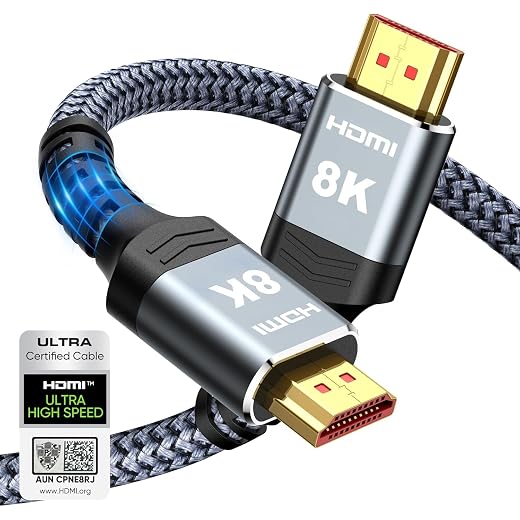
How HDMI Actually Works: Signals, Bandwidth, and Handshakes
Bandwidth vs. protocol features: what really travels down the wire
When we talk about “bandwidth” we mean raw data capacity: HDMI 2.0 tops out around 18 Gbps, HDMI 2.1 can go up to 48 Gbps. But that number alone doesn’t tell the whole story. Modern features—hdr metadata, HDCP copy protection, variable refresh rate (VRR), ALLM, and lossless audio formats like Dolby Atmos—are protocol-layer conversations that ride on top of that pipe. If the pipe can’t sustain the throughput, the devices will negotiate down: lower resolution, lower frame rate, or heavier chroma subsampling (4:2:0 instead of 4:4:4).
Physical layer vs. logical layer: where things break
At the physical layer we’re looking at conductor quality, pair twisting, impedance matching, and shielding. Cheap HDMI cables often skimp here, creating susceptibility to interference or signal attenuation—especially at high bandwidths or long runs. At the logical layer we’ve got EDID (the display’s capabilities), HDCP handshakes, and feature negotiation. A flaky EDID or failed HDCP handshake can result in no picture even if the cable looks fine.
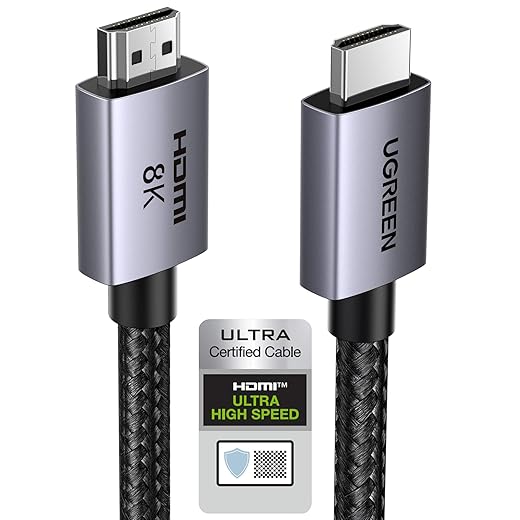
Why timing and error-free transmission matter
High resolutions and high refresh rates don’t just need more bits; they need those bits to arrive on time. HDMI 2.1 cables use TMDS or FRL signaling that expects strict timing and impedance. When timing slips or errors occur, you’ll see dropped frames, flicker, audio stutters, or a device reverting to 1080p. Gamers will notice input lag or disabled VRR; streamers may get black screens with HDCP errors.
Quick, practical checks we use
These steps let us separate physical faults from handshake or negotiation issues without lab gear, and guide our next move: replace, upgrade, or reconfigure.
Cheap vs. Well-Made: Materials, Manufacturing, and Longevity
What’s inside (and why it matters)
We peel back the HDMI jacket and the differences are obvious: conductor metal, connector plating, shielding, and the mechanical bits that keep a plug seated. Better cables use solid or oxygen-free copper (OFC) conductors, proper foil-plus-braid shielding, and tighter pair-twist/impedance control. Cheaper cables often skimp with copper‑clad aluminum (CCA) or tinned/painted conductors, thin foil-only shields, and minimal strain relief. That tradeoff saves pennies up front but shows up as problems later.
Common shortcuts and how they fail
Cheap shortcuts translate directly into user pain
We’ve seen an inexpensive 2m cable work fine on a TV but fail when routed across a metal AV rack or squeezed behind a thin laptop — real-world stress reveals manufacturing shortcuts fast.
Manufacturing variability and fit
Two cables both printed “48Gbps” can behave very differently because QC, pair geometry, and solder/joint quality vary. Brand examples are illustrative: Monoprice and Cable Matters tend to have consistent builds; generic marketplace cables under $5 often cut corners. Devices with tightly packed ports or recessed shells — ultrathin laptops, some OLED TVs, stacked AVRs — amplify any tolerance issues.
Practical buying/installation tips
What Actually Fails: Common Problems Users Encounter
We catalogue the kinds of failures people see with inexpensive HDMI cables and tie each to user-facing symptoms. Below we map symptoms to probable root causes and give quick, realistic troubleshooting steps we actually use in the lab and living rooms.
No signal or intermittent signal
Why it happens: failed handshakes (HDCP/EDID), poor contact, or attenuation from thin conductors over length.Quick fixes
Reduced resolution or HDR disabled
Why it happens: insufficient bandwidth or negotiable features dropped during handshake.Quick fixes
Audio dropouts
Why it happens: packet loss, EMI, or flaky contact causing audio packets to be lost midstream.Quick fixes
Color banding and shimmering
Why it happens: data corruption or forced lower chroma subsampling when bandwidth is marginal.Quick fixes
Latency or stuttering in high‑refresh gaming
Why it happens: dropped frames from retrying corrupted packets or negotiation fallbacks.Quick fixes
Failures only in complex chains (AVR + streaming stick)
Why it happens: cascading handshakes, differing HDCP/EDID behavior across vendors.Quick fixes
We’ve seen inexpensive AmazonBasics or unbranded cables work until we stacked devices or pushed 4K@60+HDR — then they reveal their limits. The next section looks at how to test cables more rigorously and what lab numbers actually mean.
How to Test a Cable—and Why Lab Numbers Don’t Tell the Whole Story
Quick in‑home checks that reveal real faults
We start with quick, repeatable steps anyone can do in a living room.
Stress tests that catch intermittent issues
If a problem is intermittent, try varying conditions: bend the cable near the connectors, route it beside Wi‑Fi routers or power bricks, and test at different lengths. Intermittent audio dropouts and frame drops often correlate with movement, EMI, or marginal connectors.
What engineers do in the lab (so you know what those numbers mean)
Professionals use expensive gear we don’t keep beside the sofa: oscilloscope-based eye‑diagram captures, bit‑error-rate (BER) testers, protocol analyzers that decode HDCP/EDID exchanges, S‑parameter and TDR measurements for impedance discontinuities. These quantify margin and signal integrity but require expertise and calibrated fixtures.
Why “supports 18 Gbps” can be misleading
Nominal bandwidth doesn’t guarantee success. Manufacturing variability, connector solder joints, shielding, pair twist, and length change real-world performance. A cable that measures 18 Gbps in a lab fixture can still fail in a particular TV/AVR combination because of tolerances, firmware quirks, or even the HDMI port’s power behavior.
Test with the gear you actually own
Finally, run tests with the exact devices you’ll use together — firmware versions and port tolerances matter. If a cable survives your source, AVR, and TV under full load for extended periods, it’s likely “invisible” in daily use — and that’s the true pass/fail for most of us.
How Cables Fit into the Bigger Ecosystem: Receivers, Consoles, and Streaming Sticks
Why the system matters more than a single cable
We often treat an HDMI cable as a one-to-one problem, but most living‑room setups are ecosystems. A PlayStation 5 demanding 4K@120 and VRR, an Apple TV 4K or Chromecast sending Dolby Vision, and a Denon/Yamaha AVR with dozens of inputs all interact. That complexity magnifies marginal cables: one weak link can break video, audio, or HDCP handshakes across the whole chain.
Splitters, switches, and extenders: extra hardware, extra headaches
Every active device adds a handshake and a potential translation error. Practical rules we use
AVRs and passthrough settings can hide or reveal problems
AV receivers sometimes process video (upscaling, tone mapping) or simply pass it through. When the AVR is processing, it can mask a cable’s marginal performance; when set to passthrough, the same cable may fail. We recommend:
Practical checks and integration tips
As devices chase higher specs and firmware plays a larger role, compatibility becomes a design decision — and in the next section, we’ll translate that into concrete buying choices: when to save and when to splurge.
Buying Smart: When to Save, When to Spend, and Alternatives
We want buying HDMI to feel like a solved problem, not a gamble. Below is a practical framework tied to four user personas and the real-world tradeoffs we see in living rooms and desks.
Personas and priorities

Certified vs. reputable third‑party
Certification (Premium/Ultra High Speed) reduces risk but isn’t the whole story—firmware quirks, connector tolerances, and vendor support matter. We trust third‑party brands that publish test reports and offer clear compatibility guarantees (Cable Matters, Monoprice, Belkin, AudioQuest for top end).
When active/fiber or repeaters make sense
If you need >10–15 ft at very high bandwidth, choose active copper, fiber, or a powered repeater. The upfront cost beats repeated replacements and compatibility headaches.
Shopping heuristics — fast checklist
With those buying rules, we can make cables invisible again and move to practical takeaways in the conclusion.
Practical Takeaways: Make Cables Invisible Again
We want cables to disappear—work reliably and never demand attention. Choose HDMI that matches the required bandwidth and features (HDR, 4K/120, eARC), prefer sturdier construction where failures are costly, and verify compatibility and returns before committing. Short, low-bandwidth runs can tolerate bargain cables; modern consoles, receivers, and streaming setups amplify handshake complexity and make savings risky.
Test in your actual setup, prioritize documented interoperability, and treat the cable as part of the system. Buy thoughtfully: spend on compatibility and warranty, save where risk is low, and keep the focus on a seamless user experience.
Frequently asked questions
What is the main point of “Why Cheap HDMI Cables Sometimes Cause Big Problems”?
This piece explains where why cheap hdmi cables sometimes cause big problems matters in real buying decisions—not just headline specs. We focus on trade-offs, who benefits most, and what to verify before you spend.
Who should read this why cheap hdmi cables sometimes cause big problems guide?
Read it if you are actively shopping, upgrading, or trying to separate marketing claims from day-to-day use. Skip it if you already own the gear and are not planning a change this season.
What changed recently around why cheap hdmi cables sometimes cause big problems?
Prices, firmware, and feature tiers shift quickly in this category. We call out what is new enough to affect your decision and what is incremental hype you can safely ignore.
How should I use this editorial when buying?
Treat it as context before you compare models: note the risks and priorities here, then cross-check specs and current pricing on the picks that match how you actually use the product.
What is easy to get wrong about why cheap hdmi cables sometimes cause big problems?
Buyers often overweight one spec—brightness, speed, or brand—and underweight fit for their room, ecosystem, or warranty support. We flag the mismatch we see most often in reader questions.
Where should I go next after reading?
Use the related comparisons and top picks linked near the end of this article for model-level shortlists, then confirm return policies and compatibility with the devices you already own.

Iqra Jumar is Option Cutter's editorial writer. She writes practical editorials and buyer guides that focus on real-world upgrades—better Wi‑Fi, cleaner cable setups, smarter streaming, and everyday fixes—not spec-sheet noise alone. Her work helps readers decide what to change now, what to skip, and why.









