



Why we think one small change reshapes every gaming desk
We make a deliberately contrarian claim: the single most underrated upgrade for a gaming setup isn’t the latest GPU, an ultrawide monitor, or an exotic mechanical keyboard — it’s the monitor arm. We’ll explain how an inexpensive, well-chosen mount transforms ergonomics, desk real estate, immersion, and visual alignment in ways that ripple through every session in our editorials.
Too many desks are cluttered with monitors perched on stock stands, mismatched bezels, and awkward sightlines that force neck strain and ruined immersion. That’s a design and UX failure, not a hardware inevitability.
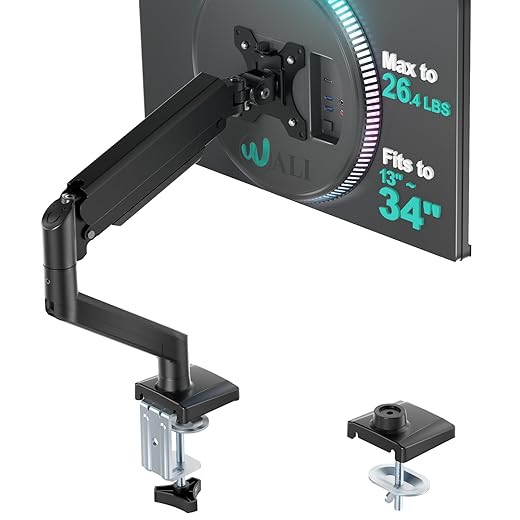
A good arm reclaims space, aligns panels for multi-monitor accuracy, permits seamless height and angle adjustments, and elevates peripherals into a unified ecosystem. It’s cheap relative to GPUs yet addresses the day-to-day friction that actually shapes how we play, stream, and work. In this piece we analyze ergonomics, build quality, integration, and cost-benefit tradeoffs to show why this small change punches above weight.
Top 10 Gaming Setup Accessories You Need Now
The user-experience gains: ergonomics, sightlines, and immersion
Ergonomics that actually change how we play
We’ve found the simplest wins in human factors come from putting the center of the screen where our eyes naturally rest. A monitor arm makes that immediate: instead of craning up or slumping forward, we can set the top of the panel roughly 2–3 inches below eye level, tilted down 5–10°. That small change reduces neck rotation and shoulder tension over multi-hour sessions, and it’s easier to maintain a neutral posture — which matters when every millimeter of head movement affects aim in competitive play.
Arms also remove the need to fight monitor OSD menus or prop up screens with books. A quick tilt or swivel eliminates glare from windows or room lights far faster than fiddling with brightness and contrast.
How sightlines improve performance and immersion
Proper sightlines go beyond comfort; they affect perception. When our heads, eyes, and the screen plane are aligned, perceived motion blur drops and tracking feels steadier. In practice we notice fewer micro-corrections in FPS aim and smoother pans in flight sims simply because our seating posture is stable and our view isn’t skewed by an off-angle monitor.
For immersion, a centered ultrawide fills peripheral vision without distortion if the curvature and angle are matched to our sitting position. For multi-monitor setups, arms let us arc side panels so they’re natural extensions of our forward view — less “monitor hunting,” more situational awareness.

Practical scenarios: how we position different setups
What we test for and the outcomes we care about
These are the measurable and subjective signals we use when evaluating arms: small inputs that lead to big differences in focus, accuracy, and immersion.
Design and build: what to look for in materials, mechanism, and fit
We’ve moved past “does it hold a screen?” and into the details that separate a joyful monitor arm from an aggravating paperweight. In practical terms, that means judging mechanism, mount, load capacity, and rigidity — because small choices here change how the screen feels under your hand and how steady it stays while you play.
Mechanics: gas-spring vs spring-assisted vs friction
Why it matters: smooth gas-spring travel reduces micro-adjustments mid-game and allows quick, consistent returns to preferred positions.
Mounting styles and practical trade-offs
Compatibility: VESA, weight, and shape
Stability: what causes wobble
Finishes, cable management, and aesthetics
Next, we’ll apply these design choices to multi-monitor and streaming setups — how the right arm becomes the backbone of a broader gaming ecosystem.
Ecosystem integration: multi-monitor setups, streaming, and peripherals
When we widen our view beyond a single screen, the monitor arm stops being an accessory and starts acting like infrastructure. The payoff isn’t just a cleaner desk — it’s predictable, repeatable positioning that lets every other piece of gear do its job better.
Multi-monitor alignment and workspace choreography
Arms let us dial in height, pitch, and rotation so bezels meet exactly. That matters: a misaligned multi-monitor seam breaks immersion and makes quick eye-tracking tiring. In practice we use:
Quick tip: level and measure once, then tighten clamps and document the height — you’ll thank us when swapping panels later.
Streaming and camera placement
For streamers, an arm is a reconfiguration tool. We can pop a webcam onto the monitor VESA bracket (Elgato Multi Mount or SmallRig adapters) and shift it independently of the monitor to avoid awkward sightlines or occluded overlays. That makes transitions between “game focus” and “chat focus” fast: move the camera, not the desk.
Microphones and capture devices also coexist better when planned
Standing desks and dynamic setups
Not all arms like constant height changes. Gas-spring models with long vertical travel (Ergotron HX, Fully Jarvis-compatible arms with tall risers) tolerate sit/stand adjustments; short-stroke arms can bind or need re-tensioning as the desk moves. We prioritize arms with generous vertical range and easy tension knobs if we frequently switch heights.
Practical interoperability checklist
The result: an arm that’s not just holding a screen, but orchestrating the whole desk. Next, we’ll weigh this ecosystem leverage against other popular upgrades so you can see the cost-benefit in plain numbers.
Why this beats some popular upgrades: a cost-benefit perspective
We often see folks chase the next big thing — a faster GPU, an ultrawide, a luxury chair, or a full suite of RGB — but when we map cost against day‑to‑day impact, a quality monitor arm routinely outperforms those headline upgrades for most people. Below we unpack that math and give practical rules of thumb for when an arm should be your next buy.
Dollars vs. daily impact
A decent monitor arm runs $50–$250 depending on gas-spring, range, and build. For that outlay you get immediate, constant returns: ergonomic neck/shoulder relief, exact sightlines, reclaimed desk surface, and faster reconfiguration for streaming or focused work. Contrast that with:

Real‑life scenarios where an arm wins
Diminishing returns and exceptions
After a performance threshold, more GPU power yields incremental frame‑rate gains; after a certain chair price, extra lumbar tuning may be subtle. By contrast, fixing ergonomics via a monitor arm gives daily, measurable wins. Exceptions: esports pros chasing every millisecond of input lag or color‑critical professionals may rightly prioritize top‑end GPUs, ultra‑high‑Hz panels, or hardware‑calibrated displays first.
Quick decision rules (how to choose now)
How to choose and install the right arm: checklist, common pitfalls, and setup tips
We’ll keep this practical — a tight buyer’s checklist, the mistakes we see again and again, and the setup tweaks that make an arm feel like it was made for your desk.
Quick buyer’s checklist
Examples we use: Ergotron LX (reliable gas spring, wide range), Loctek D7 (good value for heavier panels), HUANUO Dual/Single arms (budget-friendly), North Bayou F80 (sturdy for large ultrawides).
Common pitfalls to avoid
We once mounted a curved 34″ on a budget arm rated for 9kg and watched it slowly slide down over a week — a replacement arm with higher capacity solved it in 20 minutes.
Setup tips we actually use
Maintenance & quick checks
With the arm chosen and tuned, we’re ready to step back and look at what that change does for the whole setup.
A small change that improves everything
We close: a monitor arm is a low‑friction, high‑impact upgrade that improves ergonomics, sightlines, and the usefulness of your gear. For most of us it’s the fastest way to make gaming more comfortable and immersive. If your desk’s cramped, your neck hurts, or displays misalign, start here before chasing upgrades.
Frequently asked questions
What is the main point of “The Most Underrated Upgrade for Gaming Setups”?
This piece explains where the most underrated upgrade for gaming setups matters in real buying decisions—not just headline specs. We focus on trade-offs, who benefits most, and what to verify before you spend.
Who should read this the most underrated upgrade for gaming setups guide?
Read it if you are actively shopping, upgrading, or trying to separate marketing claims from day-to-day use. Skip it if you already own the gear and are not planning a change this season.
What changed recently around the most underrated upgrade for gaming setups?
Prices, firmware, and feature tiers shift quickly in this category. We call out what is new enough to affect your decision and what is incremental hype you can safely ignore.
How should I use this editorial when buying?
Treat it as context before you compare models: note the risks and priorities here, then cross-check specs and current pricing on the picks that match how you actually use the product.
What is easy to get wrong about the most underrated upgrade for gaming setups?
Buyers often overweight one spec—brightness, speed, or brand—and underweight fit for their room, ecosystem, or warranty support. We flag the mismatch we see most often in reader questions.
Where should I go next after reading?
Use the related comparisons and top picks linked near the end of this article for model-level shortlists, then confirm return policies and compatibility with the devices you already own.

Iqra Jumar is Option Cutter's editorial writer. She writes practical editorials and buyer guides that focus on real-world upgrades—better Wi‑Fi, cleaner cable setups, smarter streaming, and everyday fixes—not spec-sheet noise alone. Her work helps readers decide what to change now, what to skip, and why.









