



Why we care when external storage underdelivers
We assume plugging a fast drive into a modern port will deliver fast transfers — but that’s often not what we actually get. Perceived slowness breaks workflows, costs time, and makes us second-guess purchases. We care because experience matters more than peak specs: a 10 Gbps label means little if the enclosure, cable, OS, or file system are dragging performance down, and lost minutes add up.
This article walks through symptoms, technical causes, and real workflows that show the limits. We’ll explain ports, drive internals, software layers, and where design trade-offs hurt real use. Then we’ll give concrete buying and configuration advice so external storage actually speeds our day-to-day work instead of slowing it.

How to tell whether your external storage is really slow
Before we chase cables and firmware updates, we need to diagnose slowness reliably. That means separating headline burst numbers from real-world sustained behavior, understanding how small-file workloads differ from giant sequential transfers, and ruling out non-storage causes (indexers, antivirus, or a starved CPU). Here’s how we do that quickly and reproducibly.
Burst vs. sustained transfers
Many drives post amazing peak numbers using a short cache. In practice, sustained transfers matter: movies, backups, and video projects won’t live in a tiny DRAM cache. Our quick test: copy a single large file (10–50 GB) and watch throughput over time for dips that suggest thermal throttling or buffer exhaustion. On Mac, run Blackmagic Disk Speed Test; on Windows, use CrystalDiskMark; on Linux, use dd or fio for a long sequential run.

Small files behave differently
Lots of tiny files (photos, code repos, VM images) depend on IOPS and latency, not peak MB/s. To simulate: copy a folder of thousands of small JPGs or run rsync -a –info=progress2 to see real transfer behavior. If previews and app launches feel sluggish, the drive’s random IOPS or the enclosure’s controller is often the culprit.
Subjective lag ≠ storage always
Slow thumbnails, stalled app launches, or laggy video scrubbing can be storage—and can also be CPU, GPU, or background services. Turn off Spotlight/Windows Search, pause antivirus, and re-test. Use Activity Monitor or Task Manager to see if the host is the bottleneck.
The quick checklist tests we use
Watch these metrics: MB/s (throughput), IOPS (operations/sec), and latency (ms/us). Marketing speeds often ignore sustained performance and host limits—so test like you work, and you’ll see what really matters next.
Ports, protocols, and the real limits they impose
We dive into the connection layer — not because it’s glamorous, but because it’s where many speed promises die. The headline numbers on a spec sheet assume a perfect protocol path; in the real world, the path often has bottlenecks.
Know the real speed classes
Think in Gbps and PCIe lanes, not marketing MB/s. Common practical ceilings
A PCIe NVMe drive rated for 3,500 MB/s needs a full PCIe x4 tunnel (or Thunderbolt with NVMe passthrough) to reach it. Plugging that NVMe into a cheap USB-C enclosure that only speaks USB 3.2 Gen 2 will cap you around 1,000 MB/s — the SSD is fine; the path isn’t.
Bridge chips, host controllers, and shared buses
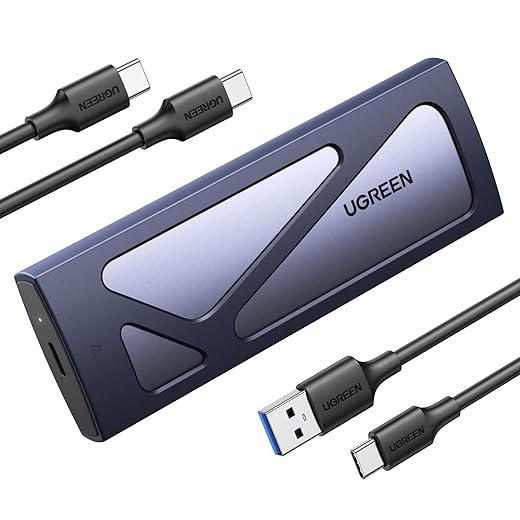
Enclosures use bridge chips that translate NVMe ↔ USB — and not all bridges are equal. Budget bridges add latency and don’t implement advanced features (TRIM, power states) well. On laptops, USB-C ports often share a single controller or PCIe lanes with Wi‑Fi, reducing effective bandwidth when multiple devices run.
Cables, power, and practical throttles
Bad or passive cables can prevent negotiation to the highest USB mode. Bus-powered drives may throttle to stay within a port’s power budget; some enclosures need external power for sustained writes. Swap cables and ports (use motherboard ports, not hub ports) to verify.
Choosing the right fit right now
Match the drive to the host
Small changes — a better cable, a Thunderbolt enclosure, or choosing a drive built for your port — often yield bigger gains than paying for higher peak specs that your laptop can’t use.
Drive internals and enclosure design: why size, cooling, and controllers matter
Drive types and what “snappy” feels like
We can feel the difference between a drive that’s responsive for everyday tasks and one that only shines on short bursts. Typical examples:
Thermal design and throttling
Thin aluminum shells look slick, but they trade surface area and airflow for portability. NVMe controllers and NAND heat up under sustained transfers; firmware reduces clock rates to protect silicon — that’s thermal throttling. We’ve watched a 2,000 MB/s portable SSD fall to a few hundred MB/s during long video offloads. Enclosures with larger metal bodies, heat spreaders, or even tiny fans preserve throughput.
Controllers, NAND type, and firmware
Not all controllers are equal. High-quality controllers (Phison, Silicon Motion high-end parts) and TLC/MLC NAND with ample SLC caching deliver steadier sustained speeds. Cheap bridges and QLC NAND often mean fast initial bursts, then a steep drop once caches are exhausted. Firmware maturity also matters: real-world consistency often reflects long-term firmware tuning, not peak spec sheets.
Multi-drive enclosures and RAID: speed with trade-offs
RAID 0 can multiply sequential throughput, but it multiplies heat, power draw, and failure risk. Hardware RAID controllers add overhead and can be the weak link; JBOD or software RAID on a host with good cooling is often a safer route for sustained work.
Practical tips
The invisible software layers: OS, drivers, file systems, and background services
The stack we actually hit
When a file copy is slow, the culprit is often software, not the silicon. Between our app and the NAND sits a stack: host controller driver → USB/Thunderbolt firmware → block driver → file system layer → OS services (indexing, antivirus, backup). Any hop that’s poorly implemented or misconfigured will clip peak hardware speeds into frustrating real-world sluggishness.
File systems and metadata behavior
Choice matters
If you copy 100,000 small photos, APFS or NTFS will usually beat exFAT because of how they handle metadata and directory updates. That’s why formatting a drive for the host OS often unlocks much better throughput.
Caches, TRIM, and encryption
Write caching improves throughput but raises corruption risk if you unplug without ejecting. TRIM (discard) keeps SSDs fast long-term — but cheap USB-to-NVMe bridges often don’t pass TRIM through, meaning an external NVMe can slow with age. Full-disk encryption (FileVault, BitLocker, hardware AES in drives like the Samsung T7) protects data but can cut throughput on older CPUs; hardware-accelerated crypto or drive-based encryption reduces that hit.
Background services and drivers: the quiet speed thieves
Spotlight indexing, Windows Search, Time Machine, and real-time antivirus scans will reframe a long transfer as a CPU+I/O marathon. Outdated USB/Thunderbolt drivers or manufacturer firmware (ASMedia vs Intel controllers, for example) also change latency and throughput.
Practical, immediately actionable steps
Next, we’ll look at the actual workflows — editing, backups, and media offloads — that expose these software bottlenecks and how to adapt our setups to them.
Workflows that expose bottlenecks — and how to adapt them
Certain real-world tasks shine a harsh light on the weakest link in our external-storage chain. Below we walk through common pain points, quick reproductions, and tactical fixes we can apply immediately.
Importing and editing 4K footage
Pain points: sustained write speed, thermal throttling, app cache location (Premiere/Final Cut).Reproduce: copy a 30–60 GB ProRes or BRAW clip and play it back while copying another clip.Quick mitigations:
Transferring thousands of small raw photos
Pain points: metadata updates, directory churn, very poor throughput for many small files.Reproduce: copy 10–50k RAWs (50–200 MB each) or run a script to create many small files and time the copy.Quick mitigations:
Running VMs off external drives
Pain points: latency and random IOPS kill VM responsiveness.Reproduce: boot a VM from the external and run updates or app installs.Quick mitigations:
Backing up systems
Pain points: long initial backups, repeated small incremental writes.Reproduce: run a first full backup; observe slow throughput and CPU spikes.Quick mitigations:
Syncing with cloud storage
Pain points: continuous small writes from clients (Dropbox/OneDrive/Google Drive).Reproduce: add a photo library to a synced folder and watch CPU/IO climb.Quick mitigations:
Apps and cloud services amplify small-write problems by creating many metadata operations or continuous IO. The fastest wins usually come from workflow-aware tweaks — staging, proxies, pausing sync — rather than immediately buying new hardware.
How to choose and configure external storage so it actually improves our day-to-day work
We close with practical recommendations that put lived experience above spec-surfing. We want devices that behave consistently in real workflows — not just peak numbers on a box.
Buying criteria: match the device to the job
What to test on arrival
Pick the right cable and port
Power, RAID, and encryption — trade-offs
Configuration and tuning
When to replace or upgrade
If sustained writes keep throttling, the enclosure won’t allow TRIM, or the host lacks sufficient bandwidth (older USB controllers), replacing the drive/enclosure or upgrading the host is the simplest fix.
With the right purchase, a few tests, and these configuration tweaks, our external storage will behave like a reliable coworker — next, we consolidate everything into a practical checklist.
A practical checklist for fixing slow external storage
We distill the article into tactical steps: reproduce the slowdown with simple read/write benchmarks — see our how-to guides and real-work tests; verify port and cable specs (USB-C vs Thunderbolt, Gen numbers); confirm enclosure type (NVMe vs SATA) and check for thermal throttling; update drive and enclosure firmware and drivers; pick a file system suited to your OS and workload; replace cheap cables, use active/short ones when needed; and prefer enclosures with proper controllers and cooling. These changes address ecosystem mismatches, not just raw headline speeds.
Start small: change a cable or format a partition, then measure again. Often one well-chosen swap—cable, enclosure, or protocol—gives far more everyday speed than chasing specs. Try it and report back.
Frequently asked questions
What is the main point of “Why Your External Storage Might Be Slowing You Down”?
This piece explains where why your external storage might be slowing you down matters in real buying decisions—not just headline specs. We focus on trade-offs, who benefits most, and what to verify before you spend.
Who should read this why your external storage might be slowing you down guide?
Read it if you are actively shopping, upgrading, or trying to separate marketing claims from day-to-day use. Skip it if you already own the gear and are not planning a change this season.
What changed recently around why your external storage might be slowing you down?
Prices, firmware, and feature tiers shift quickly in this category. We call out what is new enough to affect your decision and what is incremental hype you can safely ignore.
How should I use this editorial when buying?
Treat it as context before you compare models: note the risks and priorities here, then cross-check specs and current pricing on the picks that match how you actually use the product.
What is easy to get wrong about why your external storage might be slowing you down?
Buyers often overweight one spec—brightness, speed, or brand—and underweight fit for their room, ecosystem, or warranty support. We flag the mismatch we see most often in reader questions.
Where should I go next after reading?
Use the related comparisons and top picks linked near the end of this article for model-level shortlists, then confirm return policies and compatibility with the devices you already own.

Iqra Jumar is Option Cutter's editorial writer. She writes practical editorials and buyer guides that focus on real-world upgrades—better Wi‑Fi, cleaner cable setups, smarter streaming, and everyday fixes—not spec-sheet noise alone. Her work helps readers decide what to change now, what to skip, and why.









